1 Open the page
The Software Status interface in SoftwareCentral allows you to see deployment status for packages and applications.
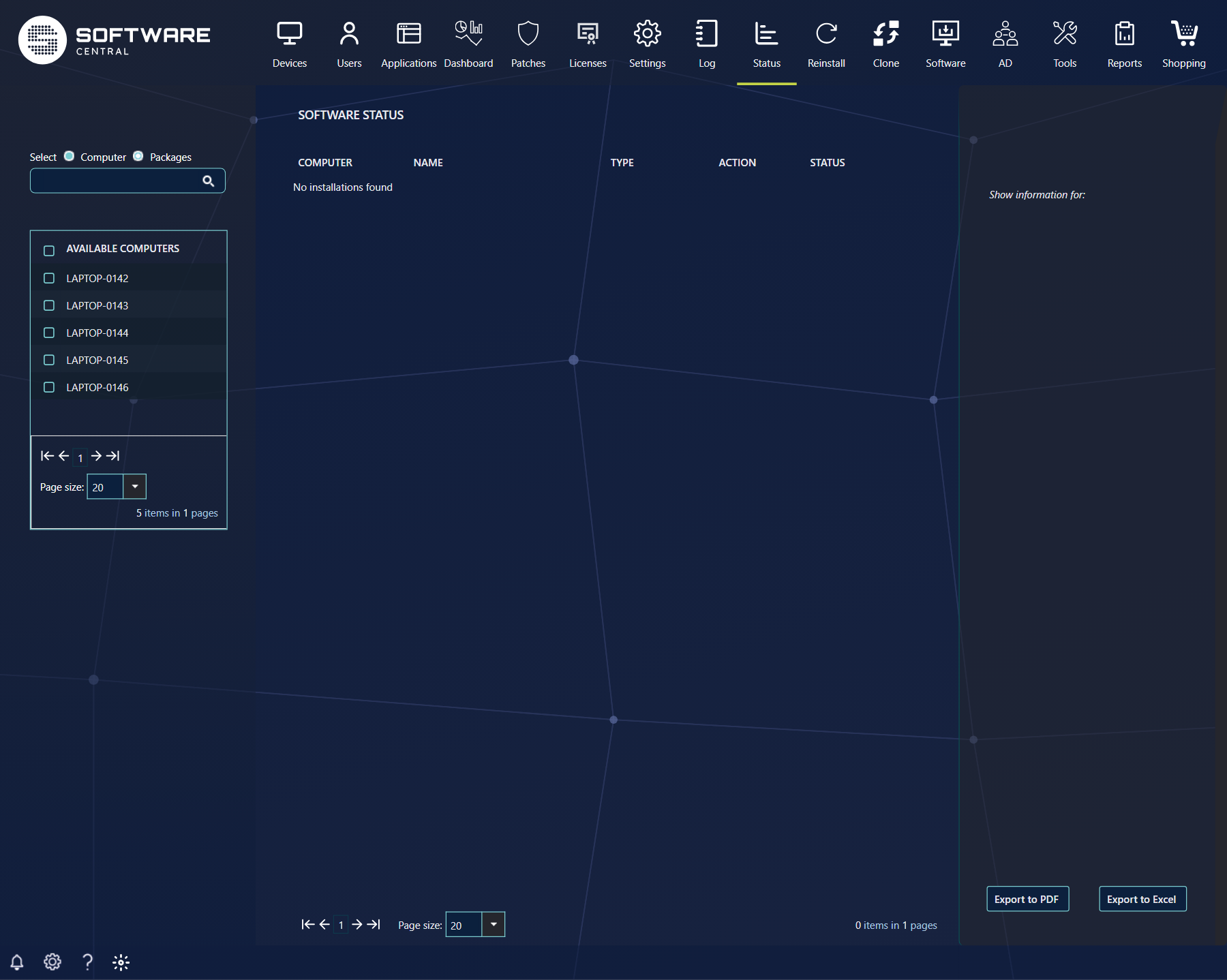
Open Status › Software Status. The left-hand menu lists the computers or packages you can select. The grid in the middle shows the deployment status of the selection, and the panel on the right shows what you have selected.
2 Select computers and packages
From the left-hand menu you can select one or multiple computers and one or multiple packages.
The list you can select from displays 20 entries at a time by default. Use the search-field to find what you are looking for.
| Control | What it does |
|---|---|
| Computer / Packages | Switches the list to computers or to packages. Only one of the two lists is shown at a time. |
| Search field | Type part of a name and press Enter. Each value becomes a token and narrows the list. Computer search matches computer names; package search matches the full package name. |
| Row checkbox | Selects that computer or package. A ticked item leaves the list and moves to the panel on the right. |
| Header checkbox | Selects every item on the current page of the list. |
| Page size | Shows 20, 50 or 100 entries. Your choice is kept for your next visit. |
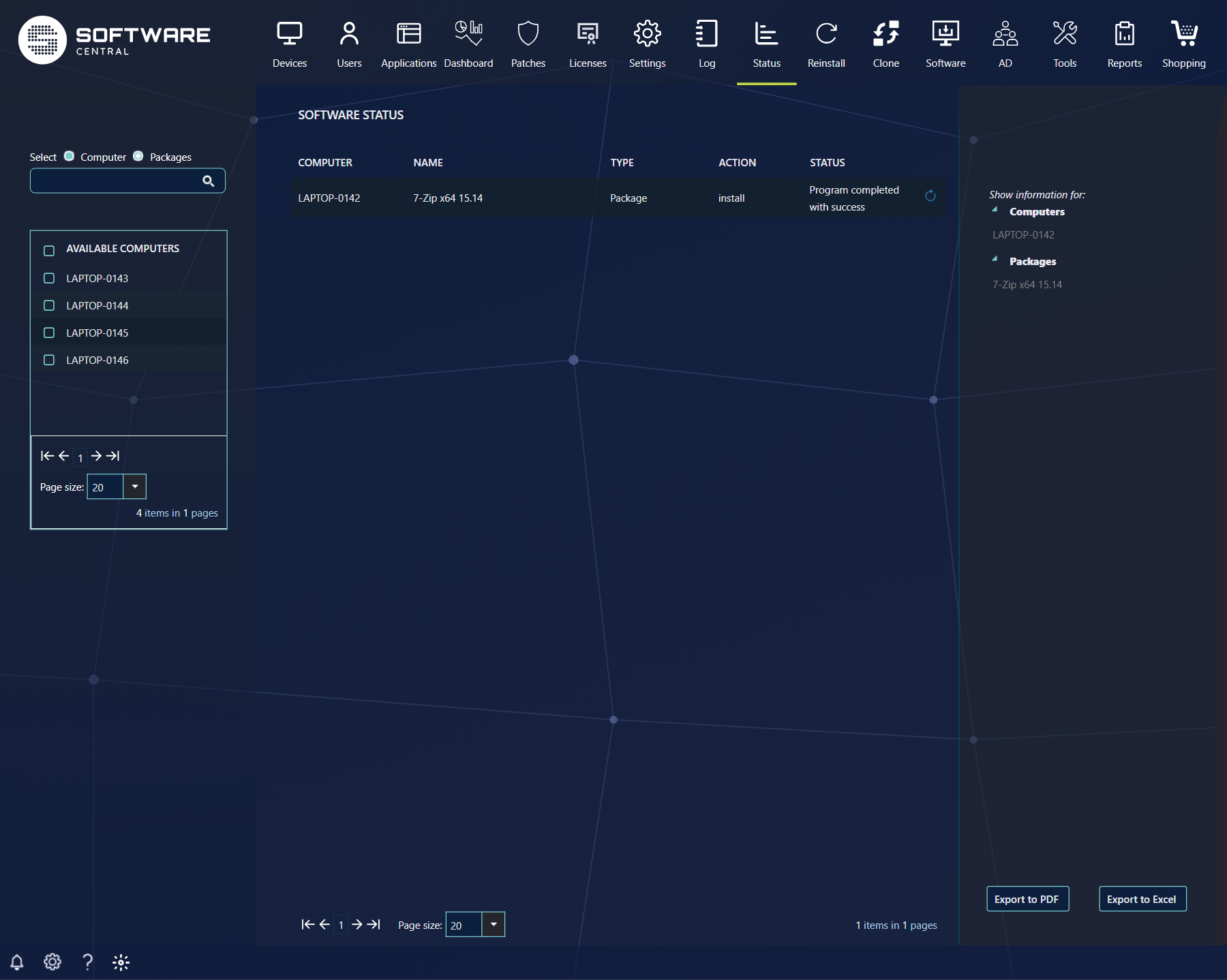
When you select a computer, all software deployed to this computer will be displayed.
When you select multiple computers, all software deployed to these computers will be displayed.
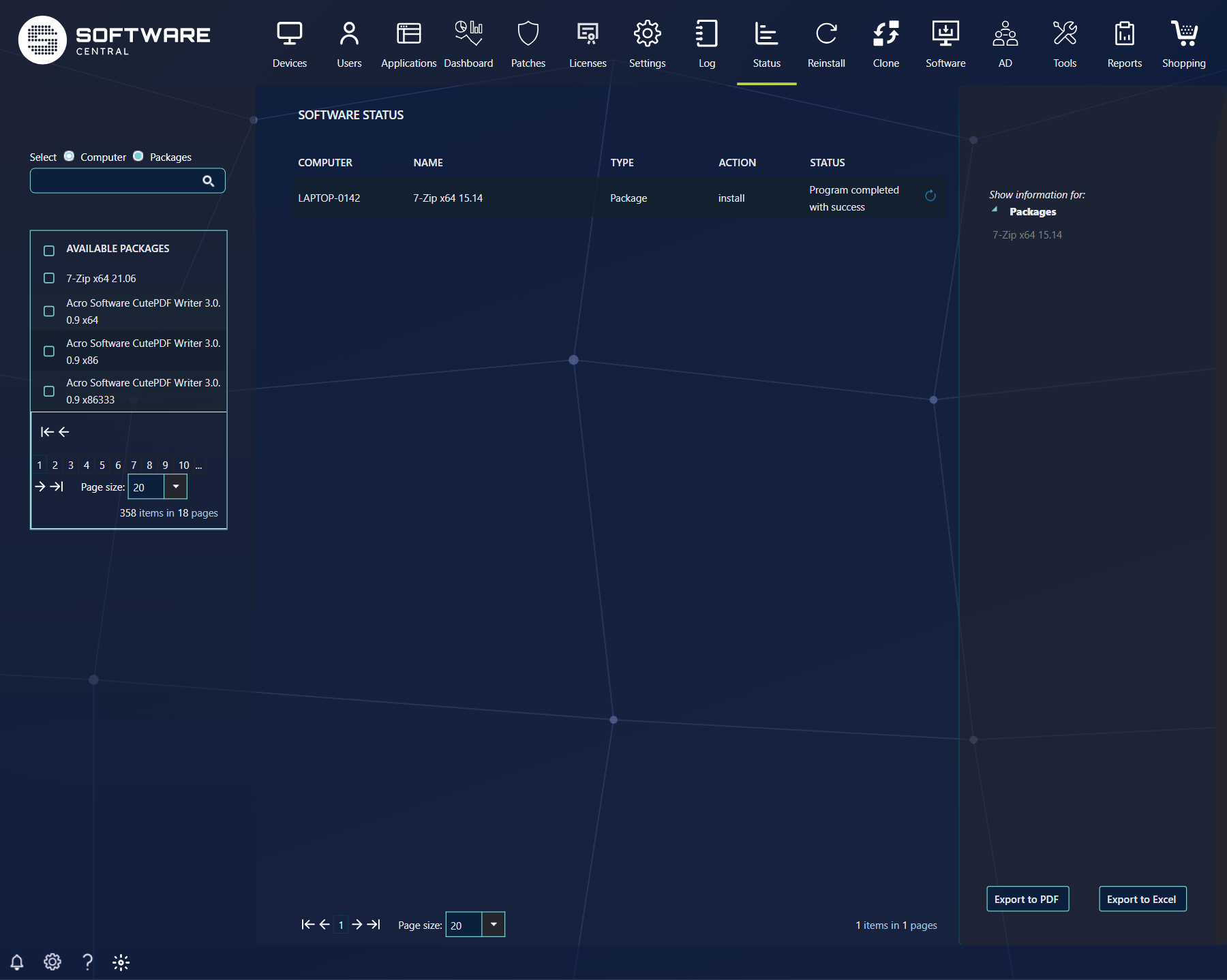
When you select a package or application, all computers the package is deployed to will be displayed.
When you select multiple packages or applications, all computers these packages are deployed to will be displayed.
It is possible to select both computers and packages at the same time. So if you select 10 computers and 1 package, the deployment status on the 10 selected computers for the package will be displayed.
3 Read the status grid
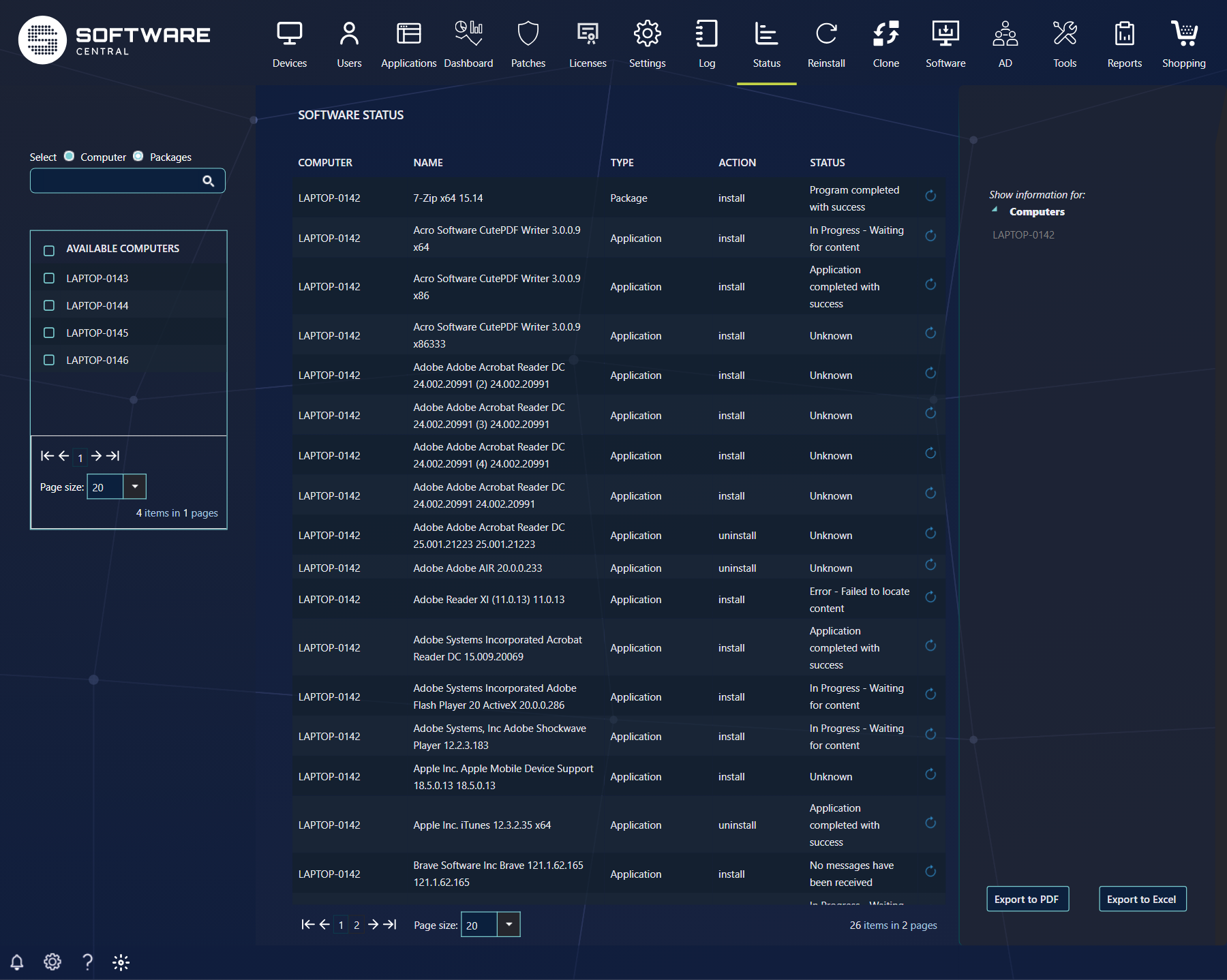
When you select a computer, the grid lists all software deployed to it.
| Column | What it shows |
|---|---|
| Computer | The computer name. Click it to open the Connecting to 'name'... window for that computer. |
| Name | The package or application name. |
| Type | Application, Package, Task Sequence (a Software Group), Application Group or Software Update Group. |
| Action | For an application, install or uninstall. For a package, the deployed program name. |
| Status | The result the computer reports, for example Application completed with success or In Progress - Waiting for content. Hover over a row to see the collection it is deployed to. |
The Action column will display install/uninstall for applications and the deployed program name for packages.
4 Rerun a deployment
The blue buttons at the end of each row rerun the deployment on that computer.
The blue buttons in the centre grid will rerun the advertisement for packages and run the Application Deployment Evaluation Cycle for applications. The button's tooltip reads Rerun Program. For an application, the tooltip names the computer: Rerun Application Deployment Evaluation Cycle on Computer.
This will only have an effect if the targeted computer is online.
5 Export the results
The two buttons in the lower right corner will export the displayed results to PDF or Excel.
Export to PDF writes a page with the SoftwareCentral header, the title Software Status and today's date. Export to Excel writes an .xlsx file. Neither export includes the rerun buttons.
6 Best practice
- Select a few computers or packages at a time. The grid shows the deployments of all selected items together, so a large selection gives a long list.
- Use the search field to narrow a long list before you select. Computer search matches the computer name only.
- Check that a computer is online before you rerun a deployment on it. A rerun only has an effect on an online computer, and each row can be rerun once per web session.
- Look at the Type column before you rerun: a Task Sequence row is a Software Group, and its rerun works on the advertisement, not on the application.
7 Troubleshooting
| Symptom | Cause | What to do |
|---|---|---|
| "No installations found" in the grid | Nothing is selected, or no deployment matches the selected computers and packages. | Select a computer or a package. If the grid is still empty, check that the software is deployed to that computer. |
| "No computers match your search criteria" or "No packages match your search criteri" | No computer name, or no package name, contains the search values. | Remove a search value (the x on its token) or type a different part of the name. |
| Status "No messages have been received" | The computer has not reported a status for this deployment. | Check that the computer is online, then rerun the deployment. |
| Status "Unknown" | The computer has not evaluated the deployment yet. | Rerun the deployment when the computer is online. |
| Status "Error - Failed to locate content" | The computer reports that it cannot find the software content. | Check that the content is distributed to a distribution point the computer can reach. |
| The rerun button is greyed out, tooltip "Can't rerun Application Deployment Evaluation Cycle again on Computer ..." | The row has already been rerun in this web session. | Start a new web session to rerun it. |
| The rerun button does nothing and nothing is shown | A failed rerun is written to the log only: "Failed to rerun advertisement." | Open Log and look for the error. |