1 What the page is for
Configuration holds the settings that control how SoftwareCentral works: its licence and version, the server and Intune connections, the interface, security, the SCCM folders, collections and packages, Active Directory, and the Robopack integration.
The page opens on SoftwareCentral Update, the first settings page. Use the list beside the settings to go to another page.
2 The page at a glance
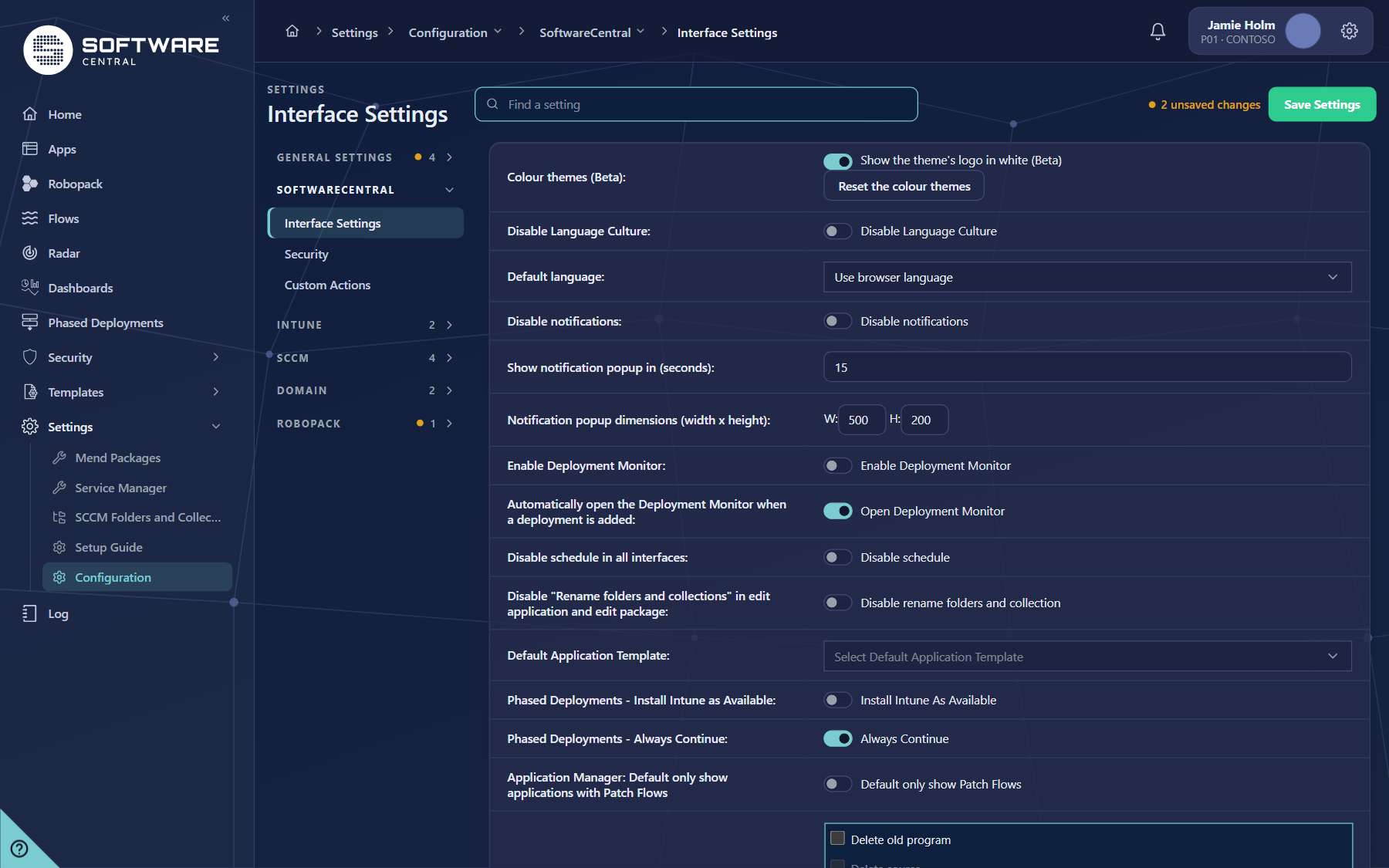
The header holds the page name, Find a setting and Save Settings. Under the header is the list of settings pages, and next to it the settings of the page you are on.
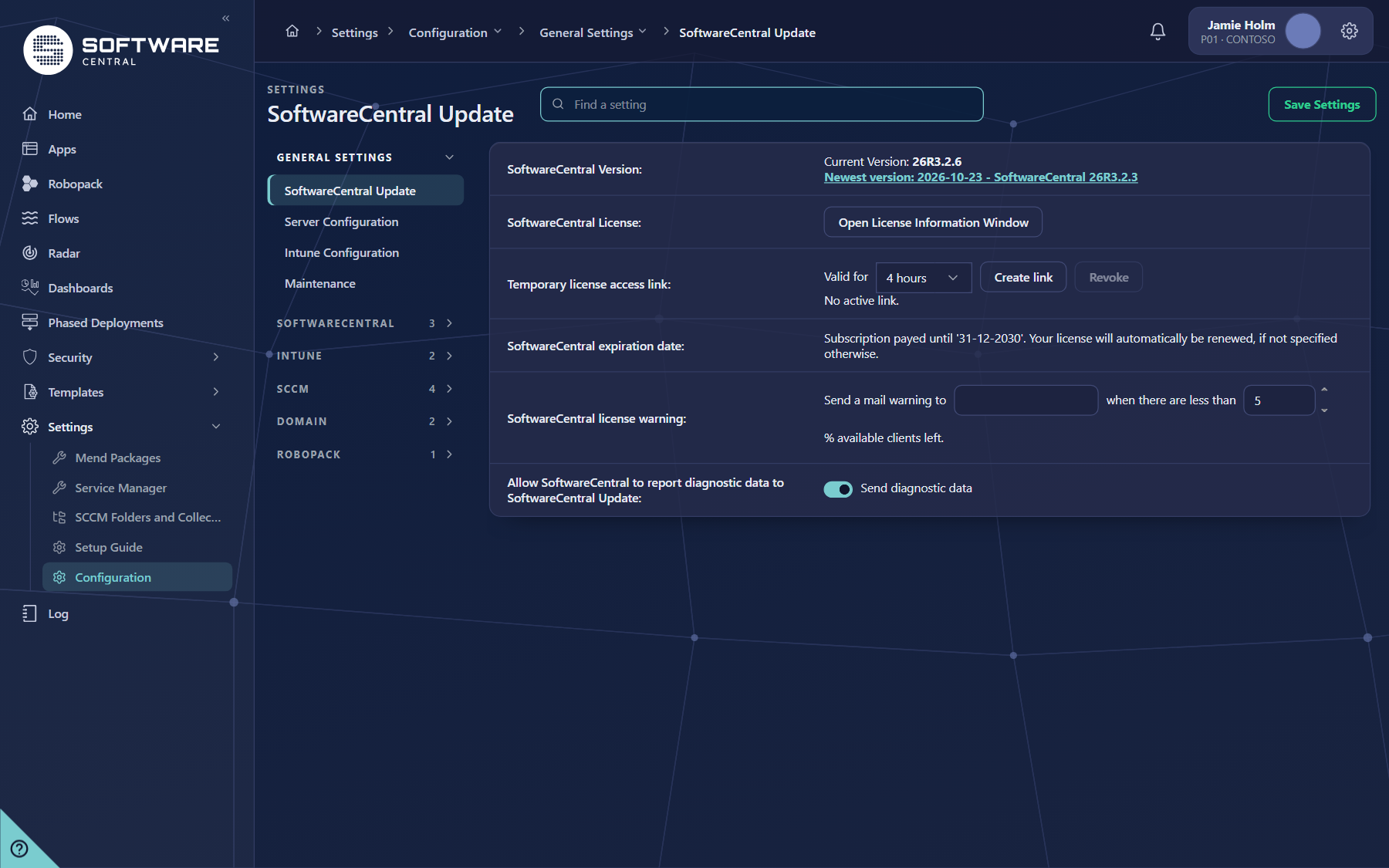
3 The settings pages
An administrator of the Application Manager Only edition sees these 16 pages. The number after each group is the number of pages in it.
| Page | What it holds |
|---|---|
| General Settings (4) | |
| SoftwareCentral Update | The version, the temporary licence access link, the licence expiry date, the licence warning mail and the diagnostic data switch. |
| Server Configuration | The SCCM server and database connection, the proxy server and the Administrator group. The SCCM database settings can only be changed by the installer. |
| Intune Configuration | Intune integration, Delta Sync, Windows 365 support, the Intune tenants and the certificate for them. |
| Maintenance | Clear cached items, restart the website, test connections, how long log entries are kept, and how long Phased Deployments are kept. |
| SoftwareCentral (3) | |
| Interface Settings | The colour themes, language, notifications, the Deployment Monitor, the default application template and the Phased Deployments options. |
| Security | Whether applications must be in a package security group to be visible, whether security roles can uninstall unassigned applications, and whether they only see deployed software. |
| Custom Actions | Scripts that run after a job, with their path, the account they run as and the variables they receive. |
| Intune (2) | |
| Applications | Whether unassigned applications from the global catalogue are shown, scope tags, and which applications security roles can see. |
| Groups | The prefix and the install and uninstall suffixes for the groups that deployments create. |
| SCCM (4) | |
| Shares | The package share path used when you create a package or application. |
| Clients | Client notifications and the maximum number of clients that use them, and the accounts SoftwareCentral uses to connect to clients. |
| Packages | How package names are built, and whether the username is added to the description. |
| Collections | The limiting collections, whether collection memberships are created on the computer site, whether folders are created for collections, and the membership rules. |
| Domain (2) | |
| Active Directory | Whether AD deployment is used, pre-Windows 2000 domain names, and validation of sign-in with the user principal name. |
| Domains | The Active Directory domains SoftwareCentral connects to. Refresh adds the trusted domains that are not in the list yet. |
| Robopack (1) | |
| Robopack | The default deployment template, the Robopack API URL and key, application detection, the Robopack package share and how many Patch Flow versions to keep. See Robopack settings. |
4 Find a setting
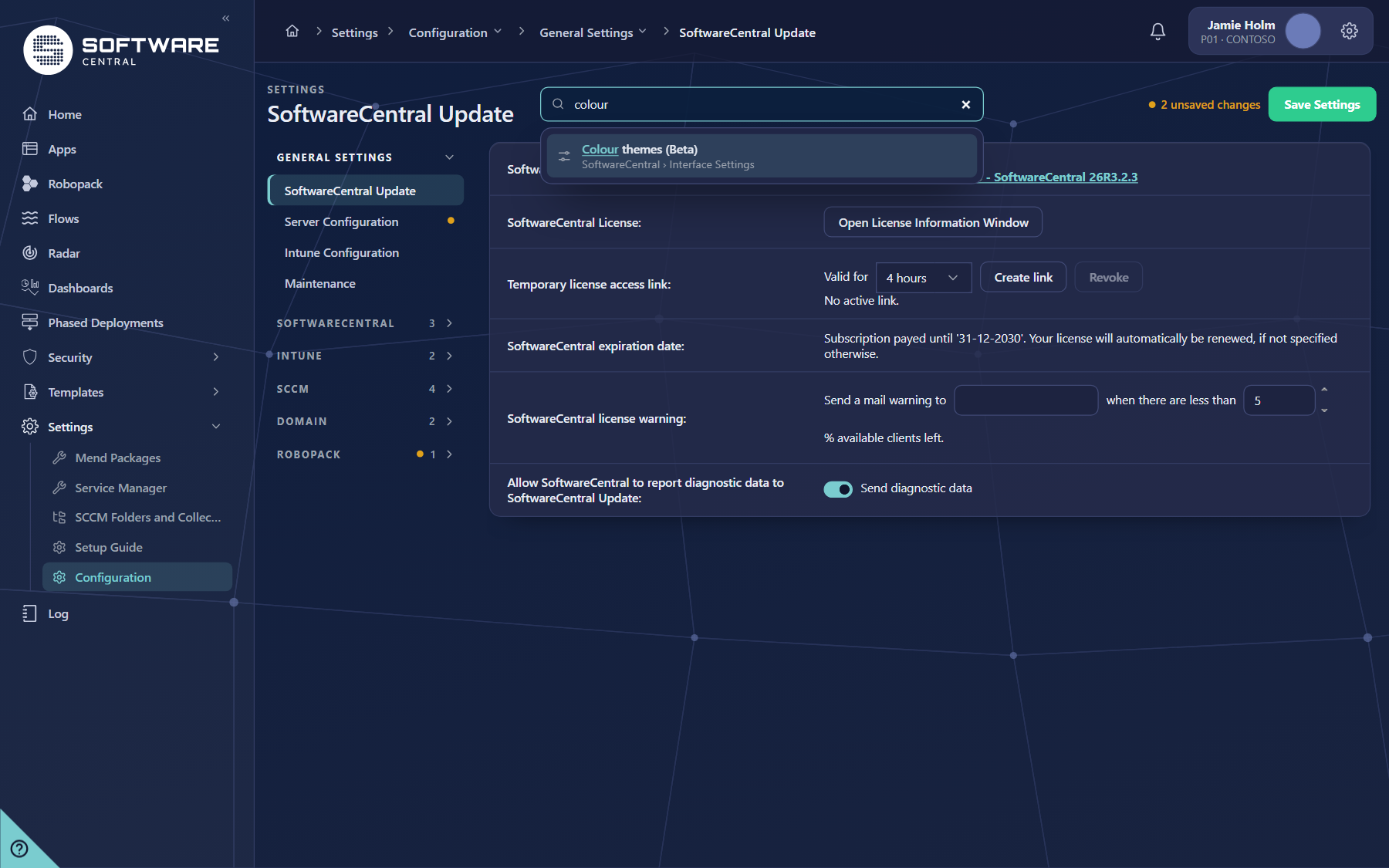
Type a word in Find a setting to search the settings of every page at once. The results show the setting and the page it is on.
- Click Find a setting and type a word, for example colour.
- Click a result. The settings page opens and the setting is marked.
- Press Esc or clear the box to close the results.
5 Moving between pages
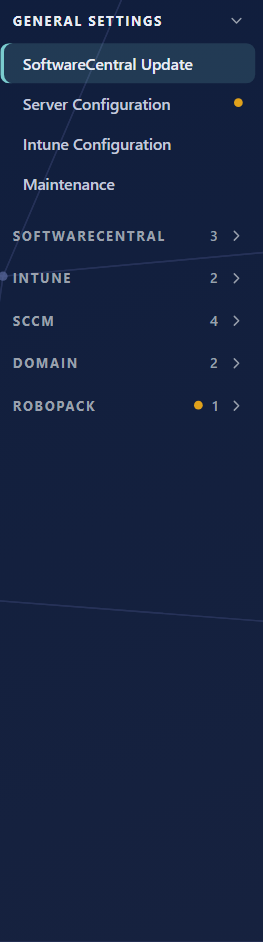
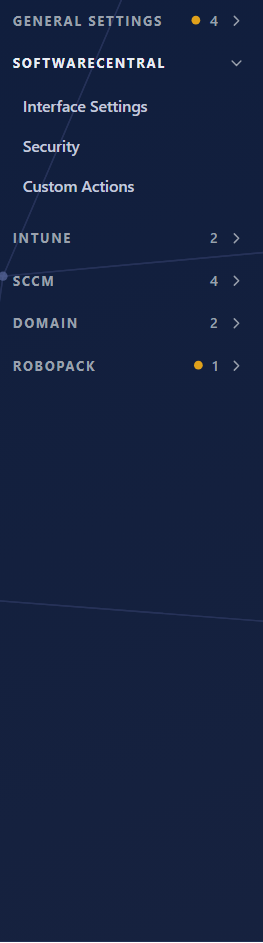
- The list beside the settings shows the pages in groups. Click a group to open or close it, and click a page to open it. Only one group is open at a time.
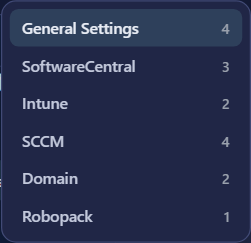
- The breadcrumb at the top (for example Configuration › General Settings › SoftwareCentral Update) opens a menu. Use it to jump to another group or page. Press Esc to close it.
6 Changing settings
- On/off settings are switches. Click a switch to turn it on or off. A switch that is on is shown in teal.
- Colours are chosen with a colour swatch. Click the swatch to open the browser's colour picker.
- Text and numbers are typed in the box, and lists are chosen from a drop-down.
- Colour themes (Interface Settings) are reset with Reset the colour themes. This puts back the colour themes SoftwareCentral ships with (Forest, Amber and Indigo). It replaces every theme and change made since, and the warning says that unsaved changes on the page are lost.
7 Saving and unsaved changes
- Changes are kept on the page until you press Save Settings.
- The counter next to Save Settings shows how many changes are not saved, for example 2 unsaved changes. Each page in the list also shows a dot when it has unsaved changes.
- Save Settings saves the changes on all pages in one go, not only the page you are on.
- Some pages show a message when a value is wrong. For example, if the application pool password is wrong, the page opens Server Configuration and shows the message.
8 Fields and buttons
| Name on screen | What it does |
|---|---|
| Find a setting | Searches every settings page and opens the setting you pick. |
| Breadcrumb | Opens a menu to jump to another settings group or page. |
| Settings pages list | Lists the groups and pages. Each group shows its number of pages. |
| Unsaved changes counter | Shows how many changes are not saved, next to Save Settings. |
| Save Settings | Saves the changes on all pages. |
| Switch | Turns an on/off setting on or off. |
| Colour swatch | Opens the colour picker for a colour setting. |
| Reset the colour themes | Puts back the shipped colour themes. Asks for confirmation. |
9 Best practices
| Topic | Recommendation |
|---|---|
| Find before you browse | Use Find a setting to get to a setting quickly, and check the page it is on. |
| Change one area at a time | Make a group of related changes, check the unsaved counter, then press Save Settings. |
| Save before a reset | Save your changes before Reset the colour themes, because the reset loses unsaved changes on the page. |
| Know what a setting affects | Settings for SCCM, Intune and Active Directory change how deployments work. Read the page's labels before you change them. |
| Keep secrets out of tickets | Do not paste passwords, keys or account names from these pages into tickets, e-mails or screenshots. |
| Use the dedicated page for Robopack | Robopack values are described in Robopack settings. |
10 Troubleshooting
| Symptom | Cause | What to do |
|---|---|---|
| No settings found when you search | The setting is on a page that is not shown to Application Manager Only administrators, or the word is not in its name. | Try a shorter or different word. Use the settings pages list to look through the groups. |
| The unsaved changes counter shows changes you did not make | The page flags changes it detects when it loads, so a value can show as changed before anyone edits it. This needs checking. | Check the page before you press Save Settings. If you did not change the value, do not save; ask an administrator. |
| The page opens on SoftwareCentral Update | That is the first settings page. The page opened there in every test. | Use the list or the breadcrumb to go to the page you need. |
| Save Settings shows a wrong password message and the page changes to Server Configuration | The application pool password entered on Server Configuration is wrong. | Enter the correct password, then press Save Settings. |
| A setting is greyed out | It depends on another setting, on the edition, or it is only for the on-premises or the cloud version. | Check the page's other settings. Ask an administrator if you need the setting changed. |
| A colour change does not show | The change is not saved yet. | Press Save Settings, then reload the page. |
| The Robopack values are not where the page list says | The Robopack page is named Robopack in the list for this edition. | Open the Robopack page, or read Robopack settings. |