1 Add the domain
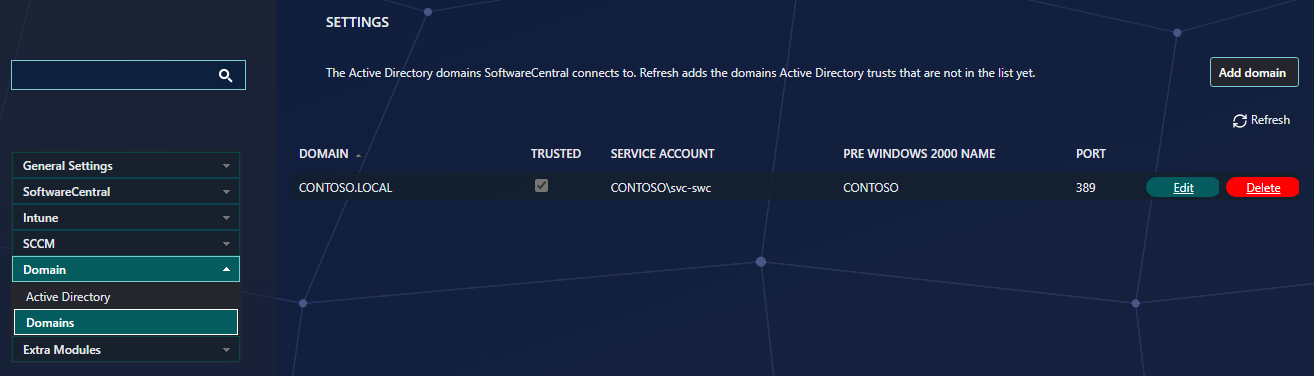
Go to Settings › Domain › Domains in SoftwareCentral and check whether the untrusted domain is in the list. Only members of the SoftwareCentral administrator role can add and change domains.
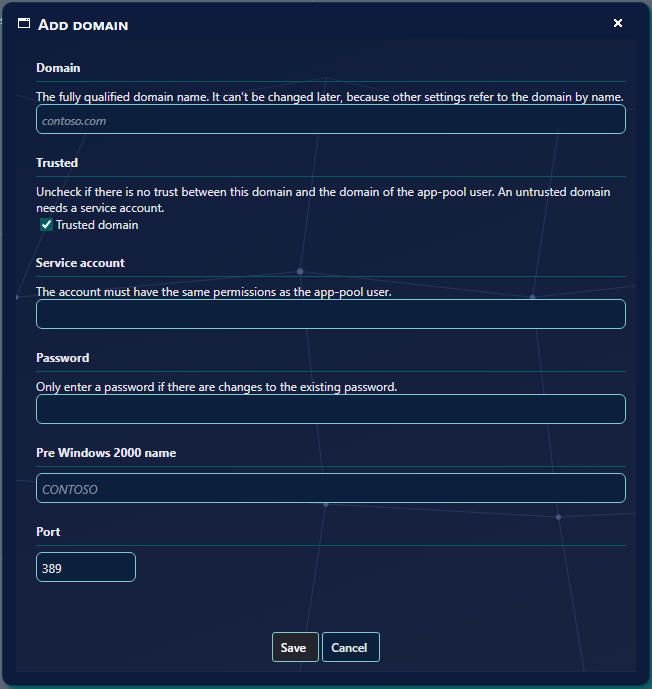
If the domain is not in the list, click Add domain, to the right of the description. Enter the fully qualified domain name in Domain, then set its trust and service account as described in the next step, and click Save.
2 Set trust and service accounts
Each domain in the list shows whether it is trusted and which account SoftwareCentral uses there. To change a domain that is already in the list, click Edit in its row. The window has the fields below.
| Field | What it means |
|---|---|
| Trusted | The trust is relative to which domain you are using. For this interface, we define the trust relationship from the domain the SCCM server is located in. Tick the box for each domain that is trusted from the domain where the SCCM server is located. Untick it for an untrusted domain. |
| Service account | The account SoftwareCentral uses in that domain. All user names must be entered in the following format: domain\username. Required when Trusted is unticked. |
| Password | The password of the service account. Required when Trusted is unticked. When you edit a domain, leave it empty to keep the current password. |
| Pre Windows 2000 name and Port | The NetBIOS name of the domain and the port that SoftwareCentral uses to connect to it. The default port is 389. |
Click Save. The domain is saved straight away; you don’t need to click Save Settings.
If we consider the example on the first page of this document, Domain 3 would be the only untrusted domain. Domain 1 and 2 would need to be ticked in the Trusted column.
A service account is needed in all domains. You can use the standard service account (app-pool user) in all the trusted domains.
In the untrusted domain, a new service account is needed (It has to be the service account running the SoftwareCentral website in the untrusted domain).
3 Enter the SCCM connection
Next, go to the SCCM connection in Settings › General Settings › Server Configuration. The remaining steps are not needed for SoftwareCentral Cloud.
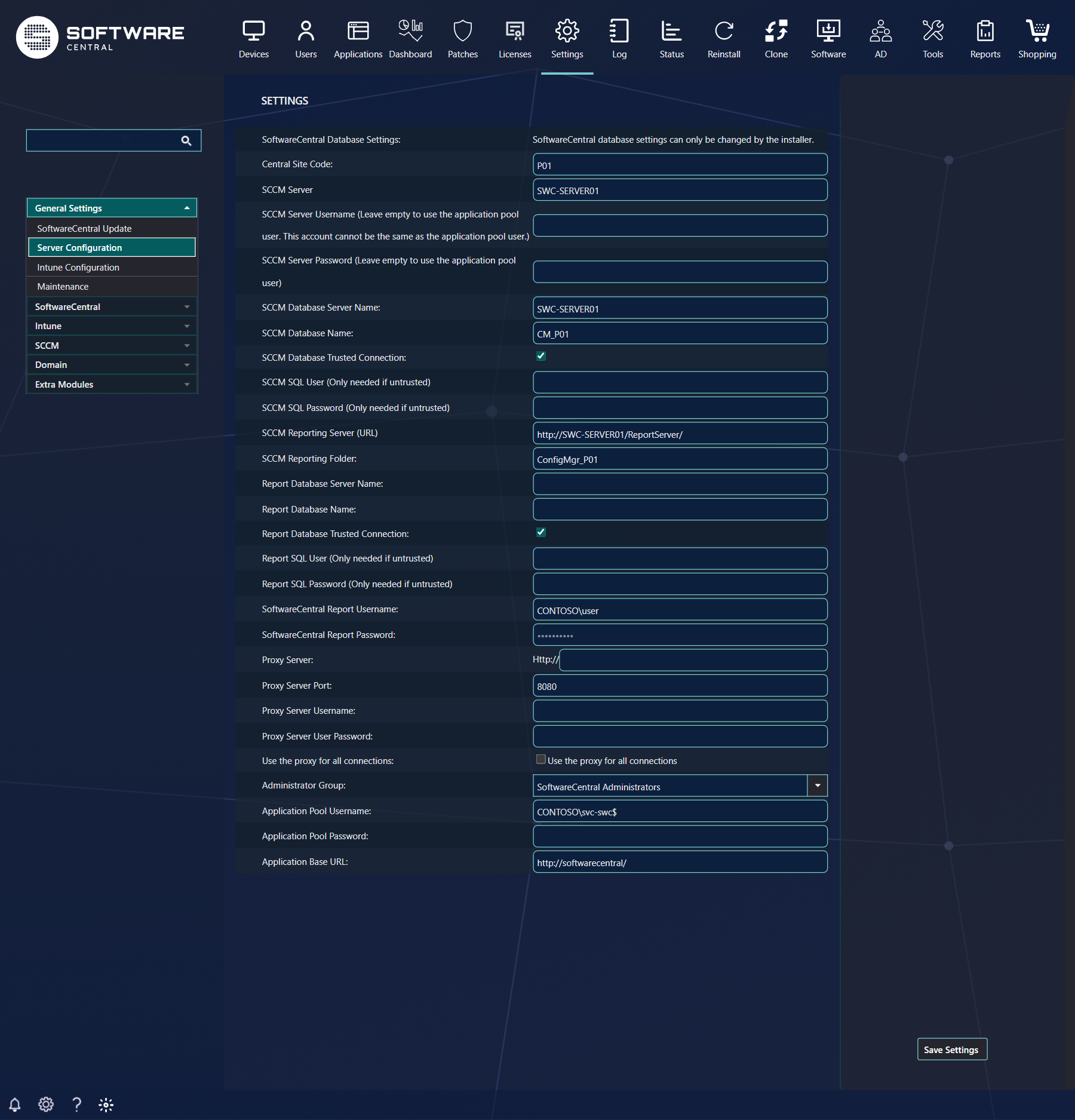
All server names must be entered as fully qualified.
The connection to the SCCM database must use a SQL Login. Untick SCCM Database Trusted Connection, then fill in SCCM SQL User (Only needed if untrusted) and SCCM SQL Password (Only needed if untrusted).
Fill in the SCCM Database Connection string as follows:
Server=servername; Database=databasename; User ID=username; Password=password; Trusted_Connection=false;
SoftwareCentral builds the connection from the fields above, so you do not type the string yourself. Enter the server, the database and the SQL login in their fields.
Under SCCM SQL User and SCCM SQL Password you must also enter the SQL Login.
No passwords have to be manually encrypted here.
Click Save Settings when you are done.
4 Create the administrator role
Now a Security Role is needed for the untrusted domain. Create an Administrator role with full access.
You might need to type in the AD-Group name of the administrator group manually in the Create Security Role interface, as the drop-down won't return any AD-Groups.
All other roles in the untrusted domain should be created from SoftwareCentral in the untrusted domain.
5 Best practice
- Add the untrusted domain with Add domain. Refresh only finds the domains Active Directory trusts, so an untrusted domain has to be added by hand, with its service account and password.
- Tick the Trusted box only for domains that really are trusted from the SCCM domain. A wrong tick makes SoftwareCentral use the wrong account for SCCM, as the note in section 2 explains.
- Enter every account as domain\username, using the account that has the rights in that domain. Keep the password under the policy of that domain, and update it in SoftwareCentral when it changes.
- Use a SQL login when the SCCM database is in an untrusted domain. Untick SCCM Database Trusted Connection and enter the login in the two SQL fields.
- Turn Engineering Mode off for a production install. While it is on, SoftwareCentral writes more detail to the log and shows the Debug Mode Enabled label.