1 Overview
Edit Schedule shows every scheduled deployment you are allowed to see. You can change its start and end time, run it now, or delete it.
Open it from the Tools menu.
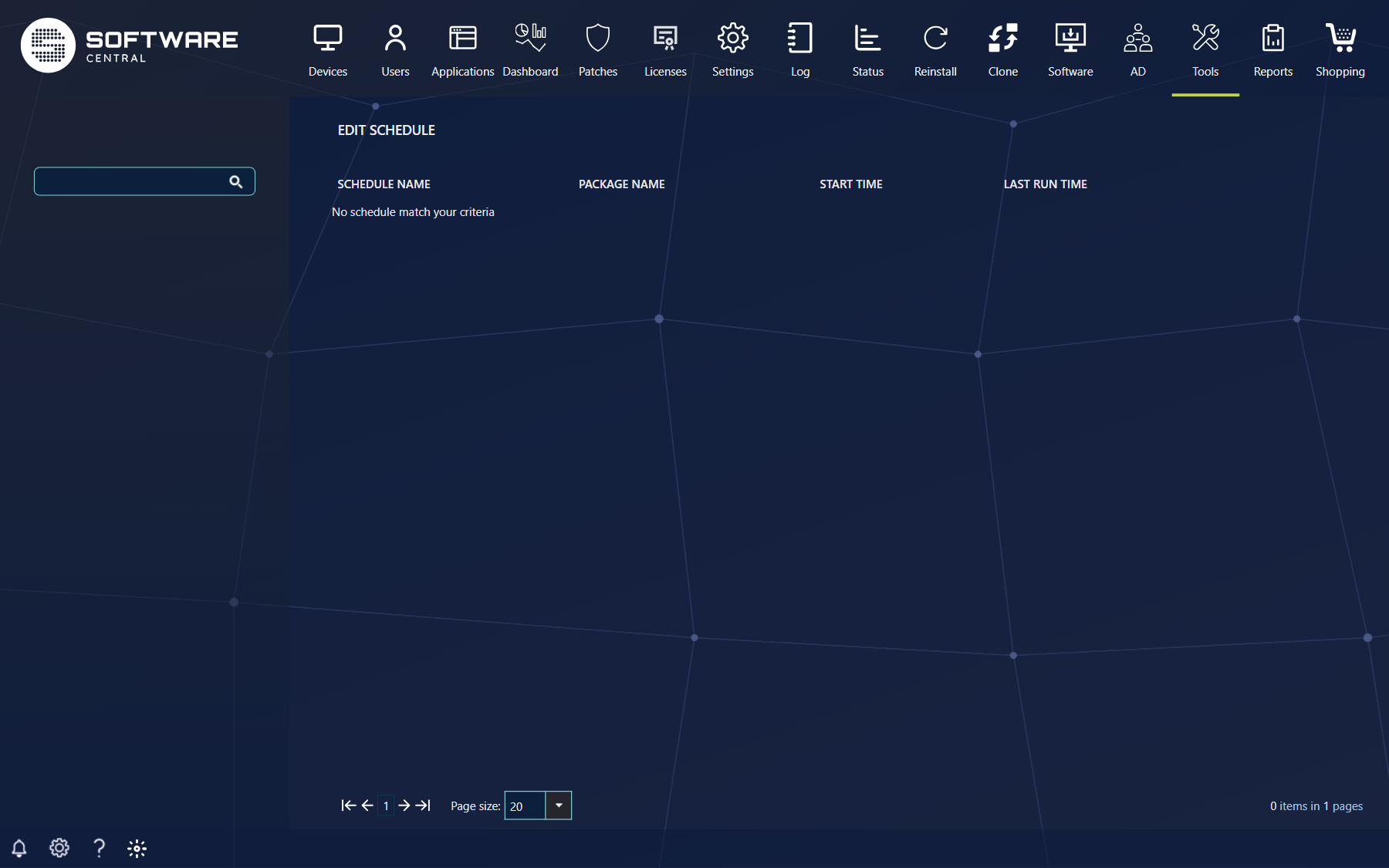
Only schedules whose latest run time is still in the future are listed, and only for software and task sequences your role has access to.
2 Find a schedule
Type in the search field to the left. Each value you enter becomes a token and narrows the list.
A schedule matches a token if the token is part of its Schedule Name or its Package Name, or equals its collection ID. Press Enter to search for all items containing the values; remove a token with its cross to widen the list again. Use the site selector at the top to switch site if you have more than one.
| Column | What it shows |
|---|---|
| Schedule Name | The job name given when the schedule was created. |
| Package Name | The software or task sequence, with manufacturer, name, version and language where they exist. |
| Start Time | When the deployment becomes available, in your time zone. |
| Last Run Time | The latest run time: after this the schedule expires. |
| Edit | Opens the edit window. |
| Delete | Cancels the schedule. See below. |
Right-click a column header to show or hide columns, drag the edge of a header to resize it, and use the pager at the bottom to change the number of rows per page (20, 50 or 100). Your choice is remembered.
3 Edit a schedule
Click Edit. A window titled Edit followed by the schedule name opens.
- At the top is the list of computers (or users, for a user deployment) that belong to the schedule, under Computer name(s) or User name(s).
- Under Schedule description: you see what the schedule does, for example Installation of or Removal of followed by the package name.
- Job may start from: and Latest job run time: are the start and end time. Use Wake-On-Lan and Ignore maintenance windows are checkboxes.
| Button | What it does |
|---|---|
| Update schedule | Saves your changes. SoftwareCentral deletes the old scheduled collection and creates a new one with the new settings and the same computers. The start time must be now or later (Scheduled start time must be now or later.) and the end time must be after the start (Scheduled end time must greater than the start time.); otherwise the window stays open with the message. |
| Push schedule | Runs the schedule now. After you confirm the warning You are about to push the schedule … This will result in the schedule is executed now., all computers are moved to the original install or removal collection, so the deployment applies to them at once. |
| Cancel | Closes the window without changes. |
4 Delete a schedule
To cancel a scheduled operation, click Delete next to the schedule and confirm with Delete in the question Do you want to delete followed by the schedule name.
- The scheduled deployment and its scheduled collection are deleted, and licences reserved for the computers are released.
- Deleting a scheduled removal does not cancel it: the computers are moved to the normal removal collection, so the removal runs now. Use Update schedule to move it instead.
5 Best practice
- Change a schedule here rather than deleting and recreating it; Update schedule keeps the same computers.
- Use Push schedule only when you really want the job to run now – it cannot be undone.
- Search on the job name you chose when you created the schedule; see Scheduled Deployments.
- Clean-up of expired schedules is automatic (see Scheduling); you do not need to delete them by hand.