1 Overview
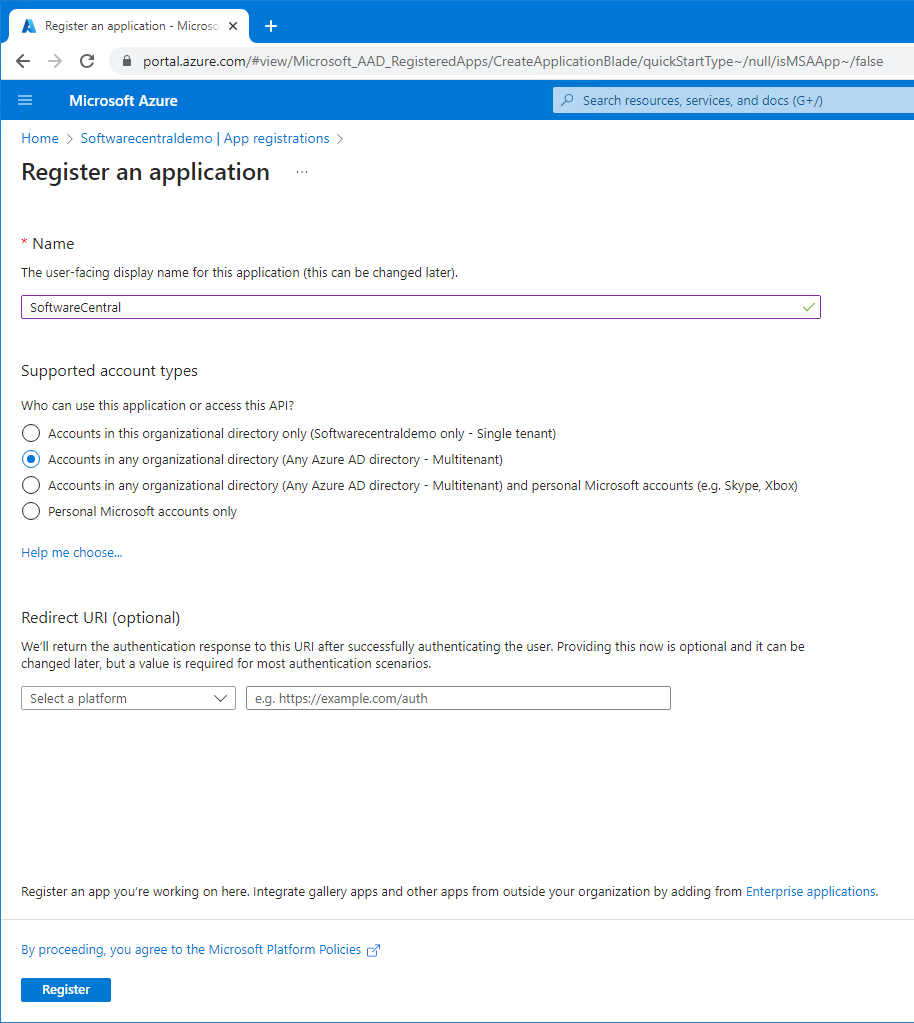
To create an App registration, go to the Azure portal and navigate to your Azure AD. In the left menu, click on App registrations. Click on the "New registration" button.
The registration form opens.
Give your app registration a name.
You may choose to allow access only for users from this tenant or from multiple tenants.
Do not enter your Redirect URI yet.
Click on "Register" an proceed.
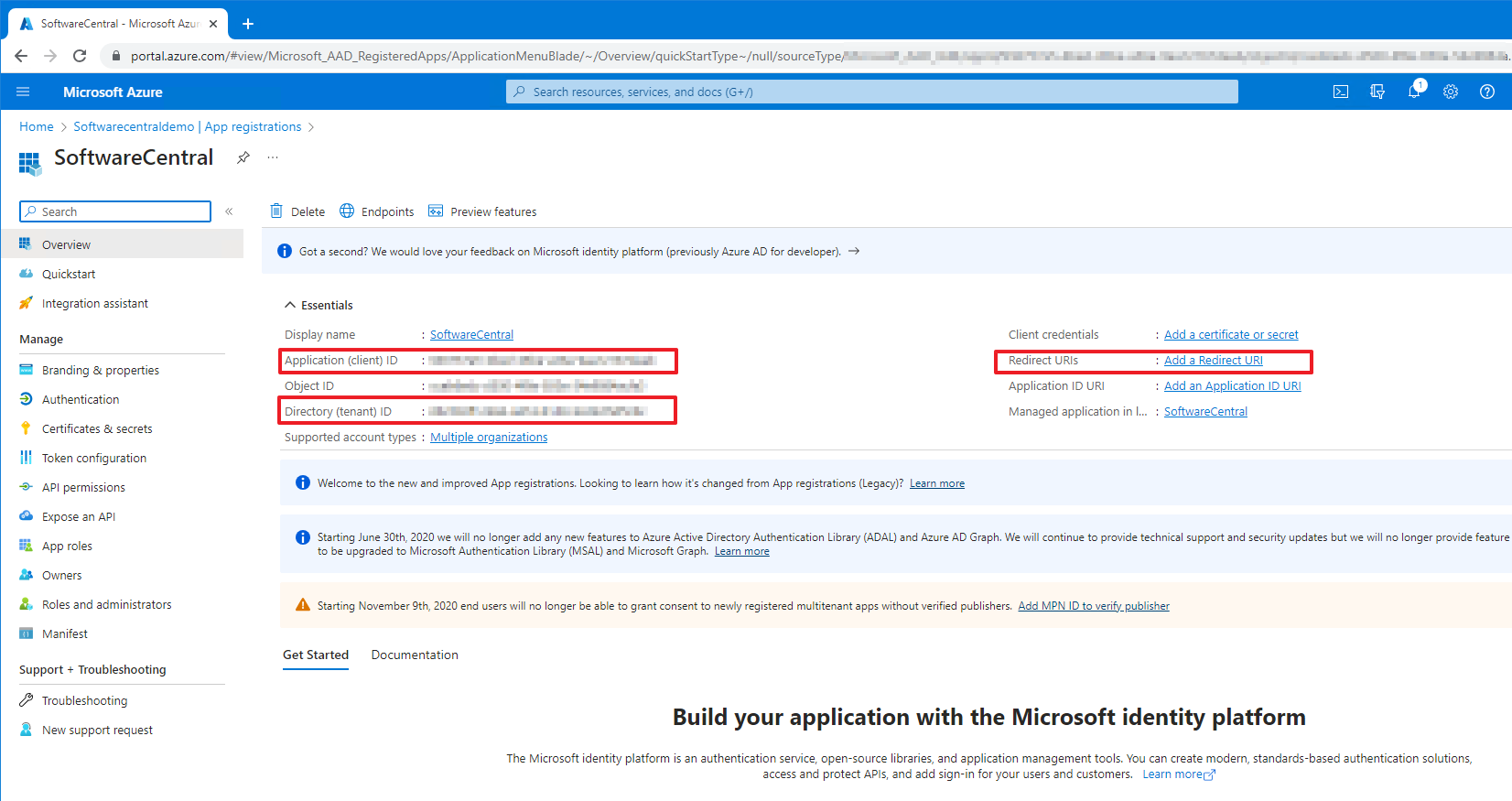
You will now come to the overview page. Here you will find you client and tenant ID that you need in the SoftwareCentral installer.
To the right, you find a button "Add a Redirect URI". If you have created your bindings in the Microsoft Internet Information (IIS) Manager, you may click on this button a proceed. Otherwise, continue with the installation of SoftwareCentral.
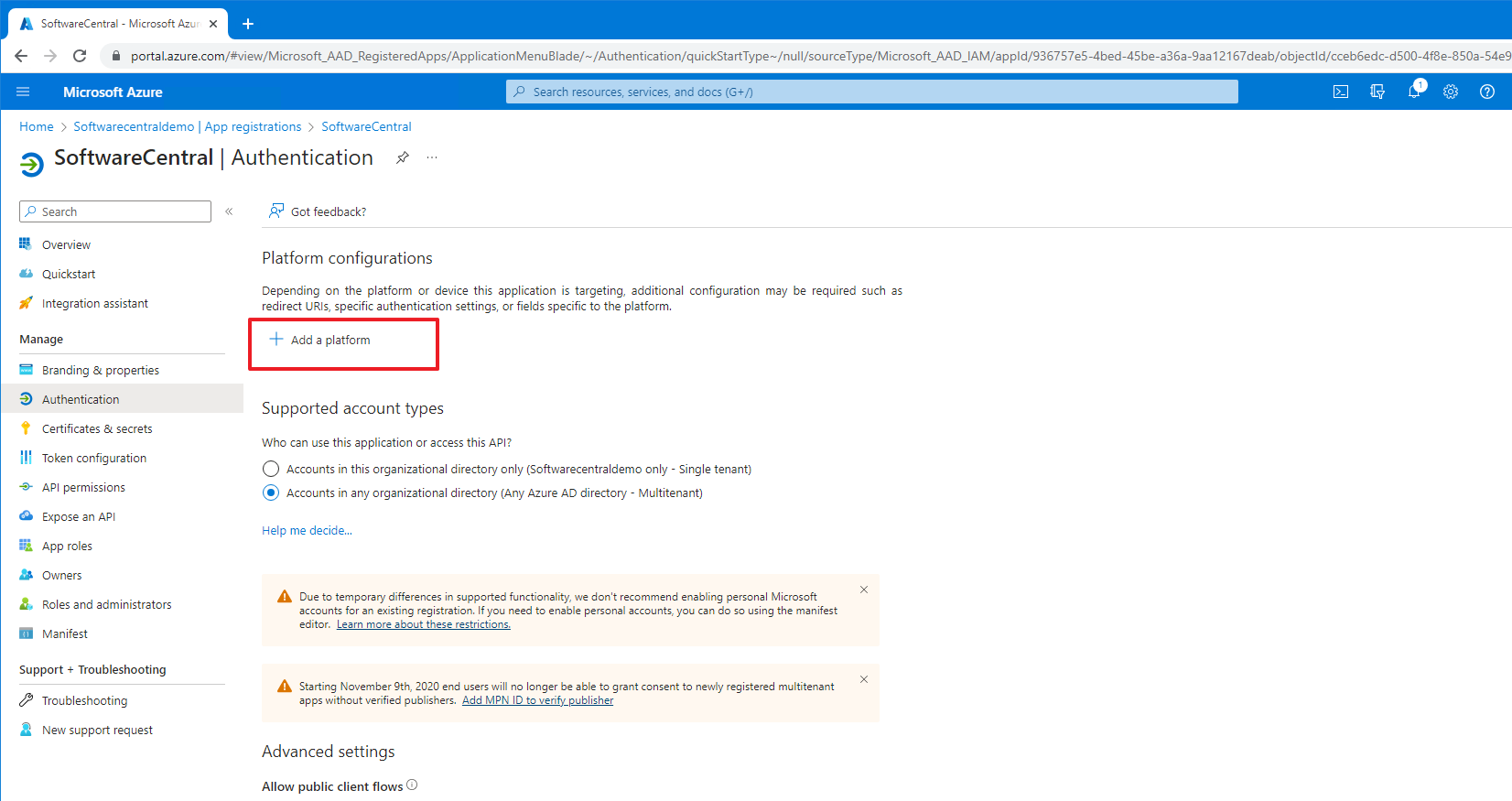
Click on the "Add a platform" button.
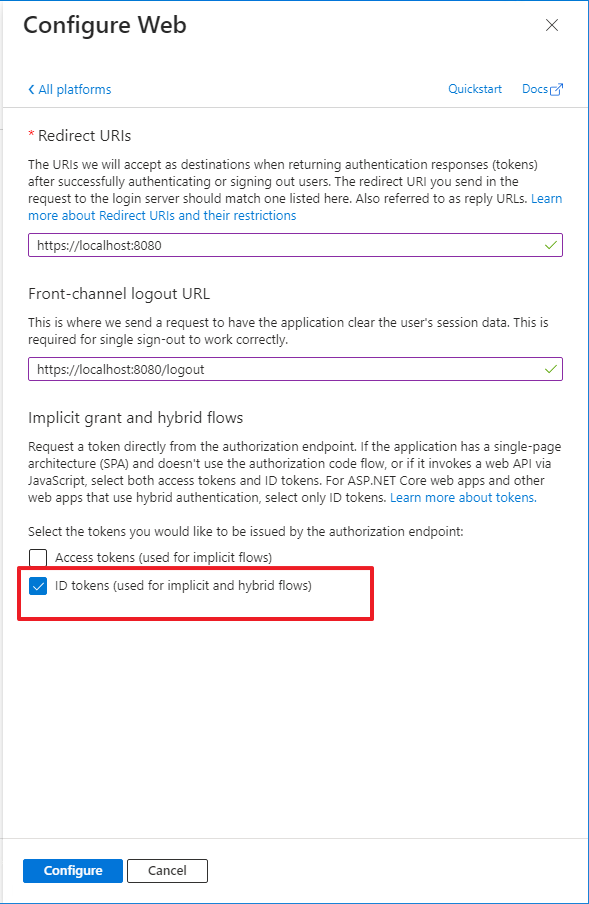
Select "Web" and proceed.
Enter the host name for SoftwareCentral.
The front-channel logout URL is the same, but followed by /logout
Remember to check the "ID tokens" checkbox at the bottom.
Click "Configure" and do this for both you localhost and regular binding.
You can now proceed to Configure SoftwareCentral for the first time
2 Settings at a glance
This is everything the app registration needs for users to sign in.
| Setting | Value |
|---|---|
| Supported account types | Accounts in this organisational directory only, or accounts in any organisational directory. Choose the second if you ticked multi-tenant support in the installer. Only users from tenants that are added and enabled in SoftwareCentral can then sign in; users from other tenants are refused with an access denied message. |
| Platform | Web |
| Redirect URI | The address users type in the browser, in the form https://softwarecentral.contoso.com, without a path or trailing slash. Add one for the local binding on the server and one for every host name users use. |
| Front-channel logout URL | The same address followed by /logout, for example https://softwarecentral.contoso.com/logout. It is required for single sign-out. |
| ID tokens | Tick ID tokens under the implicit grant and hybrid flows. |
| API permissions | The sign-in itself only asks for the standard openid and profile permissions. The Intune and Graph permissions SoftwareCentral needs to manage your environment are separate; see Intune Permissions. |
| Client ID and Tenant ID | Shown on the overview page. You enter them in the SoftwareCentral installer (or let the installer create the app registration for you). |
After you have changed the host name or added a binding, update the Redirect URIs again. See Configure HTTPS.
3 Best practice
- Give the app registration a clear name, and note who owns it, so it is not deleted by mistake during a clean-up.
- Only add Redirect URIs for the addresses you really use, and use HTTPS for all of them.
- Add the front-channel logout URL so that signing out in one place signs the user out everywhere.
- Restrict the supported account types to your own tenant unless you really need users from several tenants.
- Do not store a client secret in documents or mails. SoftwareCentral signs in to Intune with a certificate, which is the preferred method.