1 Opening the approvals page
| From | How |
|---|---|
| The shop | The approvals button (a tick) in the tool band. It is only there when something is waiting for you; the number is how many. |
| My Account | Approvals waiting, shown on the same condition. |
| A mail | The link in an approval mail opens the page, often already filtered to that order. |
On a phone, the link opens a version of the page made for small screens.
2 Orders waiting for you
Waiting is where the page opens: every order that needs your decision, as a card.
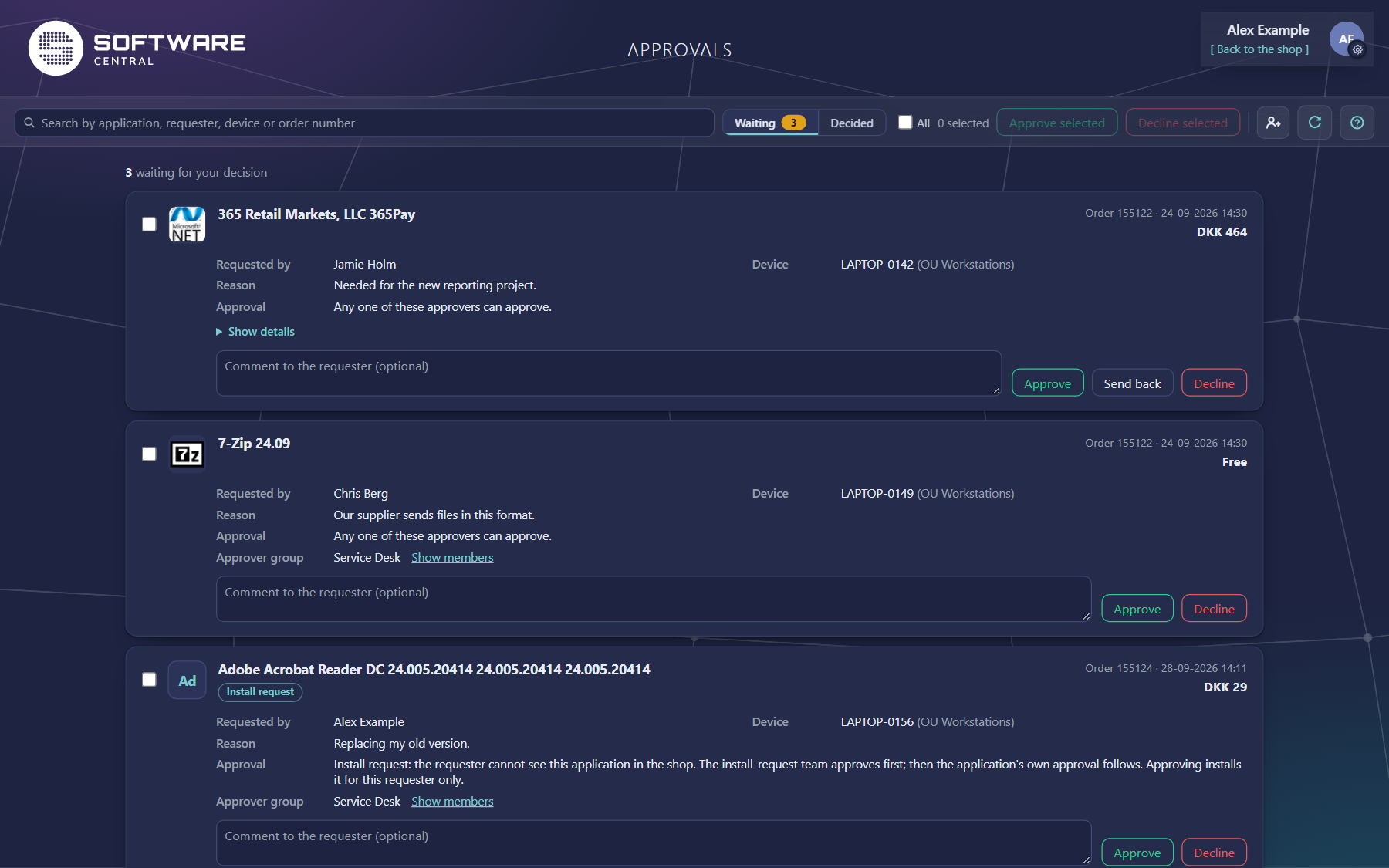
| On the card | What it tells you |
|---|---|
| Application | What was ordered, with the order number, when it was ordered and the price. A lease shows its length. |
| Requested by and Device | Who ordered it, and for which device (with its organisational unit). |
| Reason | The requester's message to you. |
| Approval | How the approvers work together: any one of them can approve, every approver must approve, or each must approve in order. |
| Approver group | When you approve as a member of a group. Show members lists who else can decide. |
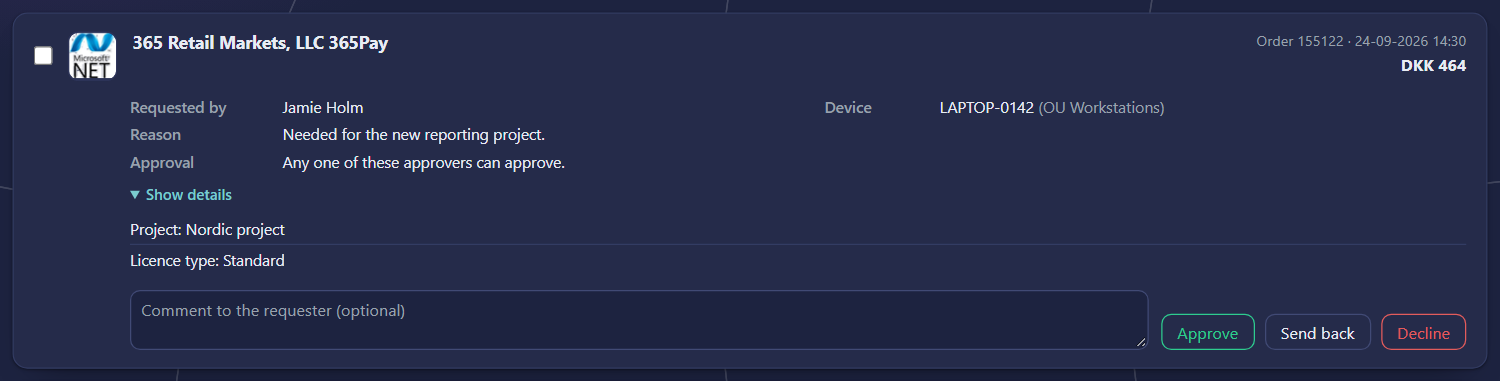
| Show details | The requester's answers to the order details, and Download attachments when files were attached. |
| Install request | The requester cannot see this program in their shop and asked for it. Approving installs it for them only. |
3 Deciding
Write a comment to the requester if you like, then click one of the buttons. The comment is optional, but it helps, especially when you decline.
| Button | What happens |
|---|---|
| Approve | Your step is approved. If you were the last approver, the installation starts; otherwise the order moves on to the next approver. |
| Send back | Returns the order to the requester to change the order details. It lands in their basket with your comment. Only offered for orders with order details, and never for install requests. |
| Decline | The order is declined and not installed. |
Requests to make a device another user's primary device appear here too, as Device reassignment cards. They can only be approved or declined.
4 Several at once
Tick the box on each card you want to decide, or All, then click Approve selected or Decline selected. A comment you wrote on a card is sent with that order. The line at the top tells you how many were decided, and whether any had already been decided by someone else in the meantime. Sending back is done one order at a time.
5 Search and links from mails
Type in the search box to narrow the list by application, requester, device or order number; it filters as you type. A link from a mail shows a chip such as Order 155122 or Requested by: … above the list; click its × to see everything again. The reload button fetches new orders.
6 Your decisions
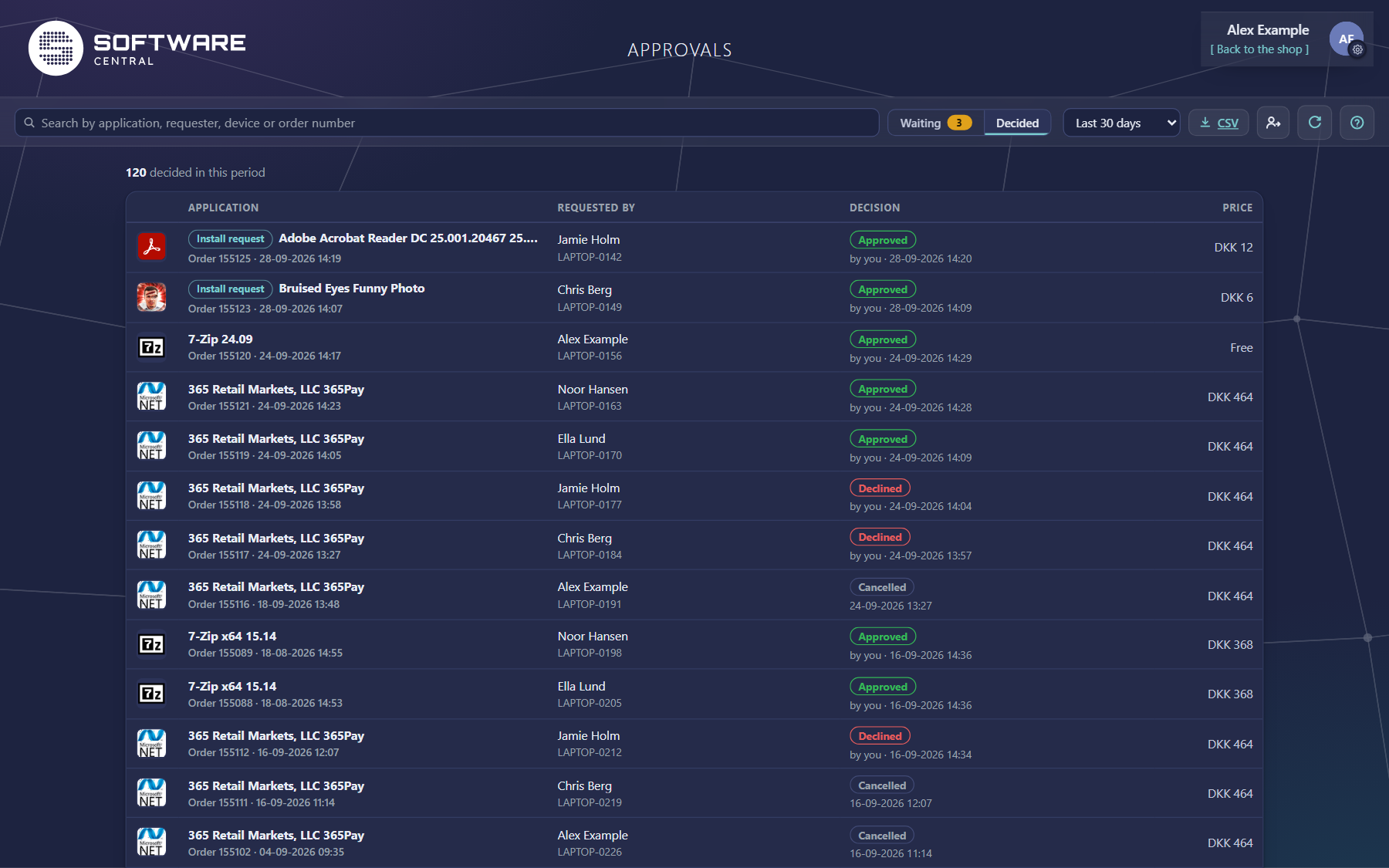
Decided lists what has been decided on orders that were waiting for you, newest first.
| Use | To |
|---|---|
| Period | Show the last 7 days, 30 days (the default), 3 months or 12 months. At most the newest 1,000 decisions are shown; choose a shorter period or search to find older ones. |
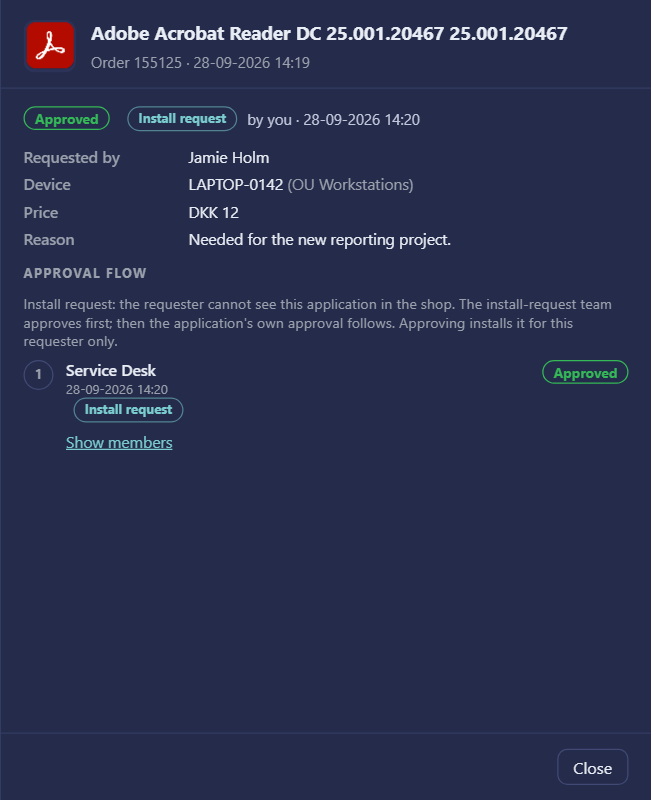
| A row | Open the order: the decision, the requester's reason, your message, the order details and the whole approval flow. |
| CSV | Download the rows shown, with the search you have typed, as a file for Excel. |
7 When you are away
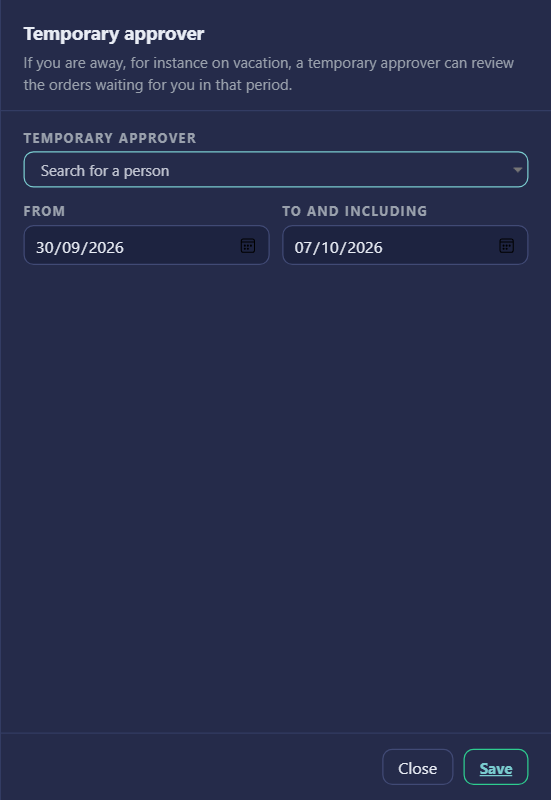
Going on holiday? The person button in the tool band opens Temporary approver. Choose a colleague and the period, from and to and including, and click Save. In that period they can decide the orders that wait for you.
The panel then shows who it is and whether the period is scheduled, active or ended; Remove stops it early. You cannot choose yourself. If your colleague has a temporary approver of their own, the panel warns you.
The button is only there when your organisation allows approvers to choose their own stand-in.
8 Best practice
- Choose a temporary approver who has no temporary approver of their own. If the person you choose already has one, the page shows a warning and Save is disabled until you choose someone else.
- Enter both dates. Save does nothing until From and To are both set and From is earlier than To.
- Remove the temporary approver when you are back. Remove ends the temporary approver before the period is over.
9 Troubleshooting
| Symptom | Cause | What to do |
|---|---|---|
| “Please note that 'name' has assigned 'name' as a temporary approver.” (shown when you choose the person; Save is disabled) | The person you chose already has a temporary approver. Temporary approvers do not chain, so the second one would not be used. | Choose someone who does not have a temporary approver of their own. |
| “You cannot be your own temporary approver” | You chose your own name as the temporary approver. | Choose a colleague. |
| “The temporary approver could not be saved. The log has the details” | An error stopped the change. It is written to the log as a critical entry, Failed to save temporary approver. | Open the Log, read the entry for the error, then click Save again. |
| No message, and Save does nothing. | From or To is empty, or From is not earlier than To. | Set both dates, with From earlier than To, then click Save. |
| “Your approver account could not be identified, so a temporary approver cannot be set here” | The page could not match your account to an approver. | Ask your SoftwareCentral administrator to check that you are set up as an approver. |
| There is no Temporary approver button. | The setting Allow approvers to set a temporary approver is off under Settings. | Ask your administrator to turn the setting on, or to set the temporary approver for you. |