1 The search filters
The filters are in the left menu. Set the ones you need, then click Search. Unlike other interfaces in SoftwareCentral, the log does not support autosuggest.
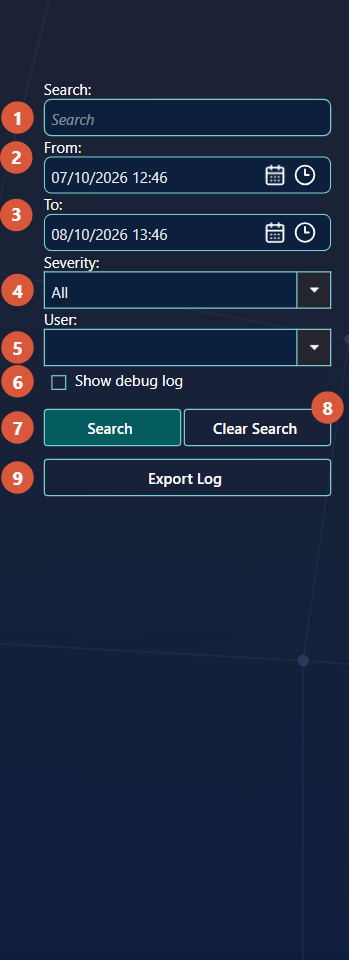
| No. | Filter | What it does |
|---|---|---|
| 1 | Search | Finds the log entries whose message contains this text. This can be helpful if you look for a specific program. The search reads the message only, so a computer is found only when its name is in the message. |
| 2 | From | The date and time from which to include log entries. It is set to one day before now. This is necessary to avoid loading millions of records. If your search does not return anything, set the From date further back in time. |
| 3 | To | The latest date and time to include. It is set to one hour after now. This can be helpful if you look for an event that you know happened in a given time period. |
| 4 | Severity | The importance of the entries to show. All shows every entry. Succeses, Warnings and Errors shows success entries and anything more serious. Warnings and Errors shows warnings and errors. Errors only shows critical errors. This can be helpful to find warnings and errors. |
| 5 | User | Filters the General log to one user. Start typing a name to narrow the list. The filter applies on the General log tab only. On the Personal Log tab the box is set to your own user name and cannot be changed. |
| 6 | Show debug log | Adds the debug entries to the result. They are left out by default. This is helpful if you need to report a bug to the SoftwareCentral team. The check box appears only for users who can see the General log tab. |
| 7 | Search | Starts the search with the filters above. |
| 8 | Clear Search | Clears all search filters. The page reloads with the default filters. |
| 9 | Export Log | Exports the log to a CSV file. This is helpful if you need to report a bug to the SoftwareCentral team. See Export the log. |
2 Start the search
Click Search (7). The matching entries appear in the grid, newest first.
A search loads at most 10,000 entries. If there are more, the log shows the message The latest 10.000 log entries were loaded. Please specify the search to load older log entries. Narrow the From and To dates, or choose a higher severity, to see the older entries.
To remove the filters and start again, click Clear Search (8).
3 Export the log
Click Export Log (9) to save the result as a CSV file.
The file is named SoftwareCentral_Log_ followed by the date and time of the export. The
export contains the entries of the search, not only the page you see, and every column, including the
columns that are hidden in the grid.
4 Best practice
- Start with a short time window. A narrow From and To range finds the entry faster and keeps the result below the 10,000 entry limit.
- Use a severity to find problems. Warnings and Errors or Errors only hides the routine entries.
- Leave Show debug log off unless the SoftwareCentral team asks for it. Debug entries are many, and they are hidden by default.
- Export before the log is cleaned up. Entries older than the retention period are removed. See Log.
5 Troubleshooting
| Symptom | Cause | What to do |
|---|---|---|
| Log searches does not return anything. | By default the From date is one day in the past. Entries older than that are not searched. | Set the From date further back, then click Search (7). |
| "No log entries match your criteria. Try to adjust your search with a longer timespan." | No entry matches all the filters together. | Widen the From and To dates, set Severity to All, and check the text in Search. The text is matched against the message only. |
| "The latest 10.000 log entries were loaded. Please specify the search to load older log entries." | The search matches more than 10,000 entries, so only the latest are loaded. | Narrow the From and To dates, or choose a higher severity. |
| "Failed to export the log." | The export failed. The error is written to the log. | Try a narrower search and export again. If it keeps failing, send the error entry to SoftwareCentral support. |