1 The shop at a glance
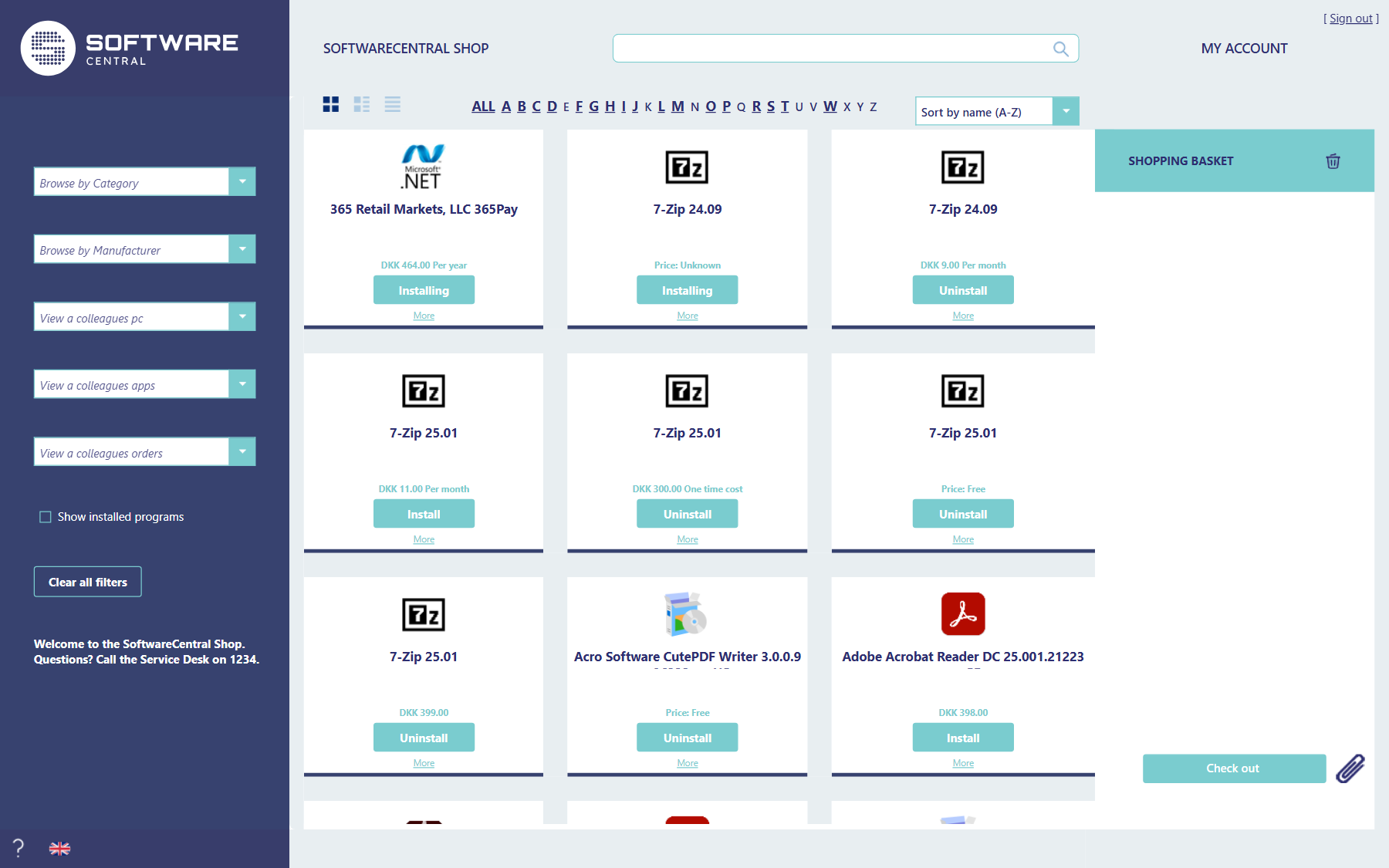
Everything you may order is shown in the middle. The button on each item tells you where it stands:
| Button | What it means |
|---|---|
| Install | You can order it. Click to add it to the basket. |
| Installing | It is on its way to your device. |
| Uninstall | It is installed. Click to add the removal to the basket. |
More under an item opens its description, price and other details.
Your IT department decides which parts of the shop you see, so your shop may have fewer filters, other texts on the buttons, or a message on the left.
2 Finding an item
- Search — type one or more words in the field at the top.
- Letters — click a letter to see the items that start with it. ALL shows everything again. Letters without items are greyed out.
- Sort — the list on the right of the letters changes the order, for example by name.
- Views — the three buttons on the left of the letters switch between gallery, standard and list view.
3 The filters on the left
| Filter | What it shows |
|---|---|
| Browse by Category | Items in one category, for example PDF readers or hardware. |
| Browse by Manufacturer | Items from one manufacturer. |
| View a colleagues pc | Choose a computer to see the programs it has. Handy when you need the same setup as a colleague. |
| View a colleagues apps | Choose a colleague to see the programs they have. |
| View a colleagues orders | Choose a colleague to see what they have ordered. |
| Show installed programs | Only the programs installed on your device, which you can remove. They are also at the bottom of the full list. |
Remove the text in a filter to clear it, or click Clear all filters.
4 The basket
Everything you click is added to the Shopping basket on the right. The red cross next to an item removes it; the bin at the top empties the basket.
Some items need more information when you order them, for example a licence number or a cost centre. A form opens when you add such an item; fill it in to continue.
To send a file with your order, drag it onto the paper clip next to Check out, or click the paper clip to choose one.
5 Checking out
Click Check out. A confirmation page shows your order, and you receive the same confirmation by mail. Programs that need no approval are installed straight away; the others wait for an approver, who is told by mail. Follow them in My Account.
6 Help, language and My Account
- The question mark at the bottom left opens this help.
- The flag next to it changes the language of the shop, and of the mails SoftwareCentral sends you.
- My Account at the top right shows every order you have placed and its status. See My Account (classic).
- Sign out is above it, when your organisation uses it.
7 Best practice
- Answer every question in the order form. An item goes into the basket only when every required answer is valid. The form stays open until then.
- Give a text answer the length that is asked for. The answer must have exactly the number of characters asked for, or at least that number when the administrator has chosen minimum length.
- Tick a required checkbox. A checkbox marked as mandatory must be ticked, for example to accept a licence.
8 Troubleshooting
| Symptom | Cause | What to do |
|---|---|---|
| The order form stays open and lists fields with a star in front, for example “* Cost centre”. | A required answer is empty, a required checkbox is not ticked, or a text answer does not have the length that is asked for. | Fill in or correct each field in the list, then try again. |
| “Failed to read software variable values from the interface for package with id 'n'.” | An unexpected error happened while the form was read. The details are in the Log. | Try again. If it happens again, tell your administrator, who can find the entry in the Log. |