1 Overview
If you need to remove SoftwareCentral from a server, you can uninstall SoftwareCentral from the Programs and Features on the server where SoftwareCentral is installed:
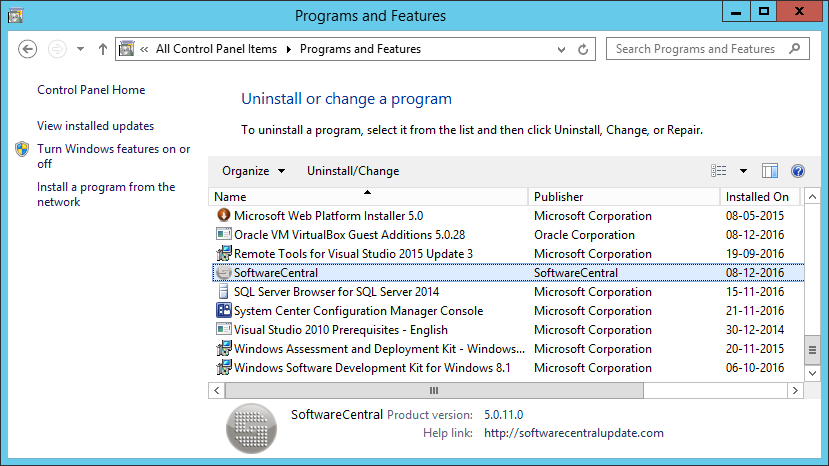
Click "Uninstall/Change". This will open the uninstaller:
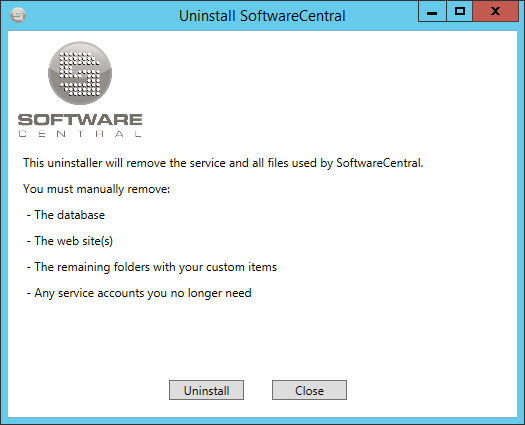
Click "Uninstall" to remove the files associated with SoftwareCentral.
You must manually remove the web site and the remaining folders in the SoftwareCentral install directory.
If you are moving SoftwareCentral to another server, you can manually copy the remaining files and folders to the new install location. This way you will not loose any custom scripts, images and so on.
If you are not moving the SoftwareCentral installation you must also remove the SoftwareCentral database and any service accounts you no longer need.
2 What you must remove yourself
The uninstaller removes the files it installed. The rest is yours to remove, or to keep if you are moving.
| Item | What to do |
|---|---|
| The SoftwareCentral web site (IIS) | Remove it manually in IIS Manager. |
| The remaining folders in the install directory | Remove them manually. They hold files you may have added, such as custom scripts and images. Copy them first if you are moving to another server. |
| The SoftwareCentral database | Remove it only if you are not moving SoftwareCentral. It holds your settings, roles, orders, templates and licence information. |
| Service accounts | Remove the ones you no longer need, together with the SQL logins they used. |
| Your SCCM server | Nothing to do. It is not affected. |
Also check these items and remove them if you no longer need them:
- The SoftwareCentral Windows service in the services list of the web server.
- The certificate SoftwareCentral uses to sign in to Intune, in the Local Computer › Personal certificate store. Keep the .pfx file and its password if you are moving SoftwareCentral.
- In Microsoft Entra ID: the app registration, its certificate and its Redirect URIs, and the administrator group you chose during the first-time configuration.
- The host name in DNS, and the HTTPS certificate and bindings you set up for it.
3 Moving to another server
- Back up the SoftwareCentral database and the folders in the install directory.
- Install SoftwareCentral on the new server with the same edition (see Install SoftwareCentral).
- Copy your custom files into the new install folder.
- Move the Intune certificate (.pfx) to the new server with its password, or generate a new one and upload it to the app registration.
- If the host name changes, update the DNS entry, the IIS bindings, the Redirect URIs of the app registration and the Application Base URL setting. See Configure HTTPS.
- Run Test connections in the settings to confirm that everything works before you remove the old server.
4 Best practice
- Back up the database before you uninstall, even if you do not plan to use SoftwareCentral again.
- Keep a protected backup of the Intune certificate and its password until the new installation works.
- Remove the app registration, certificates and accounts you no longer use, so they do not stay behind with access to your tenant.
- Do not delete the database until you are sure that you are not moving SoftwareCentral.