1 Before you start
This example updates Java on all clients with Replace Package.
In this example, the new Java package has already been imported and tested on the test machines.
For the general use of the interface, see Replace Package / Application. The example also works for applications; see Replace Application.
2 Choose the new and the old version
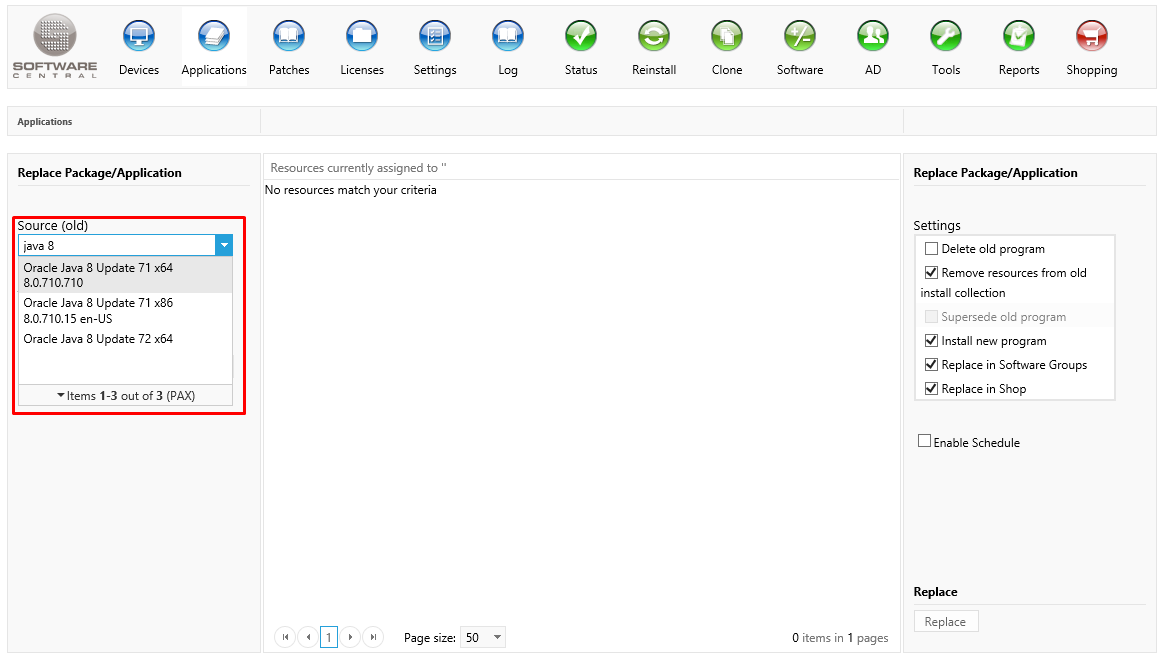
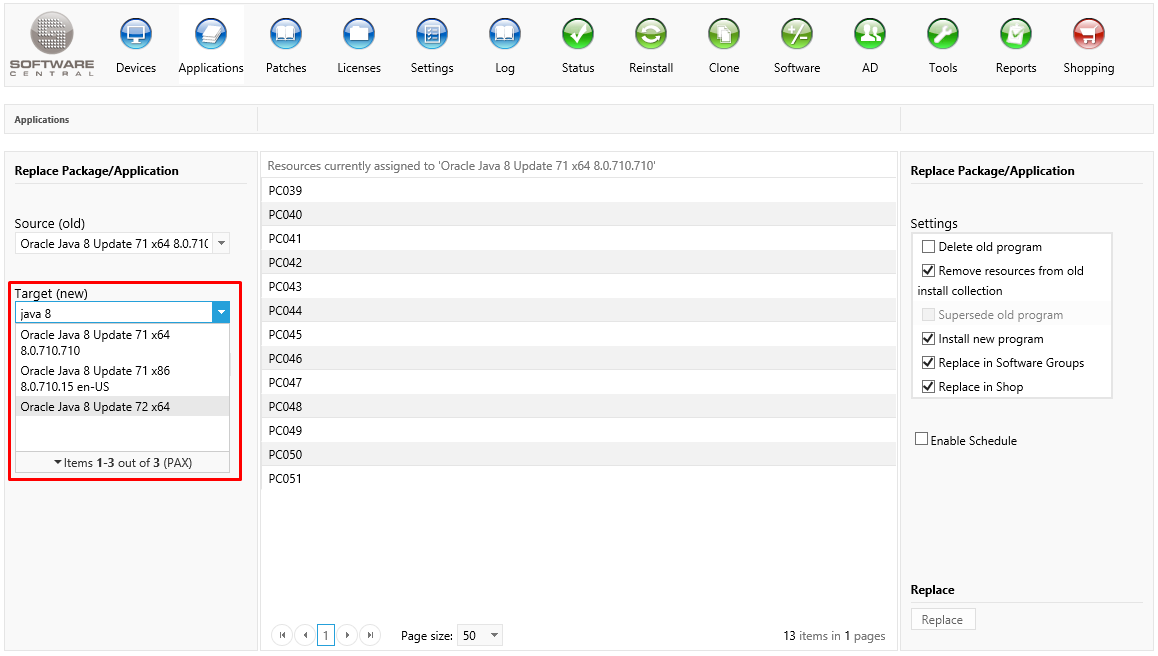
Choose the new version first. The list of old programs only appears after you have chosen it.
- In Select the new app:, choose the new version, Oracle Java 8 Update 72 x64.
- In Select programs to replace:, tick the old version, Oracle Java 8 Update 71 x64.
3 Check the computers
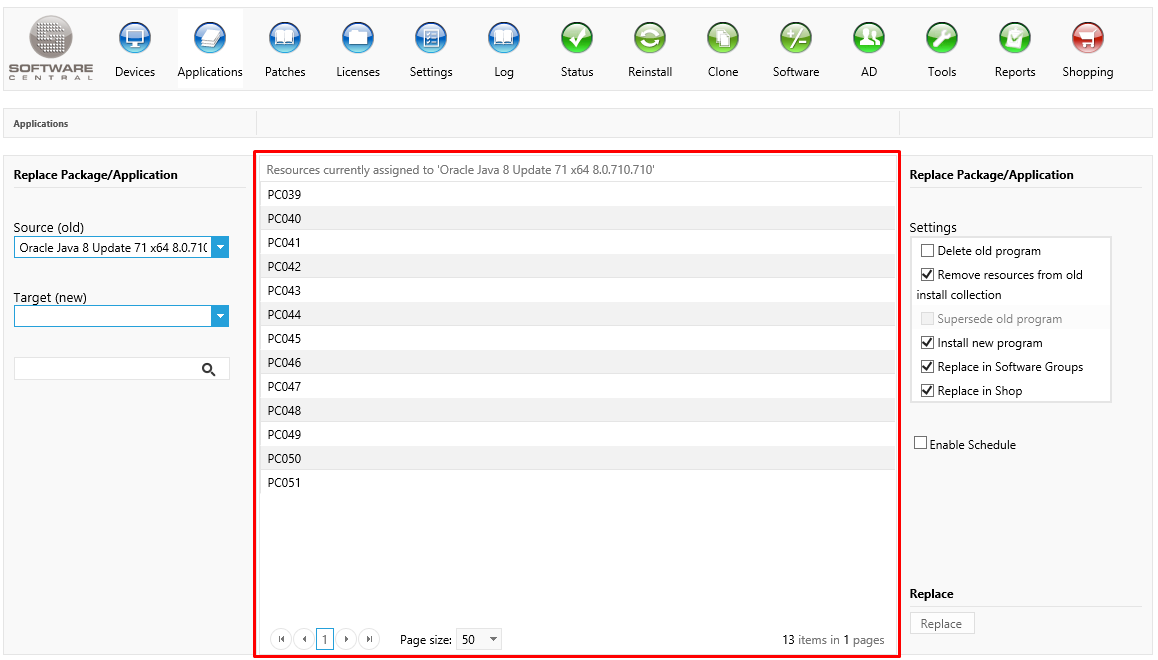
The centre list shows the computers that have the old version. These are the computers that will be updated with the new version.
The list is headed Resource Name. Use Search in assigned resources: to find a computer. If no computer has the old version, the list shows No resources match your criteria.
4 Check the settings
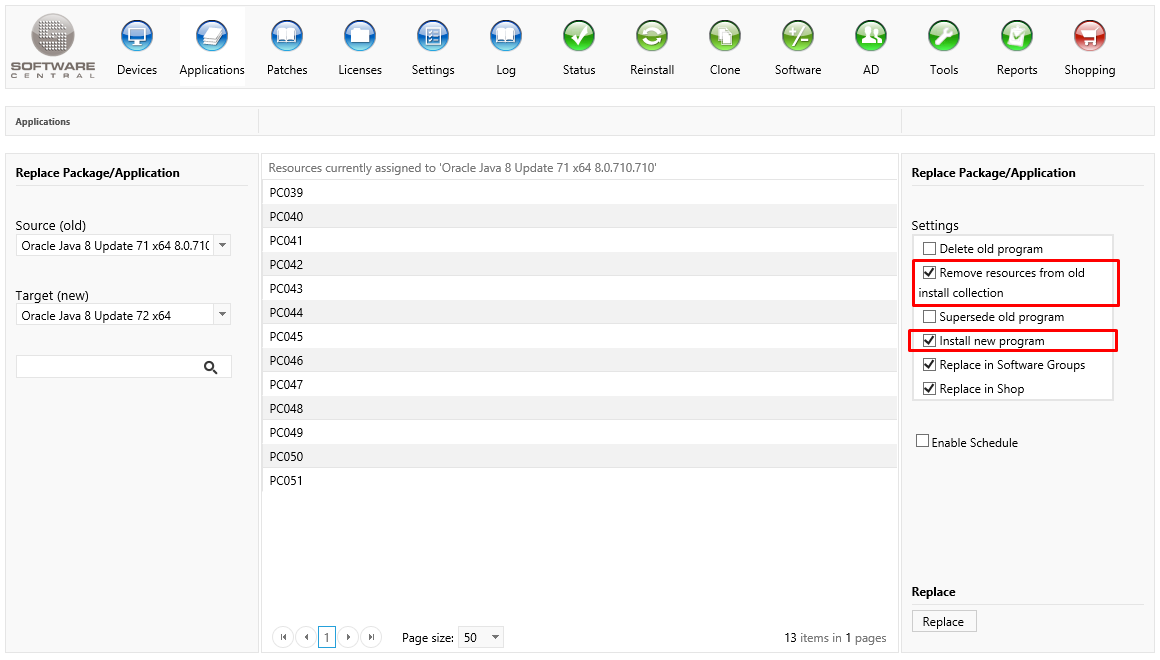
The settings are in the right-hand Settings panel. The defaults are the ones this example needs, so check that they are ticked as shown.
| Setting | Default | What it does |
|---|---|---|
| Delete old program | Off | Removes the old program from SoftwareCentral as well. See Best practice. |
| Remove resources from old install collection | On | Takes the computers out of the install collection of the old version. For an Intune application the label is Remove resources from old install group. |
| Install new program | On | Installs the new version on the computers in the centre list. |
| Replace in Software Groups | On | Puts the new version in the software groups that had the old version. |
| Replace in Shop | On | Replaces the old version in the shop with the new one. You can do this for one old program only. |
| Enable Schedule | Off | Schedules the installation of the new version. See Schedule the installation. |
You can also choose to replace Java in all Software Groups. This will make sure that only the new version is installed during operating system deployments.
We also replace Java in the shop. The new version will then be added to the shop, with the same meta data as the previous version.
5 Click Replace
Click Replace in the lower right corner. Java is then updated on the selected resources.
The Replace button is enabled when a new version is chosen, at least one old version is ticked, and the new version is not one of the old ones. The resources that are updated are the ones ticked in the centre list; the header box ticks all of them.
6 Schedule the installation
Use the Enable Schedule checkbox to schedule the replacement for later.
This will only schedule the installation of the new version. The program will be replaced in Software Groups and so forth immediately. The computers are also removed from the old install collection straight away, not on the schedule.
When Enable Schedule is ticked, enter the start and end time. The start time must be now or later. The end time must be later than the current time.
7 Best practice
- Import the new version and test it on test machines first, then replace. The replacement changes every computer in the centre list.
- Leave Delete old program off until the new version has been rolled out. With it on, the old program is removed from SoftwareCentral.
- Replace in Software Groups and in the shop at the same time, so that users and deployments pick up the new version together.
- Use Enable Schedule only when the install must wait. The software group, shop and collection changes happen at once, whatever the schedule says.
8 Troubleshooting
| Symptom | Cause | What to do |
|---|---|---|
| Replace stays greyed out | No new version is chosen, no old version is ticked, or the same program is both the new and the old version. | Choose the new version, tick the old version, and make sure the two are different programs. |
| Replace in Shop is greyed out, with the tip Can not replace multiple application in the shop | More than one old version is ticked. | Replace the shop item one old version at a time. |
| Replace in Software Groups is greyed out, with the tip Only packages can replace packages, and applications can replace applications, in Software Groups. | The old and the new version are of different types, one a package and one an application. | Choose a new version of the same type as the old one, or leave the setting off. |
| Scheduled start time must be now or later. | The start time is earlier than the current time. | Pick a start time that is later than now. |
| Scheduled end time must greater than the start time. | The end time is not later than the current time. The check compares the end time with the current time, not with the start time. | Pick an end time that is later than now and after the start time. |