1 When to update
This guide describes how to update an installation of SoftwareCentral. We recommend that you update SoftwareCentral at least every 3 months.
2 Check the version
You can see if a new version of SoftwareCentral is available from the Settings menu in SoftwareCentral.
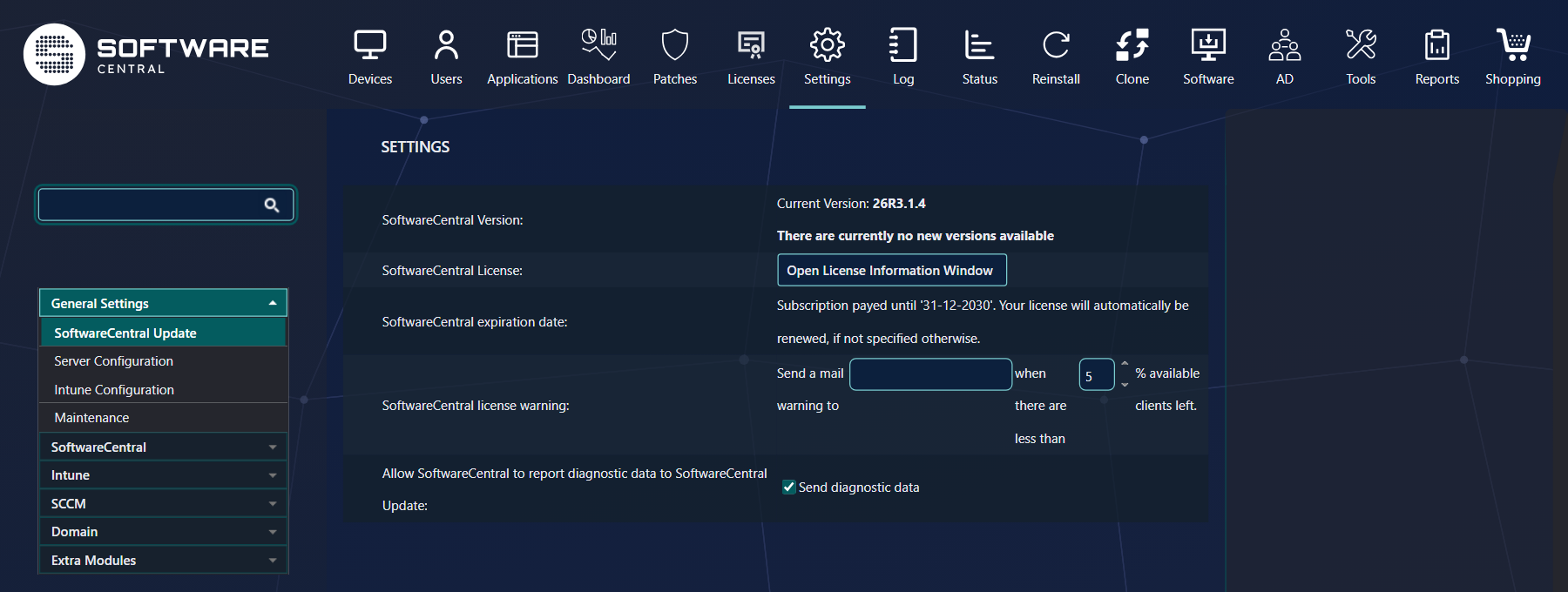
| Line | What it tells you |
|---|---|
| Current Version | The version of SoftwareCentral that is installed. |
| Newest version link | A newer version is available. The link opens SoftwareCentral Update in a new tab. |
| There are currently no new versions available | The installed version is the newest one. |
The newest version is read from SoftwareCentral Update each time the page is opened, so the SoftwareCentral web server must be able to reach it.
3 The out-of-date warning
SoftwareCentral also warns you when the installation has not been updated for a year.
| What you see | When it appears |
|---|---|
| The version label is red and starts with This version of SoftwareCentral is out of date | A year has passed since the last update was recorded in the database. Every user sees the red label. |
| An administrator also sees a warning box on the page with the same text | The same condition; only administrators see the box. |
4 Downtime
An update of SoftwareCentral will require a few minutes of down time for SoftwareCentral.*
* Depending on the speed of the servers and the time since the last update.
5 Get and install the update
Follow the two topics in this order.
| Step | Topic |
|---|---|
| 1. Get the update | Acquire the update: download the zip file, read the release notes, and unblock the zip file. |
| 2. Install the update | Installing the update: back up the database, run the installer on the server, and read the summary. |
6 Best practice
- Update at least every three months, and never let a year pass. A year after the last recorded update the version label turns red for every user, and the warning can take up to a week to appear.
- Look at the version after each update. Open Settings › General Settings › SoftwareCentral Update and check that Current Version shows the new version.
- Give the web server access to SoftwareCentral Update. Without it the Newest version line cannot show a version.
- Plan the downtime. An update needs a few minutes without SoftwareCentral, longer if the last update was a long time ago.
- Back up the database before you install. See Installing the update.
7 Troubleshooting
| Symptom | Cause | What to do |
|---|---|---|
| The version label is red and starts with “This version of SoftwareCentral is out of date” | A year has passed since the last update was recorded in the database. | Get and install the newest version: Acquire the update and Installing the update. |
| Newest version shows Visit SoftwareCentral Update instead of a version number | The web server could not read the newest version from SoftwareCentral Update. | Check that the SoftwareCentral web server can reach softwarecentralupdate.com over HTTPS. The link still opens the site, so you can check the version there. |
| The error page shows Details: “The database is not up to date…”, or the log shows “The database is not up to date. Some functions might not work as intended.” | The database has not been updated to this version of SoftwareCentral. | Run the installer again, as described in Installing the update. |
For problems that show up after an update, see Common problems after an update.