i Do you need this page?
Shortcut
You can skip this page if you will let the installer create the app registration in step 3 (the Connect to Intune tenant button). ConfigMgr installations that use Windows Authentication and do not connect to Intune can skip it entirely.
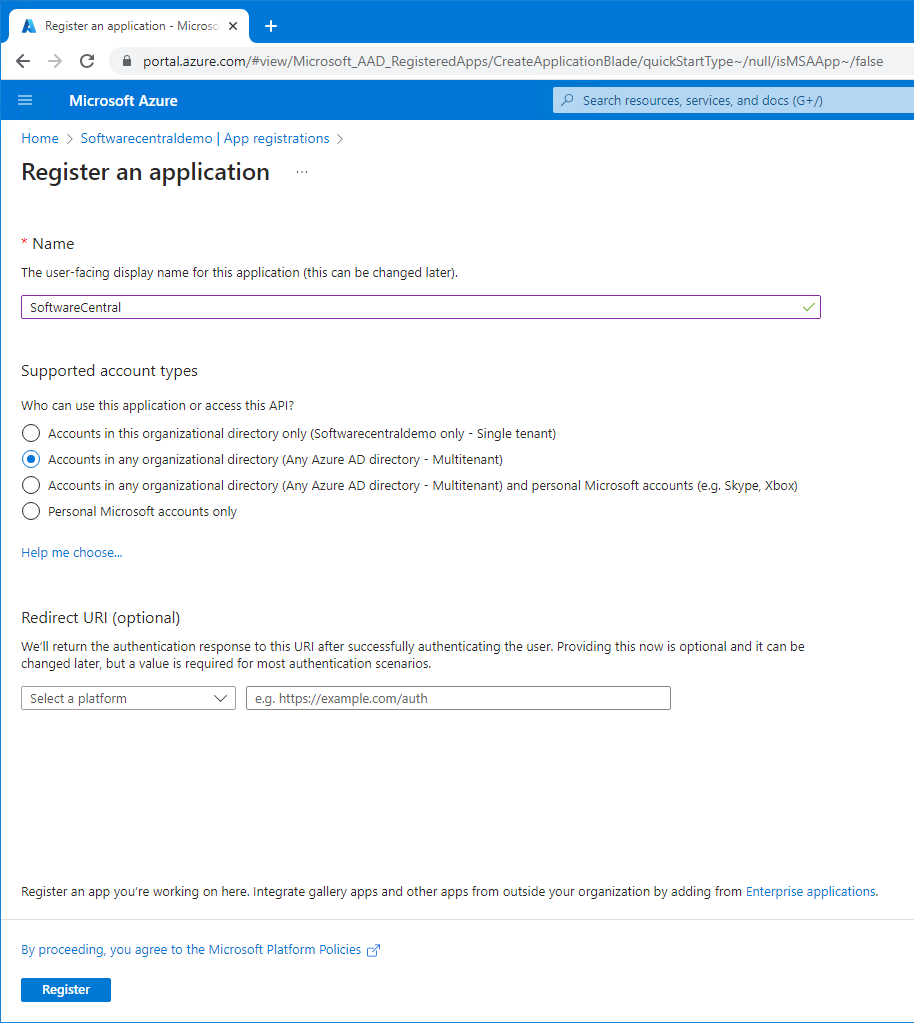
1 Create the registration
- In the Azure portal, go to your Entra ID and, in the left menu, click App registrations.
- Click the New registration button.
- Give the app registration a name.
- Choose whether to allow access only for users from this tenant, or from multiple tenants.
- Do not enter a Redirect URI yet.
- Click Register and proceed.
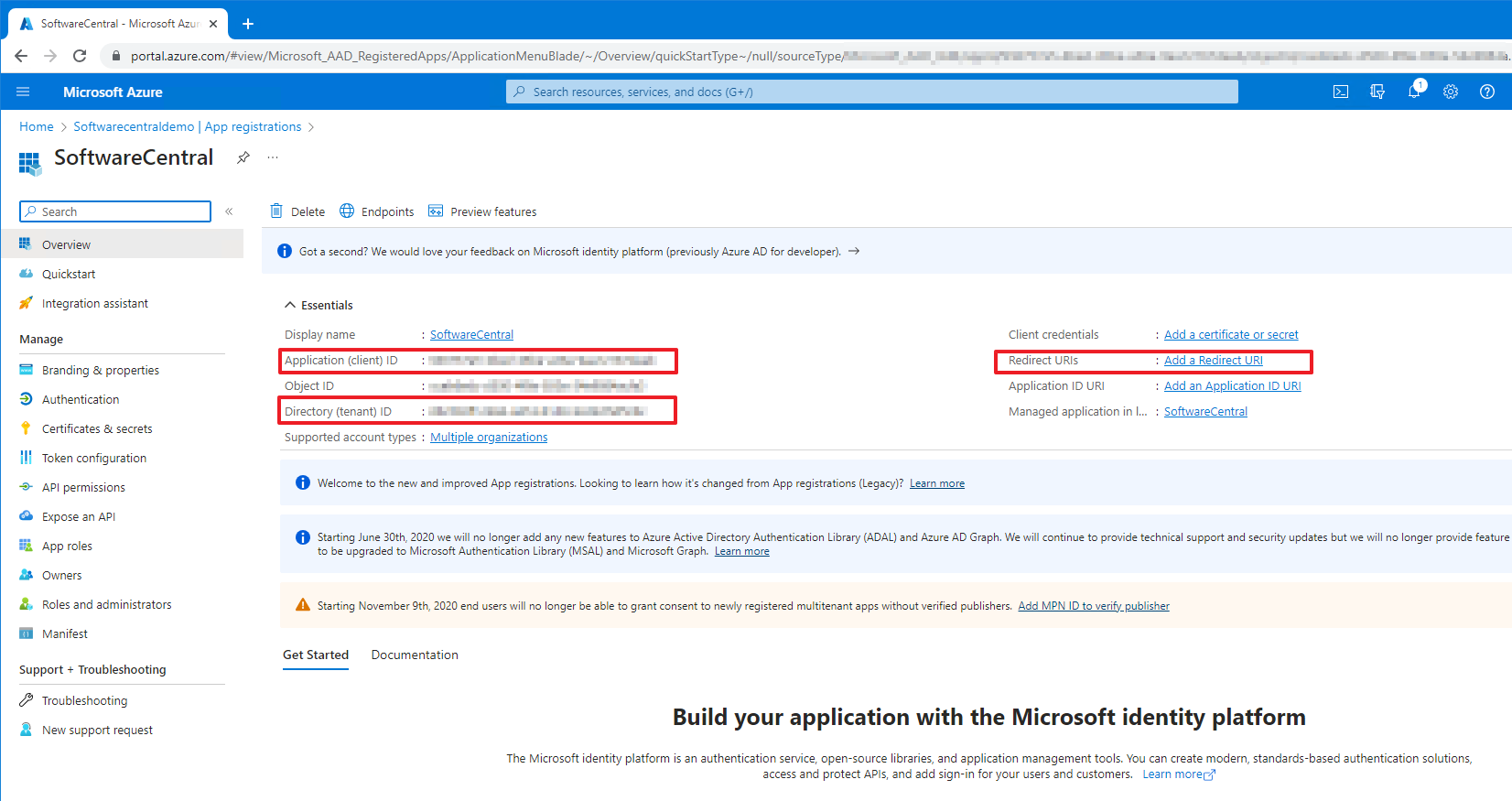
2 Copy the IDs
You are taken to the overview page. Here you find the Client ID and Tenant ID that you need in the SoftwareCentral installer.
On the right, there is an Add a Redirect URI button. If you have already created your bindings in the Internet Information Services (IIS) Manager, you can click it and proceed; otherwise continue with the installation of SoftwareCentral and add the redirect URIs later.
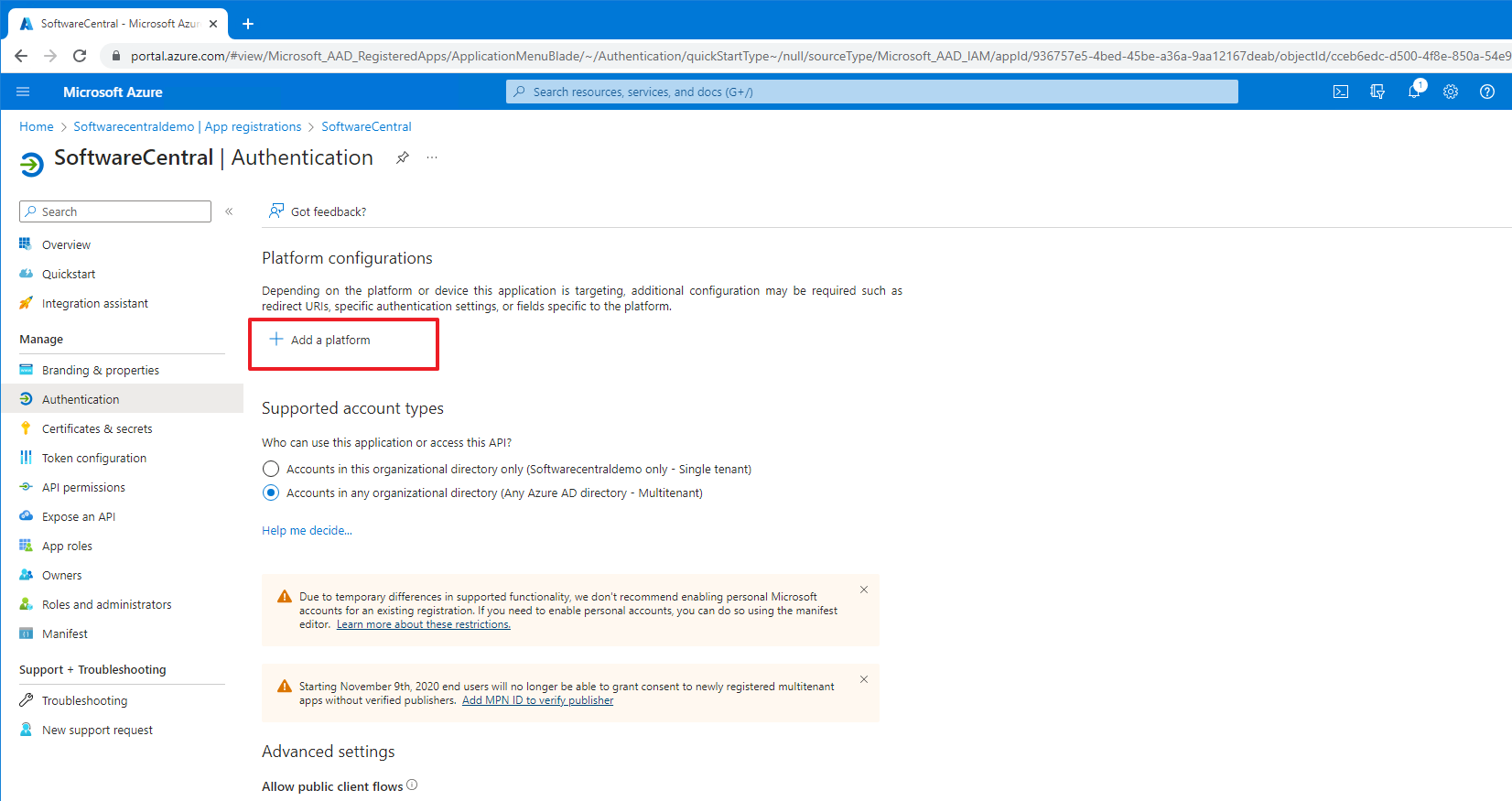
3 Add the Web platform
- Click the Add a platform button.
- Select Web and proceed.
- Enter the host name for SoftwareCentral.
- Set the front-channel logout URL to the same host name followed by
/logout. - Tick the ID tokens checkbox at the bottom.
- Click Configure. Do this for both your localhost binding and your regular binding.
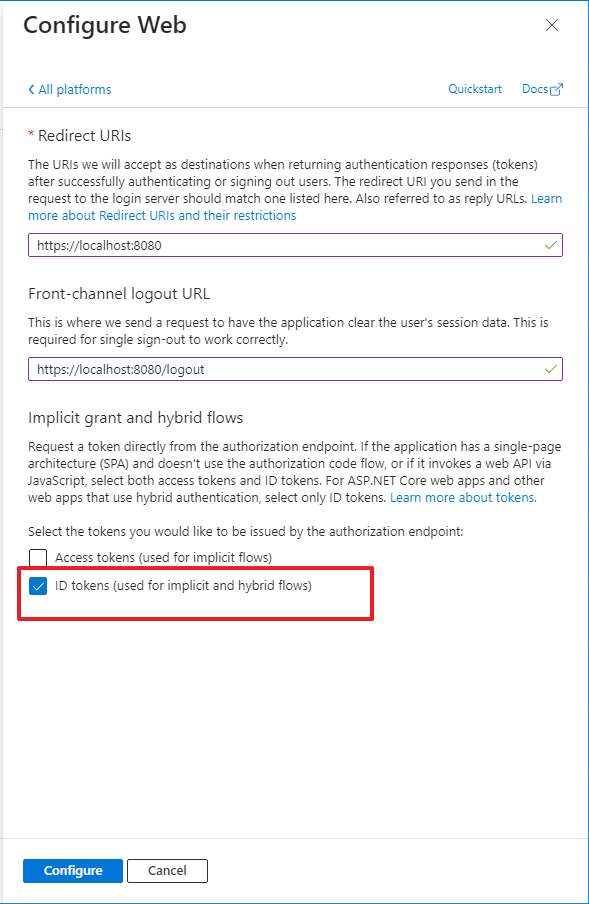
/logout URL; tick ID tokens.
Add more redirect URIs later
Once you configure a public host name in step 5 of this guide, remember to add it to the app registration's Redirect URIs and to the front-channel logout URL. See Hostname & HTTPS.
📄 Original page: Create App Registration for Azure OpenID Authentication