1 Open the view
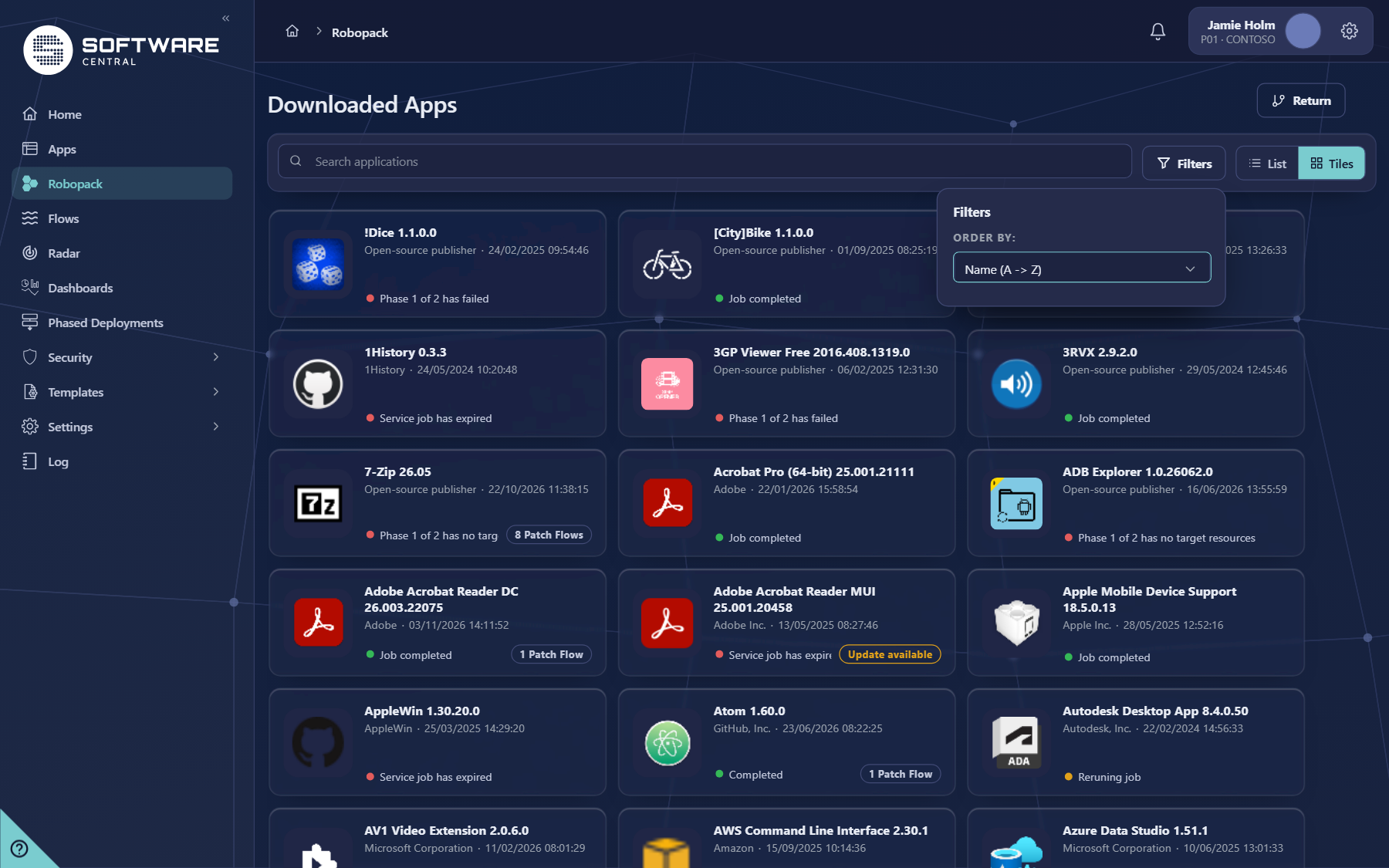
On the Robopack page click Downloads at the top right. The header changes to Downloaded Apps, and Return goes back to the catalogue. Use the search box to find an application by name.
2 Order By
In this view the Filters panel holds only Order By. It has two choices:
| Choice | What it does |
|---|---|
| Name (A -> Z) | Sorts the applications by name. This is the default. |
| Last downloaded (newest first) | Puts the application with the most recent download job first. The list view then shows the time of that newest download job (see below). |
The choice is a list filter only. Changing it does not start, change or delete any download.
3 Tiles and list
Tiles and List switch the view. Each application shows its name, version and publisher, a coloured line with the state of its latest job, and badges where they apply:
- N Patch Flows (or 1 Patch Flow): the application has Patch Flows. See Flows.
- Update available: Robopack has a newer version than the one imported. Click it to open the import of the new version.
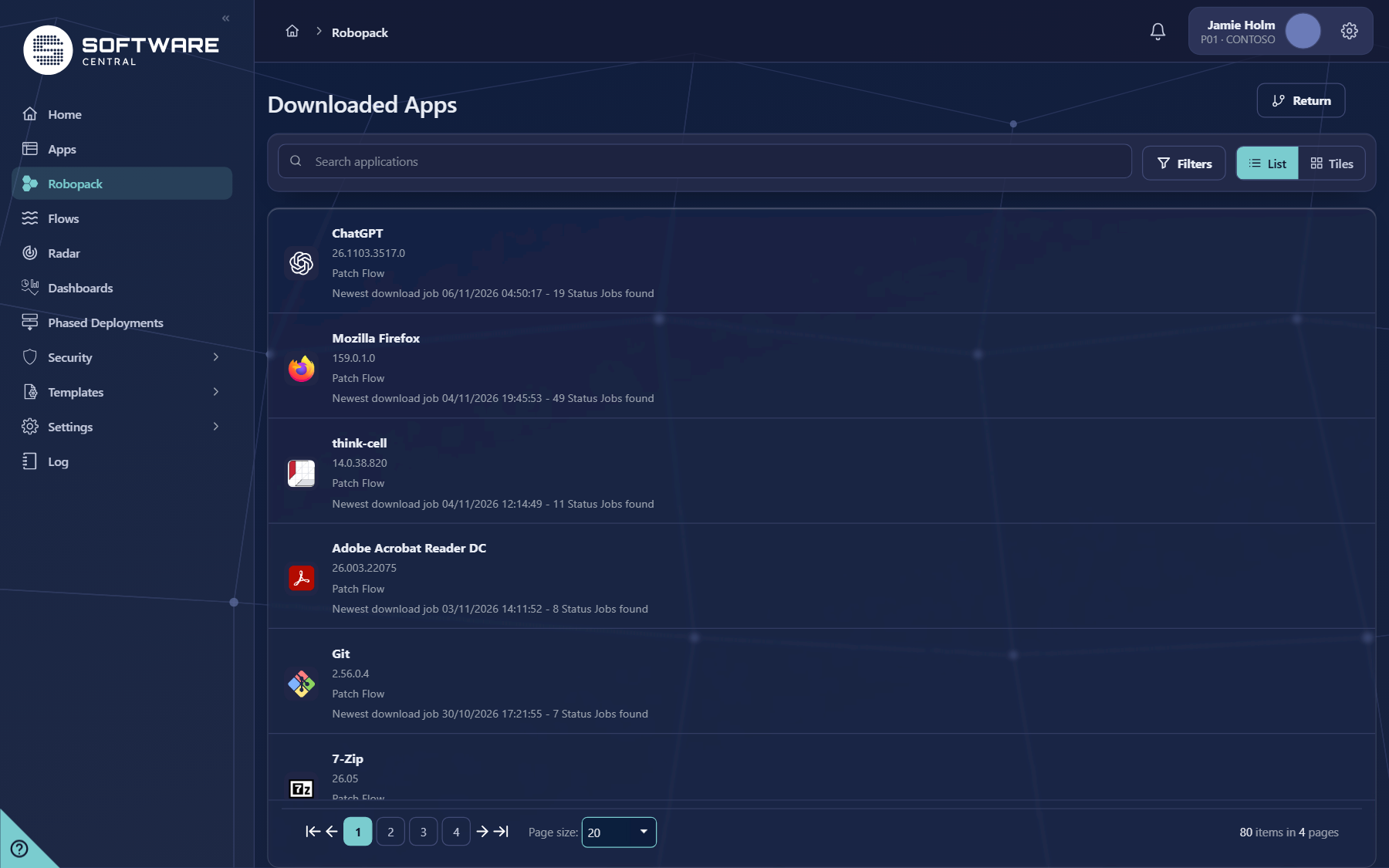
- With Name (A -> Z) the list view shows the number of Patch Flows and status jobs instead of the date.
- The status line of an application is the state of its latest job, for example Job completed, Phase 1 of 2 has failed, Phase 1 of 2 has no target resources or Service job has expired. A red dot means the job needs a look.
- The search box narrows the list to matching names. Use the page buttons at the bottom of the list to move between pages.
4 Open an application
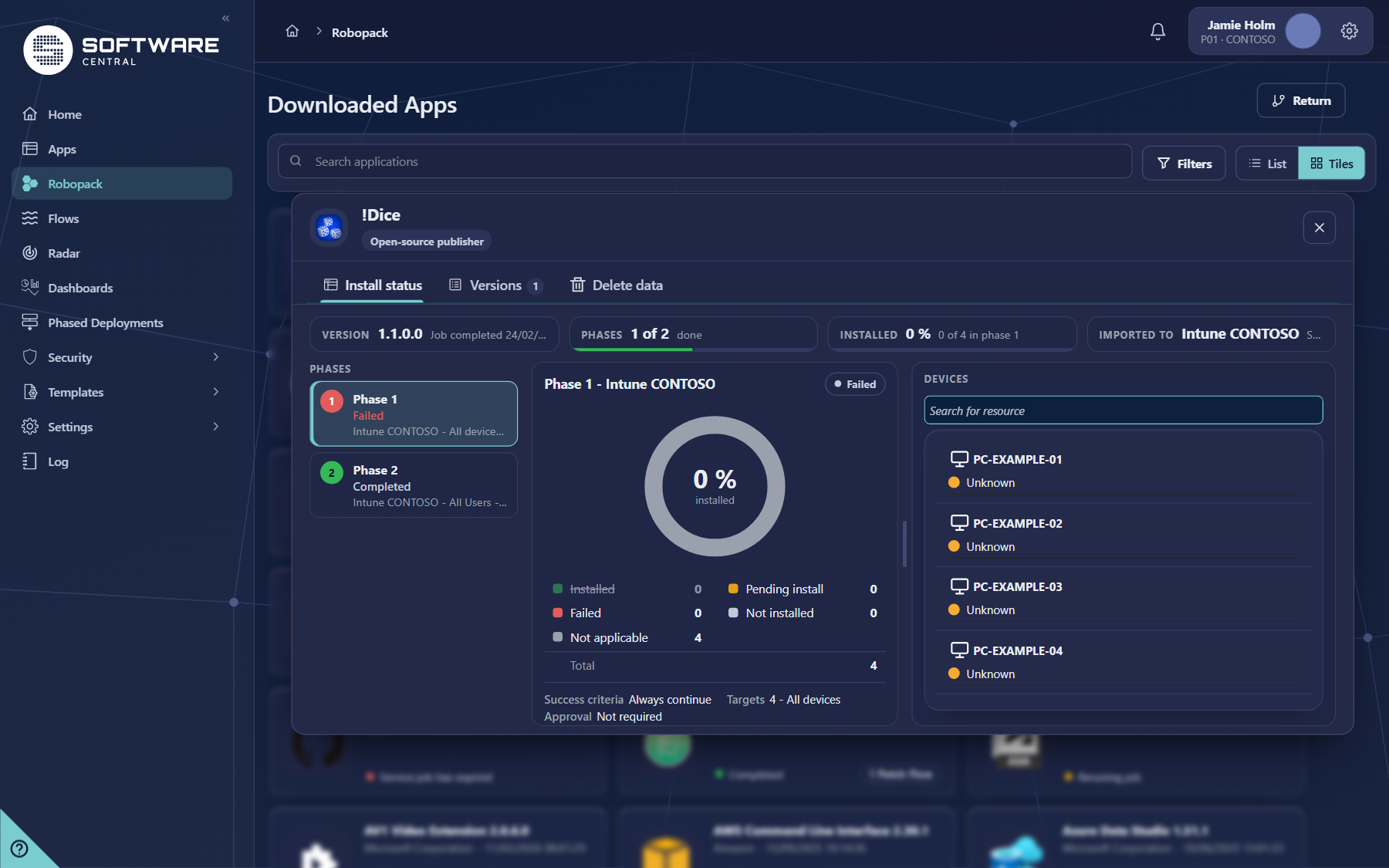
Click an application to open its window. The pictures on this page show !Dice, an application with one version that was imported to Intune.
| Part | What it shows |
|---|---|
| VERSION | The version of the latest job, with its status and the date and time it ran. |
| PHASES | How many phases of the phased deployment are done. |
| INSTALLED | The percentage of devices with the application installed, and how many there are in the current phase. |
| IMPORTED TO | Where the version was imported: a Configuration Manager site or an Intune tenant. |
| PHASES list (left) | Each phase with its status and its target, for example Intune CONTOSO - All devices. Click a phase to see its details. |
| Phase details (middle) | A ring with the percentage installed, and the counts Installed, Failed, Not applicable, Pending install, Not installed and Total. Below them the Success criteria, the Targets and whether an Approval is needed. |
| DEVICES (right) | The devices of the selected phase with their install state. Search for resource finds one device. |
5 Phases and buttons
When the version was rolled out with a phased deployment, buttons for the selected phase appear in its window. They only appear when they make sense for the state of that phase.
| Button | What it does |
|---|---|
| Rerun Job | Runs the download and import job again for the places where the application was not created. Where it was created and only a later step failed (for example replacing in the shop), the job is not run again; the entry is marked as failed and the log says which step failed. |
| Go to next phase | Marks the phase as completed and continues. The next phase still waits for its own scheduled time. |
| Pause | Stops the phased deployment, so it does not continue to the next phase. |
| Approve Phase | Gives the approval a phase needs before it starts. |
| Skip Phase | Skips the phase and moves on. |
6 Versions
The Versions tab lists the download jobs of the application with the version, the date and the status. Click a job to open its install status.
7 Delete data
The Delete data tab removes what old downloads left behind. It is shown only to security roles with the right AppMan_DeletePatchFlowData.
- Choose one or more jobs in the list. Each job is a download of an application version.
- Under Delete Settings choose what should go: Delete SCCM Applications, Delete Intune Applications and Delete Intune Groups (the groups the applications were assigned to). Items you do not choose remain.
- Click Confirm deletion of data. The next screen lists exactly what will be deleted for every job. Click Delete data there to start.
The deletion runs in the background. A window shows what is being deleted, how long it has run and how much time is left. Nothing is deleted until you confirm on the check screen.
8 Status messages
| Message | What it means |
|---|---|
| Job completed | The job ran to the end without errors. |
| Job completed with errors | The job ran to the end, but one of its steps failed. The log says which. |
| Successfully imported application | The application was created in Configuration Manager or the Intune tenant. |
| Uses the application another Patch Flow imported with the same application template | The application already existed from another flow with the same template, so it was used and not created again. |
| Failed to import application ‘…’ at site ‘…’ or … to Intune tenant ‘…’ | The import to that place failed. The reason is in the SoftwareCentral log. Fix the cause and use Rerun Job. |
| Service job has expired | The job could not be completed in time. Use Rerun Job. |
| Service job has failed | The service stopped the job with an error. The log has the details. |
| Phase 1 of 2 has failed or Phase 1 of 2 has no target resources | The phased deployment could not start the phase, or no device matches it (for example because of a limit set in the import window). Check the template and its limits. |
9 Best practices
- Look at this view after every new version. Sort by Last downloaded (newest first) to see the newest jobs at the top, and open any application with a red line.
- Move a phase on only when you know the numbers. Check the phase counts and the device list before Go to next phase, Approve Phase or Skip Phase.
- Rerun instead of re-importing. Rerun Job only retries the places that failed.
- Delete with care. Use Delete data only for old versions that no device uses, and read the check screen before you confirm.
10 Troubleshooting
| You see | Likely cause and what to do |
|---|---|
| Service job has expired, or Reruning job that does not finish | The SoftwareCentral Windows service did not run the job in time. Check that the service is running (see Automated patch flows). If the job does not finish, use Rerun Job. |
| Failed to import application … | The import to that place failed. Open the SoftwareCentral Log and search for the application name to see the reason. Fix the cause and use Rerun Job. |
| Phase 1 of 2 has no target resources | No device matches the phase. Check the collection or group of the phase and any limit set in the import window. |
| The Delete data tab is missing | Your security role does not have the right AppMan_DeletePatchFlowData. |