1 What a template is
A template stores, for each place an application can go, the answers to the steps of the import window.
- Configuration Manager the application template, the optional phased deployment template, the replace settings and the limits of the phased deployment.
- Intune for each tenant: the Intune application template, the scope (machine or user), the phased deployment and the replace settings.
A template can be used for any number of applications. Choosing a template in the import window fills in every setting, and you can still change any part for that one import. The default template is the one the import window starts with.
2 The list
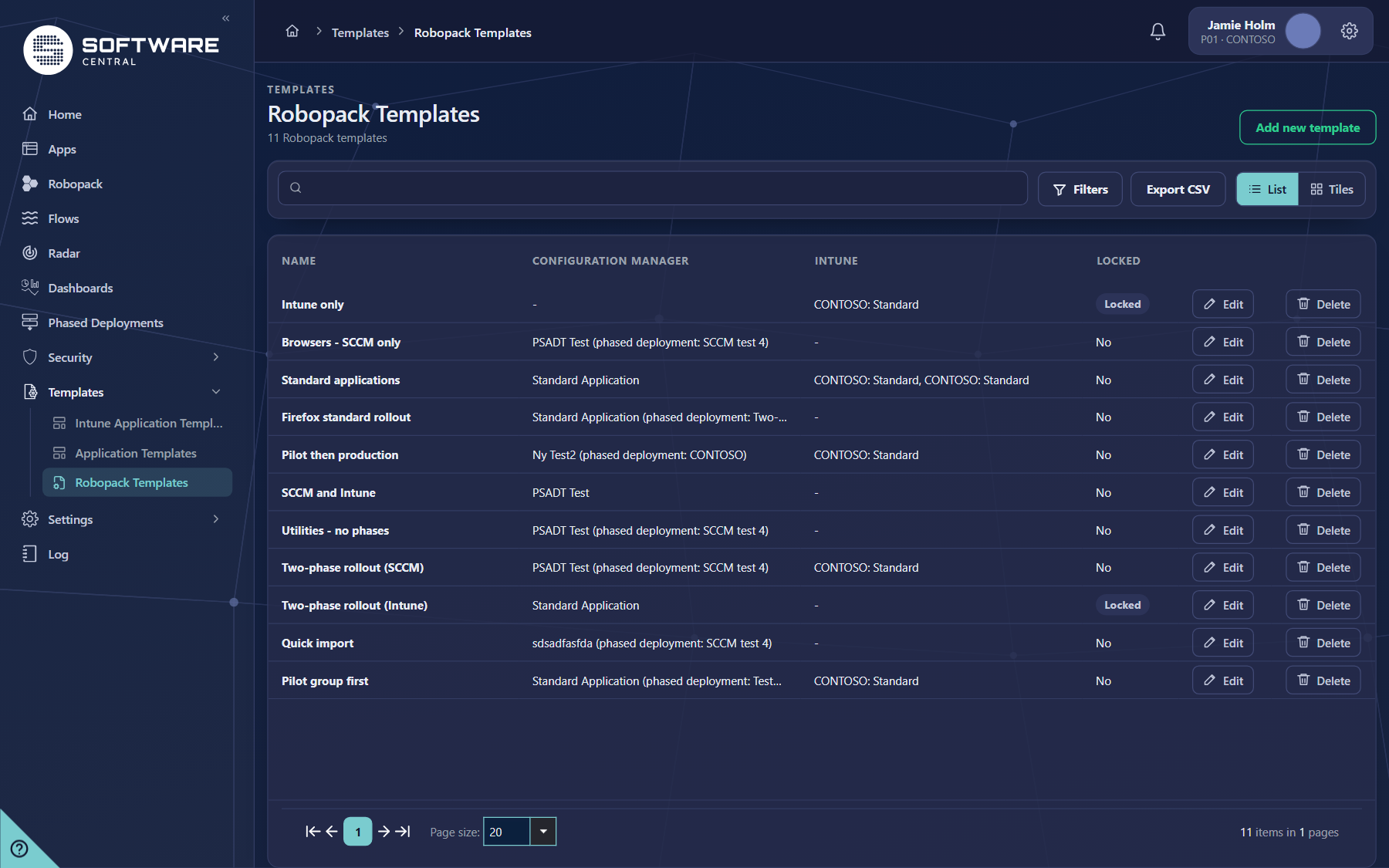
Open Templates › Robopack Templates in the menu. The page shows the number of templates, for example 11 Robopack templates, and one row for each template.
| Column | What it shows |
|---|---|
| Name | The name of the template. Click it to edit the template. |
| Configuration Manager | The application template, and in brackets the phased deployment template when there is one. - means the template does not import to Configuration Manager. |
| Intune | The Intune tenant and its application template, for example CONTOSO: Standard. - means no tenant is set. |
| Locked | Locked or No. See Lock Template. |
| Edit / Delete | Open the template wizard, or the delete window for that template. |
3 Search, Filters and Export CSV
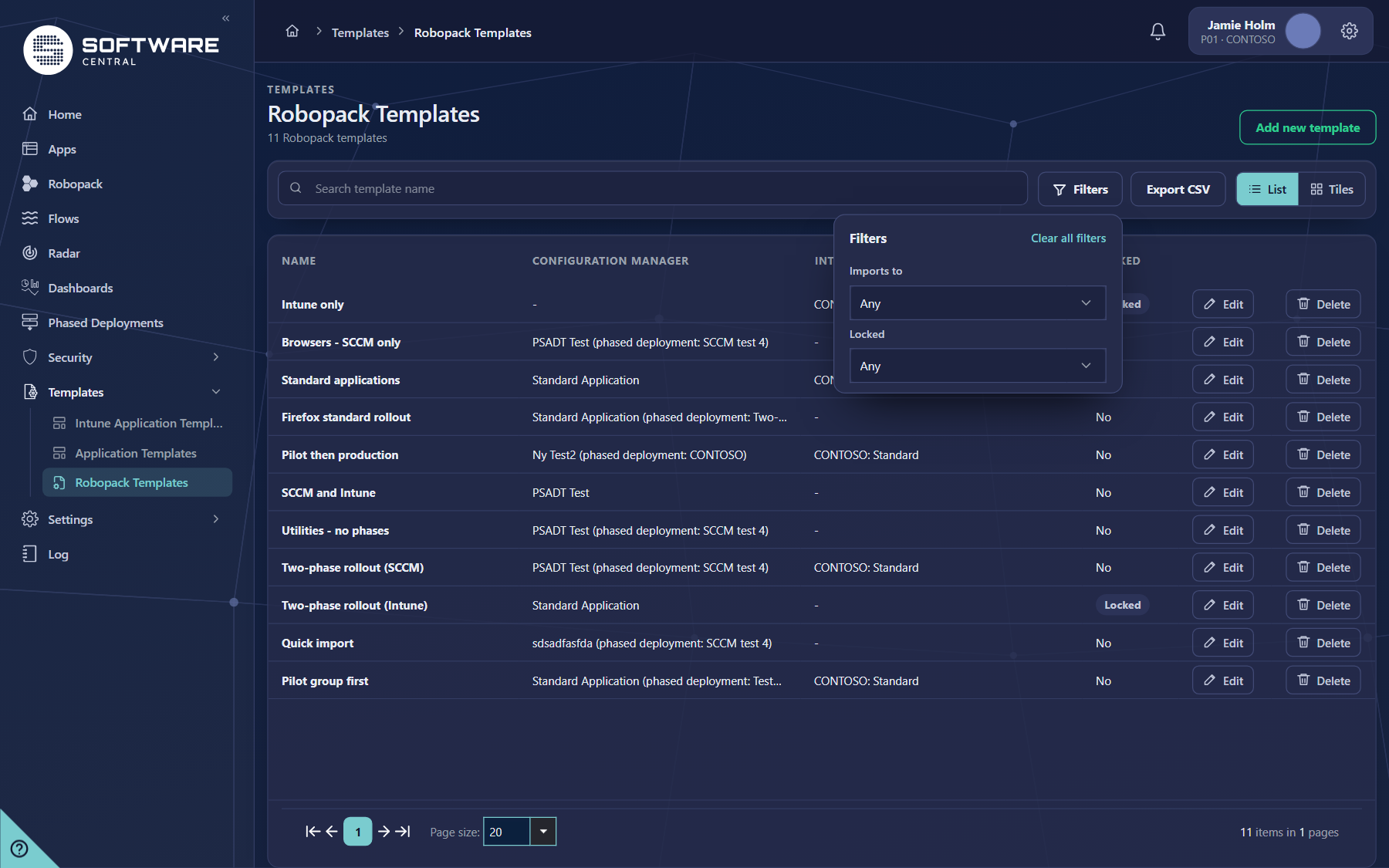
Above the list, the buttons work on the templates that match the search and the filters:
| Element | What it does |
|---|---|
| Search template name | Shows the templates whose name contains the text you type. |
| Filters › Imports to | Any, Configuration Manager (templates with a Configuration Manager application template) or Intune (templates with an Intune application template in at least one tenant). |
| Filters › Locked | Any, Locked or Not locked. |
| Clear all filters | Resets both filters to Any. |
| Export CSV | Saves all the templates that match the search and the filters to a CSV file. The file includes the template ID. |
| List / Tiles | Switches between the list and the tile view. |
4 Add, edit and delete
| Action | What happens |
|---|---|
| Add new template | Opens the template wizard empty. Its button at the bottom right is Save. |
| Edit (or the name) | Opens the template wizard with the template’s settings. The title is Edit ‘…’ and the button is Update. |
| Delete | Opens the delete window for that template. Nothing is removed until you confirm there. |
5 The template wizard
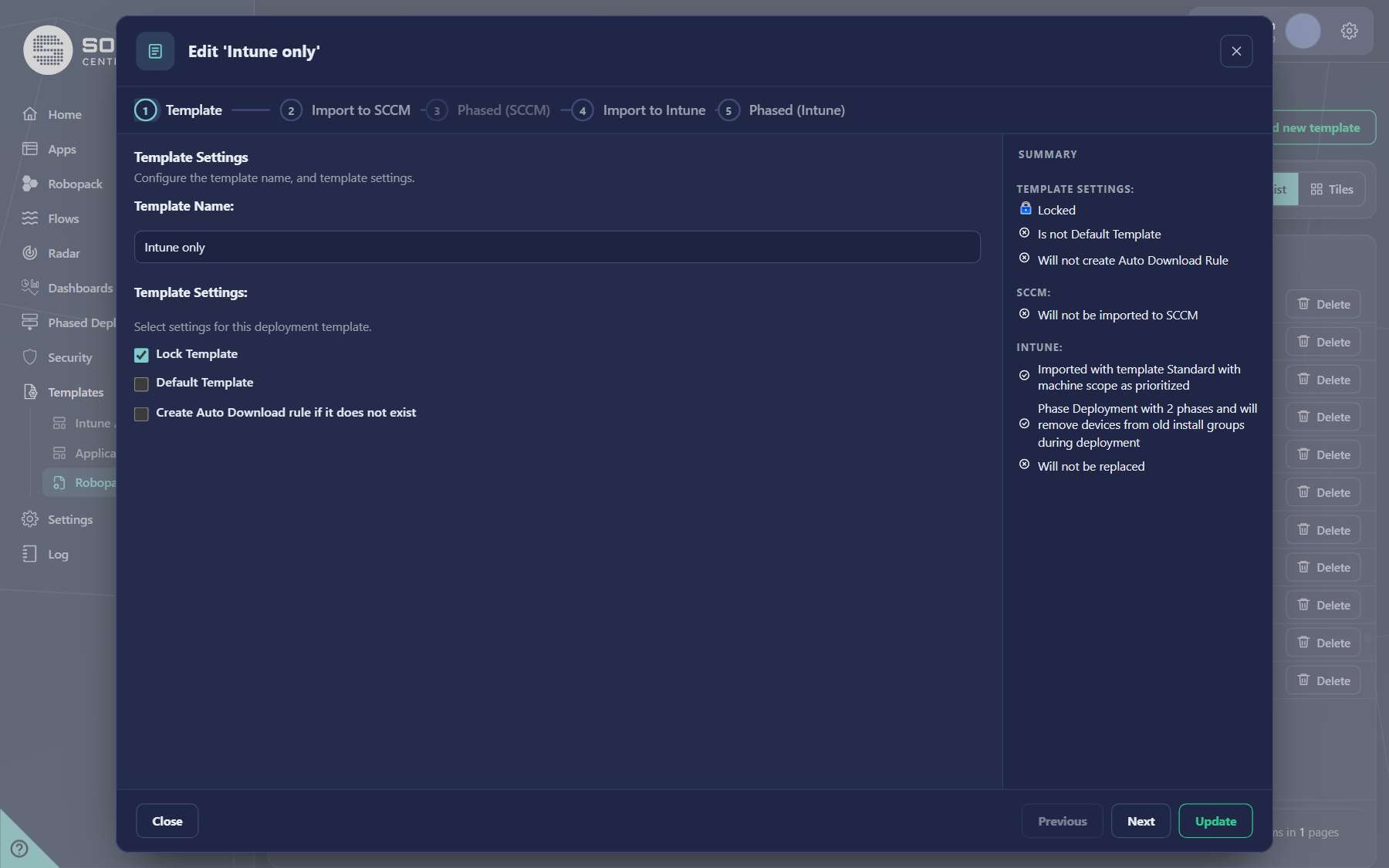
Five steps, with the same questions as the import window. Step 1 holds the name and the options. The Summary on the right always says what the template will do. The buttons are Close, Previous, Next and Update (Save for a new template).
| Step | What it holds |
|---|---|
| 1 – Template | Template Name, Lock Template, Default Template and Create Auto Download rule if it does not exist. See below. |
| 2 – Import to SCCM | The Configuration Manager application template and the replace settings: Supersede the previous version (with Uninstall the previous version first) and Move resource to new install collection. |
| 3 – Phased (SCCM) | The phased deployment template, Remove the devices from the previous versions install collection., Limit devices to old install collections, and the notification choices: All phases are completed, A phase has met its success criteria and A phase has not met its success criteria after. |
| 4 – Import to Intune | The tenant, its Intune application template, the scope (Machine or User) and the replace settings: Supersede the previous version (with Uninstall the previous version first). |
| 5 – Phased (Intune) | The Intune phased deployment template, Remove the endpoints from the previous versions install group., Limit endpoints to old install groups and the notification choices. This step is available once step 4 has an application template. |
The phased deployment steps above can limit a phase to the devices that already have the application. The program-name limit is set for each import and is not saved in the template. See Limit which devices a phase gets for the options and how program names are matched.
6 Lock, Default and Auto Download
| Option | What it does |
|---|---|
| Lock Template | Marks the template as locked. Its tooltip says that values in a locked template cannot be changed while importing an application. The Summary shows Locked or Unlocked. |
| Default Template | Makes this template the one the import window starts with. There is only one default: ticking it takes the default away from the previous one. The Summary shows Default Template or Is not Default Template. |
| Create Auto Download rule if it does not exist | When this template is used for an application that has no Patch Flow yet, a Patch Flow is created with the template’s settings. If the application already has a Patch Flow, nothing is added. |
7 Deleting a template
Deleting a template removes it from this list. Applications and Patch Flows that were created from it are not touched, because they keep their own copy of the settings. If the deleted template was the default, the import window opens with no template chosen until you choose a new default.
8 Best practices
- Few templates, clear names. Name them after the rollout (Pilot then production, Intune only), not after one application.
- Start with a test group. Point the application templates at a group of testers first; the phased deployment then widens the audience.
- One default. Make the template that fits most applications the default, so most imports need no choice.
- Do not rely on Lock Template for security. Lock only stops values being changed while importing. Control who may create or change Patch Flows with security role rights.
- Edit the flow, not only the template. Existing flows keep their old settings. Edit those flows if they should change too.
9 Troubleshooting
| You see | Likely cause and what to do |
|---|---|
| The Robopack Templates page does not open, or is not in the menu | The Robopack module is not licensed or not enabled. Check Robopack settings. |
| A template shows - under Intune | No tenant has an Intune application template in that template. Open the template and choose one in step 4. |
| A template shows - under Configuration Manager | The template has no Configuration Manager application template. Choose one in step 2. |
| Save is not available in the wizard | Choose an application template in step 2 or 4 first, and type a template name. |
| The list is empty, or a filter shows nothing | Click Clear all filters and clear the search box. |
| A change to a template did not change an import | Imports and flows keep the settings they were made with. Edit the flow, or import again with the changed template. |