1 What it is for
Use Security Roles to decide what each group of people can do in Application Manager Only.
- Members: the Entra ID group whose members use the role.
- Menu and functions: which pages and buttons the role can use. A page appears in a user's menu only when the role has it ticked.
- Software: which package security groups the role can see and manage, and which application templates it may choose.
- Intune tenants: which Intune tenants the role can work in.
2 The page at a glance
The list shows one row per role. The columns show who the role is for and how much it can do.
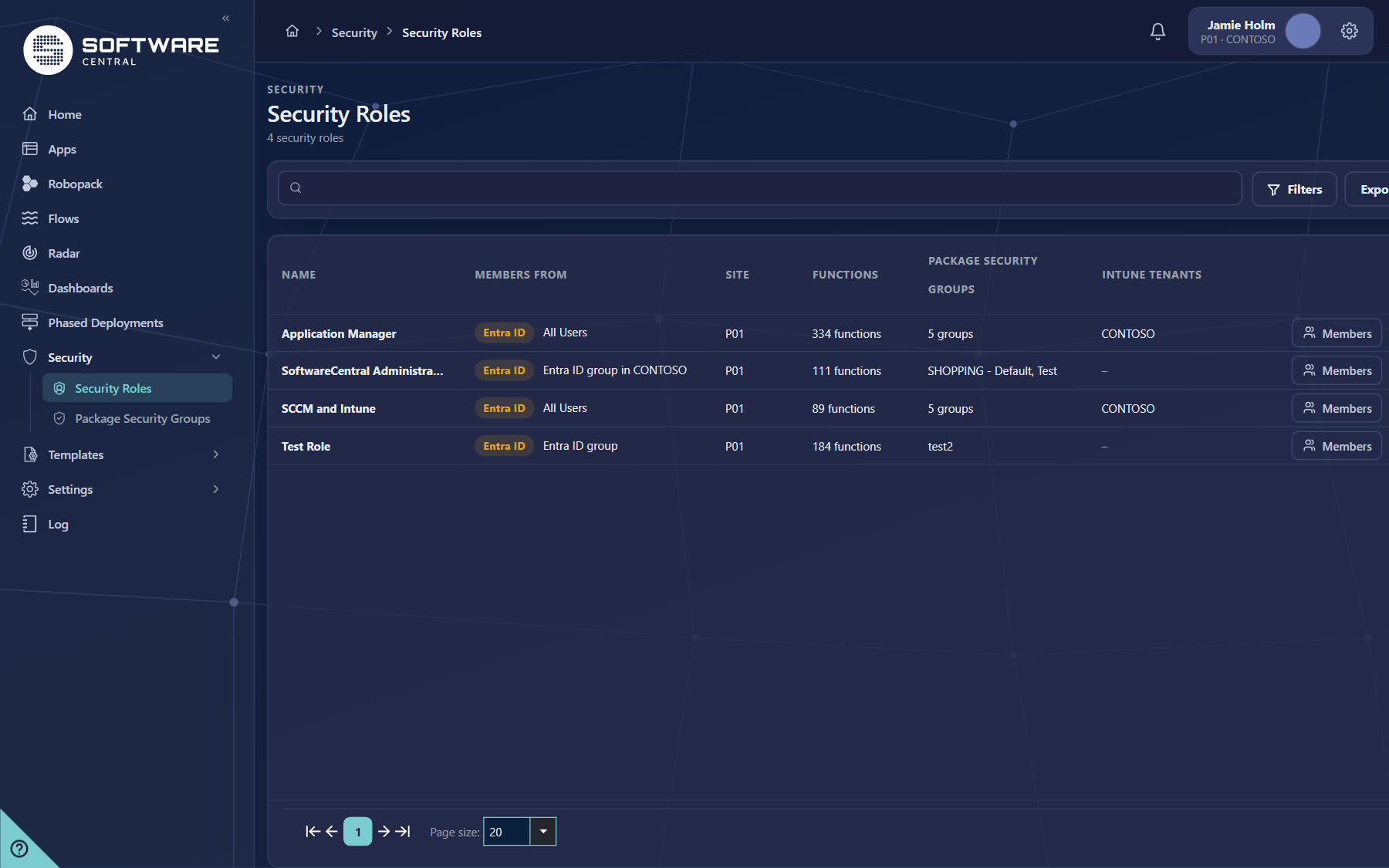
3 Find a role
Type a name in the search box to narrow the list. Click Filters to narrow it further by site, Intune tenant or package security group. The number on the button shows how many filters are in use.
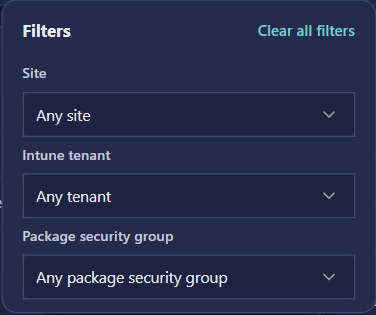
4 Edit a role
- Click Edit on the row, or click the role name.
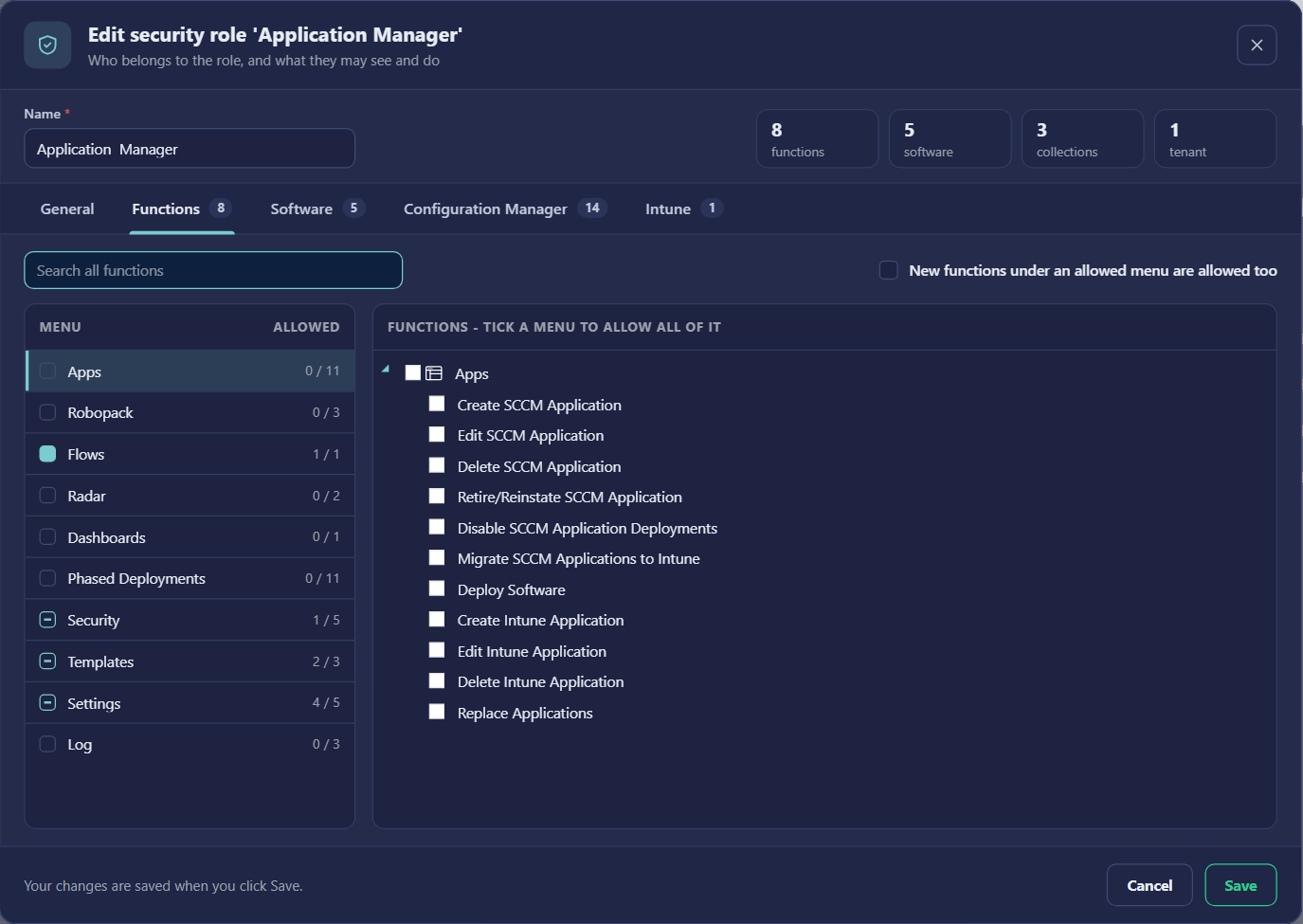
- The window opens with the Name at the top. Use the tabs to move between the parts of the role. Change any tab and click Save; you do not have to go back to the first tab.
- Use the General tab to set the Entra ID group under Members and the sites. The group shown in the list under Members from is the one that is saved there.
- Click Cancel to close without keeping your changes, or Save to keep them.
Users see the change only after they choose the role again
A user keeps the menu they had until they choose the role again or sign in again. Tell the people in the role after you change it.
| Tab | What you set there |
|---|---|
| General | Members: the Entra ID group whose members use the role. Sites: the sites the role may use, and the default site. |
| Functions | The menus and functions the role may use. See the next section. |
| Software | The package security groups, the application templates, the Intune application templates, the computer templates and the operating system task sequences the role may use, and the dashboards it may open. Each package security group brings its applications, packages and Intune apps. |
| Configuration Manager | The collections the role may use, the limit on devices in one operation, and the SCCM queries it may run. |
| Intune | Whether the role may use the Intune tenants (a switch for access to the tenant). |
The tabs shown depend on the installation. Reports and Active Directory are not shown in Application Manager Only.
5 Functions and menus
The Functions tab has two lists. The left list is the menu, with how many of its functions are allowed (for example 1 / 5). The right list is the functions of the menu you selected.
- Tick a menu on the left to allow all of its functions. A menu with some functions allowed shows a dash.
- In Application Manager Only the menus follow the sidebar: Apps, Robopack, Flows, Radar, Dashboards, Phased Deployments, Security, Templates, Settings and Log.
- Security and Templates are groups in the sidebar. Ticking a page under them allows that page only. Ticking a page under Security or Templates also gives the role the Settings menu, because those pages sit under it.
- New functions under an allowed menu are allowed too adds every function the menu gets later. Use it only when the role should always have the whole menu.
- Search all functions finds a function across all menus.
Tick the page, not the whole menu
A role that only needs to read phased deployments should have just that page ticked. A role with a whole menu ticked can use every page in it.
6 Fields and buttons
| Element | What it does |
|---|---|
| Add security role | Creates a new role in the edit window. |
| Export roles | Exports the roles. |
| Filters | Narrows the list by site, Intune tenant and package security group. |
| Members | Opens the members of the role's Entra ID group. |
| Edit | Opens the role in the edit window. |
| Delete | Deletes the role. The confirmation says whose sign-in is lost, so read it before you confirm. |
| Start from role | Fills a new role with the settings of another role. Use it to copy a role and change only what differs. |
| Save | Keeps the changes made on every tab. |
| Cancel | Closes the window without keeping the changes. |
Edit several roles is not shown in Application Manager Only.
7 Best practices
| Topic | Recommendation |
|---|---|
| One role per job | Create a role for each kind of work, for example a packager and a reader. Give each only the pages it needs. |
| Copy with Start from role | When a new role is like an existing one, choose it under Start from role and change only the differences. |
| Give software through groups | Allow package security groups rather than single applications. A group brings all its applications, packages and Intune apps. |
| Tick only what is needed | Prefer ticking single pages. Use New functions under an allowed menu are allowed too only for roles that should get future functions automatically. |
| Test the role | After you change a role, sign in with a test account in it, or ask a member to choose the role again, and check the menu. |
| Keep an administrator role | Keep at least one role that can still open Security Roles, so that no one locks themselves out. |
| Review with filters | Filter by package security group to see every role that can reach a group. Export the list for an access review. |
8 Troubleshooting
| Symptom | Cause and what to do |
|---|---|
| A page you ticked does not appear in a user's menu | The user keeps the old menu until they choose the role again or sign in again. Ask them to do so. |
| A page is missing from your own menu | Your role does not have that page ticked. Administrators see only the ticked pages too. |
| A page under Security or Templates shows, but Settings does not | Settings is added to the role automatically when a page under it is ticked. Save the role and let the user choose it again. |
| The role's members do not change | The members come from the Entra ID group in Members from. Change the people in that group, then choose the role again. |
| A role cannot see a package security group | Check that the group is ticked on the Software tab and that the role is in the group's Security roles tab in Package Security Groups. |
| The list shows No items match your criteria | A filter or the search is hiding every role. Clear the filters and the search box. |
| Buttons at the top right of the page are cut off | Make the browser window wider. |