1 What it is for
Use package security groups to say which software a role may use, without setting it application by application.
- A group is granted to roles on the Security Roles page, on the Software tab.
- A role sees and manages the software in the groups it has been given.
- An application template can belong to groups too. The Templates column shows which templates use each group.
2 The page at a glance
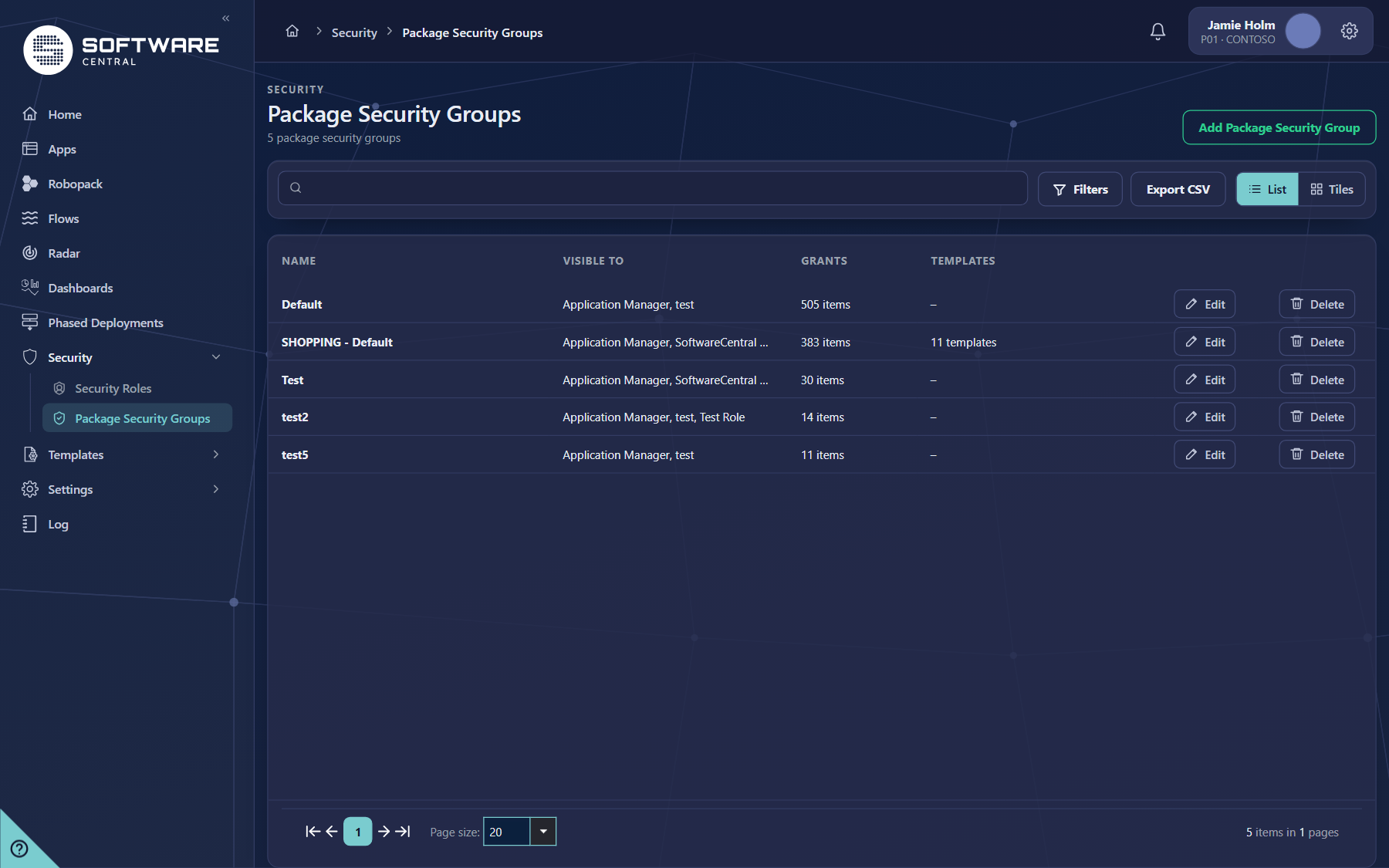
The header shows the number of groups and the button to add one. The list shows which roles can see each group and what it grants.
3 Find a group
Type a name in the search box to narrow the list. Click Filters to narrow it by role or by what the group grants.
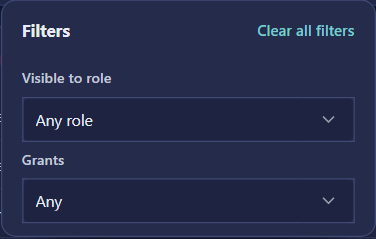
| Filter | Choices |
|---|---|
| Visible to role | Any role, or one security role. The list of roles can be searched by typing. |
| Grants | Any, Something (the group grants at least one item) or Nothing yet (the group is empty). |
Shop only groups are not in this edition
The full SoftwareCentral product also has an Applies to column and filter for shop-only groups. Application Manager Only does not have shop-only groups, so the column and filter are not shown here.
4 Create and edit a group
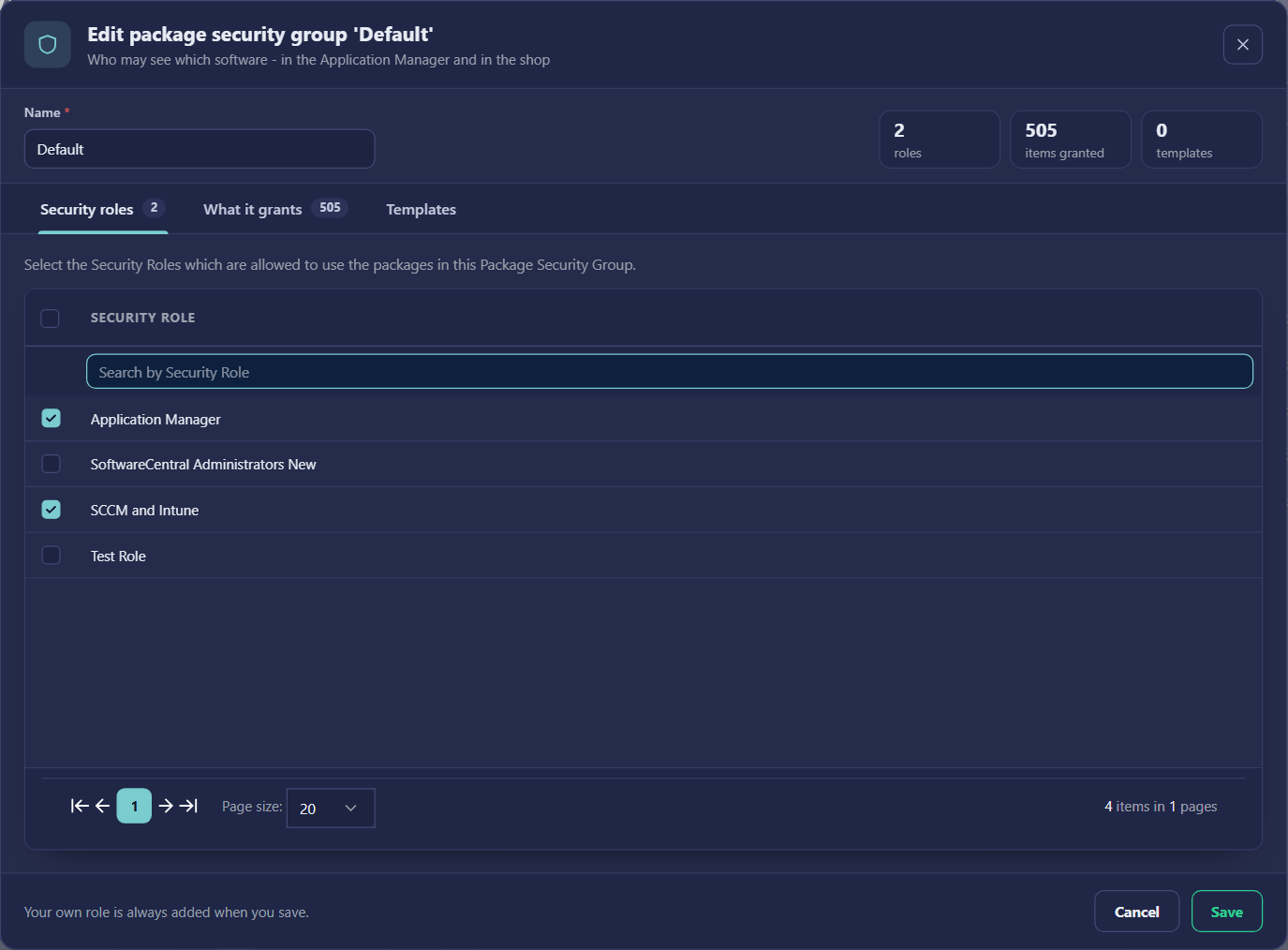
- Click Add Package Security Group to create a group, or click Edit on a row to change one.
- Type the Name. The name is what you see when you pick the group in a security role.
- On the Security roles tab, tick the roles that may use the packages in the group.
- Check the What it grants and Templates tabs. Their counts show how many items and templates are in the group.
- Click Save. Your own role is always added when you save.
5 Fields and buttons
| Element | What it does |
|---|---|
| Add Package Security Group | Opens an empty group in the edit window. |
| Name | The name of the group. Required. |
| Security roles tab | The roles that may use the packages in the group. Tick a role to give it the group. |
| What it grants tab | The items the group gives access to. The count shows how many. |
| Templates tab | The application templates that use the group. |
| Filters | Narrows the list by role and by what the group grants. |
| Export CSV | Downloads all groups that match the search and filters. |
| Edit | Opens the group in the edit window. |
| Delete | Deletes the group. Use it only when no role or template needs the group. |
| Save / Cancel | Keeps the changes, or closes the window without keeping them. |
6 Best practices
| Topic | Recommendation |
|---|---|
| Name groups by content | Name a group after the software or the team it serves, so the name still makes sense when it is picked in a role. |
| Separate test software | Keep test packages in their own group and give it only to the testers' role. Give the production group to the roles that need it. |
| Check empty groups | Set Grants to Nothing yet to find groups that give access to nothing, and remove them or fill them. |
| Look before you delete | Check the Templates column and the Visible to column first. A group that a template or a role uses is still in use. |
| Review access | Filter by a role to see every group it can reach. Export the list for an access review. |
7 Troubleshooting
| Symptom | Cause and what to do |
|---|---|
| A role cannot see software that is in a group | The group must be ticked for that role on its Security roles tab, and the role must have the group ticked on its Software tab in Security Roles. Choose the role again or sign in again after the change. |
| Grants shows Nothing yet | The group has no items. Open it with Edit and add the items on the What it grants tab. |
| Templates shows a dash | No application template uses the group. This is normal for a group used only for roles. A template that should use it must be set to use the group. |
| The Applies to column or filter is missing | This is expected in Application Manager Only, which does not have shop-only groups. |
| The list shows No items match your criteria | A filter or the search is hiding every group. Clear the filters and the search box. |