1 What the Apps view is
The Apps view lists every application you have access to as a gallery of cards. It is your starting point for day-to-day application management: find an app, open it to see and change what it does, create a brand-new app, or deploy software to devices and users.
2 Layout at a glance
The view has two parts: a slim action panel on the left, and the app gallery filling the rest of the page.
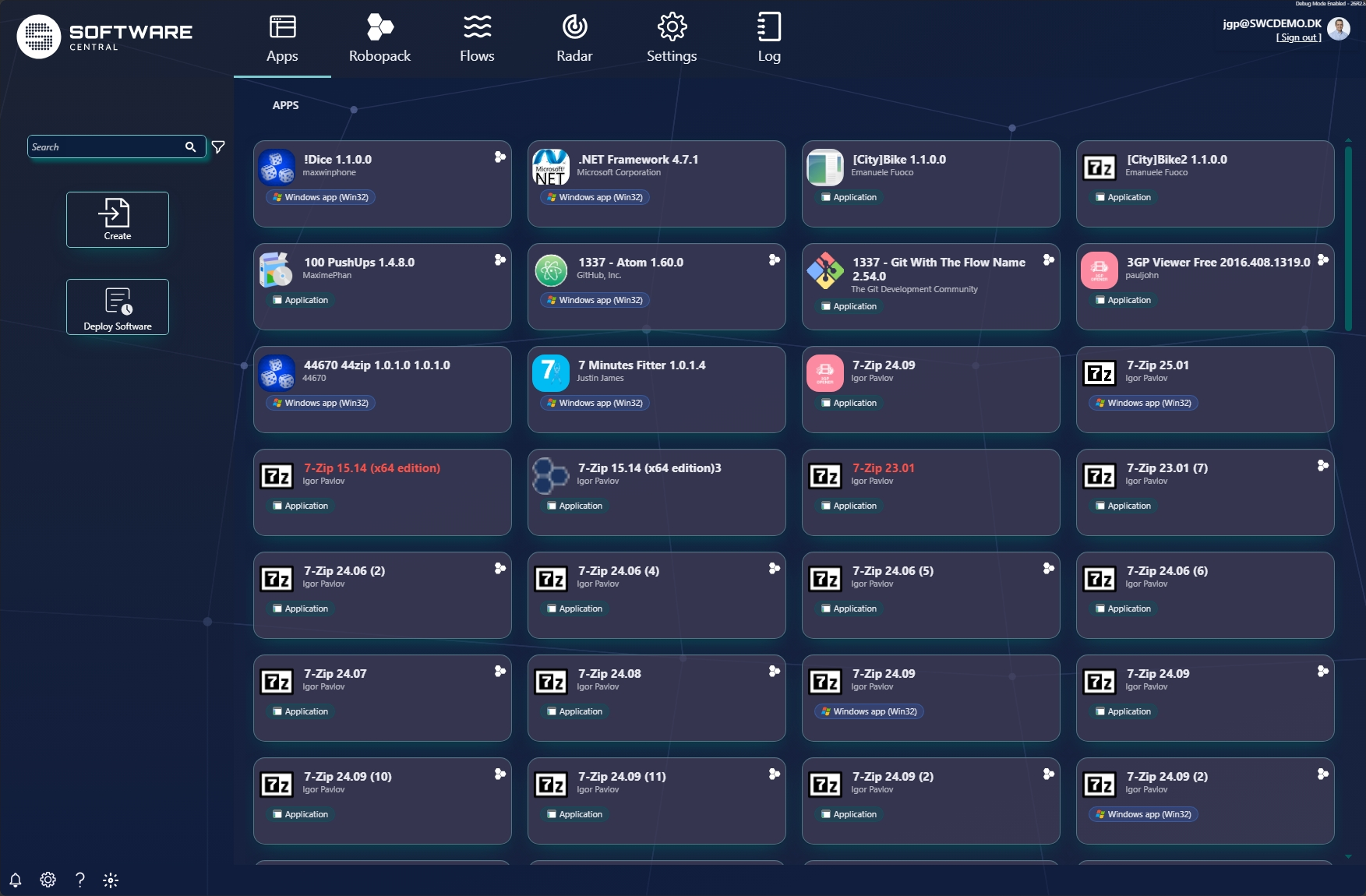
| Element | What it does |
|---|---|
| 🔍 Search | Free-text search across your applications (see below). |
| ▽ Filter (funnel icon) | Opens the filter panel to narrow the gallery by type and manufacturer. |
| ➕ Create | Create a new application — either an Intune app or an SCCM application. |
| 🚀 Deploy Software | Deploy an application to devices or users. (Shown when your role has the Deploy Software permission.) |
| 🗂️ App gallery | One card per application; click a card to open and manage that app. |
3 Search
Type in the Search box at the top of the left panel to instantly narrow the gallery to matching applications. Search matches the application name, so typing 7-Zip shows every 7-Zip version. Clear the box to show everything again.
Search and filters work together — a search is applied on top of whatever filters are active.
4 Filters
Click the funnel icon next to the search box to open the filter panel. Choose your filters, then close the panel to apply them.
| Filter | What it does |
|---|---|
| Filter by Type | A checklist of the application types present in your environment — e.g. Application (SCCM) and the Intune types such as Windows app (Win32). Tick one or more to show only those types. |
| Filter by Manufacturer | A checklist of publishers (e.g. Igor Pavlov, Microsoft Corporation). Tick one or more to show only apps from those manufacturers. |
Both lists are multi-select with a search box inside them, and a "check all" option. Your selections are remembered as you move around, so the gallery keeps your view until you clear the filters.
5 Reading an app card
Each card summarises one application at a glance:
- Icon — the application's icon.
- Name & version — e.g.
7-Zip 24.09. - Publisher / manufacturer — e.g. Igor Pavlov.
- Type tag — a small badge showing the app type: Application (an SCCM application) or Windows app (Win32) (an Intune app). See Application types.
- Robopack badge — the hexagonal icon in the top-right corner marks an application that is managed by Robopack.
- Red name — an application shown with a red name is retired.
Click any card to open the application and see everything you can do with it.
6 Application types
The gallery shows both delivery platforms side by side. The type tag on each card tells you which one an app belongs to:
SCCM Application
A ConfigMgr application. The card's type tag reads Application. These are deployed to ConfigMgr collections.
Intune Windows app (Win32)
An Intune application. The card's type tag reads Windows app (Win32) (or another Intune app type). These are deployed to Entra ID groups.
Use Filter by Type to show only SCCM applications, only Intune apps, or a specific Intune app type.
7 Create & deploy
Create
The Create button starts a new application. You first choose what to create:
- Intune Intune application
- SCCM SCCM application
Each opens a wizard tailored to that platform. See Create an app for the full walkthrough.
Deploy Software
The Deploy Software button deploys an application to devices or users. It appears when your role has the Deploy Software permission. See Deploy software for the full walkthrough.
8 Opening an app
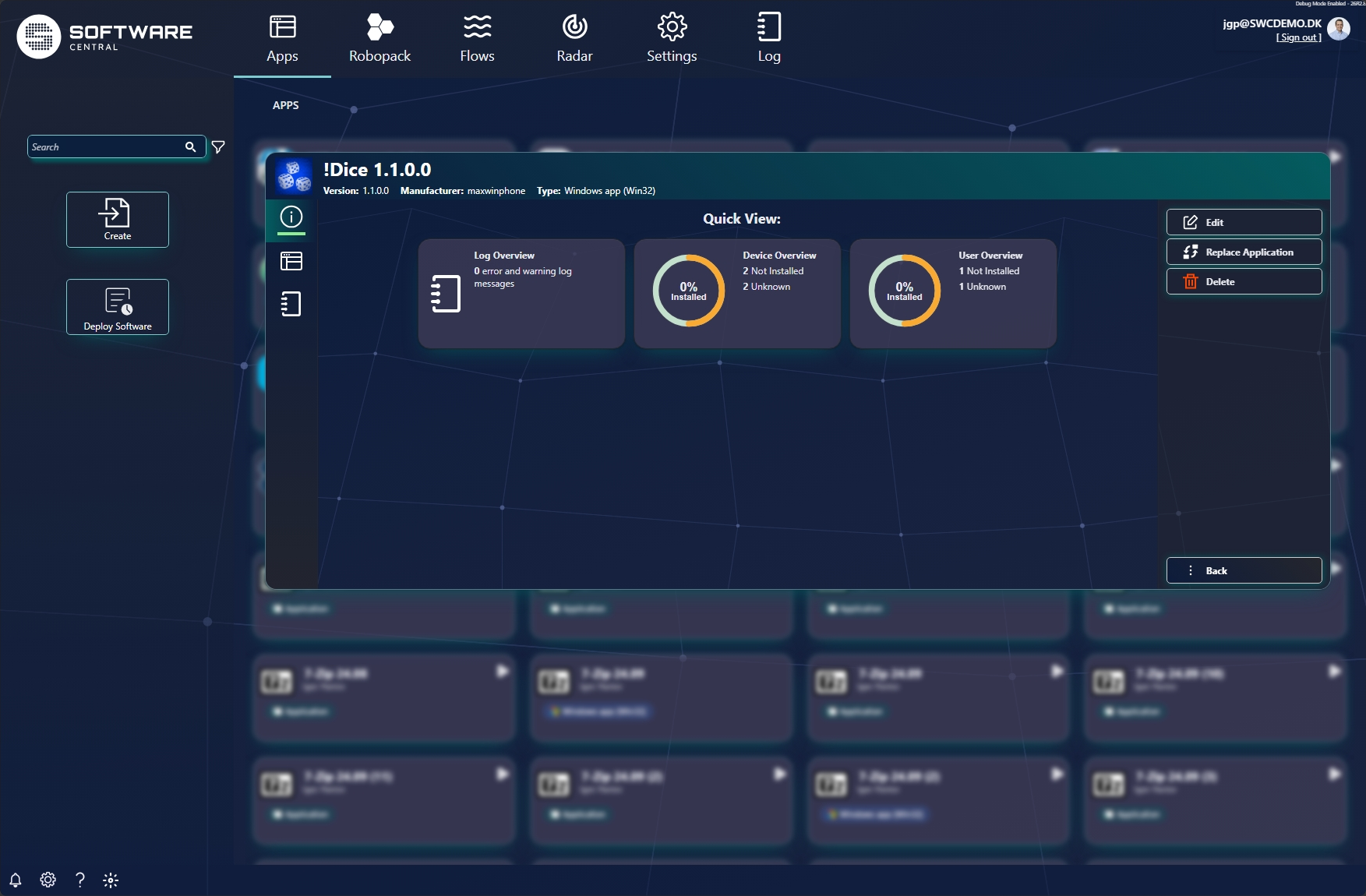
Click a card to open the application. The header shows the name, version, manufacturer and type; the icons down the left switch between Quick View, Install Status and more; and the buttons down the right are the actions you can take. Because Intune and SCCM apps work differently, the available views and actions differ — here is one of each.
Intune An Intune app
Opening an Intune app (a Windows app (Win32)) shows a Quick View with three summary cards: Log Overview (error/warning messages), Device Overview and User Overview (install progress as a ring). The actions on the right are Edit, Replace Application and Delete.
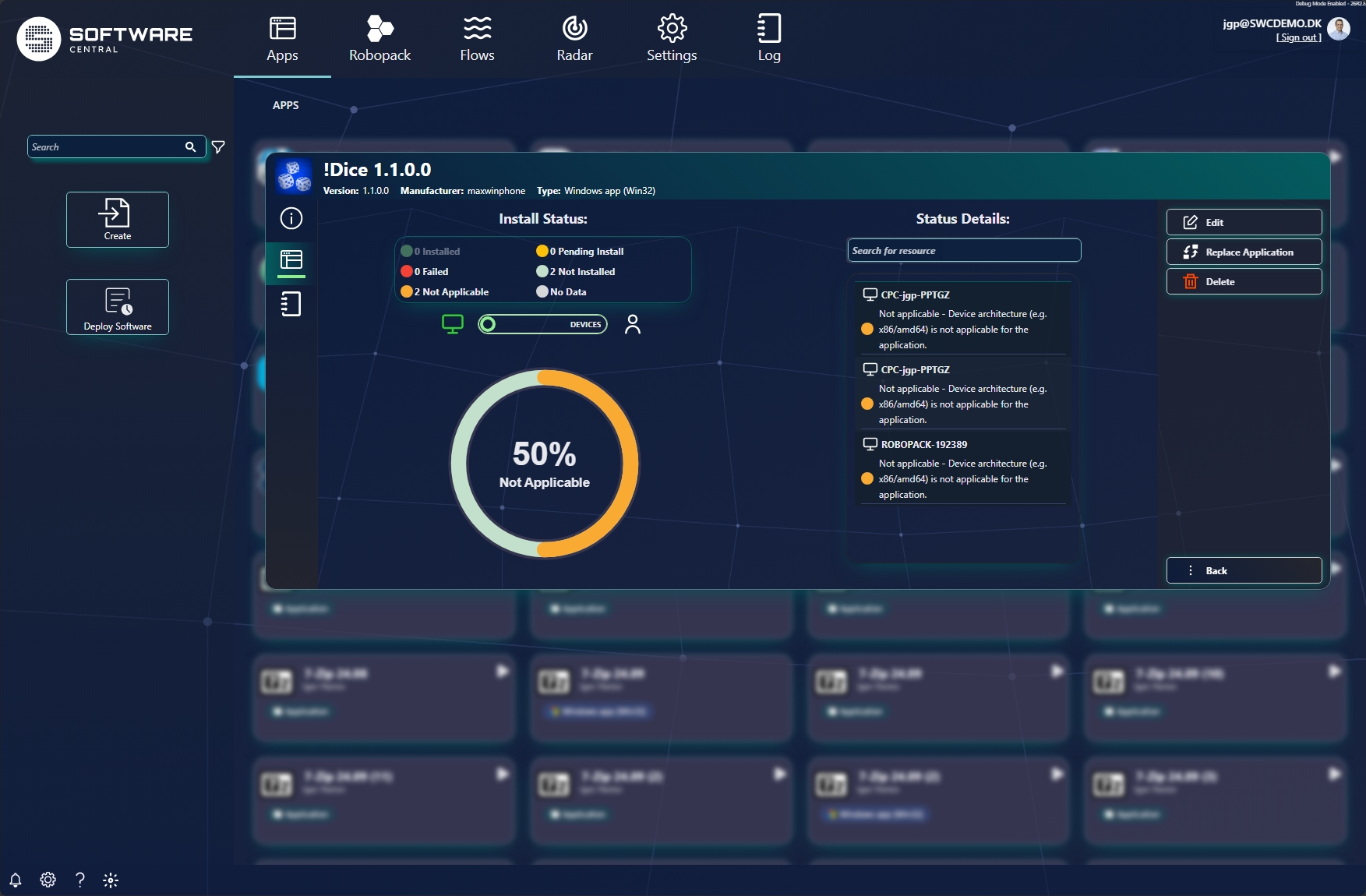
The Install Status tab breaks the deployment down by result — Installed, Failed, Not Applicable, Pending Install, Not Installed and No Data — with a device/user toggle and a per-resource Status Details list (searchable) explaining each result.
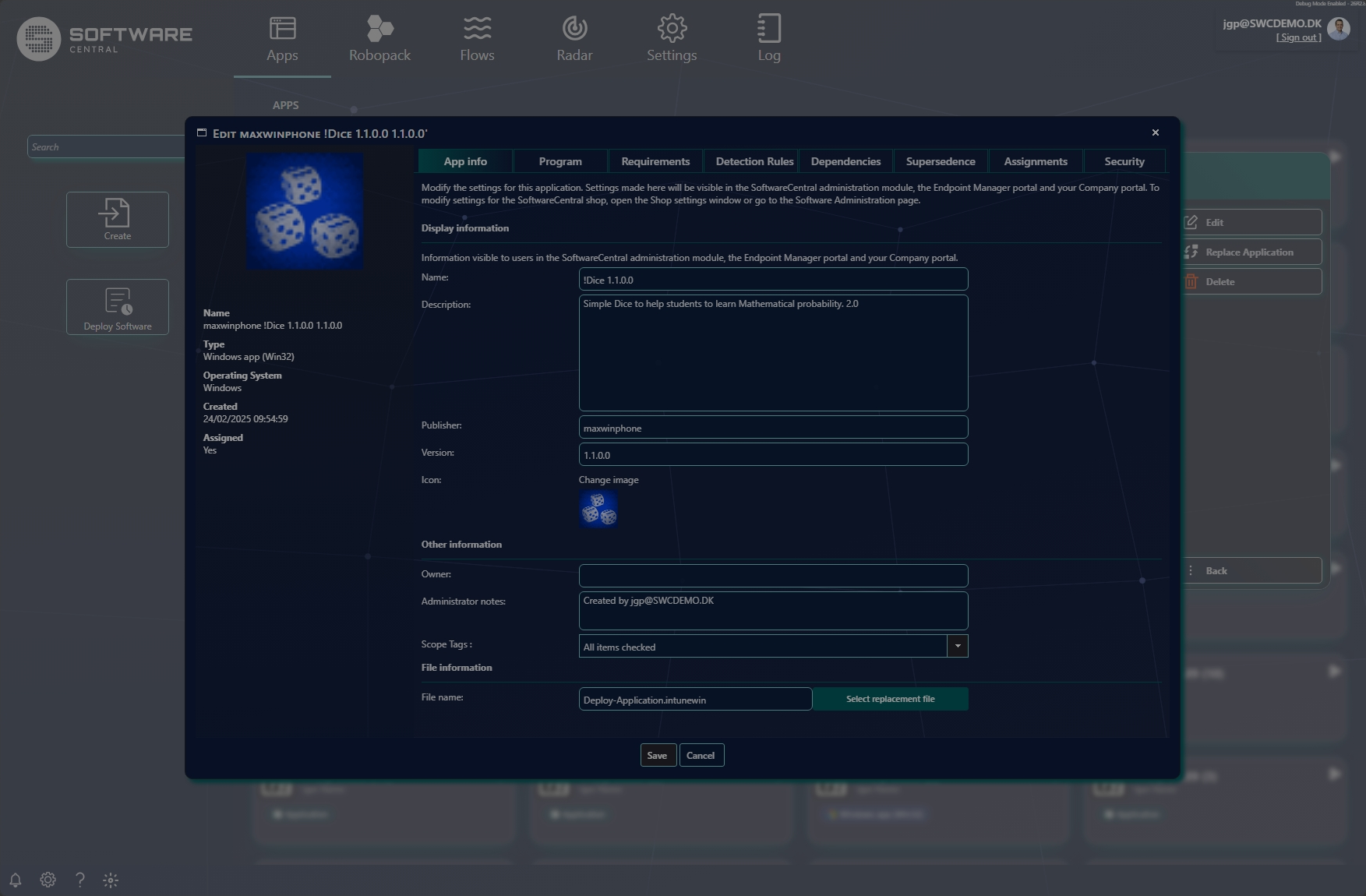
Edit opens the Intune app editor, organised into tabs: App info, Program, Requirements, Detection Rules, Dependencies, Supersedence, Assignments and Security. The App info tab covers the display information (name, description, publisher, version, icon), owner/notes/scope tags, and the source file (with Select replacement file).
SCCM An SCCM app
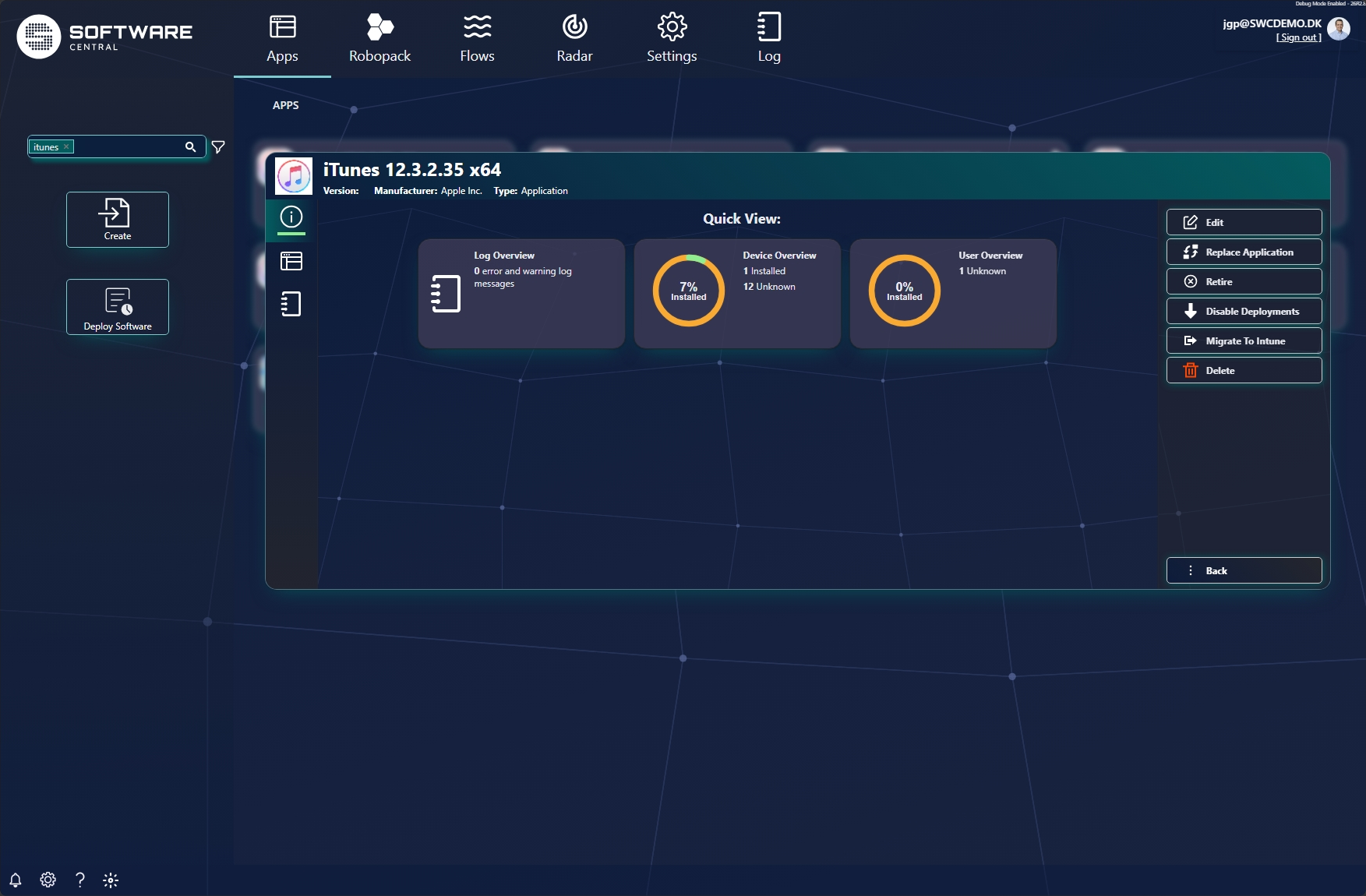
Opening an SCCM application shows the same style of Quick View (Log, Device and User overviews). SCCM apps offer more actions on the right: besides Edit, Replace Application and Delete, there are Retire, Disable Deployments and Migrate To Intune.
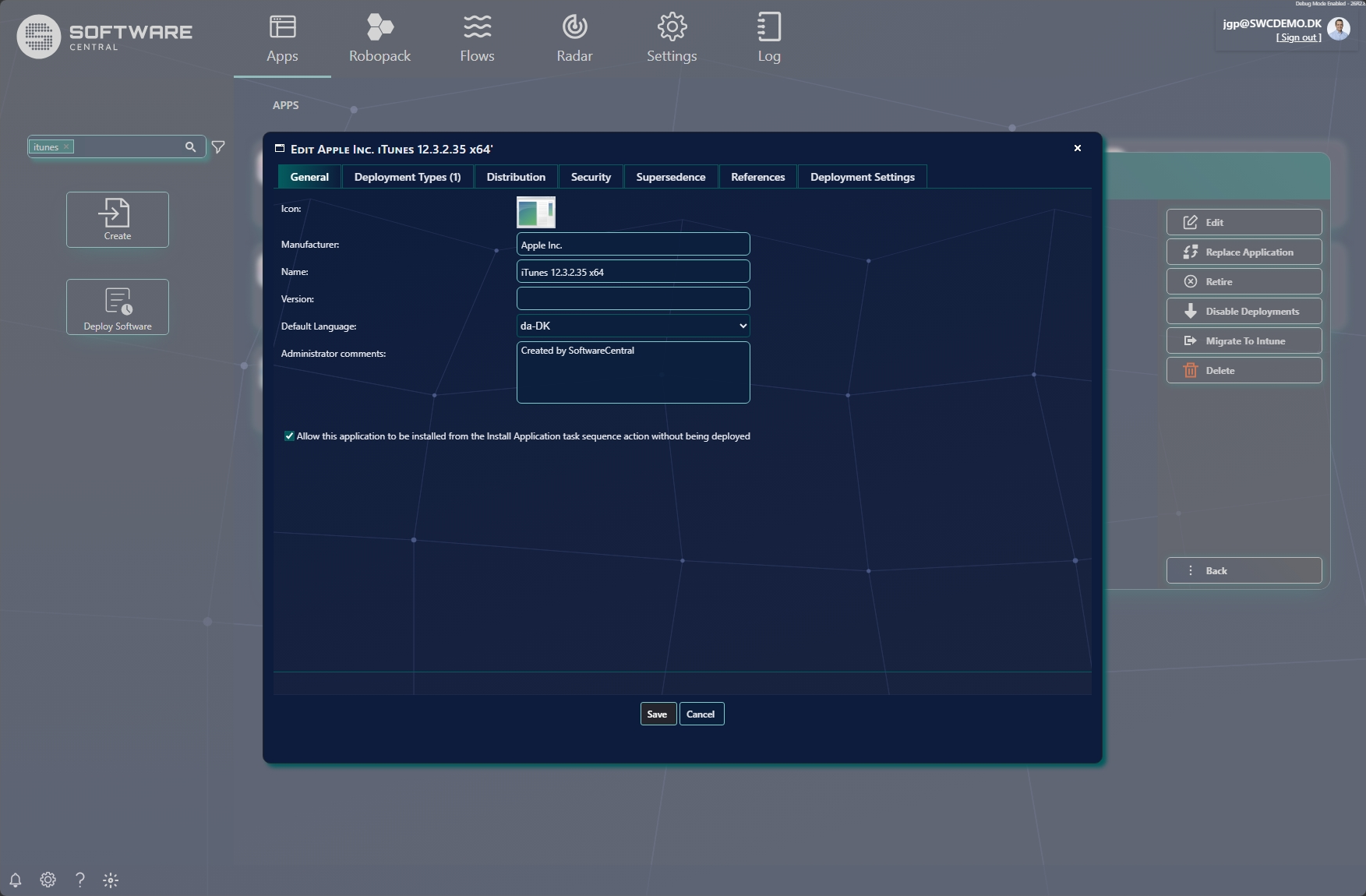
Edit opens the SCCM application editor, with tabs: General, Deployment Types, Distribution, Security, Supersedence, References and Deployment Settings. The General tab holds the icon, manufacturer, name, version, default language and administrator comments, plus the option to allow installation from an Install Application task-sequence step without a deployment.
SCCM Mending an SCCM application
For SoftwareCentral to manage an SCCM application, the app must have exactly one install collection under the SoftwareCentral collection structure (the roots defined in SCCM Folders and Collections). When that isn't the case, the app has to be mended first — otherwise SoftwareCentral cannot resolve which collection to use and the application won't work.
- has no collection at all, or
- has more than one install collection and none of them are under the SoftwareCentral collection structure.
9 Replace an application
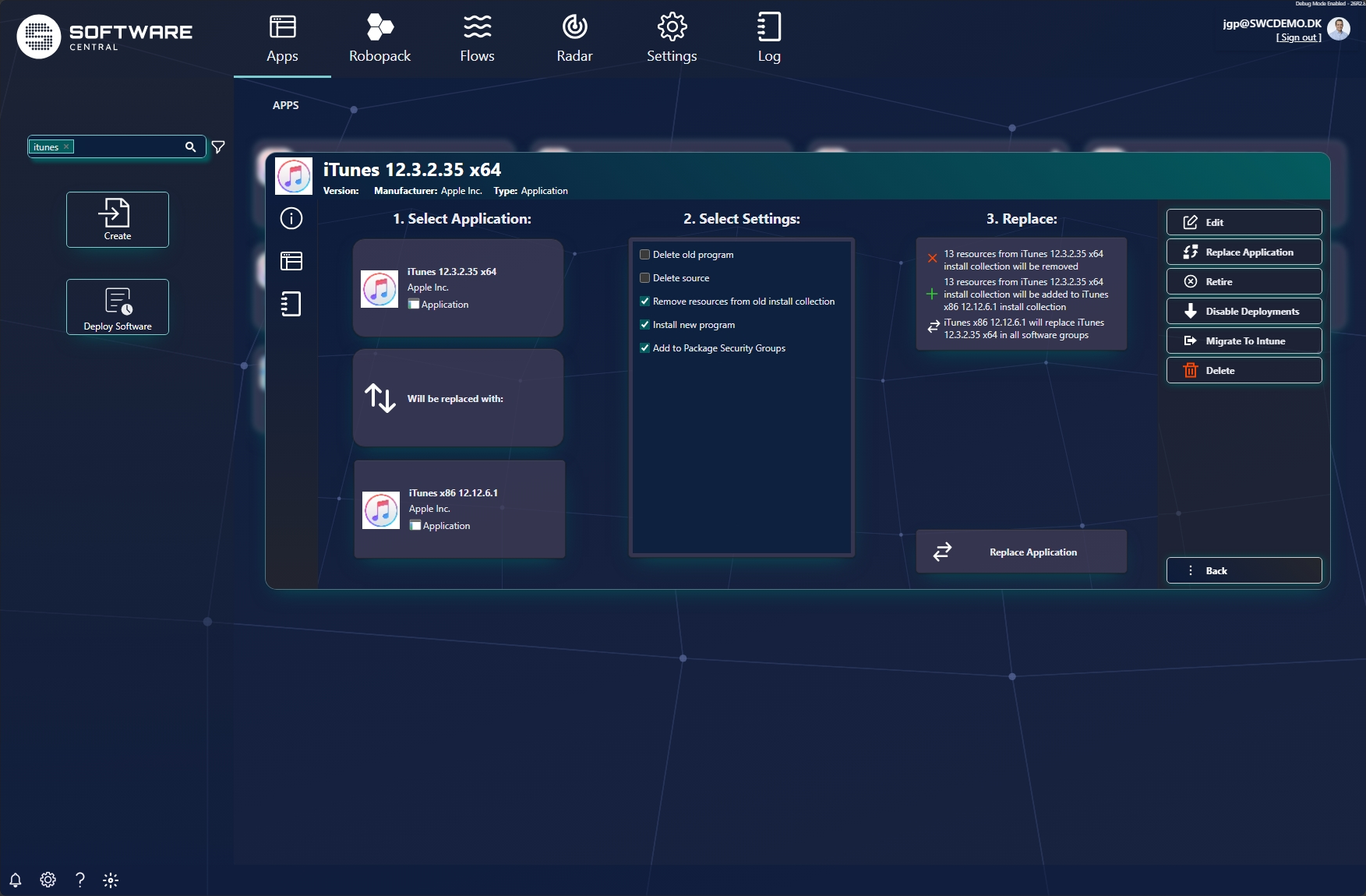
Replace Application is available for both Intune and SCCM apps. It swaps one application for another everywhere it is used, in one guided step. Open an app and click Replace Application.
| Step | What you do |
|---|---|
| 1. Select Application | Confirms the application being replaced and lets you pick the application it will be replaced with. |
| 2. Select Settings | Choose what happens during the swap: Delete old program, Delete source, Remove resources from old install collection, Install new program, and Add to Package Security Groups. |
| 3. Replace | A plain-language summary of exactly what will change — resources removed from the old install collection, added to the new one, and the replacement applied across all software groups. Click Replace Application to run it. |