1 The go-to interface for deployments
Manage Software on a Single Resource deploys software to devices and users, and has many tools to help troubleshoot failed deployments.
Open it from Software › Manage Software on a Single Resource.
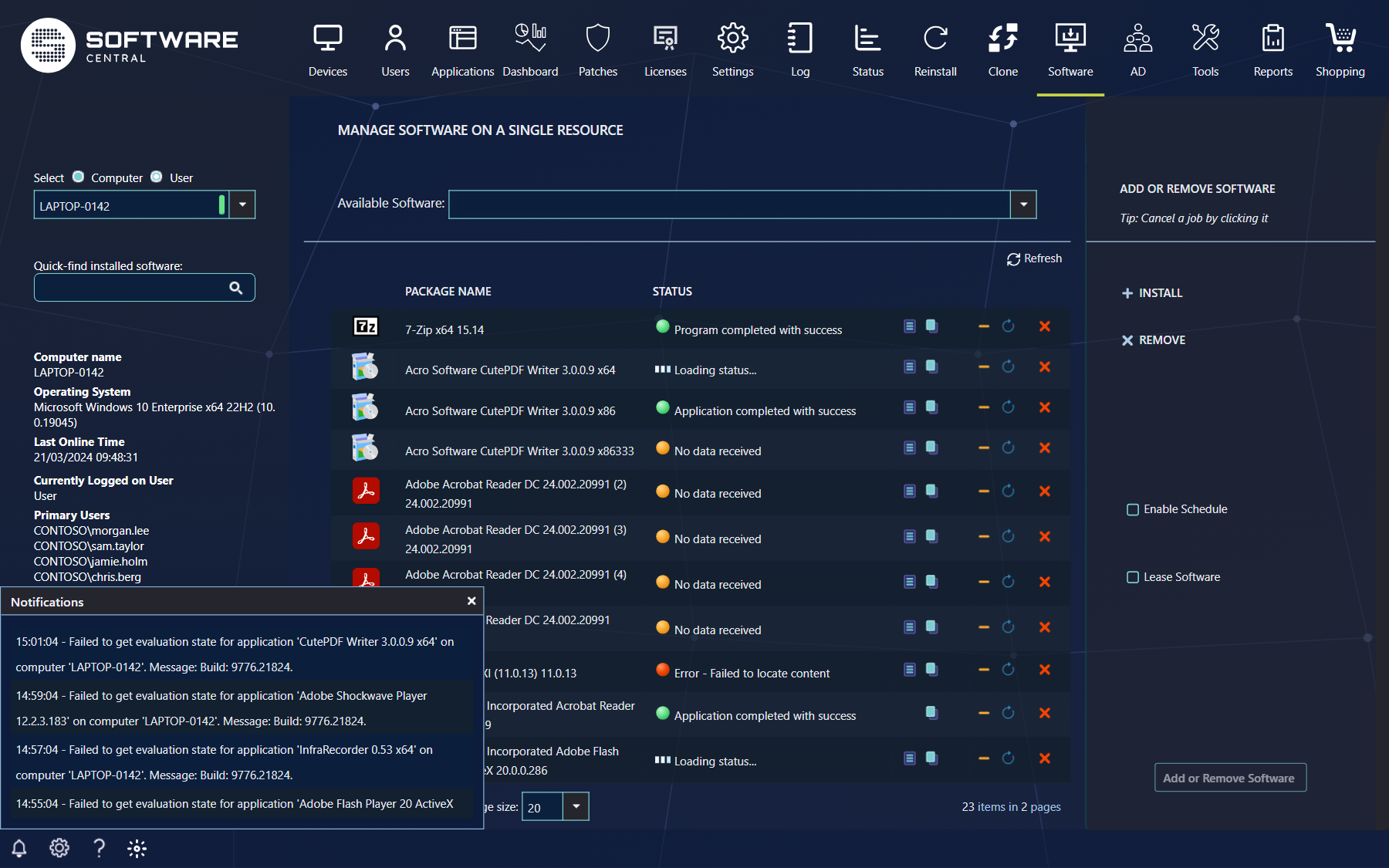
2 Three columns, left to right
You work from left to right.
| Column | What it is for |
|---|---|
| Left | Select the target resource, a computer or a user. See Select Computer / User. |
| Middle | The software assigned to the resource, with status, log buttons and the Rerun, Clean and Remove buttons, and the Available Software drop-down for adding software. See Manage Software. |
| Right | The list of software changes you are about to make (Install and Remove), the schedule and lease options, and the Add or Remove Software button. |
To troubleshoot, see Advanced troubleshooting. To deploy for later, see Scheduled Deployments. To deploy to many computers, see Manage Software on Multiple Resources and the Deployment Manager.
3 The top of the page
Above the three columns you may find up to two selectors, depending on how SoftwareCentral is set up.
| Selector | What it does |
|---|---|
| Select site | Switches between Configuration Manager sites. It is only shown when your organisation has more than one site. |
| Select tenant | Switches between Intune tenants. It is only shown when Intune is used. |
The left menu also has a Quick-find installed software box and, in some setups, a Select Filter drop-down. Both are described in Manage Software. To switch between Computer and User, see Select Computer / User.
5 Best practice
- Queue all the changes you need first and click Add or Remove Software once, so the computer gets them in one operation.
- Check the status of a program before you rerun it, and read the client log if the status shows a failure.
- Use Enable Schedule for changes that should happen outside working hours.
- Use Lease Software for software that is only needed for a limited time, instead of remembering to remove it later.