1 What an Application Group is
Application Groups can group applications and deploy them to users and devices. Applications in the group can be ordered so that the client installs them in a specific order.
Application Groups vs. Software Groups
SoftwareCentral also has a feature called Software Groups. Software Groups are Task Sequences with an Install Application step. The advantage of Software Groups is that they can be installed during operating system deployments, where application groups will be installed after the operating system deployment. Once a Software Group has been installed, the device will be added to the individual applications install collections. This makes it easier to manage where an application is installed. But if you add an application in a Software Group, it will not automatically be installed on the devices where the Software Group is installed. You cannot uninstall a Software Group. You will have to individually uninstall each application in the group.
The advantages of application groups are that if you add an application in a group, it will automatically be installed on the devices where the group is deployed. You can also uninstall application groups as a single item.
If you use the Replace Package/Application interface when you update an application in either an application group or software group, none is better than the other.
2 Create an Application Group
Application Groups are managed from the interface found under Applications › Application Groups. The list shows each group with its item count and its number of deployments.
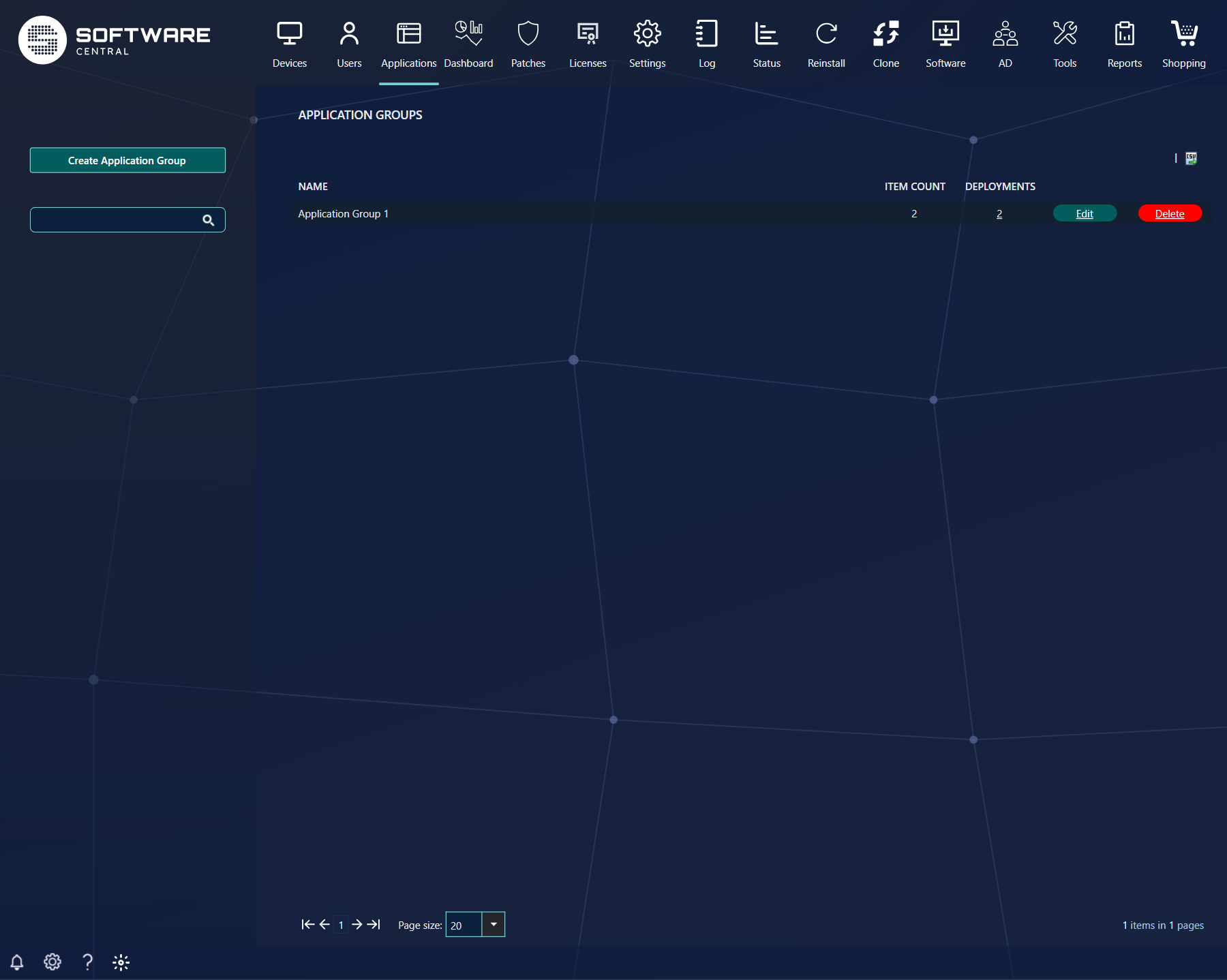
To create an Application Group, click on the Create Application Group button in the left menu. A new window will open.
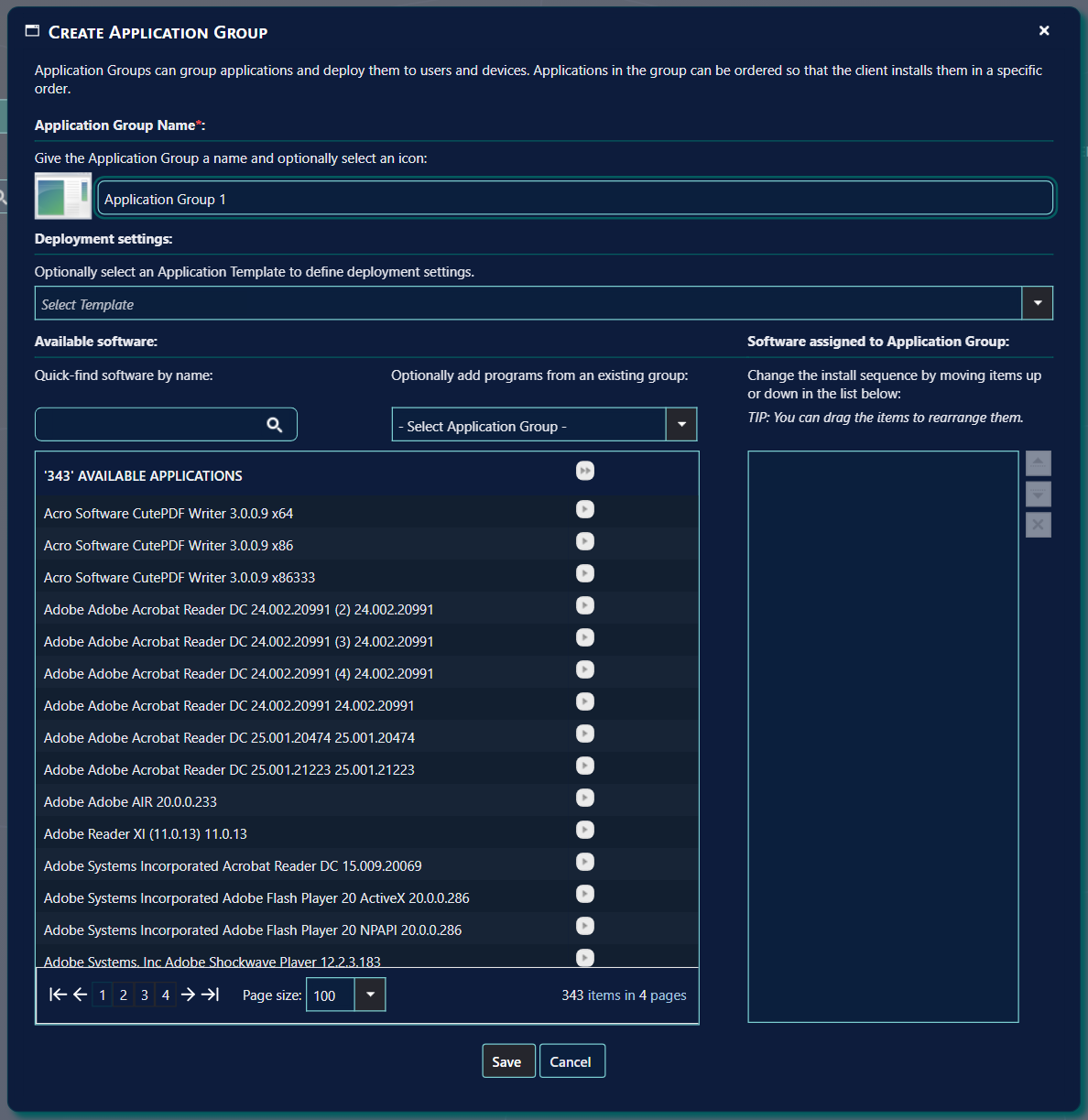
| Part of the window | What it does |
|---|---|
| Application Group Name (required) | You must give the Application Group a name. Note that Application Groups does not automatically get a prefix like Software Groups in SoftwareCentral. The name can be up to 256 characters. |
| Icon | You can give the Application Group an icon, which will be displayed in the Software Center. To add an icon, click on the icon and follow the instructions. The icon opens a new window. |
| Select Template (optional) | You can select an Application Template, to use the deployment settings from that template. If you do not select one, the default Application Template is used. |
| Quick-find software by name | Type part of an application name to filter the Available software list. |
| Optionally add programs from an existing group | You can quickly add applications from existing Application Groups and Software Groups. Software Groups of applications are listed with (Software Group) after their name. |
| Available software and Software assigned to Application Group | Select applications from the list to the left and rearrange them in the list to the right to set the installation order of the applications. Use the arrows beside the list or drag the items. |
| Save | Click on the Save button to create the Application Group. |
When an Application Group is created in SoftwareCentral, a device collection is also created in the SCCM, and the group is deployed to it. These collections are used to deploy the Application Group. The collection names end with the install suffix set in SoftwareCentral.
A user collection is created as well only when all of these are true: the Application Template does not turn user collections off, user collections are not disabled system wide, and the SCCM is version 1910 or later.
The collections are located in a folder named "Application Groups" under the user and device root folders. The device folder is used unless collection folders are disabled in SoftwareCentral. The user folder is created only when a user collection is created.
If user collections are disabled either system wide or in the Application Template, a user collection will not be created.
If the Application Template has AD deployment turned on, SoftwareCentral also creates an Active Directory group for the device collection and for the user collection, and adds a query rule to the collection that reads the members of that group.
Each deployment is created with a start time 10 minutes after the group is saved. The purpose (required or available) and the other deployment settings come from the Application Template.
3 Edit an Application Group
Select the Application Group to edit and make the desired changes in the window that opens.
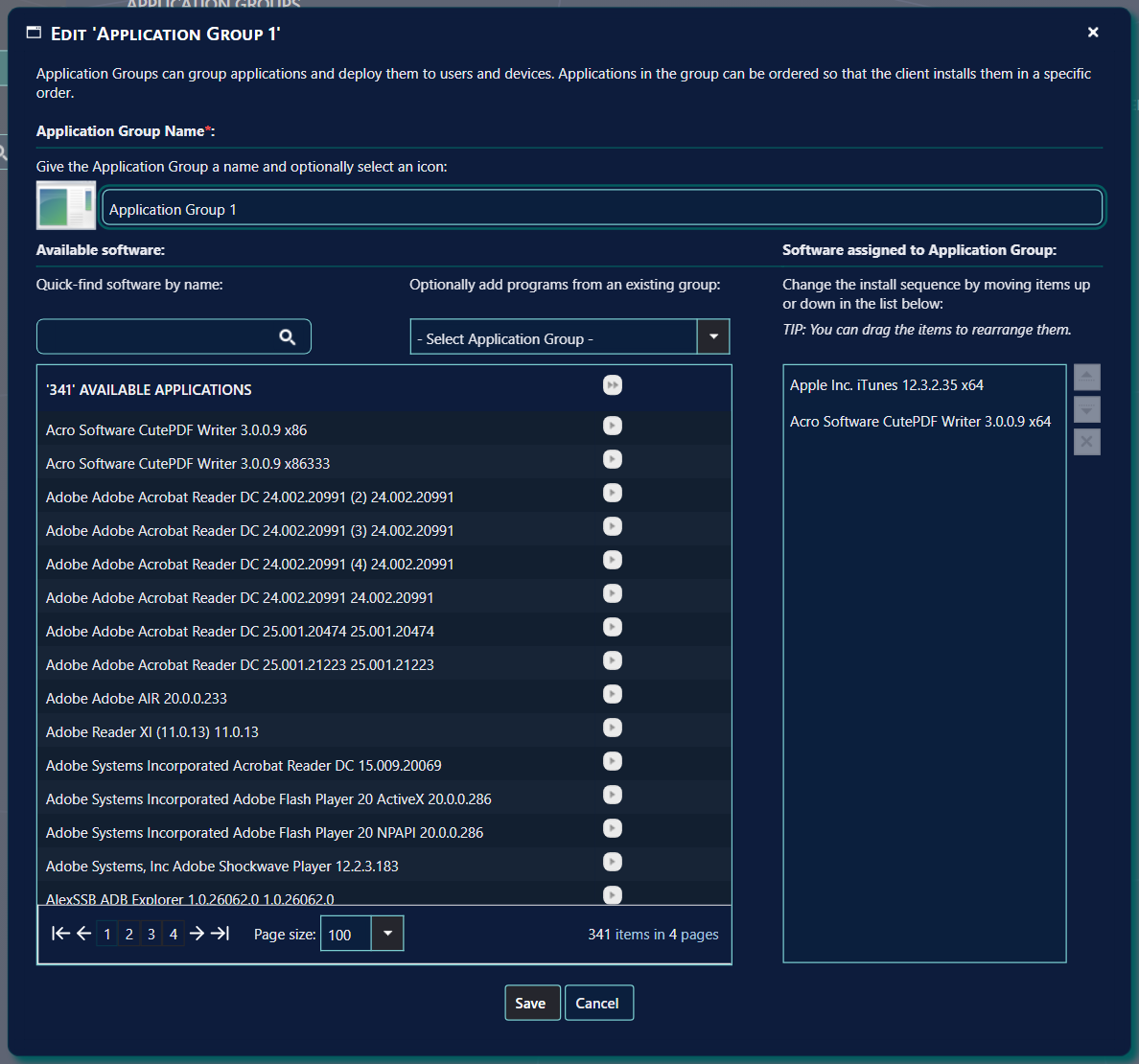
If the Application Group does not have any deployments, an option will appear to create the default collections and deployments in the SCCM. This is the Create collections and deployments button. It uses the default Application Template, because the template box is not shown when you edit a group.
4 Delete an Application Group
Click on the "Delete" button next to the Application Group to delete.
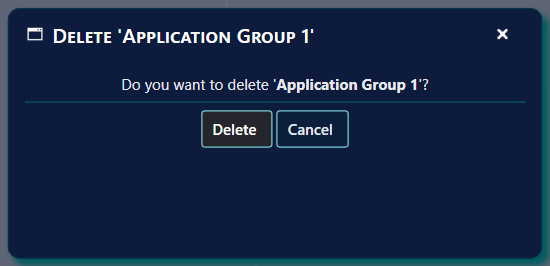
Deleting a group removes its collections and deployments from the SCCM, and the group itself. In SoftwareCentral it also removes the group's shop order items, its approval flow, its custom shop properties, its category links and its licence check.
5 Deployment status
You can view the deployment compliance by clicking on the number of deployments from the Application Groups interface.
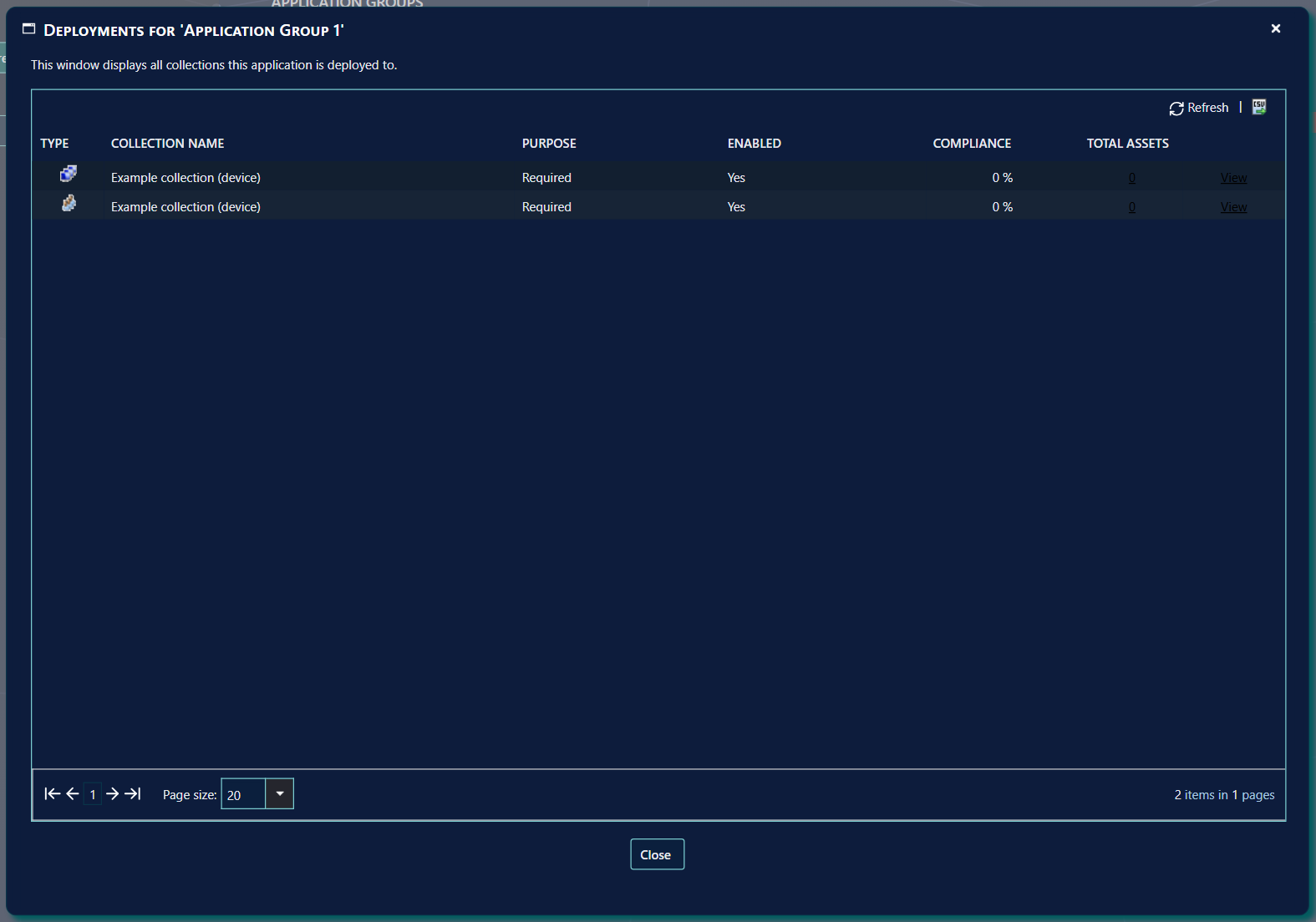
| Column | What it shows |
|---|---|
| Type | Whether the collection is for devices or users. |
| Collection Name | The SCCM collection the group is deployed to. |
| Purpose | Required or Available, as set in the Application Template. |
| Enabled | Whether the deployment is enabled. |
| Compliance | The compliance percentage for the collection, shown with a % sign. |
| Total Assets | The number of targeted assets. View opens the deployment monitor for the collection. |
6 Replace an application in all Application Groups
You can use the Replace Package/Application interface to replace an application in all application groups.
When an application is deleted in SoftwareCentral, it is removed from every Application Group that contains it. If it was the only application in a group, that group is deleted as well.
7 Best practice
- Choose the Application Template when you create the group. The template is not offered when you edit a group, so the collections and deployments you create later from Edit use the default template.
- Put the applications that other applications depend on first in the right-hand list. The order of that list is the install order.
- Give each group a unique name. The name must not already be used by another Application Group at this site.
- Check the orders and the order history before you delete a group, because deleting a group deletes its shop order items.
- After you delete an application in SoftwareCentral, check the Application Groups list. The application is removed from every group that contains it, and a group with no applications left is deleted.
8 Troubleshooting
| Symptom | Cause | What to do |
|---|---|---|
| "Name is missing." | The Application Group Name box is empty. | Type a name and click Save again. |
| "Name already exists." | Another Application Group at this site already has that name. | Choose a different name. |
| "Application Group cannot be empty, please add one or more applications." | The list on the right has no applications. | Select at least one application from the list on the left. |
| No user collection is created | The SCCM is older than 1910, user collections are disabled system wide, or the Application Template does not create user collections. | Check the SCCM version, the system setting and the Application Template. |
| There is no Create collections and deployments button when you edit | The group already has deployments. | Use the Deployments window to see them. The button only appears for a group without deployments. |
| The group is not created and no message is shown | A failure while creating the group is written to the log only: "Failed to create application group." | Open Log and look for the error. |