1 Open a client log
The Client Log gives direct access to the ConfigMgr logs on a client computer. Open it from Status › Client Log.
Select a computer in the left menu. SoftwareCentral checks that the computer is online. If it is offline, no log files are listed.
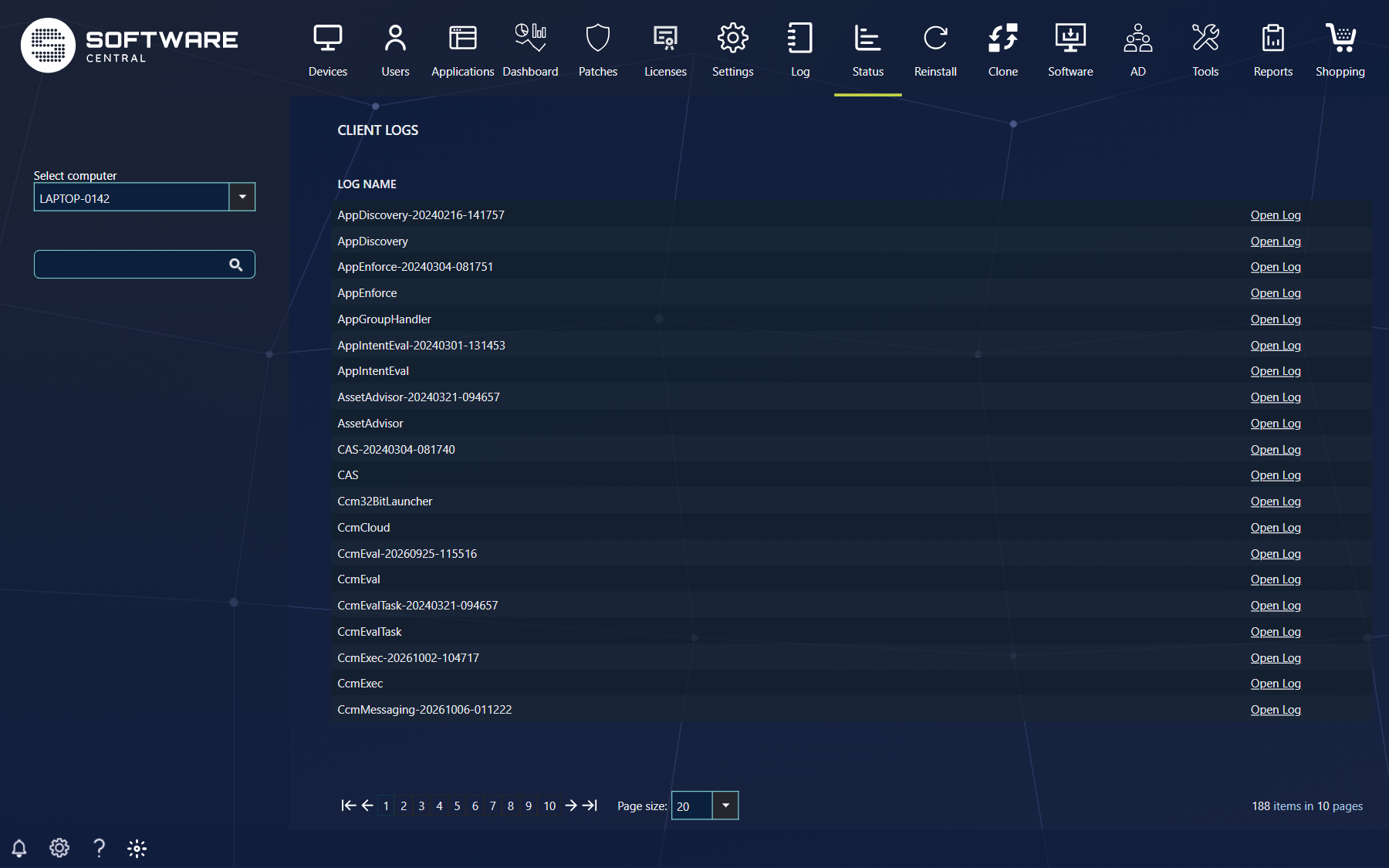
Use the search field to find a specific log, and click Open Log to open it.
The list shows the Log Name of each file. You can search by several values at once; every value narrows the list further. If the computer cannot be reached, or the log folder cannot be found, the list is empty and says No log files found on client, client may be offline.
The computer drop-down finds both ConfigMgr and Intune devices. For a ConfigMgr computer the logs are the client logs in the ConfigMgr client folder; for an Intune-managed device they are the logs of the Intune Management Extension.
2 Read the log
The log opens in a new window with all its entries. Errors are red and warnings are yellow.
You can search in the current log (Search current log), or choose another log from the top of the window (Select Log).
| Column | What it tells you |
|---|---|
| Time | When the entry was written. |
| Text | The message. |
| Component | The client component that wrote the entry. |
| Severity, Thread, File | Hidden by default. Open the column header menu to show them. |
The log is shown 250 entries per page. Use the icons above the grid to export the entries to PDF or Excel. You can resize the columns.
3 Best practice
- Search the log instead of scrolling. Type the error text, the package name or the component in Search current log, and look for the red entries first.
- Export the entries you need. Export to PDF or Excel when you have to pass a log extract to someone else, instead of copying lines by hand.
- An empty list is not proof that there are no logs. It also appears when the computer is offline, so check that the computer is online before you conclude anything.