1 Where to see the status of a device
SoftwareCentral gives an overview of a computer from several interfaces.
| Interface | What you see |
|---|---|
| Client Manager | Client activity of many computers, client actions, shut down actions, scripts, the remote task manager and the resource explorer. Found under Status. |
| Client Log | The ConfigMgr log files on a client. Found under Status. |
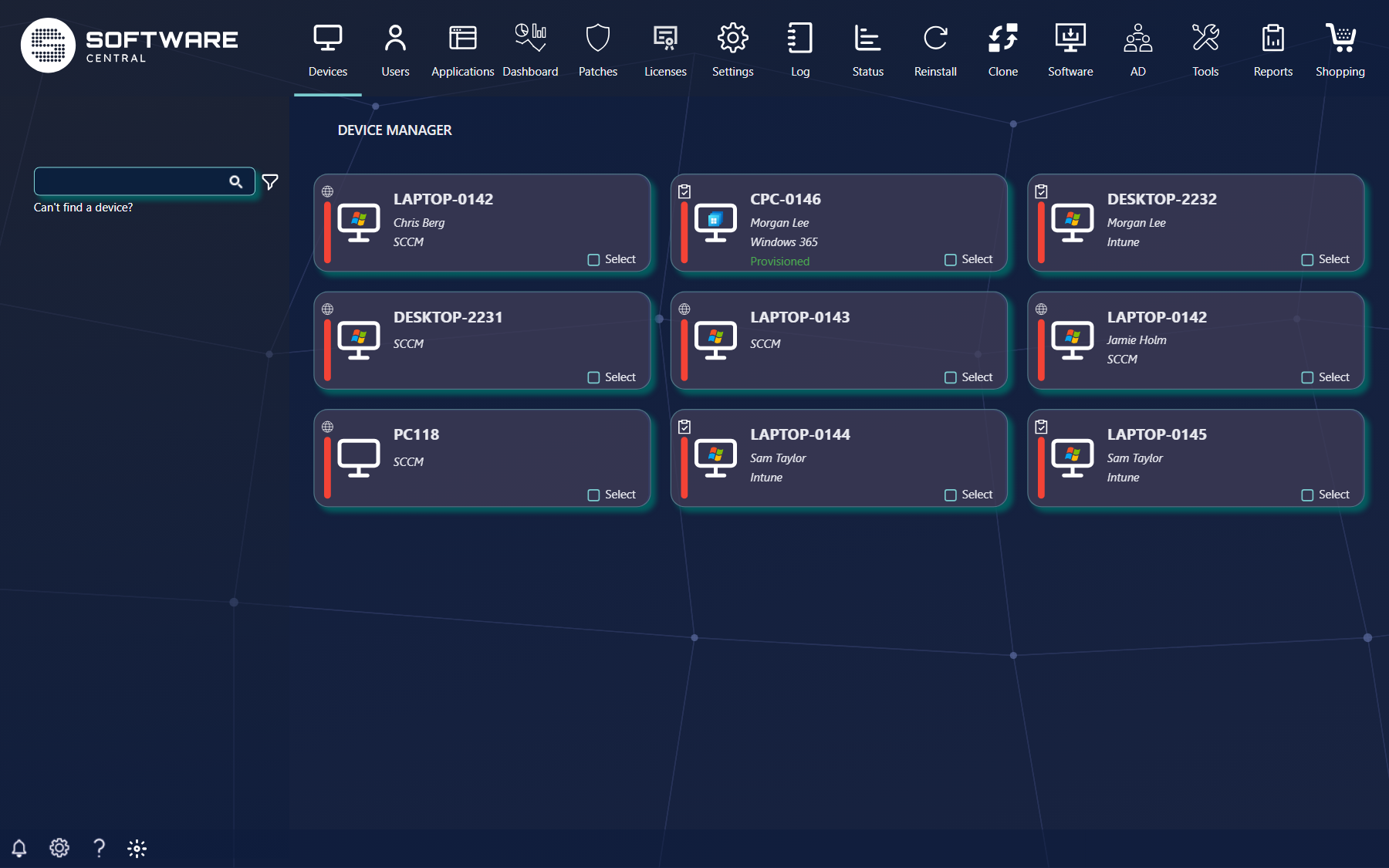
| Device Manager | All your devices as cards: ConfigMgr, Intune and Windows 365 devices in one list, with search, filters and a link to the device dashboard. Found under Devices. |
| Device dashboard | Per-device and fleet-wide dashboards across ConfigMgr, Intune and Defender, opened from the Device Manager. |
| Manage Software and Deployment Manager | The status of a software deployment. |
The filter lets you choose the device types (SCCM Device, Intune Device, Windows 365 Device) and narrow the list by Entra group, collection, OU, AD group, query or CSV file. If a device is missing, use Can't find a device?
2 The Device Manager
The Device Manager lists the devices your security role may manage, as cards. Each card shows the device name, the user, and whether it is an SCCM, Intune or Windows 365 device. Windows 365 cards also show the provisioning status of the Cloud PC.
| Control | What it does |
|---|---|
| Search | Type part of a device name and press Enter. Each value you add narrows the list further, so only devices whose name contains all the values are shown. |
| Filter (the funnel) | Opens the filter. Choose the device types to show, and a filter on the device list. |
| SCCM Device, Intune Device, Windows 365 Device | Device types. All three are ticked by default; untick a type to hide it. |
| Filter type | No Filter, Intune - Entra-Group, Intune - CSV-file, SCCM - AD-Group, SCCM - Collection, SCCM - CSV-file, SCCM - OU or SCCM - Query. Devices that the chosen filter does not cover are left out of the list. A CSV file lists device names; for SCCM it can also hold resource IDs, and for Intune Intune device IDs. Values can be separated by commas, semicolons, spaces or line breaks. |
| Select All | Selects all devices that match the current search and filters, so you can act on them together. Your security role may limit how many devices you can select in one operation, and which types you can select in bulk. |
| Open the device dashboard | Opens the device dashboard. |
| Can't find a device? | Opens a window with the usual reasons a device is missing (see below). Shown only when the Intune integration is enabled. |
Work on one device
Click a card to turn it over. The back has an icon strip with the information tabs, and the action buttons. What you see depends on the functions your security role has for SCCM and Intune devices; if single-device functions are not available to you, a click on a card selects it for bulk actions instead.
| Tab | What you see |
|---|---|
| Overview | The key facts about the device. |
| Log | The log messages for the device. |
| Shop | The shop orders for the device, if your role may see them. |
| Deployment | The software deployed to the device and its status. |
| Groups / Collections | Entra group memberships for Intune devices, collection memberships for SCCM devices. |
| Compliance Policy, Configuration Policy | The Intune policies that apply to an Intune device. |
| Remediation scripts | The remediation scripts that have run on the device. |
| License | The licences on an SCCM device, when the licence module is enabled and your role may see them. |
| BitLocker keys, Local Admin Password, Audit Log | Only shown when your role has the matching function. |
The action buttons open the same tools as the menus, for the selected device. An SCCM device can be edited, given software, sent a device action or a shut down action, reinstalled, cloned, sent a script, remote controlled, have its client logs read, or deleted. An Intune device can be edited, given software, sent a device action, have its groups managed, cloned, have its logs read, be given a remediation script, or be deleted. A Windows 365 device has Connectivity History and Connecting Reports instead of the delete button. See Edit Computer, Delete Single Computer, Client Log and Remote Control.
Work on several devices
Click Select on a card, or Select All, to build a selection. The selected devices can then be given the actions your role has in bulk: deleting, cloning, reinstalling, running a script, managing software or Entra groups, and device or shut down actions.
Can't find a device?
A device is usually missing because your security role is not allowed to manage it. A device that was added recently can take up to an hour to appear, and so can the devices of a new or changed security role or of a newly enabled Intune integration. If that does not explain it, Update cached manged devices in the window refreshes the cache of managed devices and group memberships; this can take several minutes. The button is only available if your role has the function.
3 Best practice
- Narrow the list before you select. Use the filter and the search, check that the list holds exactly the devices you mean, and only then use Select All.
- Check the status first. Look at the Deployment and Log tabs of a device, or its client log, before you reinstall or delete it.
- Look in the right place when a device is missing. Check that it is within your security role and give a new device up to an hour before you use Update cached manged devices.
- Give people only the functions they need. Single-device and bulk functions are set per security role for SCCM and Intune devices; keep delete, reinstall and password functions to the roles that must have them.