1 Select the computer
Open Devices › Delete Single Computer and pick the computer in Select computer in the left menu.
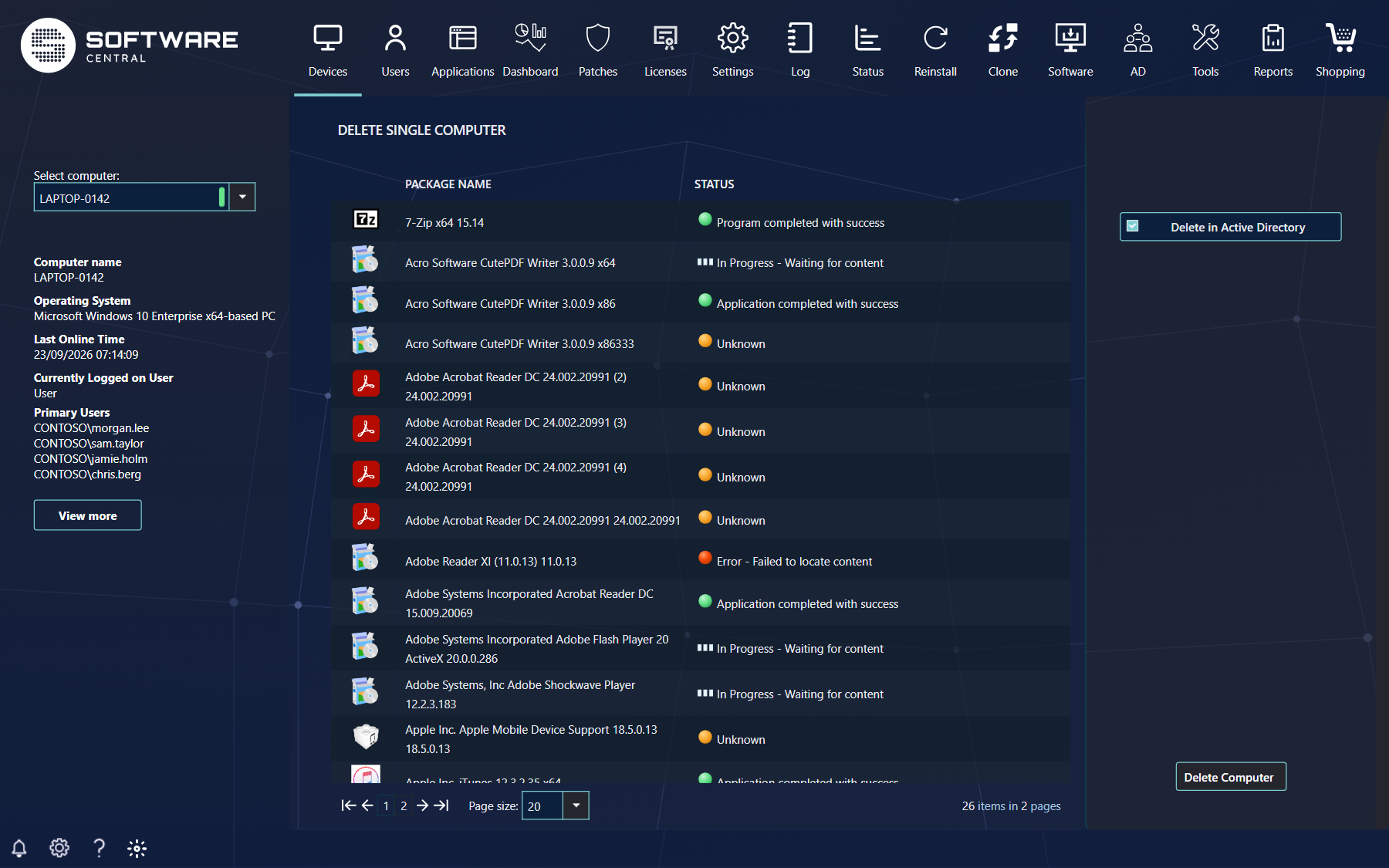
Under the drop-down you see the computer name, operating system, last online time, the user currently logged on and the primary users. Click View more for more details.
The centre grid lists all software assigned to the computer, with the deployment status of each. Check it before you delete.
The marker next to the drop-down shows whether the computer is online. Click a green marker to see detailed information about the computer in a new window; click a red marker to check again. The drop-down also finds devices that are only managed in Intune. For those, the details show the user, the user principal name and the last Intune sync instead of the ConfigMgr details.
2 Where to delete it
The options in the right menu depend on the type of device.
| Option | What it does |
|---|---|
| Delete in Active Directory | Also deletes the computer in Active Directory. Administrators can hide this option, or lock it so it is always ticked, in the Settings menu. The account is only deleted when exactly one account with that name is found. For a device that is only managed in Intune, the option is called Delete in Entra ID and deletes the device in Entra ID. |
| Delete in Intune | Shown for a co-managed device that also exists in Intune. Deletes the device from both ConfigMgr and Intune. |
| Delete in ConfigMgr | Shown for a device that is managed in Intune and also exists in ConfigMgr. Deletes it from both. |
| Delete in Windows Autopilot | Also deletes the Windows Autopilot device that belongs to the computer. |
3 Delete the computer
Click Delete Computer in the lower right corner to delete the selected computer.
When the deletion is done, the page is refreshed and the computer is cleared from the selection. If something fails, the reason is written to the SoftwareCentral log.
4 Best practice
- Read the assigned software first. The status of each deployment shows whether the computer is still in use.
- Tick only the targets you mean. Decide for each of Delete in Active Directory, Delete in Intune, Delete in ConfigMgr and Delete in Windows Autopilot whether the device should disappear from that service too; for a co-managed device, deleting in only one service leaves it in the other.
- Check that the name is right. The name and details on the left are the only confirmation; there is no second prompt after you click Delete Computer.
- Use Delete Multiple Computers for clean-ups where you want to see the whole list before you delete.