1 Open Delete Multiple Computers
Open Devices › Delete Multiple Computers. Choose how to find the computers in Select computers by.
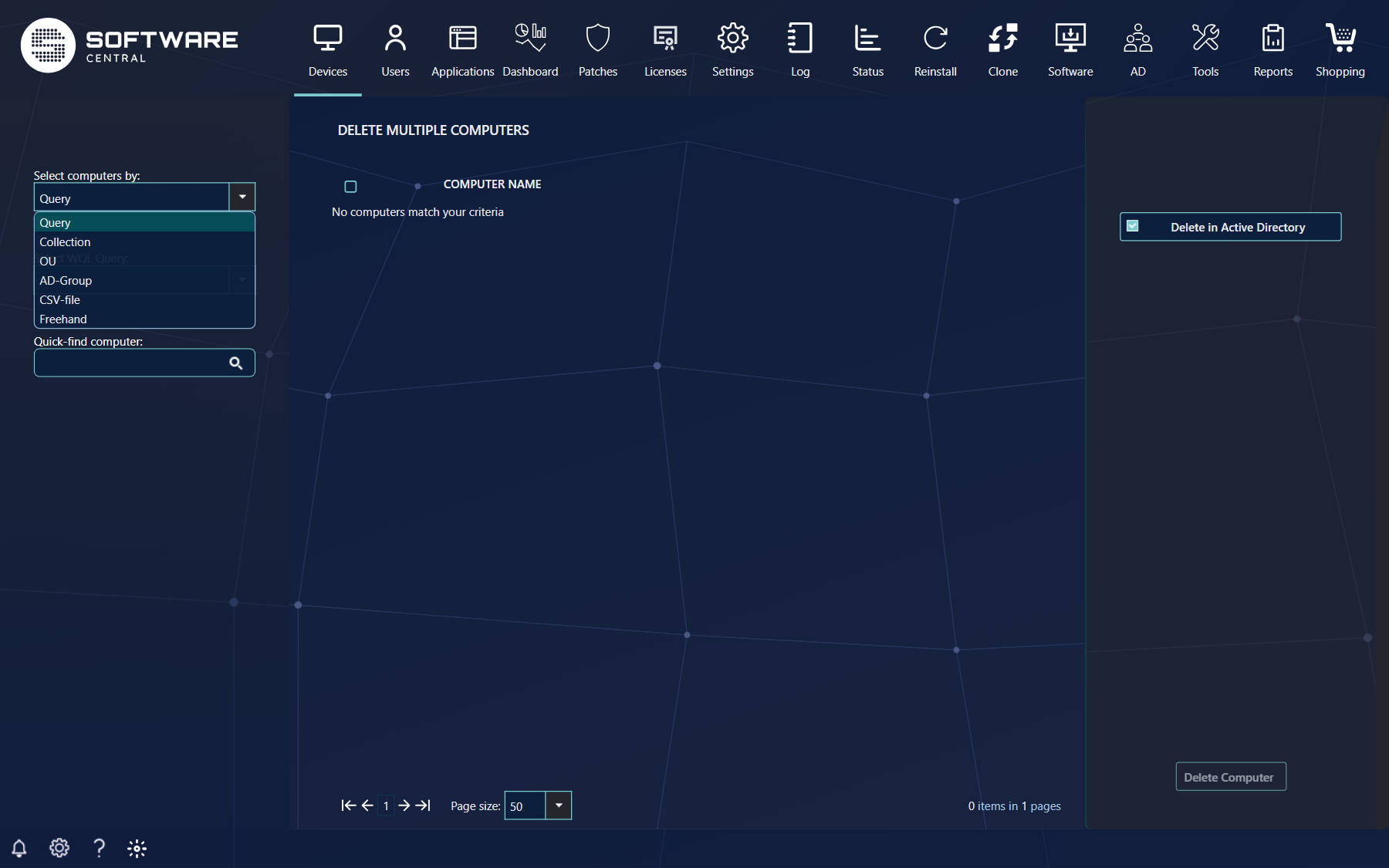
| Select by | What you specify |
|---|---|
| Query | An SCCM WQL query, chosen in Select WQL Query. |
| Collection | Computers by collection membership. |
| OU | Computers by organisational unit membership. |
| AD-Group | Computers by Active Directory group membership. |
| CSV-file | Upload a CSV file with a list of computer names or resource IDs. The values can be separated by commas, semicolons, spaces or line breaks; numbers are read as resource IDs and anything else as a computer name. |
| Freehand | Search for each computer by name in Quick-find computer. |
2 Choose the computers
The computers found are listed in the centre. Tick the ones to delete, or the header checkbox to select all of them.
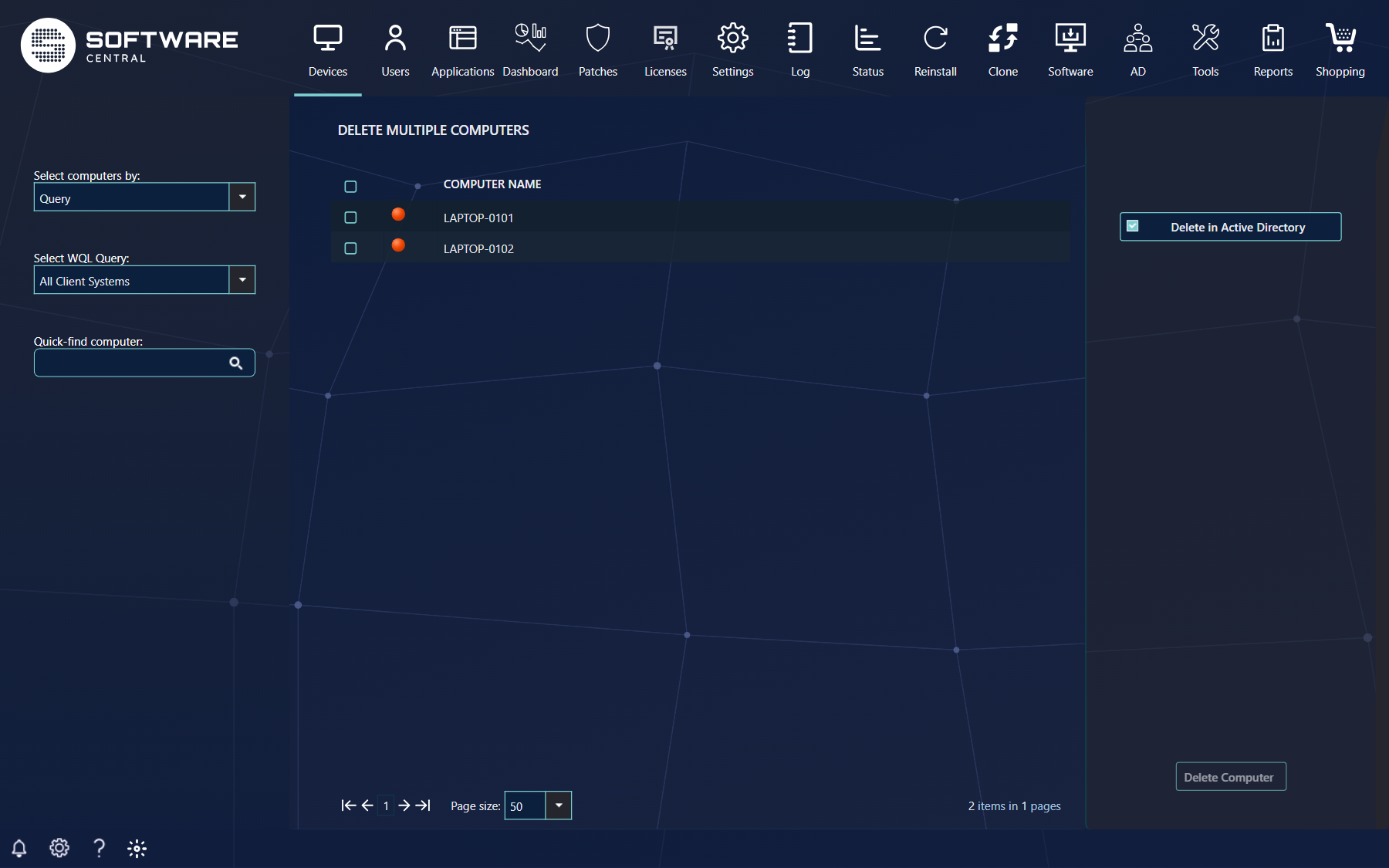
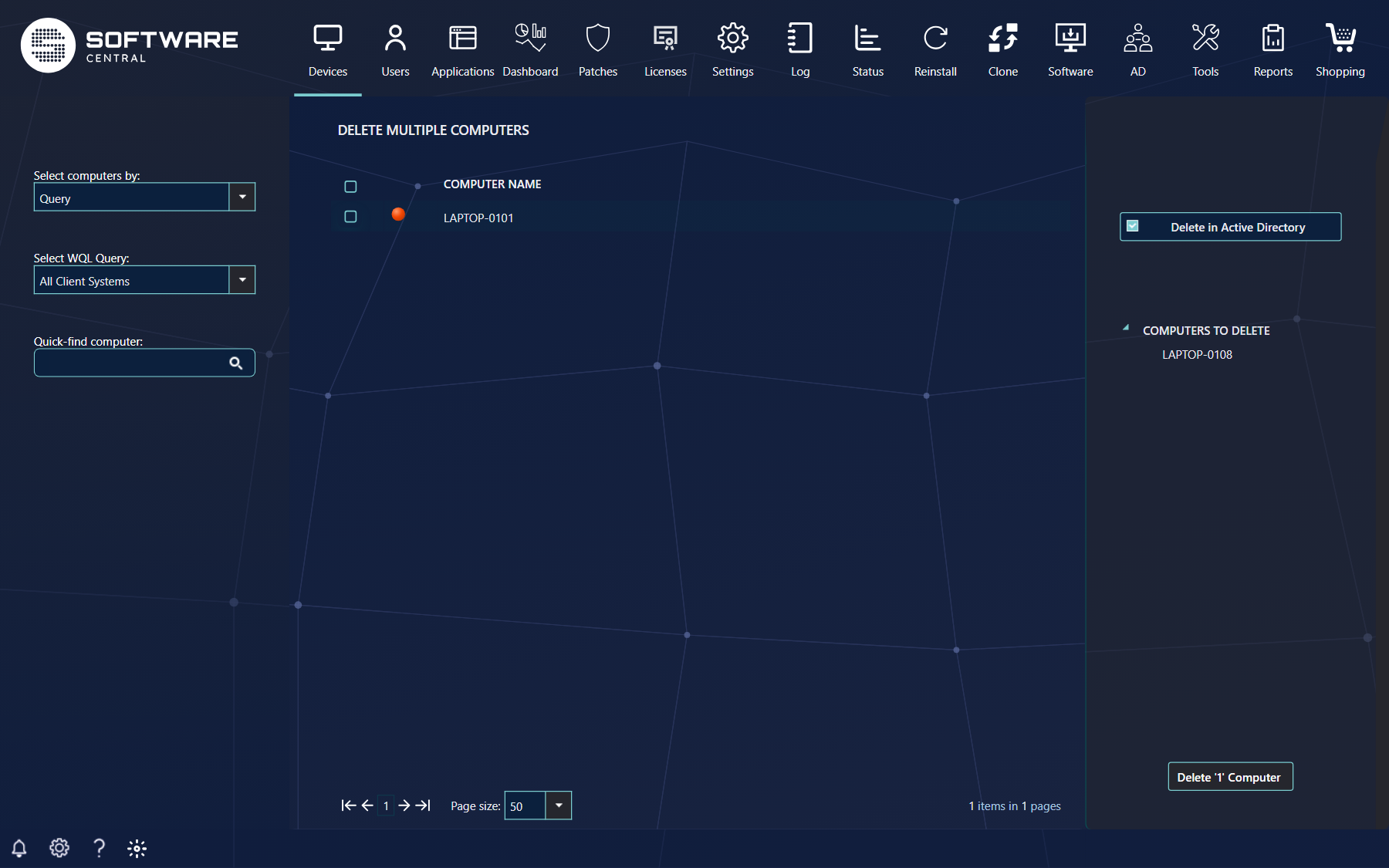
The right menu lists Computers to delete, and the Delete button shows how many are selected. The coloured marker before a computer shows whether it is online (SCCM 1602 and later, when your administrator has enabled Use SCCM Client Online Status in the Settings menu). Use Quick-find computer to narrow the list, and click a computer under Computers to delete to take it out again.
Your security role may limit how many computers you can work on in one operation. If you select more than that, the Delete button stays disabled until you have unticked some of them.
3 Options and delete
Tick Delete in Active Directory to remove the computers from Active Directory as well. It can be hidden or locked on in the Settings menu.
When the computers come from a static computer group, a Delete group option also appears if your security role may use it. It is meant to be used when all computers of the group are selected. See Delete Computers in Group.
Click the Delete button in the lower right corner to delete the selected computers.
The computers are deleted in the background, one at a time, and the page is cleared as soon as the job has started, without a progress report. Check the SoftwareCentral log afterwards to see whether every computer was deleted. In Active Directory, the account is only deleted when exactly one account with that name is found.
4 Best practice
- Review the list before you click. Under Computers to delete you see every computer that will be deleted; click a name to take it out.
- Select by query, collection, OU or file rather than by hand when you clean up many computers, and check the number on the Delete button against what you expect.
- Delete in small batches the first time you use a new query or file, and check the SoftwareCentral log afterwards.
- Limit the damage a mistake can do. Set Maximum number of resources in the security role, so one operation cannot reach more computers than intended.