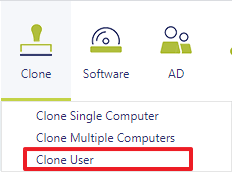
1 Open Clone User
Clone User is found under the Clone menu button in the main menu.
Choose the site in the Select site box at the top. Where Entra ID (Intune) is used, a Select tenant box is shown next to it, and the user lists come from the tenant you choose.
2 Select the source user
From the Clone User interface, start by selecting the user you want to copy the software from. Type in Select user: in the left menu and choose the user from the list.
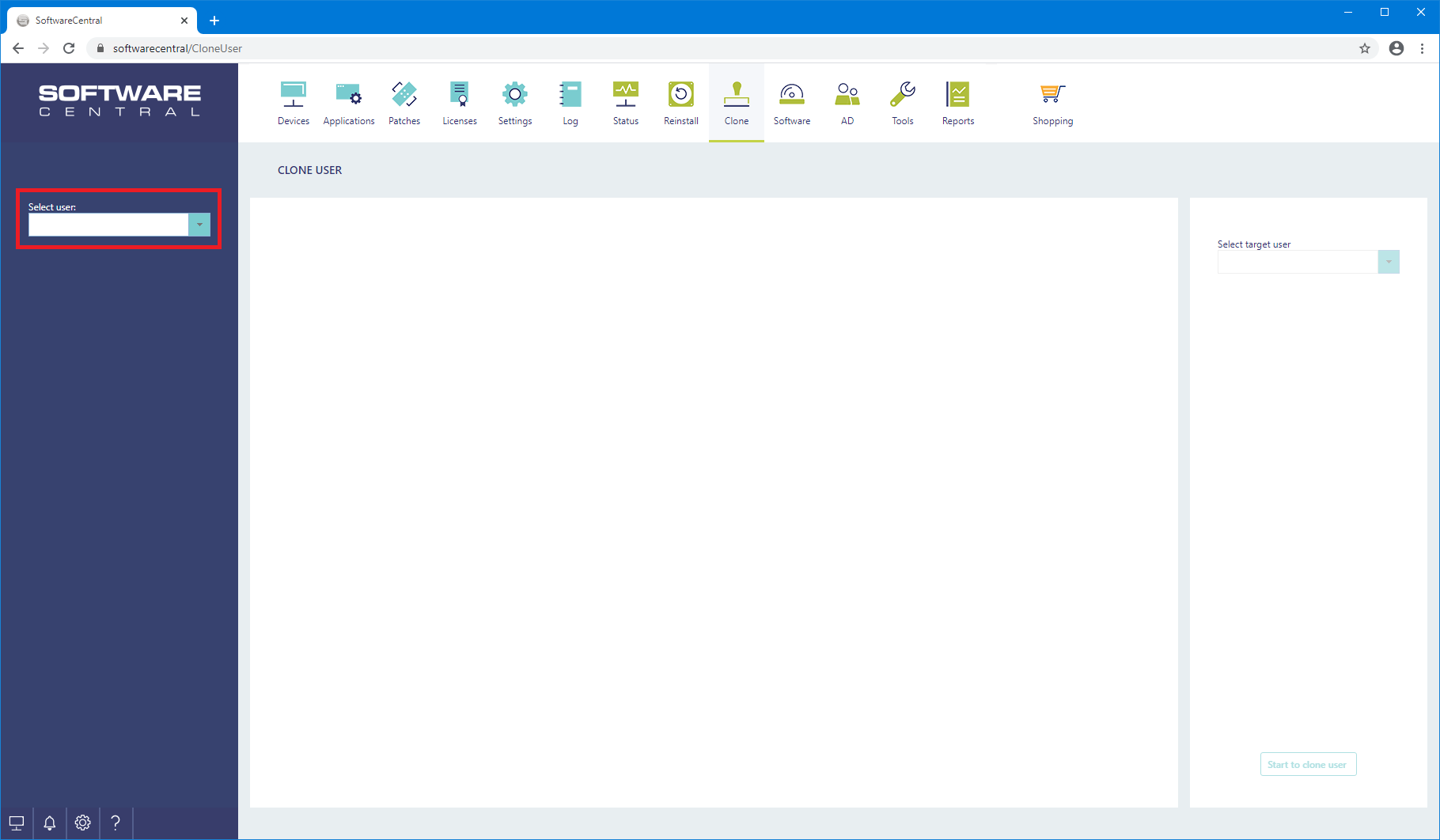
When the user is selected, the main grid is filled with the software currently assigned to that user.
3 Choose the programs
The main grid lists the software assigned to the source user, under the heading Programs assigned to 'user'. Each program has a checkbox.
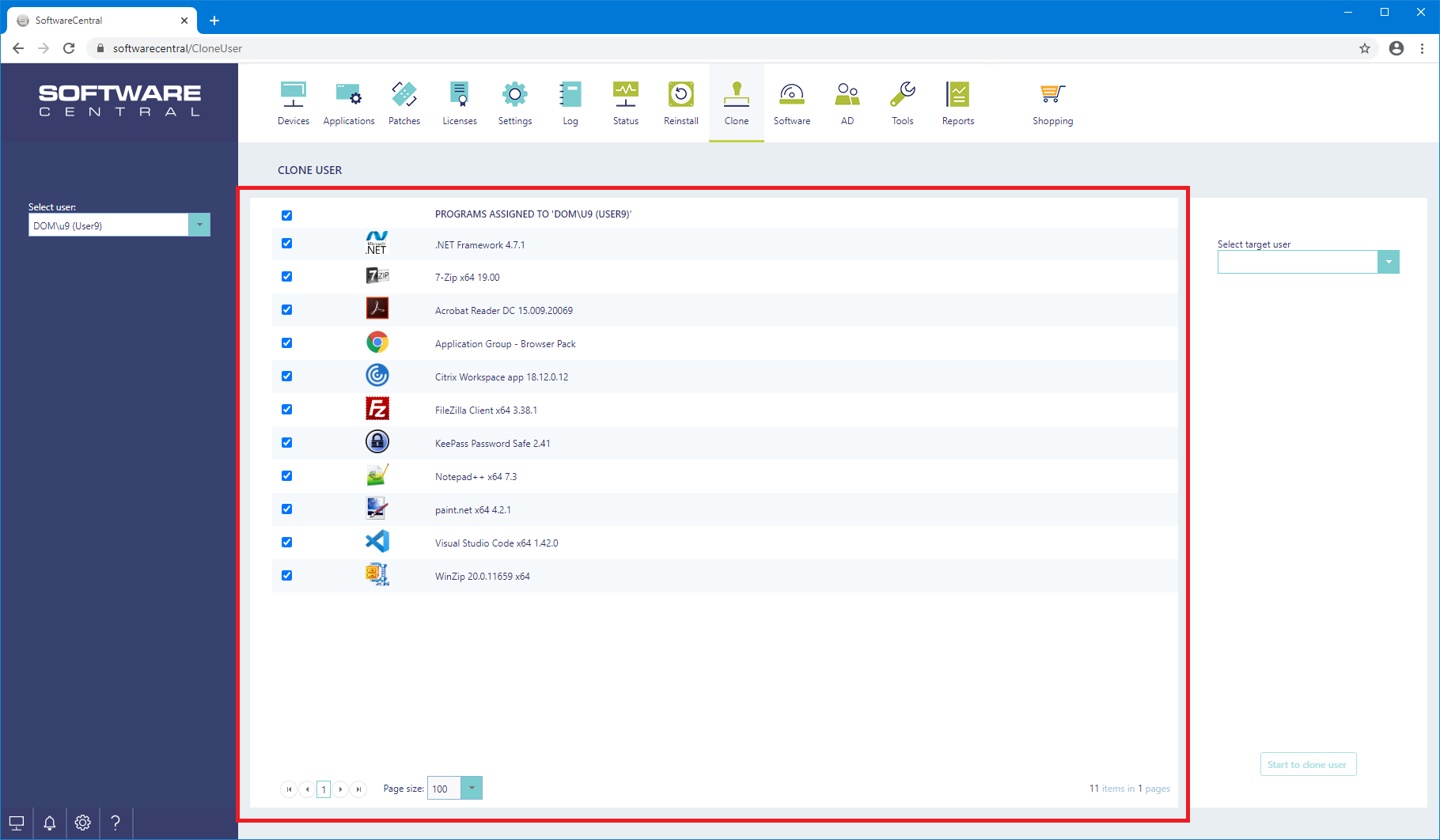
- All software is selected by default for a ConfigMgr user. Untick the programs you do not want to copy to the new user.
- For an Entra ID (Intune) user, no program is ticked at first. Tick the programs you want to copy.
- The checkbox in the header of the grid ticks or unticks all programs at once.
- Use Quick-find installed software: to search the list. Type the words and press Enter to find all programs that contain them.
- Your organisation can limit the list to software that belongs to certain Package Security Groups, set in Settings. Other software is then not listed.
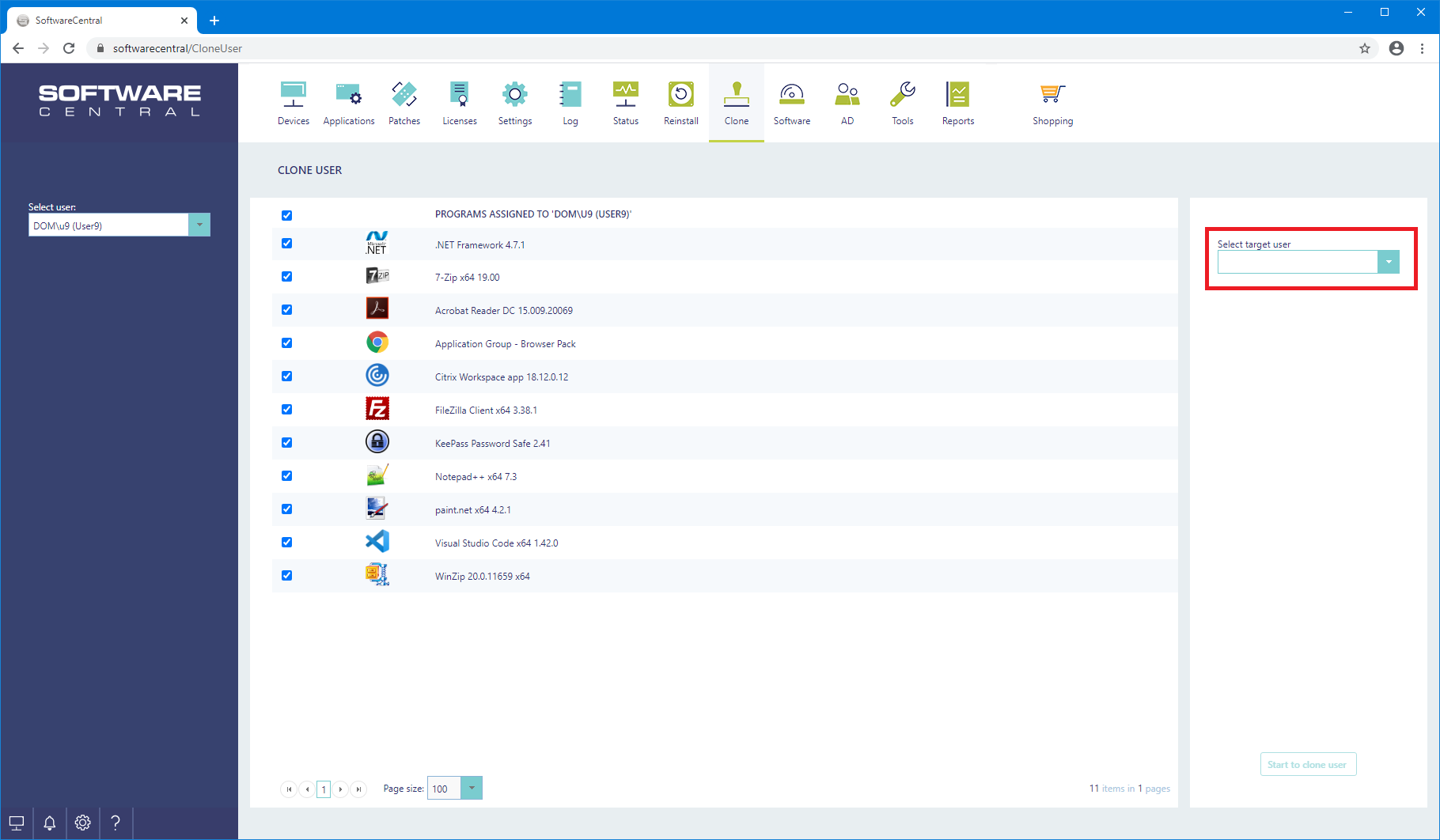
4 Select the target user
Select the user you want to copy the software to from the box Select target user: on the right.
5 Start the cloning
Click the Start to clone user button in the lower right-hand corner to clone the selected software to the new user. The label above the button reads Start cloning job.
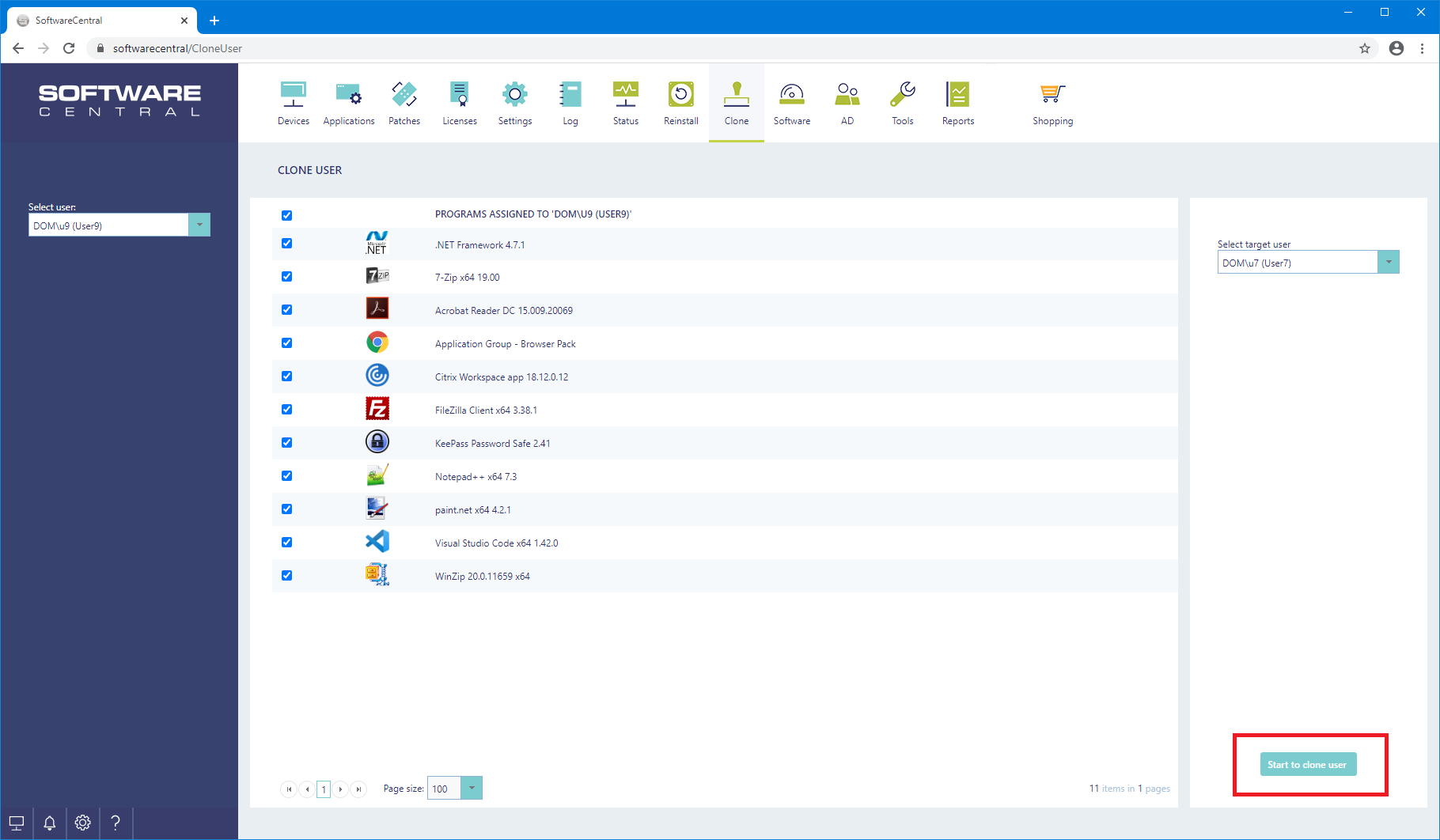
The button is only enabled when a target user is chosen. What happens next depends on the type of user:
| User | What happens |
|---|---|
| ConfigMgr user | The ticked programs are assigned to the target user. Nothing is removed from the target user: a program the target user already has stays. |
| Entra ID (Intune) user | Each ticked application is installed for the target user, and the required setting of each application is kept. After the delay set for the machine policy refresh, the primary devices of the target user are synchronised in the background, so the new applications can take a while to appear. |
6 Best practice
- Check the list before you start. The list is a copy of what is assigned to the source user, so untick the programs the new user should not get.
- Limit what can be cloned. Use the Package Security Group setting in Settings to allow cloning only of approved software. Leave it empty to allow all software.
- Remember that cloning only adds. Programs the target user already has are not removed.
- Expect a delay for Entra ID (Intune) users. The primary devices are synchronised after the delay, not at once.
- Check the Log after a cloning job. Failures are written to the Log and are not shown on the page.
7 Troubleshooting
| Symptom | Cause | What to do |
|---|---|---|
| The grid shows No packages match your criteria | The source user has no assigned software, or none of it is in the Package Security Groups that are allowed for cloning. | Check the software of the source user, and the Package Security Groups in Settings. |
| Select target user is greyed out | No source user is selected yet. | Select the source user first. |
| Start to clone user is greyed out | No target user is selected. | Select the target user. |
| A program is not copied to an Entra ID (Intune) user, and the Log says Application with id 'id' was not found. | The program has no Intune application, so it is skipped. | Check the program in the Applications interface, and clone again if needed. |
| A program is not copied to an Entra ID (Intune) user, and the Log says Package with id 'id' was not found. | The program no longer exists in SoftwareCentral, so it is skipped. | Check that the program still exists, and clone again if needed. |
| The Log says Failed to clone the selected user, and nothing is shown on the page | An error happened while the Entra ID (Intune) cloning job ran. | Read the entry in the Log for the details, then try again. |