1 Select the source computer
Open Clone › Clone Multiple Computers. Choose the computer to copy from in Select computer in the left menu.
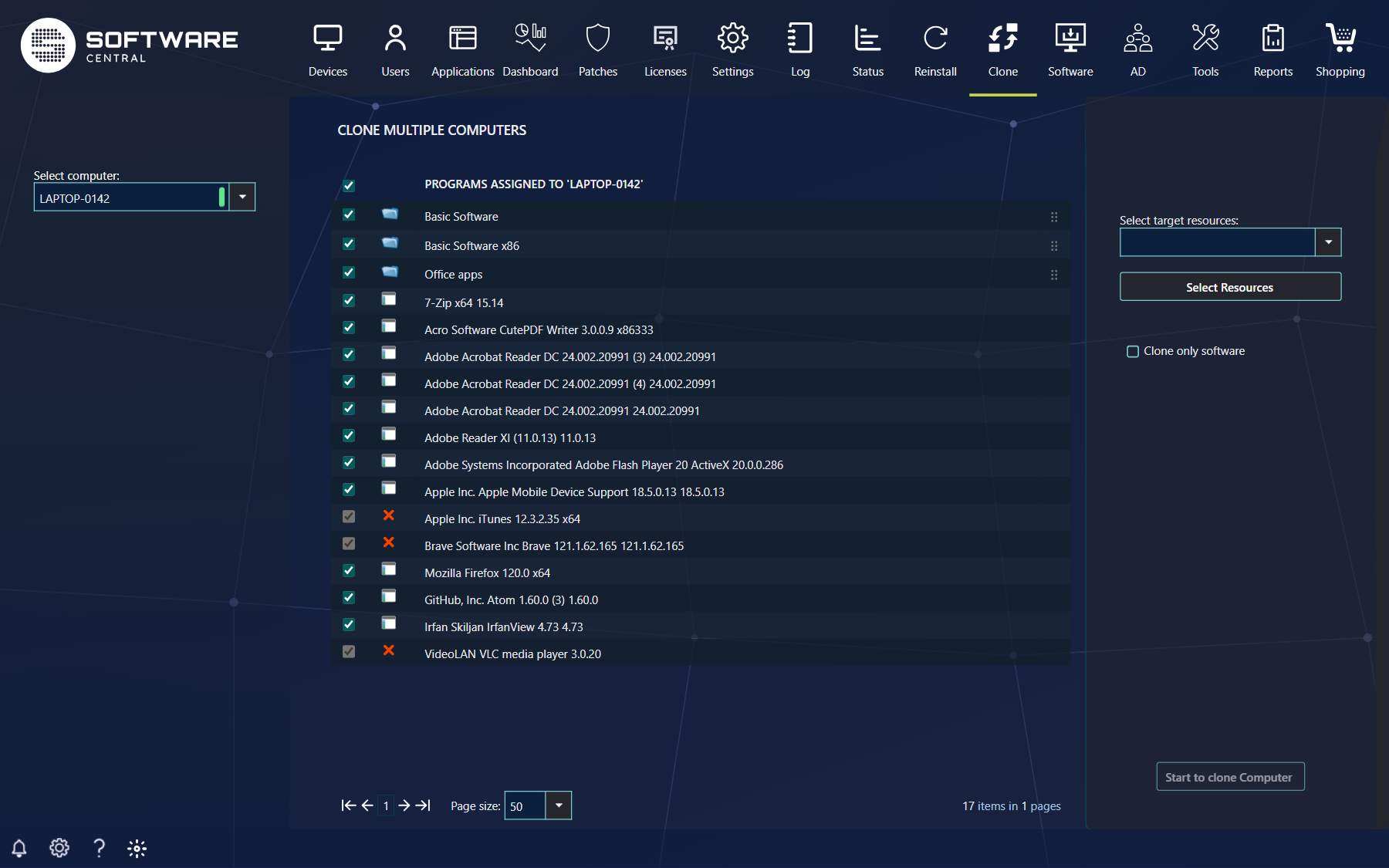
The software assigned to the source is shown in the centre. Untick any software you do not want to clone. Software with a red cross cannot be added to the target computers (tooltip Not applied by direct rule. Cannot be removed.): it reaches the source computer through a query, not directly. Use Quick-find installed software to search the list, and the checkbox in the column header to select or clear everything. Software Groups can be reordered with the drag handle and are installed in the order shown. Your IT department can limit cloning to software that belongs to certain package security groups; other software is then not listed.
2 Select the target computers
In the right menu, use Select target resources to pick a query directly, or click Select Resources for a more advanced selection.
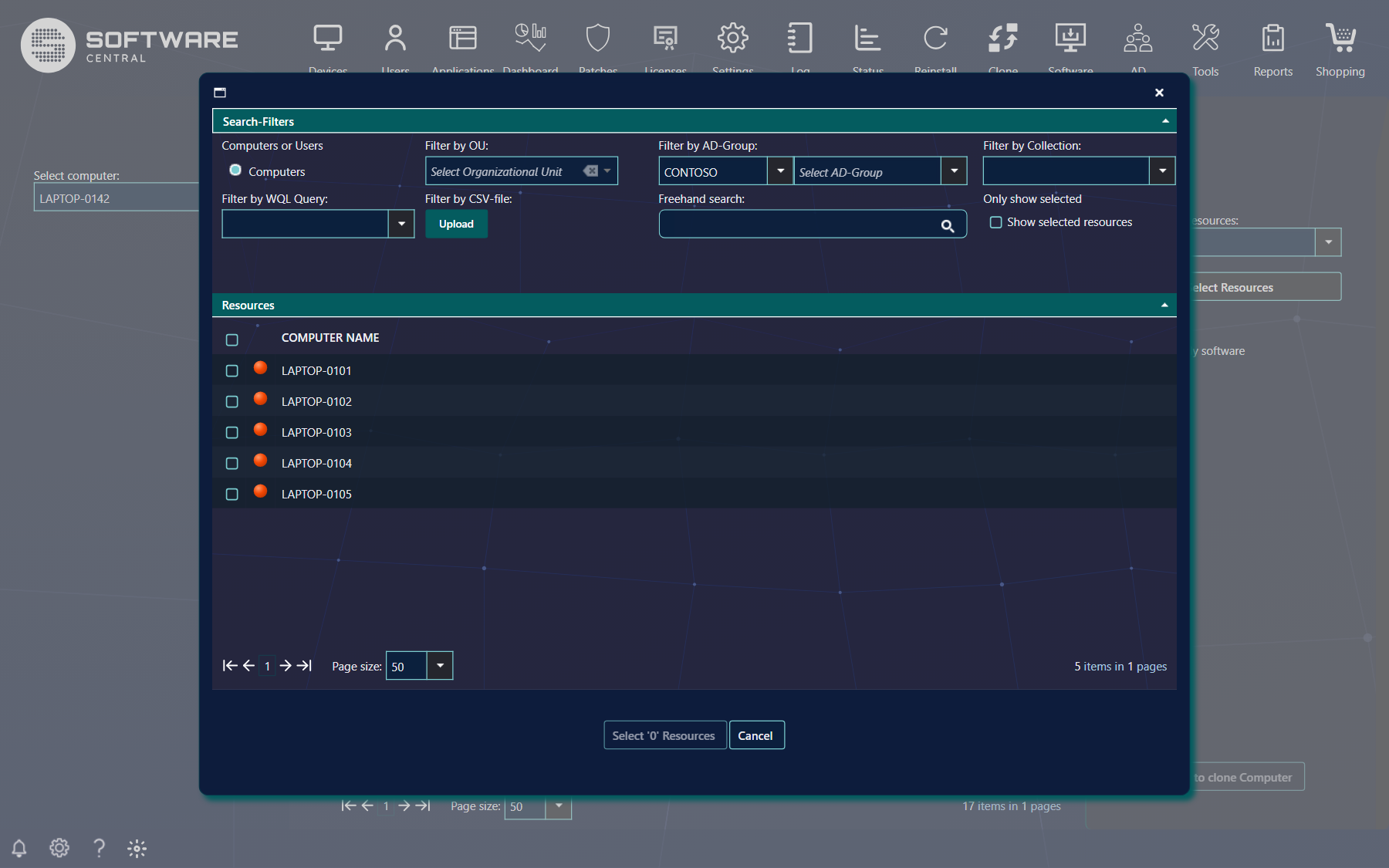
| Filter | What it does |
|---|---|
| Computers or Users | Choose computers as targets. |
| Filter by OU / AD-Group / Collection | Find the computers by organisational unit, Active Directory group or collection membership. |
| Filter by WQL Query | Use an SCCM query. |
| Filter by CSV-file | Upload a CSV file with computer names or resource IDs. |
| Freehand search | Search for individual computers by name. |
| Only show selected | Show selected resources lists only the computers you have ticked so far. |
Tick the computers and click the button at the bottom, which shows the number selected. Click Cancel to leave without selecting.
When you choose a query in Select target resources, all computers of the query that you are allowed to manage are selected at once.
3 Software only, or a complete clone
Clone only software works as it does for a single computer.
| Clone only software | What happens to the target computers |
|---|---|
| Not ticked (default) | The target computers are reinstalled and all programs assigned to them are removed. They become complete clones of the source computer. |
| Ticked | Only the assigned software is cloned. The target computers are not reinstalled and their existing software is not removed. If the source computer has no operating system assigned, this option is ticked and greyed out. |
4 Start the cloning
Click Start to clone Computer in the lower right corner. Once targets are selected the button shows their number, for example Start to clone '5' computers. It stays disabled until at least one target is selected, and if your security role limits how many computers may be handled at once it is disabled when you select more than that. Follow the progress in the Deployment Manager, where a job is named Cloning computer source to N computers for a complete clone, or Cloning software from computer source to N computers for a software-only clone. There is no Migrate User Data option here; to migrate user data use Clone Single Computer or Reinstall Multiple Computers. See also Clone Single Computer.
5 Best practice
- Clone to one target with Clone Single Computer first and check the result before you clone to a group.
- Keep the number of targets moderate. A complete clone reinstalls every target, which is resource-intensive; the same advice as for Reinstall Multiple Computers (fewer than a hundred at a time) applies.
- Review the list of targets before you start. Selecting a query ticks all of its computers at once, and a complete clone removes everything assigned to them.
- Use Clone only software to add the same software to computers that are already in use.