1 Open Reinstall Multiple Computers
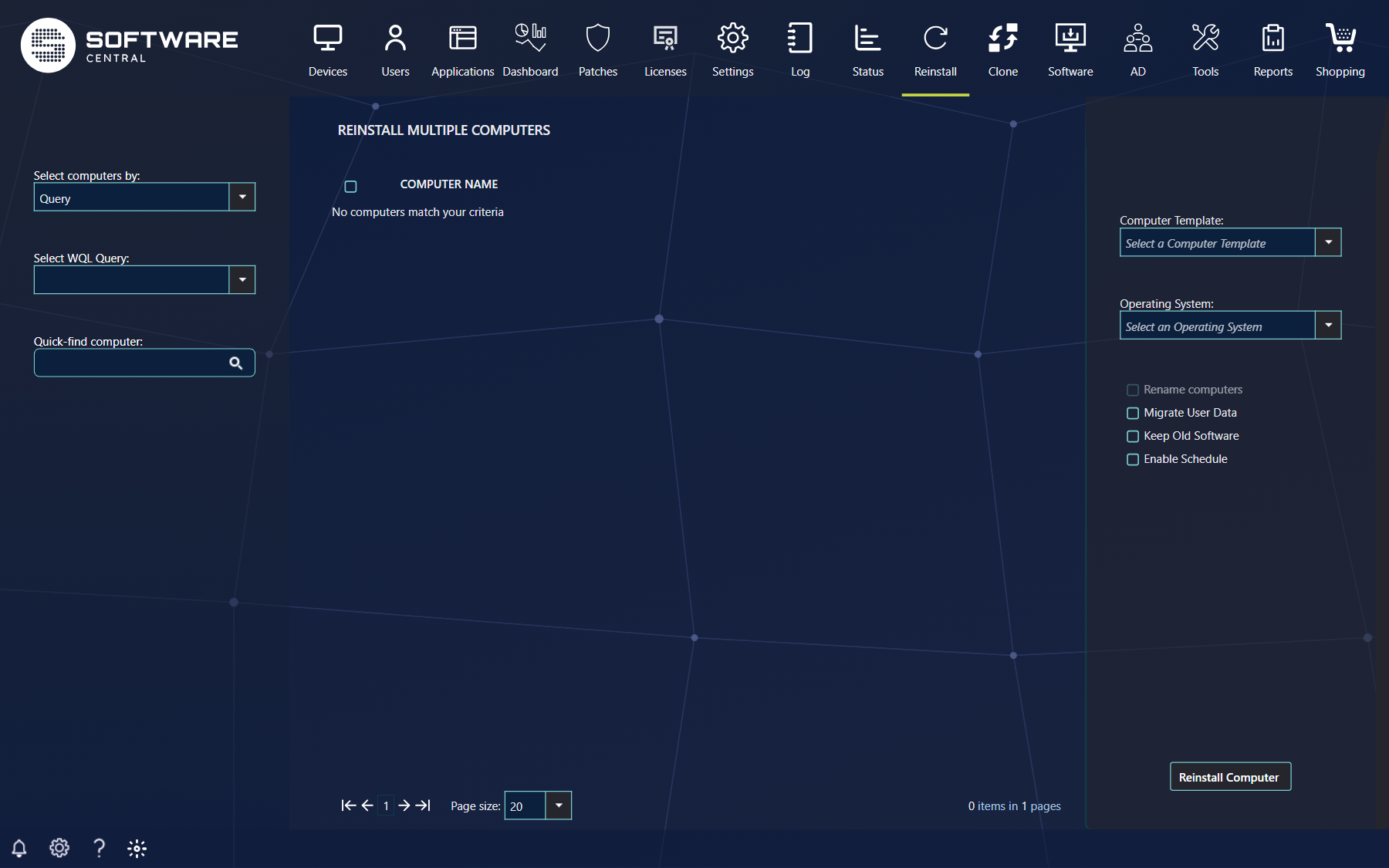
Open Reinstall › Reinstall Multiple Computers to reinstall several computers in one operation. You can apply a computer template and a new operating system to all of them at once.
2 Select the computers
Start by choosing how to find the computers in Select computers by, then specify the filter.
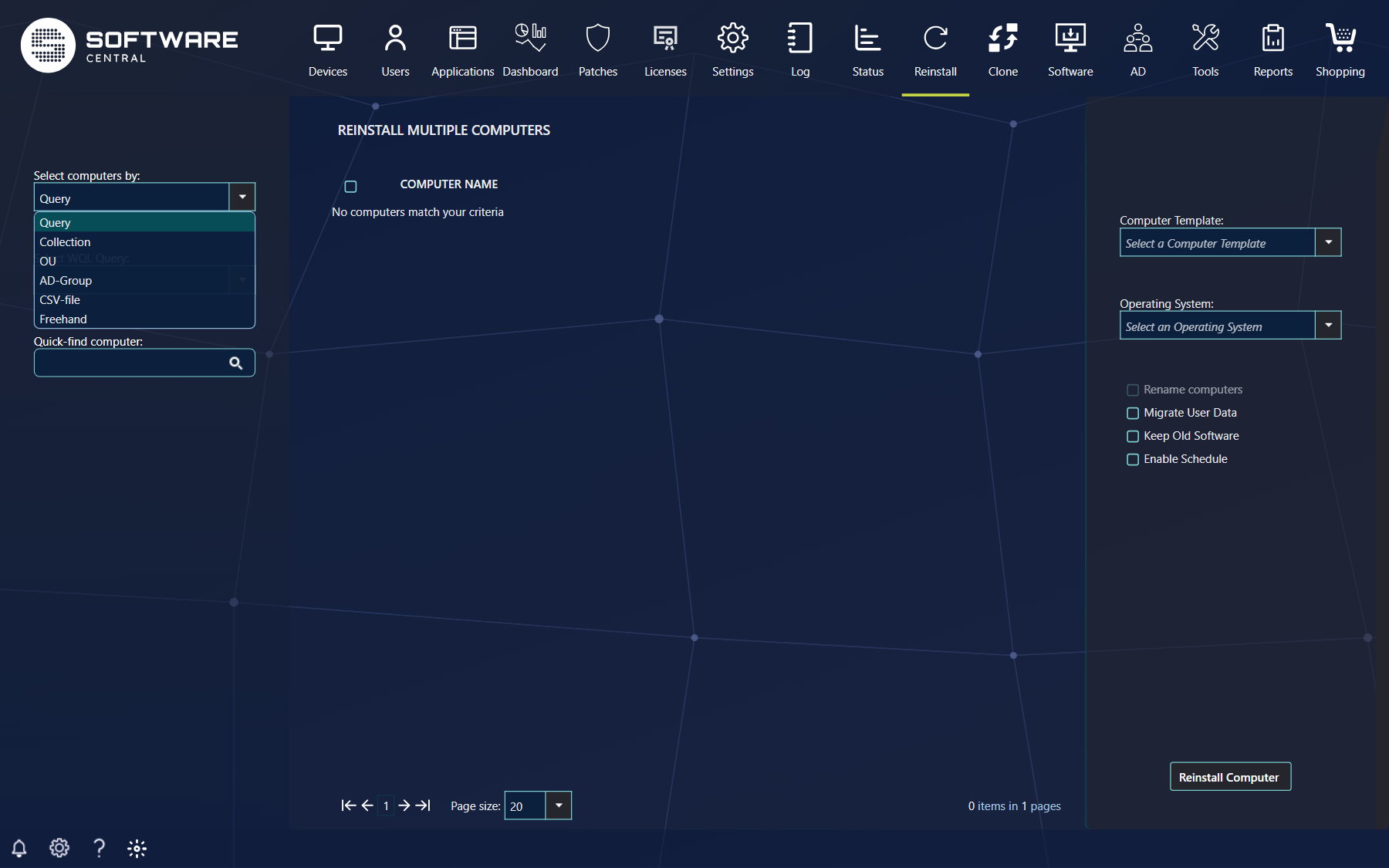
| Select by | What you specify |
|---|---|
| Query | An SCCM query (WQL) or a computer group, chosen in Select WQL Query. |
| Collection | Resources are selected by collection membership, chosen in Select Collection. |
| OU | Resources are selected by organisational unit membership, chosen in Select OU. |
| AD-Group | Resources are selected by Active Directory group membership: choose the domain, then the group in Select AD-Group. |
| CSV-file | A CSV file with the resources separated by commas. You can use computer names or resource IDs; the separator can be a comma, semicolon, space or line break. Upload the file in Select CSV-file. You cannot mix users and devices in the same operation. |
| Freehand | Search for individual computers with a free search in Quick-find computer. All computers your security role may manage are listed. |
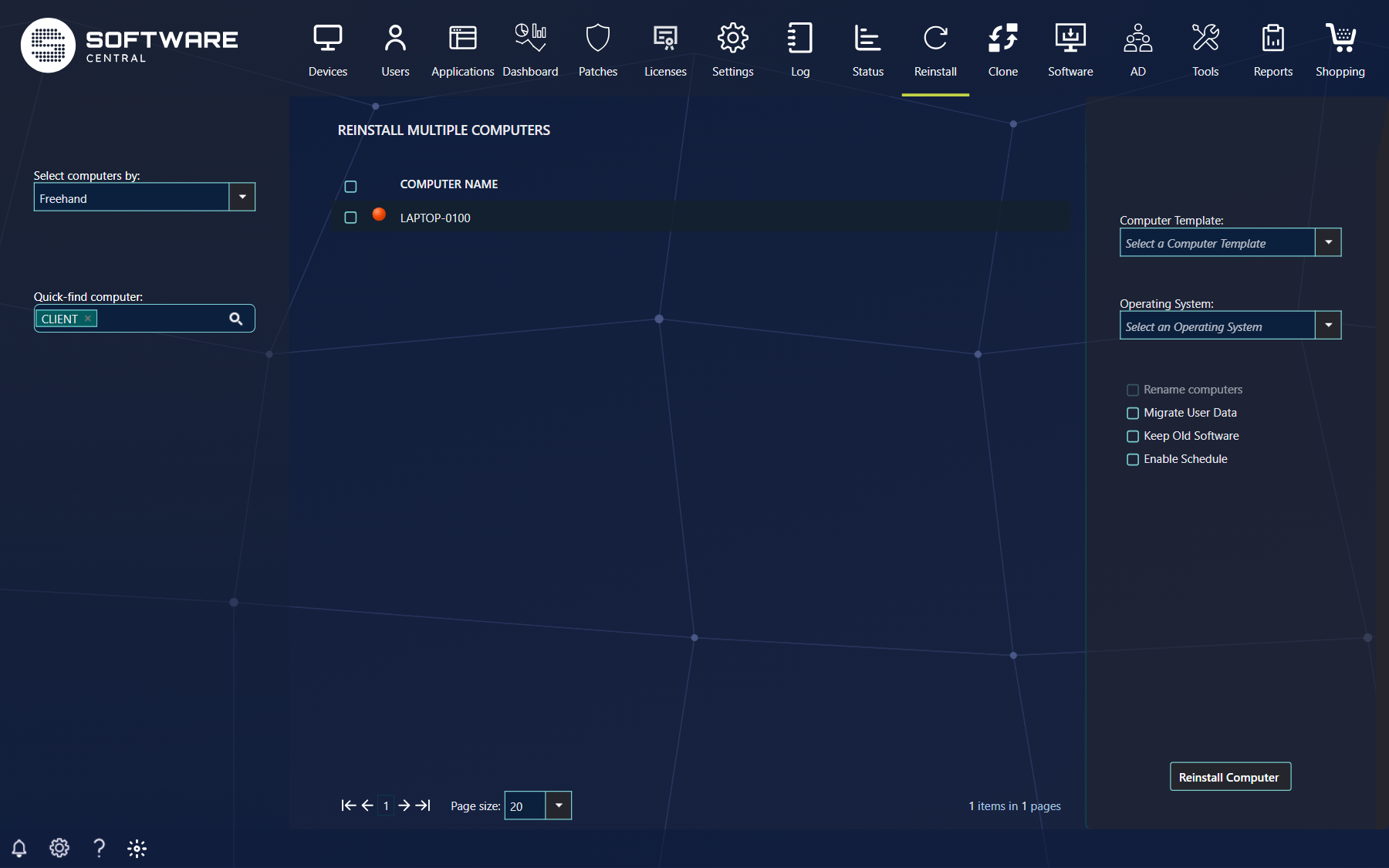
The computers found are listed in the centre view. A coloured dot before a computer shows whether it is online; this is available on SCCM 1602 and later, when enabled in the settings.
3 Reinstallation settings
The right menu applies to all selected computers.
| Setting | What it does |
|---|---|
| Computer Template | Applies a computer template and its software to every selected computer. |
| Operating System | The operating system to install. Required. |
| Rename computers | Renames the computers to follow the naming series of the selected template. Available when the template has a naming series; the box can be locked on for some roles. |
| Migrate User Data | Restores the users' personal files and settings after the reinstallation. |
| Keep Old Software | Keeps software already assigned to the computers. Otherwise it is cleared and only the software from the template is applied. |
| Enable Schedule | Schedules the reinstallation. The start time and the advanced settings (name, latest run time, Wake-On-Lan, maintenance windows) work as described in Reinstall Single Computer. |
Click Reinstall Computer to start the reinstallation. The button shows how many computers are selected, for example Reinstall '3' Computers. It stays disabled until at least one computer is ticked and an operating system is chosen. A job is created for all the computers together; it is named Reinstallation of N computers with ... unless you give it another name in the advanced schedule settings. Follow the progress in the Deployment Manager.
- If your security role limits how many computers may be reinstalled at once, the button is disabled when you select more than that.
- If your security role requires a template, the button is disabled until you select one (tooltip You must select a Computer Template).
- Without a template, each computer keeps its own machine variables, such as language and time zone, and only the operating system is changed. Its assigned software is removed unless Keep Old Software is ticked.
- With a template, its operating system is filled in (and locked if the template is locked), and its variables and software groups are applied to every selected computer.
- The online status dot is green (This computer is online) or red (This computer is offline).
- The same rules for start and end times as in Reinstall Single Computer apply: a start time in the past is refused.
4 Best practice
- Reinstall in batches of fewer than a hundred computers, and fewer still if your network or distribution points are slow.
- Try the settings on one computer first with Reinstall Single Computer, then repeat for the group.
- Always select a template, so every computer receives the same variables and software groups. Without one only the operating system is changed.
- Schedule large reinstallations outside working hours and keep Use Wake-On-Lan ticked, so offline computers are started when the job begins.
- Check the number on the Reinstall button and the list of ticked computers before you click it; it is easy to leave a filter on and tick the wrong group.
- Tick Migrate User Data when users have files and settings on their computers.