1 Select the computer
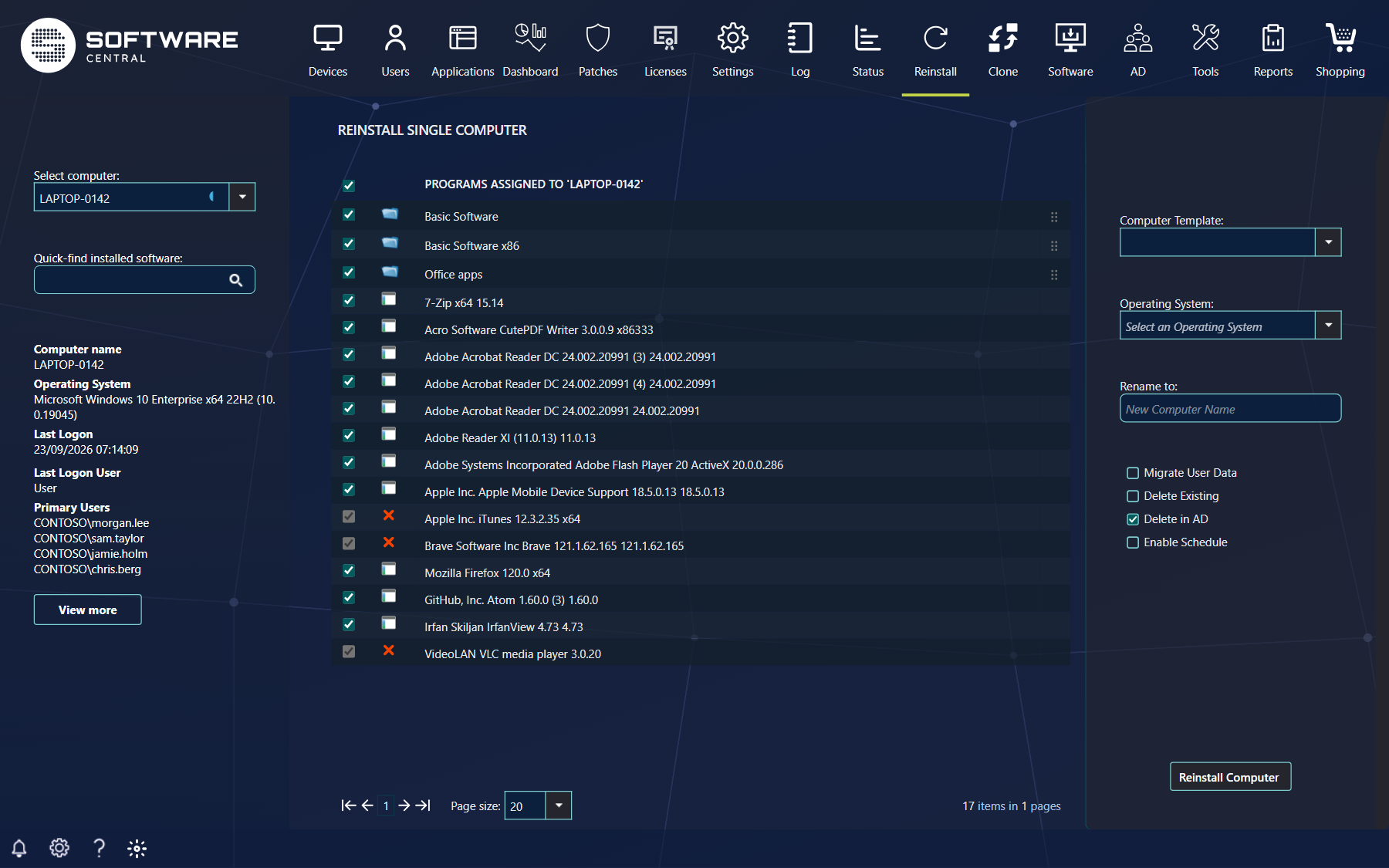
Open Reinstall › Reinstall Single Computer and pick a computer in Select computer in the left menu.
You can also select a computer directly from the browser address by adding ?computername=PCNAME (replace PCNAME with the computer name), for example http://softwarecentral/ReinstallSingleComputer?computername=pc035.
2 Computer status
Next to the selected computer a small colour-coded button shows whether the computer is online.
| Colour | Meaning |
|---|---|
| Green | The computer is online. The reinstallation starts immediately when you click Reinstall Computer. Click the button to open a window with details about the computer: IP addresses, last heartbeats and more. |
| Red | The computer appears to be offline. Click the red button to check its status again. |
The left menu also shows the computer name, Client Type, operating system, last logon, last logon user and primary users. Click View more for more details about the computer. While the status is being checked, a small grey button with the tooltip Retrieving computer online status... is shown.
You only find computers your security role is allowed to manage. Typing a name that is not in the list and pressing Enter selects it only when exactly one allowed computer matches; otherwise the page is reloaded.
3 Manage assigned software
The centre view lists the software currently assigned to the computer. Think of it as how the computer will look after the reinstallation.
- Use the checkboxes to remove software from the computer.
- A folder icon marks a Software Group. Hover over the icon to see what is inside it.
- Software Groups can be reordered with the drag handle on the right. They are installed in the order shown, which helps when one group depends on another. The order of individual programs cannot be controlled, and a software group cannot be dropped among the programs.
- Use Quick-find installed software in the left menu to search the list.
- The checkbox in the column header selects or clears all software that can be changed.
The icon in front of each row shows what it is, and whether it can be removed:
| Icon | Meaning |
|---|---|
| Program icon | A package or application assigned directly to the computer. Tick it to keep it, untick it to remove it. |
| Folder icon | A Software Group, or an application group (hover to see its content). When your IT department has locked the software groups of the selected template, the groups of the template cannot be unticked. |
| Red cross | The row is ticked and cannot be changed. The tooltip gives the reason: Not applied by direct rule (the software reaches the computer through a query, not directly), Does not belong to a SoftwareCentral collection, Scheduled Deployment - Starts after ... (a scheduled deployment is waiting), or Not assigned to role (your IT department does not let your role remove software that is not assigned to it). |
Your IT department can also hide software that is assigned by a query (Hide query based software).
4 Computer template and operating system
In the right menu, choose a Computer Template to apply predefined settings and software. The assigned programs view then shows the software of the template.
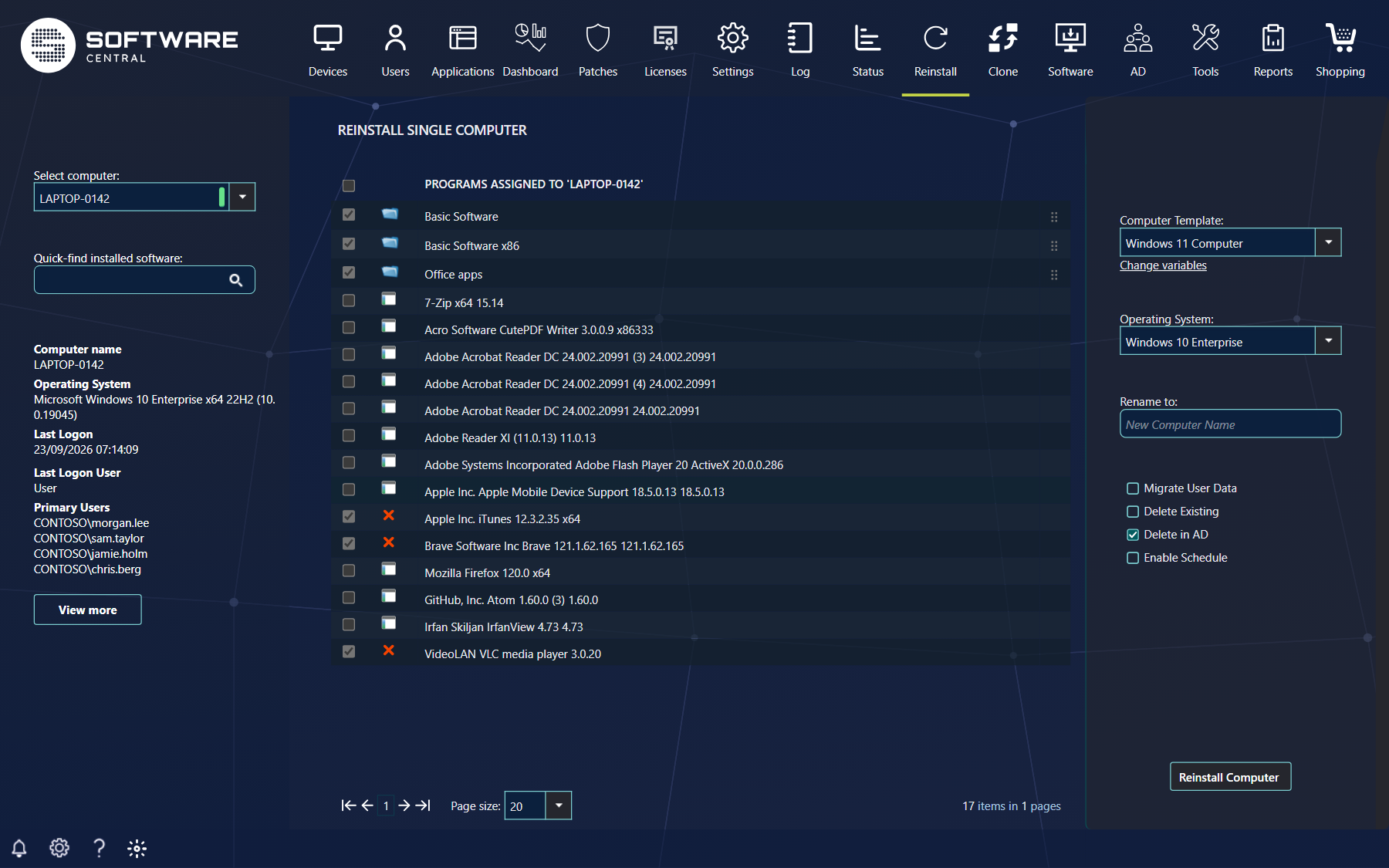
If, for example, the template contains only the software group Basic Software, only that group is selected afterwards. By default the existing software is deselected when a template is chosen; administrators can change that in Settings (Deselect existing software in Reinstall Single Computer).
When the template has variables you may change, a Change variables link appears below the template (an administrator allows this with the setting Allow variable change).
The Operating System drop-down selects the operating system to install. By default it shows the last operating system installed on the computer, if that is known. This field is required before the reinstallation can start; without it Operating System is missing is shown. If the template contains an operating system it is filled in, and it is locked when the template is locked. If you change the operating system after selecting a template, all other settings of the template still apply.
- If your security role requires a template, Reinstall Computer is disabled until you select one (tooltip You must select a Computer Template).
- If the template has a mandatory variable without a value, the button is disabled with the tooltip Missing mandatory variables, and the link under the template reads Missing mandatory variables instead of Change variables. Click it to fill in the value.
- Your IT department can hide the template list (Hide computer templates).
5 Rename the computer
Type a new name in Rename to to rename the computer during the reinstallation. Leave the box empty to keep the name.
You cannot use a name that is already assigned to another computer; SoftwareCentral checks this and shows Name already exists. To get the next free name of a naming series, type the series followed by a star, for example PC*; if no such series exists you see Naming schema does not exist.
If the selected template contains a naming schema and the computer does not follow it, you are asked whether to rename it. Naming schemas are shown as the prefix followed by a star, for example PC*. Answer Yes to put the schema in the Rename to box, or No to keep the name.
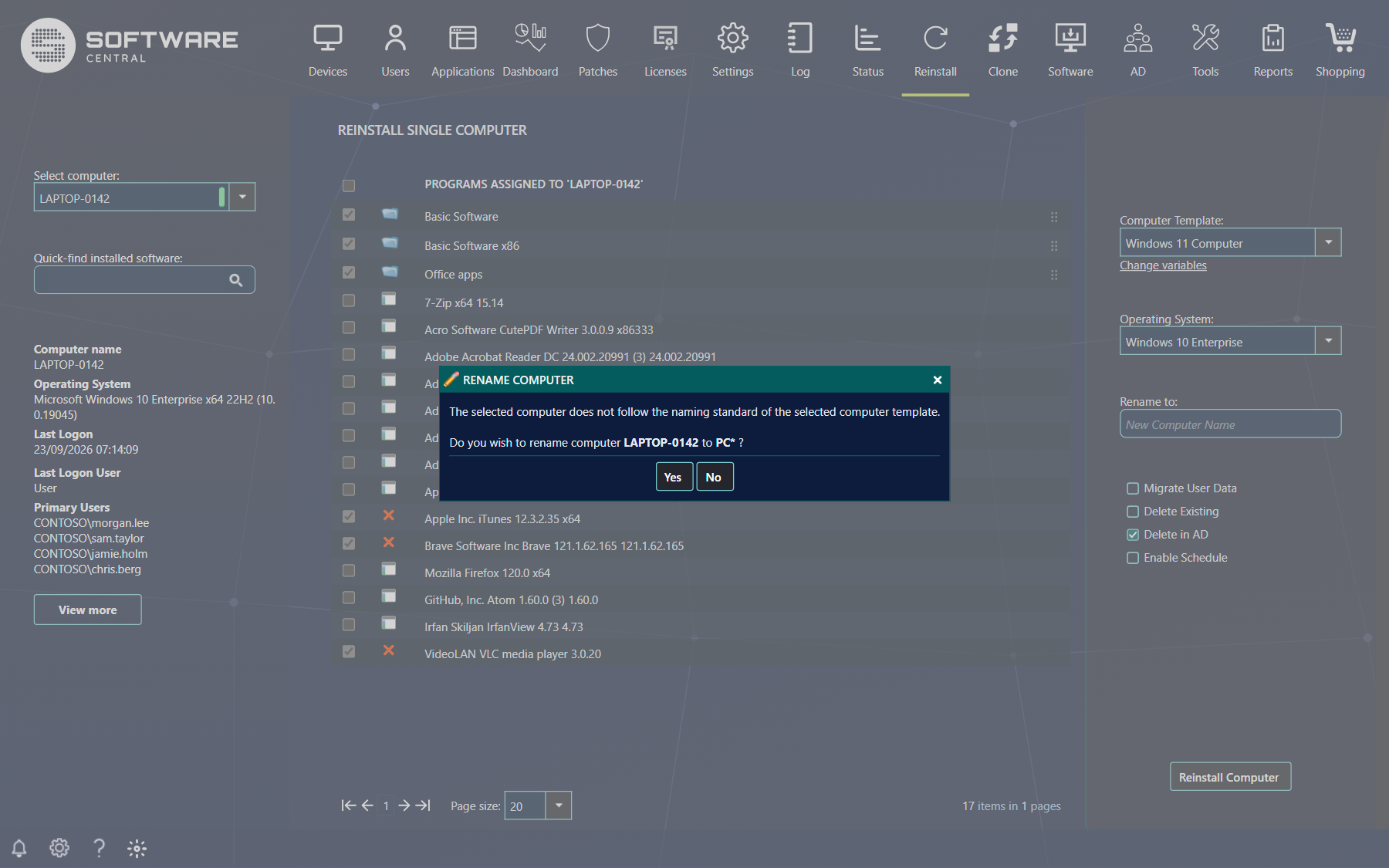
When a naming schema is used, the name the computer will get is written to the log and shown in the notifications popup after the reinstallation has started.
6 Other options
The options below the name box depend on how SoftwareCentral is set up, so some may be missing on your system.
| Option | What it does |
|---|---|
| Migrate User Data | Restores the user's personal files and settings after the reinstallation. Can be disabled for all users: Show USMT in the Settings menu. |
| Delete Existing | Deletes the computer in ConfigMgr and Active Directory and then recreates it with the same name and SMBIOS GUID. The computer must have an SMBIOS GUID registered; without one the reinstallation fails and nothing is deleted. Shown when Show Delete Existing Computer is enabled in Settings. |
| Delete in AD | Deletes the computer in Active Directory. Shown when Show Delete in AD is enabled; the default state is also set in Settings (Default Delete in AD). The account is deleted only when exactly one matching account is found in the domains; if your IT department has denied deletion of computer accounts, nothing is deleted. The outcome is written to the log. |
| Clean Intune Software | Removes the device from all SoftwareCentral Install groups in Intune. Shown only for co-managed devices, when Allow Clean Intune Software is enabled and you may use Intune. |
| Enable Schedule | Schedules the reinstallation for later (see below). Can be disabled with Disable schedule in Settings. |
7 Schedule the reinstallation
Tick Enable Schedule to start the reinstallation later. A date and time picker appears below it.
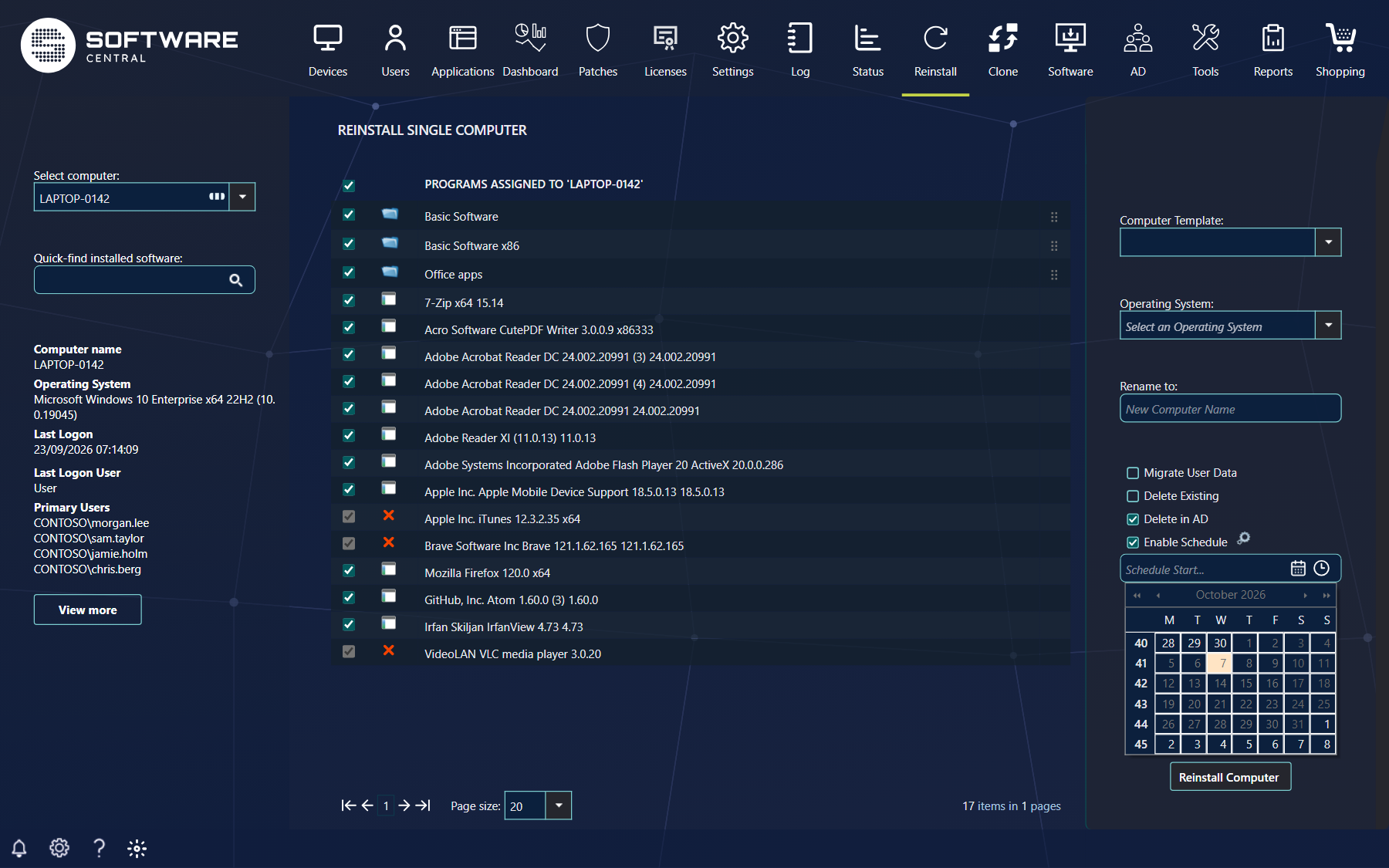
- Click the calendar icon to choose the start date. Today's date is marked in yellow.
- For a more precise start time, click the clock icon and choose the hour.
- Click Reinstall Computer to apply the scheduled deployment.
Click the small settings icon next to Enable Schedule for the advanced schedule settings:
| Setting | What it does |
|---|---|
| Job Name | A name for the scheduled deployment, which makes it easier to find in the Deployment Manager and in Edit Schedule. |
| Schedule End (latest run time) | The latest time the deployment may run. By default 7 days after the start time. |
| Use Wake-On-Lan | Wakes the computer if it is offline when the deployment starts. Enabled by default. |
| Ignore maintenance windows | Runs the deployment even outside ConfigMgr maintenance windows. Enabled by default. |
8 Start the reinstallation
Click Reinstall Computer in the lower right corner to start. Follow the progress from the Deployment Monitor in the lower left corner: it shows whether the reinstallation is still running, has succeeded or has failed.
If you do not give the job a name, it is called Reinstallation of the computer with the operating system. A start time in the past is refused with Scheduled start time must be now or later., and an end time that has already passed with Scheduled end time must greater than the start time.
See also Reinstall Multiple Computers, Deployment Manager and Scheduled Deployments.
9 Best practice
- Select the computer template first and adjust the software afterwards, because choosing a template replaces your changes to the assigned software.
- Check the software list before you start. Everything ticked is installed again after the reinstallation; everything unticked is removed from the computer.
- Use Enable Schedule to reinstall outside working hours, and keep Use Wake-On-Lan ticked so an offline computer is started when the job begins.
- Use Migrate User Data when the user has files and settings on the computer. Reinstalling without it removes them.
- Use Delete Existing and Delete in AD only when you really need a clean record; both delete objects that cannot be restored from SoftwareCentral.
- For more than a few computers use Reinstall Multiple Computers, and try the settings on one computer first.