1 Open the window
On Software › Phased Deployments, click Create Phased Deployment in the left menu.
Fill in the General tab first, then add the phases on the Phases tab. Deploy becomes active once you have chosen the software and added at least one phase.
2 Template, software, name and schedule
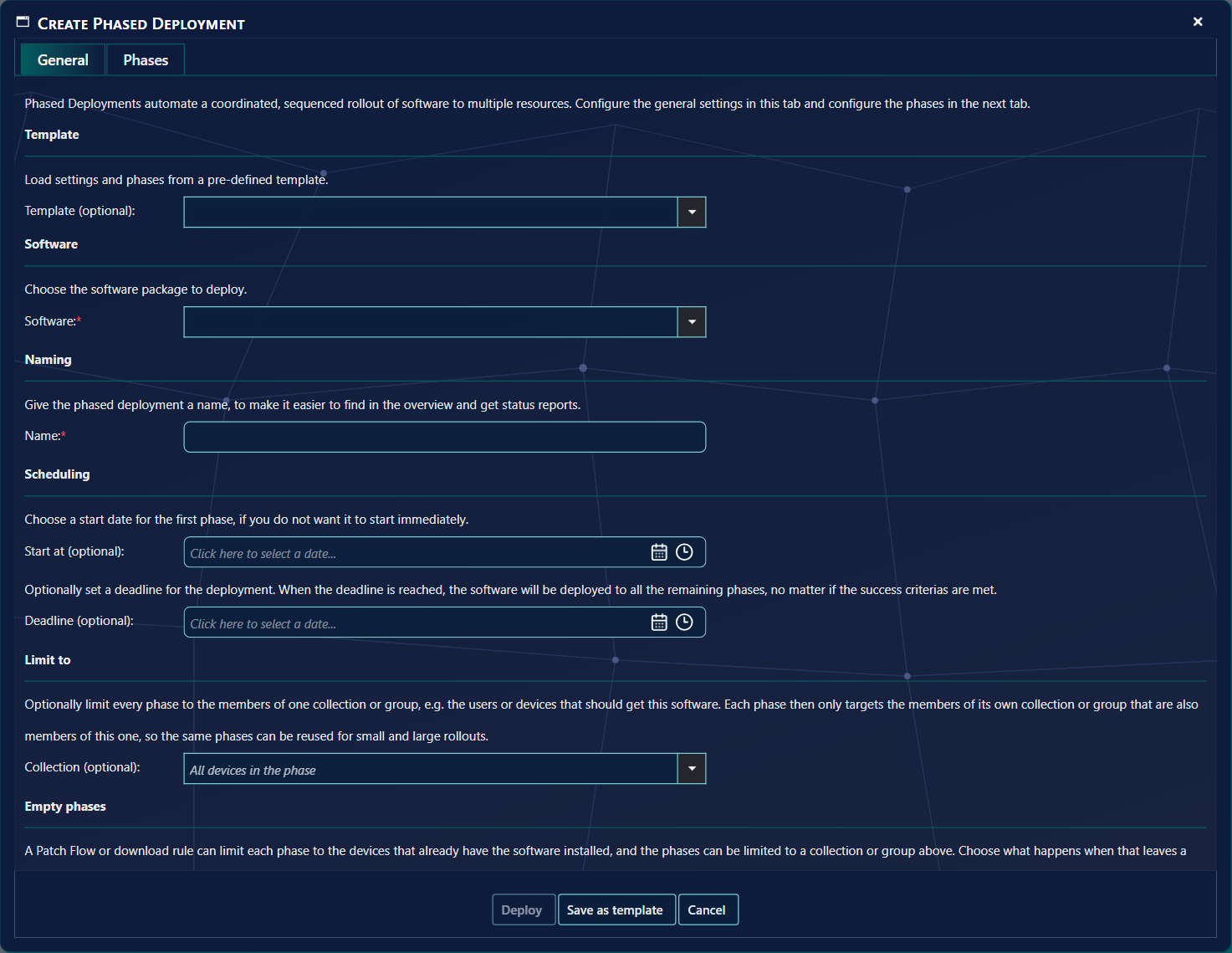
| Setting | What it does |
|---|---|
| Template (optional) | Loads the settings and phases of a saved template. You can still change everything afterwards. The software, name and dates are not part of a template. |
| Software | What to roll out. For SCCM you can choose a package, an application, an application group or a task sequence; Intune applications and Intune application groups are listed too. The choice decides whether this is an SCCM or an Intune phased deployment, and which of the settings below are shown. |
| Name | Required and unique; at most 500 characters. It is filled in with the software’s name when you choose the software. The name is used in the list and in every mail. |
| Start at (optional) | No phase starts before this date and time. Empty means as soon as possible. |
| Deadline (optional) | When the deadline is reached, every remaining phase is started at the next run, no matter whether the success criteria are met, and without waiting hours. Each phase still keeps its approval, time of day and weekday. Before the deadline the phases follow their success criteria as normal. |
3 Assign as Intune
Only for Intune software: whether the application is assigned to the users and devices of each phase as Required (installed automatically) or as Available (offered in the Company Portal).
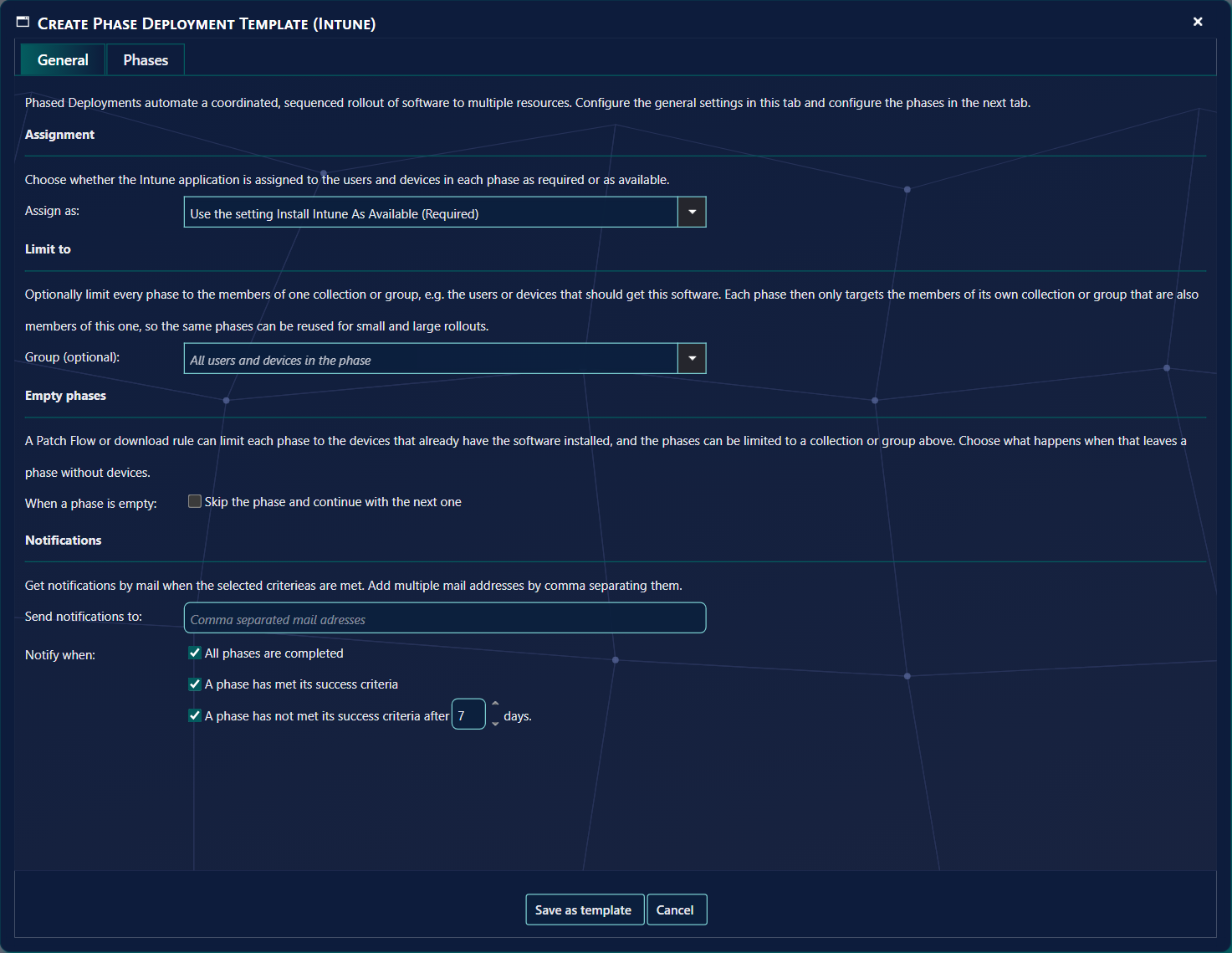
| Assign as | Result |
|---|---|
| Use the setting Install Intune As Available (default) | Follows the installation-wide setting Phased Deployments - Install Intune as Available under Settings › SoftwareCentral › Interface Settings. The value in brackets shows what it is now. |
| Required | Always required for this phased deployment, whatever the setting. |
| Available | Always available for this phased deployment. Note that a phase then only succeeds as users install it themselves; see success criteria. |
4 Limit to
Optionally limit every phase to the members of one collection (SCCM) or one group (Intune). Each phase then only targets the members of its own collection or group that are also members of this one.
This lets you keep one set of phases — for example the collections or groups Pilot, Early and Broad, which together cover the whole organisation — and use it for every rollout, large or small. For an application that only 50 users should have, choose the group of those 50 users here: phase 1 then reaches the pilot users among the 50, phase 2 the early users among them, and so on. You do not have to create new collections or groups for each phase.
| Setting | What it does |
|---|---|
| Collection (optional) SCCM | A device collection. Empty (All devices in the phase) means no limit. It also limits phases with a fixed list of devices. |
| Group (optional) Intune | An Entra ID group. Empty (All users and devices in the phase) means no limit. The group must contain the same kind of members as the phase groups: devices for device groups, users for user groups. |
5 When a phase is empty
Decides what happens when a phase has devices, but Limit to or the limits of a Robopack Patch Flow or download rule (for example “only devices with the previous version”) leave none of them.
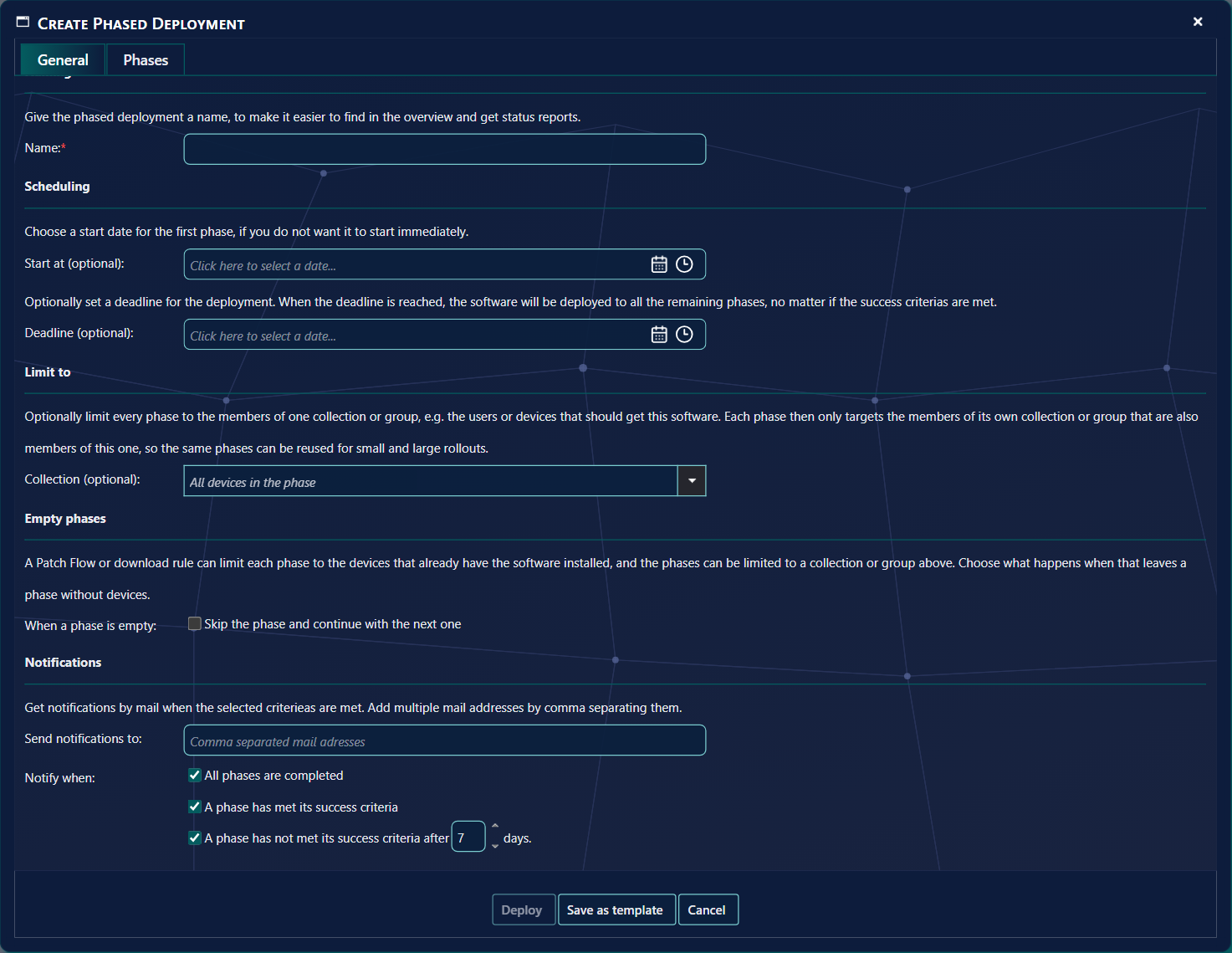
| When a phase is empty | Result |
|---|---|
| Skip the phase and continue with the next one ticked | The phase is set to Skipped, a mail says why, and the next phase follows. Use this for Patch Flows that only upgrade devices that already have the application: a ring where nobody has it is simply passed. |
| Not ticked (default) | The phase gets the status No target resources and is tried again at every run. It starts as soon as matching devices are added to its collection or group. |
A phase whose own collection or group is empty is never skipped this way; it always waits for members.
6 Notifications
Get mail about the rollout. Add more than one address by separating them with commas.
| Setting | Mail is sent when… |
|---|---|
| Send notifications to | The addresses that get all mails below. |
| All phases are completed | The last phase has completed or was skipped. |
| A phase has met its success criteria | A phase completed, also when someone marked it as completed by hand. |
| A phase has not met its success criteria after x days | A phase has failed. The number of days (1–180, default 7) is also how long a phase may run before it is marked as failed — that happens whether or not the box is ticked; the box only decides whether you get the mail. While the phase stays failed, the mail is repeated at most once per that number of days. |
Some mails are always sent to the addresses, without a checkbox: a phase that needs approval (with a link that opens the phased deployment), a phase that was skipped, and a phased deployment that a Patch Flow or download rule could not create.
7 Add the phases
On the Phases tab, fill in a phase on the left and click Add Phase >>. The phases you have added are listed on the right, in the order they will run.
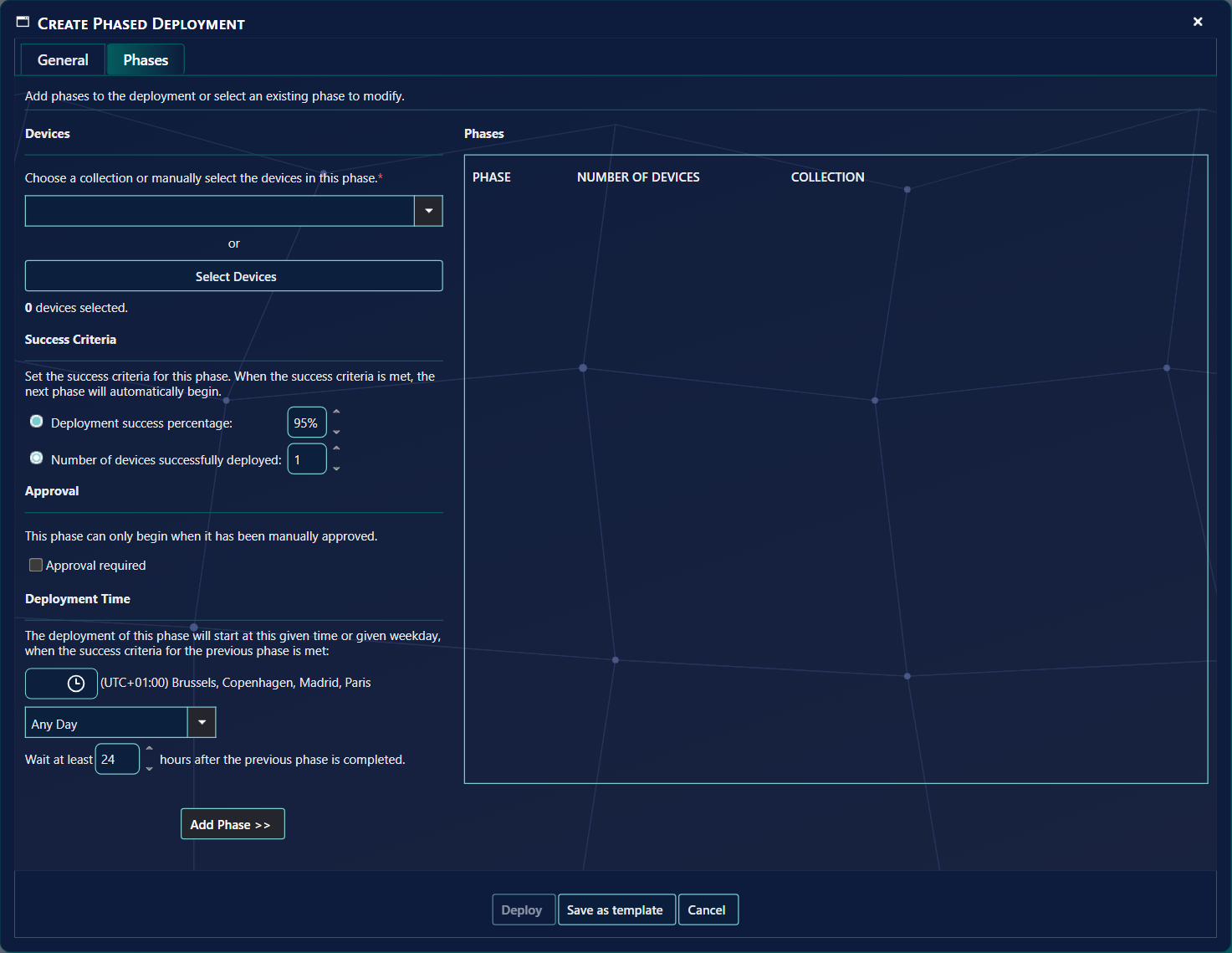
| Setting | What it does |
|---|---|
| Devices SCCM | Choose a collection, or click Select Devices to pick the devices by hand (a fixed list). You cannot mix the two in one phase. The devices of the collection are added to the software’s install collection when the phase starts; nothing is deployed to the collection you choose here. |
| Devices Intune | Choose an Intune (Entra ID) group of users or devices. Its members are added to the application’s install group when the phase starts. |
| Success Criteria | Deployment success percentage (1–100, default 95 %) or Number of devices successfully deployed (default 1). When it is met, the next phase can begin. Only devices that the phase actually targeted count. This section is hidden when the installation-wide setting Always Continue is on; see Phased Deployments Advanced. |
| Approval required | The phase does not start until someone with permission approves it. A mail with a link is sent when approval is needed. |
| Deployment Time (time) | The hour of the day the phase may start, in the time zone shown next to it. Only the hour counts. Empty means any time. |
| Deployment Time (weekday) | Any Day, or the one weekday the phase may start on. The weekday is checked in UTC, so around midnight it can differ from your local day. |
| Wait at least x hours after the previous phase is completed. | The phase starts no earlier than this many hours after the latest completed phase before it (0–2160; 24 is one day; 0 starts it as soon as possible). Time of day and weekday apply on top. Skipped phases do not start the clock. The phase list in the status window shows Waiting until … while it waits. |
In the list, Edit loads a phase back into the left side (the button becomes Update Phase; Cancel leaves it unchanged) and Remove deletes it. For SCCM the list shows the number of devices in the collection now; for Intune the group name.
8 Deploy, or save as template
| Button | What it does |
|---|---|
| Deploy | Saves the phased deployment. The first phase starts at the next run of the evaluator (or at Start at). If the software has a licence rule and the phases together have more devices than there are licences left, you are told how many are left and nothing is saved. |
| Save as template | Asks for a Template Name (unique, at most 256 characters) and saves the settings and phases as a template, so you can apply them to other phased deployments. The software is not saved in the template. After saving, you can still deploy. |
| Cancel | Closes the window without saving. |
After deploying, follow the rollout in the status window. As long as no phase has started, you can still edit it.
9 Best practice
- Give every phased deployment its own name. SoftwareCentral refuses a name that another phased deployment already has, and the name is used in every mail.
- Check the licences before you deploy. If the phases together target more devices than there are licences left, Deploy refuses and tells you both numbers.
- Fill the collection or group before the rollout reaches the phase. A phase with no members shows has no target resources and waits.
- Make the changes before the first phase starts. The Edit link is only offered while every phase is still waiting to start.
- Check the time zone shown next to Deployment Time. The start hour of each phase is read in your own time zone, which is the one shown there.
10 Troubleshooting
| Symptom | Cause | What to do |
|---|---|---|
| “You must enter a name.” | The Name box is empty. | Type a name. The name can be up to 500 characters long. |
| “Name already exists.” | Another phased deployment has the same name. Upper and lower case are not compared. | Choose a different name. |
| “There are only 'n' license(s) left. You have selected 'm' device(s).” | The phases together target more devices than there are licences left for the software. Nothing is saved. | Remove devices from one or more phases, then click Deploy again. |
| “The license for this package has expired. Installations may not be not be completed.” | The licence rule for the software has expired, and it blocks installations. | Renew the licence for the software, then create the phased deployment. |
| “No devices selected” | The phase has no collection or group, and no devices were picked with Select Devices. | Choose a collection or group, or click Select Devices, pick the devices, and then click Add Phase >>. |
| Deploy stays greyed out. | No software has been chosen, or no phase has been added yet. | Choose the software and add at least one phase. |
| “Name is missing” (when saving a template) | The Template Name box is empty. | Type a template name. |
| “Name already exists.” (when saving a template) | Another template has the same name. Upper and lower case are not compared. | Choose a different template name. |
| The status shows “Phase n of m has no target resources”. | The collection or group of the phase has no members, or the Limit to collection or group has none. | Add members to the collection or group. The phase waits until there are members. |