1 Open the status window
On Software › Phased Deployments, click the text in the Status column (or the name, once a phase has started).
The link in an approval mail opens the Phased Deployments page with the status window of that phased deployment already open.
2 What the window shows
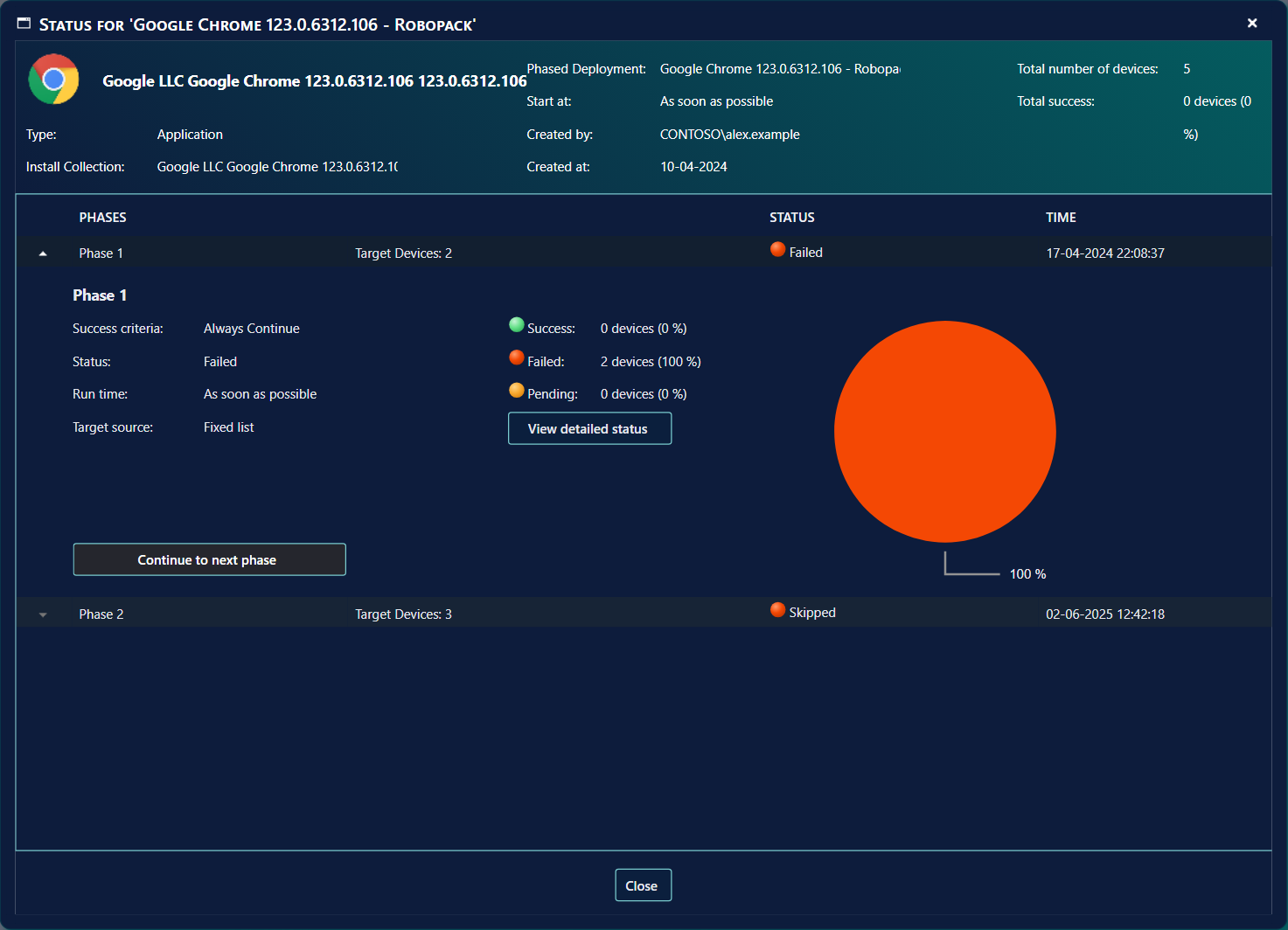
| Part | What it tells you |
|---|---|
| Details (top) | The software and its Type, the Install Collection it is deployed to (SCCM), the Phased Deployment name, Start at, Created by, Created at, the Total number of devices in all phases and the Total success so far. |
| Phases | One row per phase: the number of target devices, the Status and when it last changed (Time). The active phase is expanded; click another to expand it. |
| Success criteria | What the phase must reach, or Always Continue when that installation-wide setting is on. |
| Run time | The hour the phase may start, in UTC, or As soon as possible — plus the waiting hours after the previous phase, when set. |
| Target source | The collection or group of the phase, or Fixed list for hand-picked devices, followed by limited to ‘…’ when the phased deployment has Limit to. |
| Success / Failed / Pending | How many of the phase’s devices (or, for Intune, endpoints) have installed it, have failed, or have not reported yet, with a chart. |
| View detailed status | SCCM Opens the installation status of every device in the phase. Shown once the phase has started. For Intune the counts above come straight from Intune’s install status of the application. |
3 Phase statuses
| Status | What it means |
|---|---|
| Pending previous phase | An earlier phase has not finished yet. |
| Waiting to start | This is the next phase; it starts at the next run within its time of day and weekday. |
| Waiting until date and time | The phase waits the hours set in Wait at least … hours after the previous phase completed. |
| Pending approval | The phase needs approval before it can start. |
| Approved - Waiting to start | Approved; it starts at the next run within its time of day and weekday. |
| In progress | The phase is being started. |
| Pending compliance | The software has been deployed to the phase; the compliance check will tell when the success criteria is met. |
| Completed | The success criteria was met, or someone marked the phase as completed. |
| Skipped | Someone skipped the phase, or it was empty and When a phase is empty is set to skip. |
| No target resources | No devices were found for the phase. It is tried again at every run. |
| Not enough licenses | The License Module does not allow more installations of the software. |
| Not enough devices to complete | The success criteria asks for more successful devices than the phase has. |
| Failed | The success criteria was not met within the days set in the notifications (or the maximum phase runtime), or the deployment could not be created. |
| Paused | The rollout was paused from Application Manager. |
| Package deleted | The software no longer exists. |
4 Actions on a phase
The buttons appear in the expanded phase when they make sense for its status, and only if your security role has the matching permission.
| Button | What it does | Shown when the phase is… |
|---|---|---|
| Approve this phase | Gives the approval the phase needs. The phase does not start installing immediately: it starts at the next run of the evaluator within its time of day and weekday. | Pending approval. |
| Retry | Runs the phase again, for example after more licences were added. It does not fix problems with the deployment itself. | Not enough licenses. |
| Continue to next phase | Marks the phase as completed, whatever its compliance, and continues with the next phase. The next phase still waits for its scheduled time and waiting hours. On the last phase the button is called Mark as completed. | Pending compliance, failed, or not enough devices. |
| Run Phase | Starts the phase now instead of waiting for the next run of the evaluator. Its time of day and weekday still apply. | Next to start, or approved. |
| Skip this phase | The phase is skipped and the rollout continues with the next phase. A mail is sent to the notification addresses. | Not started yet, pending approval, or without target resources. |
5 From Application Manager
Phased deployments created by a Robopack Patch Flow can also be followed in Application Manager, next to the version they roll out.
There the buttons are called Go to next phase, Approve Phase and Skip Phase, and there is one more: Pause, which stops the rollout at the current phase. A paused phase is not continued by the evaluator. See Downloaded apps – Phase buttons.
6 Best practice
- Approve only when the phase is waiting for it. Approve this phase is only offered while the phase is Pending approval and nobody has approved it yet, so one approval is enough.
- Use Retry after you have added licences. Retry is only offered for the status Not enough licenses.
- Use Continue to next phase only when you accept the result of the phase. The button is offered for Pending compliance, Failed and Not enough devices, and it does not wait for the success criteria.
- Expect fewer buttons if your role has fewer permissions. Each button needs its own permission.
7 Troubleshooting
| Symptom | Cause | What to do |
|---|---|---|
| Status: Not enough licenses | The License Module does not allow more installations of the software. | Add licences, then click Retry on the phase. |
| Status: No target resources | No devices were found for the phase. If a Limit to collection or group is set and it has no members, the log says: “has no members, so no devices are targeted.” | Check that the collection or group of the phase has members, and that the Limit to collection or group has members. |
| Status: Package deleted | The software no longer exists. None of the buttons on the phase is offered for this status. | Restore the software in SoftwareCentral. |
| Status: Not enough devices to complete | The success criteria asks for more successful devices than the phase has. | Click Continue to next phase if the result is acceptable. |
| Status: Failed. The mail says: “The deployment of name has failed at phase X of Y.” | The success criteria was not met, or the deployment could not be created. For a deployment that could not be created the mail says: “Failed to create Phased Deployment name. View the log in SoftwareCentral for details.” | Open the log for the details. Click Continue to next phase if the result is acceptable. |