1 The root folders
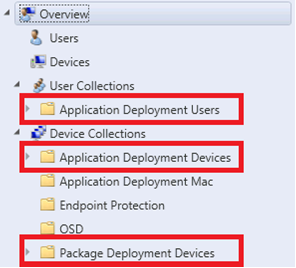
SoftwareCentral keeps its collections in a few root folders. Their location is set in the SoftwareCentral settings.
There is one root folder for package collections, one for application device collections and one for application user collections. Set them on Settings › SCCM Folders and Collections, as described in SCCM Folders and Collections, and Initial Configuration.
2 Packages
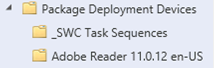
Each package gets its own folder under the package root folder. The folder is named after the package.
The folder name is built from the manufacturer, the name, the version and the language of the package, separated by spaces. Each part can be left out by a naming setting, but the name is always there. If a folder with the same name already exists, SoftwareCentral adds a number in brackets, for example Adobe Reader 11.0.12 en-US (2).
Inside a package folder there are two device collections: an install collection and an uninstall collection. The uninstall collection is only created when the package has an uninstall command. The collections are named with the install and uninstall suffixes from the settings, so you can tell them apart by name.
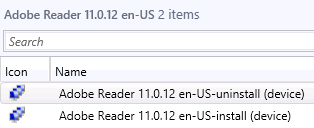
- Deploy: when you deploy a package with SoftwareCentral, the target computers are added to the install collection with a direct membership rule.
- Uninstall: when you uninstall a package with SoftwareCentral, the direct membership rule is removed from the install collection and the computers are added to the uninstall collection.
- Program names: SoftwareCentral finds the install and uninstall program from the package program deployed to each collection.
- Scheduled deployments: a scheduled deployment creates one more collection in this folder, with the schedule on it.
3 Applications
Applications have two root folders: one for device collections and one for user collections.
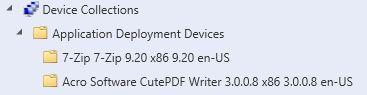
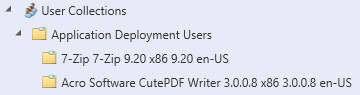
Each application folder holds one install and one uninstall collection for devices, and, for user-based deployment, one install and one uninstall collection for users. Scheduled deployments create collections in these folders too. The pictures below show a device folder and a user folder.
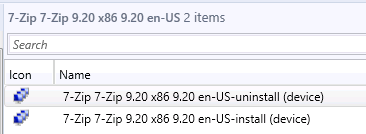
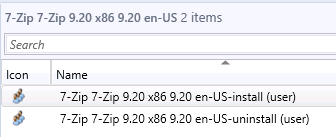
SoftwareCentral finds the install and uninstall collection from the application deployment types. For the four collections an application uses, and how to mend an application created outside SoftwareCentral, see Applications and Collections in SoftwareCentral and Mend Packages and Applications.
4 OSD task sequences and Software Groups
Operating system deployment (OSD) task sequences have no rules for their collections. Put them wherever you like.
An OSD task sequence can also be deployed to more than one collection.
Software Groups work in two ways. They can be deployed together with an OSD task sequence, where they are only a set of machine variables on a computer. They can also be deployed to an existing computer as a small task sequence. SoftwareCentral creates the task sequences and collections for this second way automatically.
Those collections are in the sub folder _SWC Task Sequences, under the package root folder.
For the task sequence steps that read the machine variables, see Task Sequence Configuration.
5 Best practice
- Let SoftwareCentral create the package and application folders. It names them as described on this page, and it can then find its own collections.
- Keep one install collection per package or application. Two install collections in one place leave SoftwareCentral unable to choose which one to use. See Custom Collection Structures.
- Make changes to a package or application in SoftwareCentral. SoftwareCentral knows which collections belong to it; moving or renaming them by hand is not recommended.
- Decide Disable Collection Folders once for the site. It changes whether each application gets a folder of its own.
- Leave _SWC Task Sequences alone. It is generated for Software Groups and is reused by them.