1 What the tool needs
The Import Computer and Computer Template web services must be configured to allow access to the users of this tool. See Security for how to give a security role access to a web service.
The tool uses two web services under your SoftwareCentral address: /Api/WS_ComputerTemplate.asmx to list the computer templates, and /Api/WS_Devices.asmx to import the computer. It calls them with the Windows account of the user who runs the tool.
2 The tool
Create a PowerShell script and copy the code below. You must modify the SoftwareCentral address and site code to match your own.
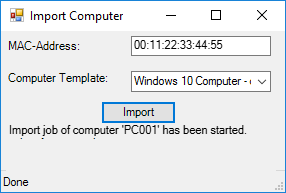
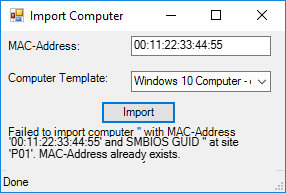
The tool opens a small window with a MAC-Address box, a Computer Template list and an Import button. The templates in the list come from the web service.

It will show a status message once it has completed:
Or if it failed:
3 The script
Save the code as ImportComputer.ps1. Change the site code ($SiteCode) and the SoftwareCentral address ($SoftwareCentralAddress) to your own values. P01 is only an example site code.
# Set your SCCM Site Code
$SiteCode = "P01"
# SoftwareCentral Address. E.g.: http://softwarecentral
$SoftwareCentralAddress = "http://softwarecentral"

# Load assemblies
[void] [System.Reflection.Assembly]::LoadWithPartialName("System.Windows.Forms")
[void] [System.Reflection.Assembly]::LoadWithPartialName("System.Drawing")

# Draw forms
$Form = New-Object System.Windows.Forms.Form
$Form.Text = "Import Computer"
$Form.Size = New-Object System.Drawing.Size(300,200)
$Form.StartPosition = "CenterScreen"
$Form.KeyPreview = $True
$Form.MaximumSize = $Form.Size
$Form.MinimumSize = $Form.Size

# MAC-Address
$labelMac = New-Object System.Windows.Forms.label
$labelMac.Location = New-Object System.Drawing.Size(5,8)
$labelMac.Size = New-Object System.Drawing.Size(120,30)
$labelMac.Text = "MAC-Address:"
$Form.Controls.Add($labelMac)
$maskedTextBoxMax= New-Object System.Windows.Forms.MaskedTextBox
$maskedTextBoxMax.Location = New-Object System.Drawing.Size(130,5)
$maskedTextBoxMax.Size = New-Object System.Drawing.Size(140,20)
$maskedTextBoxMax.Mask = ">AA:AA:AA:AA:AA:AA"
$Form.Controls.Add($maskedTextBoxMax)

# Computer Template
$labelTemplate = New-Object System.Windows.Forms.label
$labelTemplate.Location = New-Object System.Drawing.Size(5,40)
$labelTemplate.Size = New-Object System.Drawing.Size(120,20)
$labelTemplate.Text = "Computer Template:"
$Form.Controls.Add($labelTemplate)
$comboBoxComputerTemplate = New-Object System.Windows.Forms.ComboBox
$comboBoxComputerTemplate.Location = New-Object System.Drawing.Size(130,40)
$comboBoxComputerTemplate.Size = New-Object System.Drawing.Size(140,5)
$Form.Controls.Add($comboBoxComputerTemplate)

# Get Computer Templates from SoftwareCentral
$computerTemplateProxy = New-WebServiceProxy -Uri "$($SoftwareCentralAddress)/Api/WS_ComputerTemplate.asmx" -Class "Proxy" -UseDefaultCredential
$computerTemplates = $computerTemplateProxy.GetComputerTemplates()

# Add Computer Templates to the ComboBox
foreach ($computerTemplate in $computerTemplates)
{
    [void]$comboBoxComputerTemplate.Items.Add($computerTemplate.TemplateName)
}

# Import Button
$buttonImport = New-Object System.Windows.Forms.Button
$buttonImport.Location = New-Object System.Drawing.Size(100,70)
$buttonImport.Size = New-Object System.Drawing.Size(75,23)
$buttonImport.Text = "Import"
$buttonImport.Add_Click($ImportComputer)
$Form.Controls.Add($buttonImport)

# Result label
$result_label = New-Object System.Windows.Forms.label
$result_label.Location = New-Object System.Drawing.Size(5,95)
$result_label.Size = New-Object System.Drawing.Size(270,50)
$Form.Controls.Add($result_label)

# Status Bar
$statusBar1 = New-Object System.Windows.Forms.StatusBar
$statusBar1.Name = "statusBar1"
$statusBar1.Text = "Ready..."
$form.Controls.Add($statusBar1)

# Import computer if Enter is pressed
$Form.Add_KeyDown({if ($_.KeyCode -eq "Enter"){& $ImportComputer}})

# Close the from if Escape is pressed
$Form.Add_KeyDown({if ($_.KeyCode -eq "Escape")
{$Form.Close()}})

# Show form
$Form.Add_Shown({$Form.Activate()})
[void] $Form.ShowDialog()

# Import the computer
$ImportComputer =
{
    $statusBar1.Text = "Communicating with SCCM..."
    # Web Service Parameters Start
    [string]$strComputerName = ""
    [string]$strMacAddress = $maskedTextBoxMax.Text
    [string]$strSmBiosGuid = ""
    [string]$strSiteCode = $SiteCode
    [string]$strComputerTemplateName = $comboBoxComputerTemplate.Text
    # Web Service Parameters End
    # The object that will make the call to the Web Service
    $proxy = New-WebServiceProxy -Uri "$($SoftwareCentralAddress)/Api/WS_Devices.asmx" -Class "Proxy" -UseDefaultCredential
    # Call the Web Service
    $result = $proxy.ImportComputer($strComputerName,$strMacAddress,$strSmBiosGuid,$strSiteCode,$strComputerTemplateName)

    $result_label.Text = $result
    if ($result -like "Import job of computer*")
    {
        $statusBar1.Text = "Done"
    }
    else
    {
        $statusBar1.Text = "Failed"
    }
}
4 What the web service returns
The web service ImportComputer returns a message, and the tool shows it in the window.
- When the request is accepted, the message is Import job of computer '...' has been started. The computer is then imported in the background, so the message does not mean the import has finished.
- When the request is refused, the message starts with Failed to import computer '...' with MAC-Address '...' and SMBIOS GUID '...' at site '...'. and gives the reason after it. The refusal is also written to the log.
- The tool sends the MAC address only. The SMBIOS GUID is left empty.
- The template must be one the security role of the calling user may use. The naming series of the template gives the next free computer name.
5 Best practice
- Give the template a naming series before you use the tool. It is the only way the tool can name the computer.
- Give the security role access to the web services and only to the templates the tool needs. The web service refuses a template that the role may not use.
- The tool runs with the Windows account of the user who starts it (the script uses the default credentials), so that account needs access to the web services.
- Read the message in the window after every import. A successful message only means the import job has started: follow the computer in the Deployment Manager.
- Do not put account passwords in the script. The script needs only the address and the site code.
6 Troubleshooting
The messages below come from the web service. Those in quotes are the exact text; the computer name, MAC address, site and template are filled in by the service.
| Symptom | Cause | What to do |
|---|---|---|
| “MAC-Address or SMBIOS GUID is missing or invalid.” | The MAC address box is empty or not a complete MAC address. | Type the complete MAC address in the format the box shows. |
| “MAC-Address already exists.” | A computer with this MAC address is already in ConfigMgr. | Check the MAC address. The computer may already be imported. |
| “The MAC address is a Hardware Identifier in SCCM and can't be used, enter a SMBIOS GUID or another MAC-address.” | The MAC address is a duplicate hardware identifier in ConfigMgr, and the tool sends no SMBIOS GUID. | Use another MAC address, or change the tool to send the SMBIOS GUID of the computer. |
| “A Computer Template is required.” | No template is selected. | Choose a template in the list. |
| “This role is not allowed to use the selected computer template '...' or the computer template does not exist.” | The template name is wrong, or the security role of the calling user may not use the template. | Choose the template again, or ask your administrator to allow the role to use it. |
| “Computer name is missing.” | The template has no naming series, so the web service cannot name the computer. | Assign a naming series to the template, or use a template that has one. |
| “This role is not allowed to operate on this site.” | The site code in the script is not a site the security role may use. | Check the site code in the script. |
| “Unable to find the OSD collection for computer template '...'.” | The template has no operating system. | Set the operating system of the template. |
| The window shows Failed in the status bar, or a PowerShell error appears instead of a message. | The message is not the success message. The address may be wrong, the Windows account may not be allowed to call the web services, or the web service is set to report errors as exceptions, which the tool shows as a PowerShell error. | Check the SoftwareCentral address and the site code, and check the access of the web services (see Security). |