1 How a call is checked
Every call is made by someone, and SoftwareCentral only lets it reach what that someone may use.
| How you call | Who makes the call | What it can reach |
|---|---|---|
| Windows Authentication (the default) | The user who calls the web service, or the service account of the tool that calls it. | What is assigned to the security roles that have access to the web service. |
| Basic Authentication | An Active Directory user whose user name and password are sent with the request, to an extra site. | The same as Windows Authentication. |
| Anonymous | Nobody. The call is made to an extra site, and the web service must have anonymous access turned on. | Everything. |
| Microsoft access token, as a user | A user who signs in to Microsoft Entra ID. | What is assigned to the user's security roles. |
| Microsoft access token, as an app | The app registered for the Intune tenant in SoftwareCentral. | Everything, like an administrator. |
Windows Authentication and Basic Authentication use the security roles in SoftwareCentral. The calling user must be a member of a security role that has access to the web service, and can only work on the computers, packages, computer templates and other items that are assigned to that role. If the caller is a service account, the service account must be a member of a security role. To create a security role, see Security Roles.
Administrators, the members of the Active Directory group set up for SoftwareCentral administrators, are not limited by security roles.
2 Give a security role access to a web service
Open Settings › Web Services, click Manage next to the web service and open the Security tab.
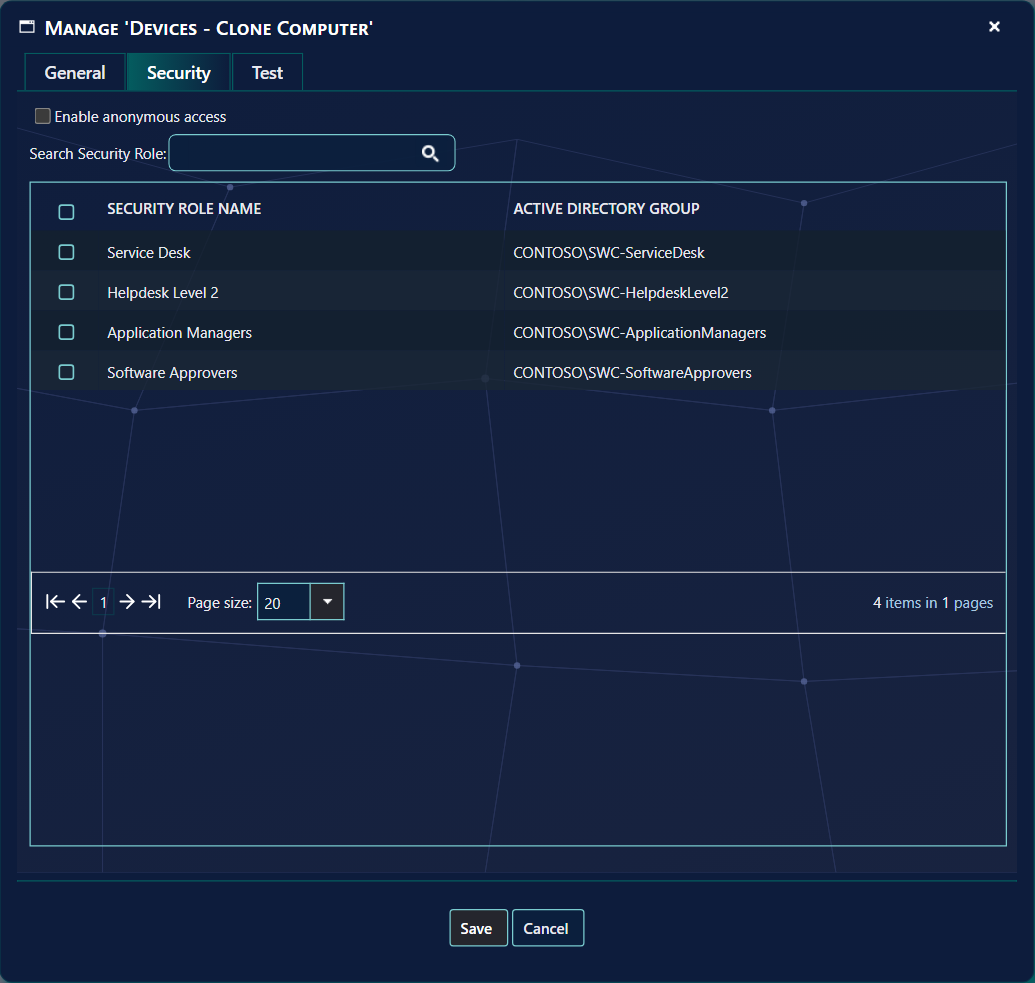
| On the tab | What it does |
|---|---|
| Enable anonymous access | Allows the web service to be called without a user. See Anonymous access. Not shown in SoftwareCentral Cloud. |
| Search Security Role | Narrows the list. Type part of a role name and press Enter. |
| The grid | One row per security role, with its Security Role Name and Active Directory Group. Tick the roles that may call this web service. |
| The checkbox in the header | Selects or clears all roles. Its tip is Select all resources. |
| Save and Cancel | Save stores the roles and the anonymous setting. Cancel closes the window without saving. |
The Cloud - Log in and Cloud - Log out web services have no Security tab, because they are what a caller uses to sign in.
3 A user in more than one security role
If a user is a member of more than one security role that has access to the web service, the role that comes first in alphabetical order is the current role of the call. The Intune web services that look up users, devices, applications and groups search the items of all of those roles.
4 Anonymous access
If you turn on Enable anonymous access, you must set up an extra site for SoftwareCentral with anonymous authentication. The web service can then be called from that site without a user. The main interface of SoftwareCentral cannot be reached anonymously; only the HTA and the web services can.
5 Logging
Every call to a web service is written to the SoftwareCentral log, in the category Web Service. The entry shows the web service and the method, the IP address of the caller, and the user or app that made the call, or that the call was anonymous. A call that is refused is logged as well, with the reason. See Log.
6 Best practice
- Give access on the Security tab only to the roles that need it. Access is saved for each web service on its own tab.
- Turn on anonymous access only for the web services that need it. It is a setting of each web service, so you can turn it on for one and leave the others off.
7 Troubleshooting
| Symptom | Cause | What to do |
|---|---|---|
| The call returns “This role is not allowed to manage this user or the user does not exist.” Other web services use the same wording for computers, groups and sites. | The security role of the caller cannot use that item, or the item is not found. | Check the name. If the name is right, check that the caller's security role may use the item, and that the role may call this web service on its Security tab. |
| The call returns “This role is not allowed to operate on this site.” | The security role of the caller may not use this site. | Check the access of the caller's security role, then try again. |