1 Before you start
This guide sets up an extra IIS site for SoftwareCentral that uses Anonymous or Basic Authentication.
The main interface of SoftwareCentral cannot be reached anonymously. Only the HTA and the web services are available this way. An extra site created like this adds no steps when you update SoftwareCentral.
2 Create the site
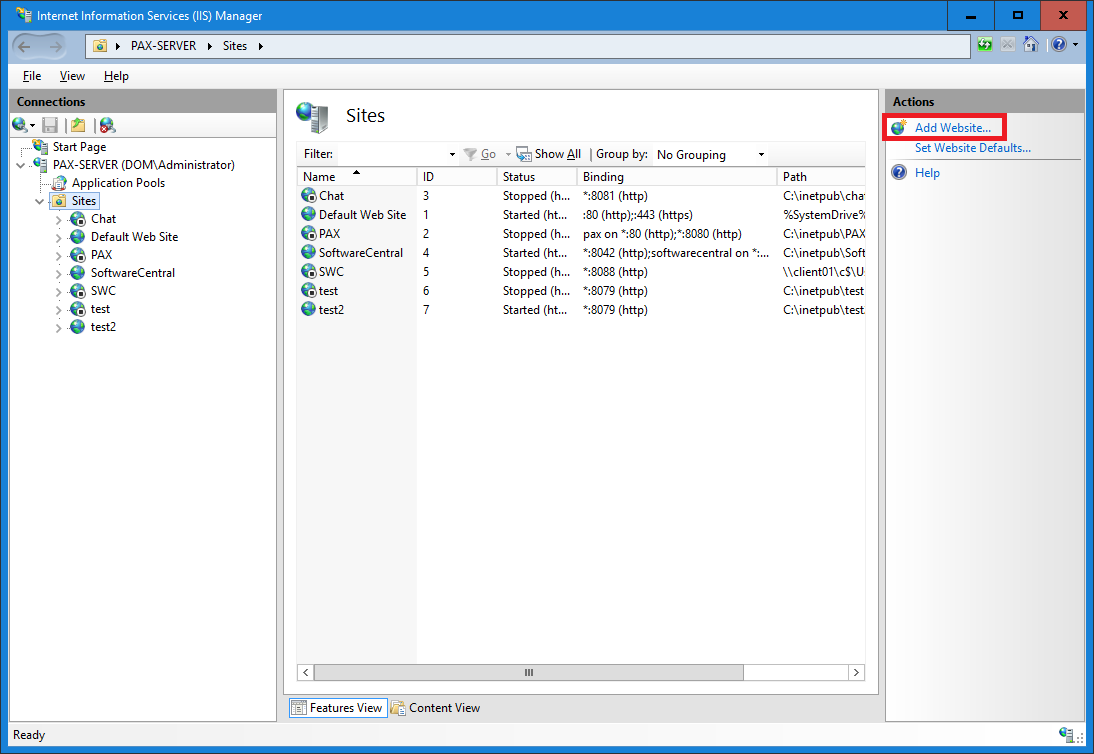
Go to the server where SoftwareCentral is installed, open the IIS Manager, go to the Sites tab and click Add Website...:
A new window opens:
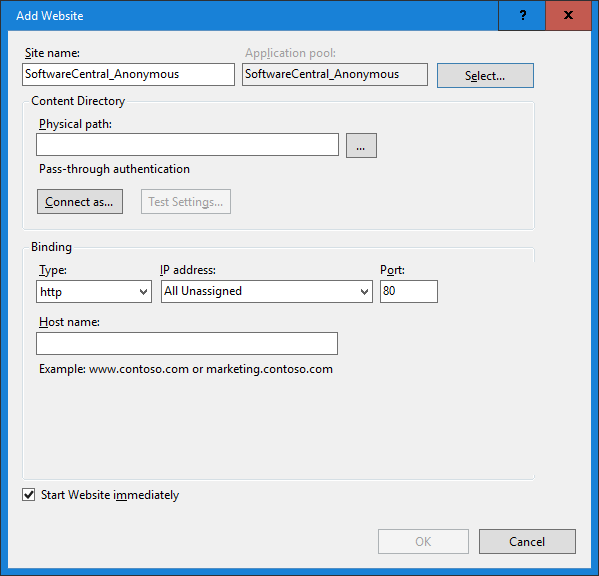
- Enter a name for the new site.

Select the same application pool as the original SoftwareCentral site. - Select the path to the installation folder of the original SoftwareCentral site.
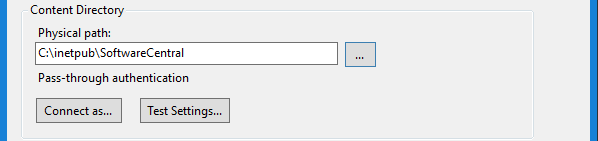
The Physical path is the installation folder of the original site. - Create a binding. You can use a host name, or the server name with a port number.
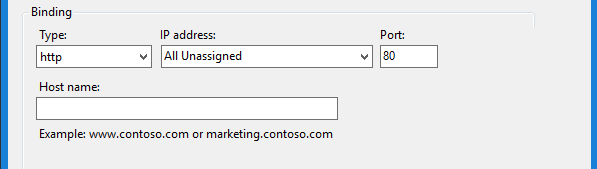
The binding that callers use to reach the site. - Click OK to save the site.
3 Choose the authentication
Open the Authentication feature of the new site:
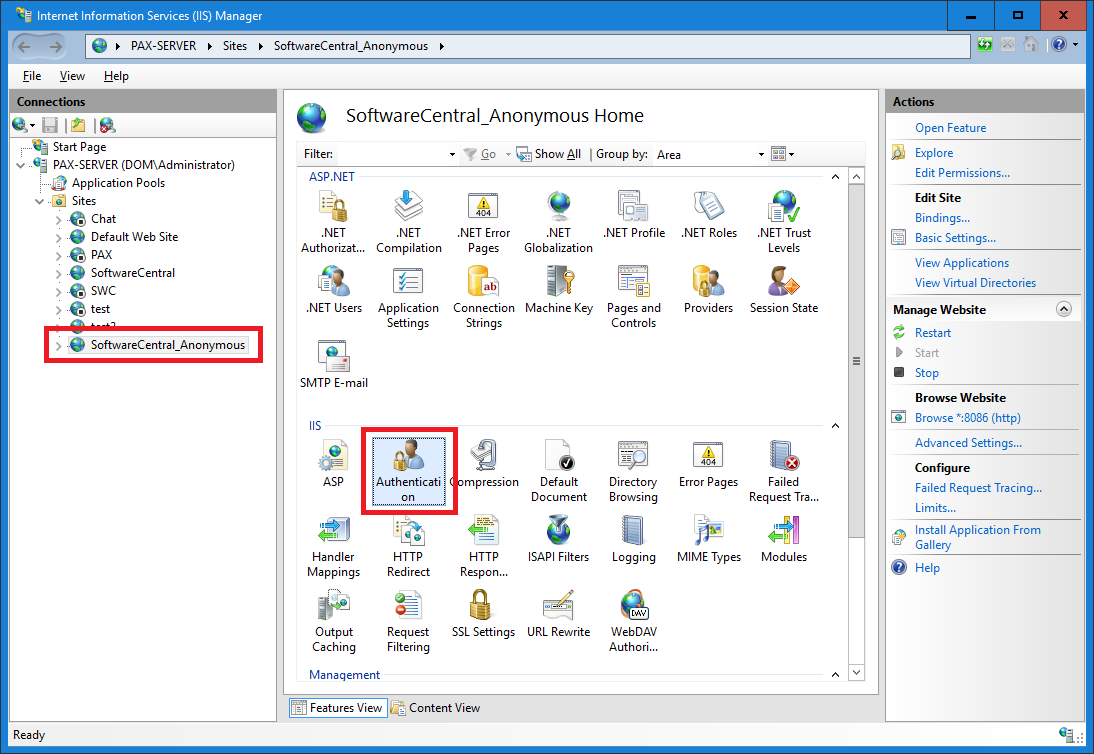
Enable Anonymous Authentication or Basic Authentication, and disable all the others:
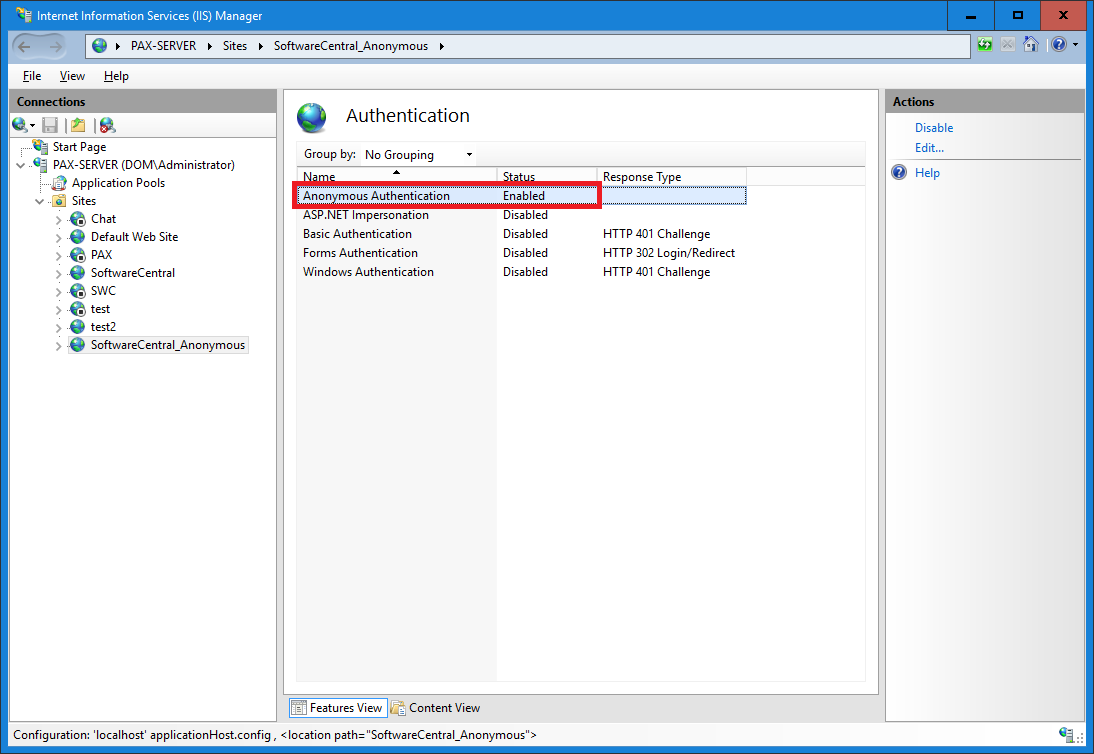
The site is now ready and needs no further configuration.
Basic Authentication
Only web services support Basic Authentication. The credentials must belong to an Active Directory user who is a member of a security role with access to the web services. Basic Authentication sends the credentials in clear text, so configure the site with HTTPS.
Then turn it on per web service
For anonymous access, also tick Enable anonymous access on the Security tab of each web service that may be called without a user. See Security.
4 Best practice
- Allow anonymous access only on the web services that need it. The setting is made for each web service, and a service without it refuses anonymous calls.
5 Troubleshooting
| Symptom | Cause | What to do |
|---|---|---|
| “Anonymous authentication is disabled for this web service.” | The call came through the anonymous site, but Enable anonymous access is not ticked for that web service. | Tick Enable anonymous access on the Security tab of the web service. |
| “Access denied.” | SoftwareCentral does not authorise the account that made the call. | Check that the account is allowed to use SoftwareCentral web services. |