1 Overview
From the “Licenses/License Harvesting” menu, you can setup License Harvesting Rules, which will automatically uninstall unused software.
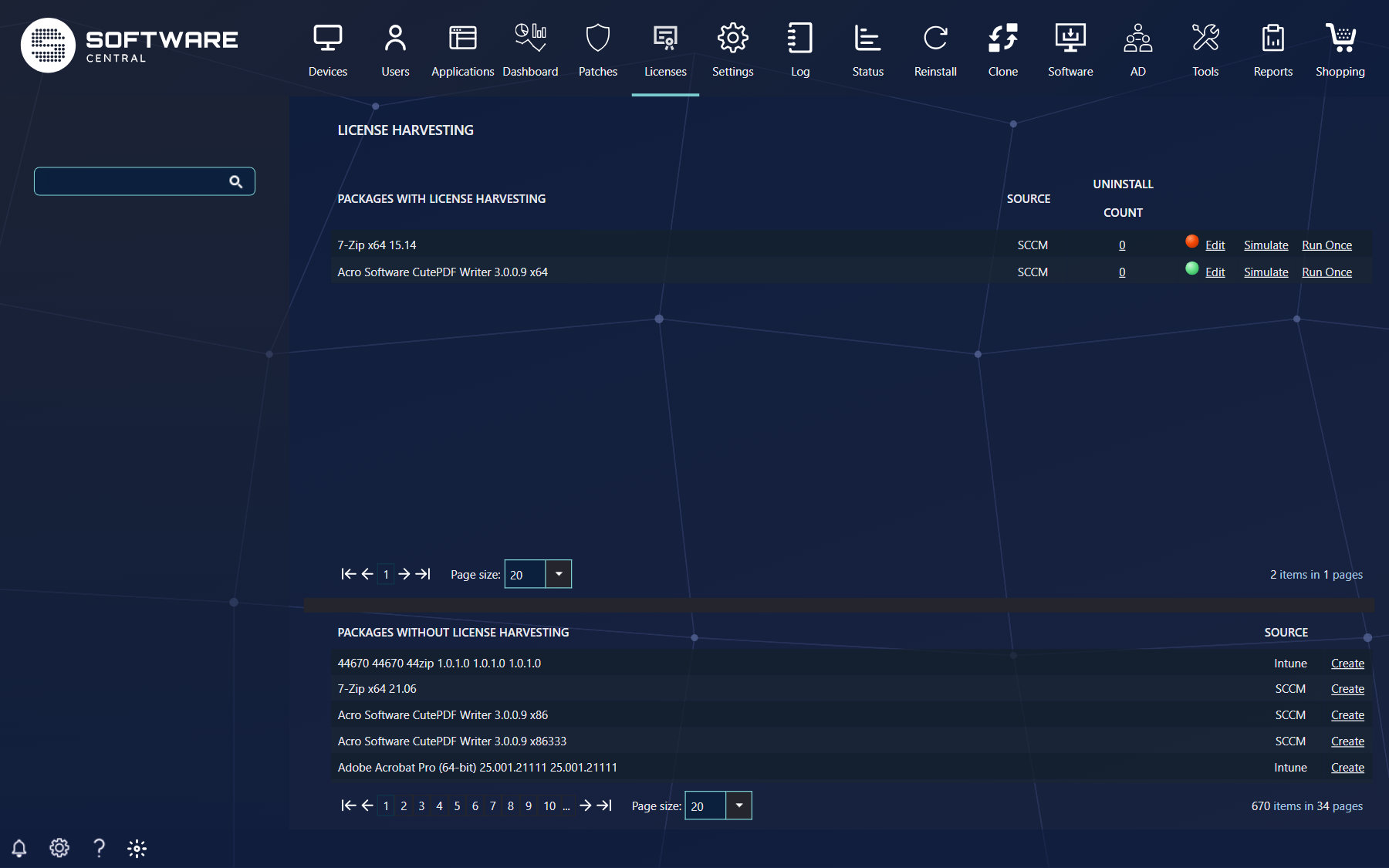
The page has two grids. If you work with more than one ConfigMgr site or Intune tenant, select the site or tenant at the top first. The Source column shows whether a package is a ConfigMgr package or application, or an Intune application.
The first grid, Packages with License Harvesting, displays packages that already have a License Harvesting Rule assigned.
The Uninstall Count is the number of times, which the License Harvesting Rule has uninstalled a program.
The green or red icon indicates the status of the rule. Red rules are not working. Hover the mouse above the icon to see the reason.
The Edit button will edit the current License Harvesting Rule. See “Create/Edit a License Harvesting Rule” in this guide.
The Simulate button, will run a simulation, displaying the expected result of the License Harvesting Rule. For more information about simulation, see “Simulate Harvesting” in this guide. A simulation can take several minutes.
The Run Once button will run the rule one time, even if the rule isn’t enabled. A confirmation window will open. The window closes shortly after you click Run Once, and you follow the progress in the log.
The second grid, Packages without License Harvesting, displays all packages that does not have a License Harvesting Rule assigned. Click on the Create button next to the desired package to create a License Harvesting Rule. See “Create/Edit a License Harvesting Rule” in this guide for more information.
2 Setting up a License Harvesting Schedule
License Harvesting runs on a weekly schedule. To setup this schedule, go to the Settings menu (Settings/Settings) and select License Module under Extra Modules.
From here you can set which days (Monday to Sunday) and at what hour (00:00 to 23:00) License Harvesting should run, under License Harvesting Schedule. If you don’t set any days, License Harvesting will never run.
Click Save in the lower right corner to save your schedule.
3 Setting up the data source
For License Harvesting to work, two, optionally three, types of data are required.
- Software must be registered as installed on a device. Software is registered as installed if the SCCM has gathered the "Add/Remove Program Name" from the device. This is gather when you enable Hardware Inventory on the clients in the SCCM client settings.
- Software Metering data or "Recently used apps" is used to determine the last usage date of the software.
- Optionally, collection memberships can be required. This can be memberships of the install collections or other defined collections for each license harvesting rule.
If you do not see any usage data, you can use the setting "Use alternative query for retrieving metering data" (the checkbox Use alternative metering query).
You can use "recently used apps" instead of metering data. You will still have to configure Software Metering rules, but the data will come from Windows' own gathering of recently used apps.
This is often a lot faster and easier to use than Software Metering data.
We recommend that you enable "Use recently used apps instead of metering data" (the checkbox Use recently used apps).
Both settings are found under Settings › Extra Modules › License Module.
4 Setup Program Display Names
In order for License Harvesting to run properly, all packages must be paired with their Display Name (commonly known as the Add/Remove Program Name).
This is configured from “Licenses/Validate Licenses”.
Click on the Edit button next to a package and enter the Display Name. For more information on how to setup Display Names, see the “Validate Licenses” chapter.
5 Create/Edit a License Harvesting Rule
To create a new License Harvesting Rule click on the Create button next to the desired package.
To edit an existing License Harvesting Rule click on the Edit button next to the desired package.
A new window will open in both scenarios:
In the top, there is a checkbox that enables and disables the License Harvesting Rule. If the License Harvesting Rule isn’t enabled (Checkbox is unchecked), this License Harvesting Rule will not run.
It can however be useful to disable the License Harvesting Rule when first creating it and run a simulation of the License Harvesting Rule to make sure that it does as intended.
If the simulation does not return the expected result, then see if the License Harvesting rule is either to specific or to unspecific in its criteria.
Days unused before uninstallation are the amount of days that may pass without using a program, before it will be uninstalled. You can enter at most 180 days.
Only remove installations which have reported usage data will only remove programs which have been used at some point. If left uncheck, programs which have never been used will also be uninstalled. The checkbox is called Usage Data Required.
Uninstall for users is shown for Intune applications only. If you check it, the primary user of the device is added to the uninstall group.
Use install dates from the SoftwareCentral database will use the install date registered in the SoftwareCentral database instead of from the MECM database. The date in the MECM database may change when an update to the software is applied. Note that SoftwareCentral only stores install dates for software with an active license, configured under Manage Licenses. For initial runs, you can use the "Resolve" function under Validate Licenses to load the install dates into the SoftwareCentral database.
Mail Warnings can be send out before the program is harvested. Select the number of days a program can be unused before a mail warning is send out. You can customize the mail warning from the Mail Template Editor interface. You can also read more about mail notifications later in this chapter. The number of days for the warning must not be higher than Days unused before uninstallation.
Install collection membership required can be disabled if you wish to harvest programs, which are not a member of the install collections in the SCCM. This will also include programs manually installed. By default, the resources will be added to the programs uninstall collection.
Limit to Collection will force the License Harvesting Rule to only harvest software from computers, which are a member of the selected collection.
Exclude from Collection gives you a safe haven where the License Harvesting Rule will not apply.
Uninstall Settings If you wish to use a third party program to uninstall the software, you can add that as a package here. Resources which are not a member of the install collection for the harvested program, will be added to this package' install collection. This could be a package with a custom script or for instance a tool from a manufacturer such as Adobe Creative Cloud Cleaner Tool. Only devices which are not a member of any install collections, will get this program assigned.
At the bottom of the window a grid displays all the Software Metering Rules, which are used to track usage of the files.
You can add as many Software Metering Rules as you like. E.g.: Add one Software Metering Rule for each program in a suite of programs.
To add a Software Metering Rule click on the Add Software Metering Rule button in the lower left corner.
A new window will open:
The only required field in this window is the File Name. This is the name of the executable file.
To further specify the Software Metering Rule, define the version of the executable file. A * will work as a wildcard.
You can select an existing rule by using the drop-down box at the top.
If the Software Metering Rule isn’t enabled, it won’t track file usage from the SCCM client computers.
Click on the Save button to save the Software Metering Rule and add it to the License Harvesting Rule.
Click on the Edit button to edit the Software Metering Rule or the Remove button to remove it from the License Harvesting Rule.
When a Software Metering Rule is removed, it won’t be deleted from the SCCM server.
The grid of Software Metering Rules has the columns Product Name, File Name and File Version. In the window for a Software Metering Rule you can also fill in Software Metering Rule Name, Language, Original File Name, Site Code and Comment, and tick Enabled. Use Browse... next to File Name to pick a file name and version from the files that ConfigMgr has inventoried, with Use selectede values. If you edit an existing rule with Edit Rule, the metering data already collected for it is removed.
For an Intune application the rule works on groups instead of collections: Limit to Collection, Exclude from Collection and the uninstall option select Intune groups and applications, and the install collection option is called Install group membership required.
To save the License Harvesting Rule, click on the Save button.
To remove the License Harvesting Rule, click on the Delete button. This will delete the License Harvesting Rule and the uninstall history, but not the Software Metering Rules.
Use the "Clear Log" button to clear the uninstall log for the given rule.
6 Simulate Harvesting
When a License Harvesting Rule has been set up, a simulation can be executed by clicking on the Simulate button next to the package.
A new window will open, listing all the computers where the program will be uninstalled the next time License Harvesting runs. The simulation can take several minutes to complete.
Use the "CSV" button in the upper right corner to export the list to a CSV file. Nothing is uninstalled by a simulation.
7 Uninstall Reports
By clicking on the “Uninstall Count” for a package, a new window will open display all the computers where the License Harvesting Rule has uninstalled the program.
| Column | What it tells you |
|---|---|
| Resource Name | The computer the program was uninstalled from. |
| Primary Users | The primary users of the computer. |
| Uninstall Date | When the program was uninstalled. |
| Last Usage | The last date where the program was registered to be in use. |
| Days unused | The amount of days the License Harvesting Rule was set to at the time of the uninstallation. |
You can filter on Resource Name and Primary Users in the filter row. Use the "CSV" button in the upper right corner to export the list to a CSV file.
8 Mail Notifications
From the Settings menu, under Extra Modules › License Module, you can enable mail warnings for License Harvesting with Enable Mail Notifications. SoftwareCentral will send a mail to all primary users of the devices where software is harvested from. Users must be registered with a mail address in the Active Directory.
You can set when e-mail notifications are send from the License Harvesting page under each rule:
If you set days unused to 0, e-mail notifications will be disabled for this rule.
The e-mail contains information about what is about to be harvested:
You can design the mail notification from the Mail Template Editor.
9 Best practice
- Create a new rule with Enabled unchecked, run Simulate and read the list of computers before you enable it. An imprecise rule may cause a program to be uninstalled for everyone in your organization.
- Enable the mail warning, so users hear about it before their software is removed, and keep the number of warning days lower than Days unused before uninstallation.
- Use Exclude from Collection for computers that are rarely connected to the domain, such as laptops of consultants, so usage that is never reported does not get their software harvested.
- Schedule harvesting late at night, preferably in the weekend, and set up the usage data (recently used apps or metering) well before the first run.
- Check that each package has its Display Name under Validate Licenses, and check the status icon of each rule. A red rule is not working.
- Review the Uninstall Count and the uninstall report after the first runs, to see that the right computers were harvested.