1 Overview
All license reports are created in the ‘License Report’ interface found under the License button.
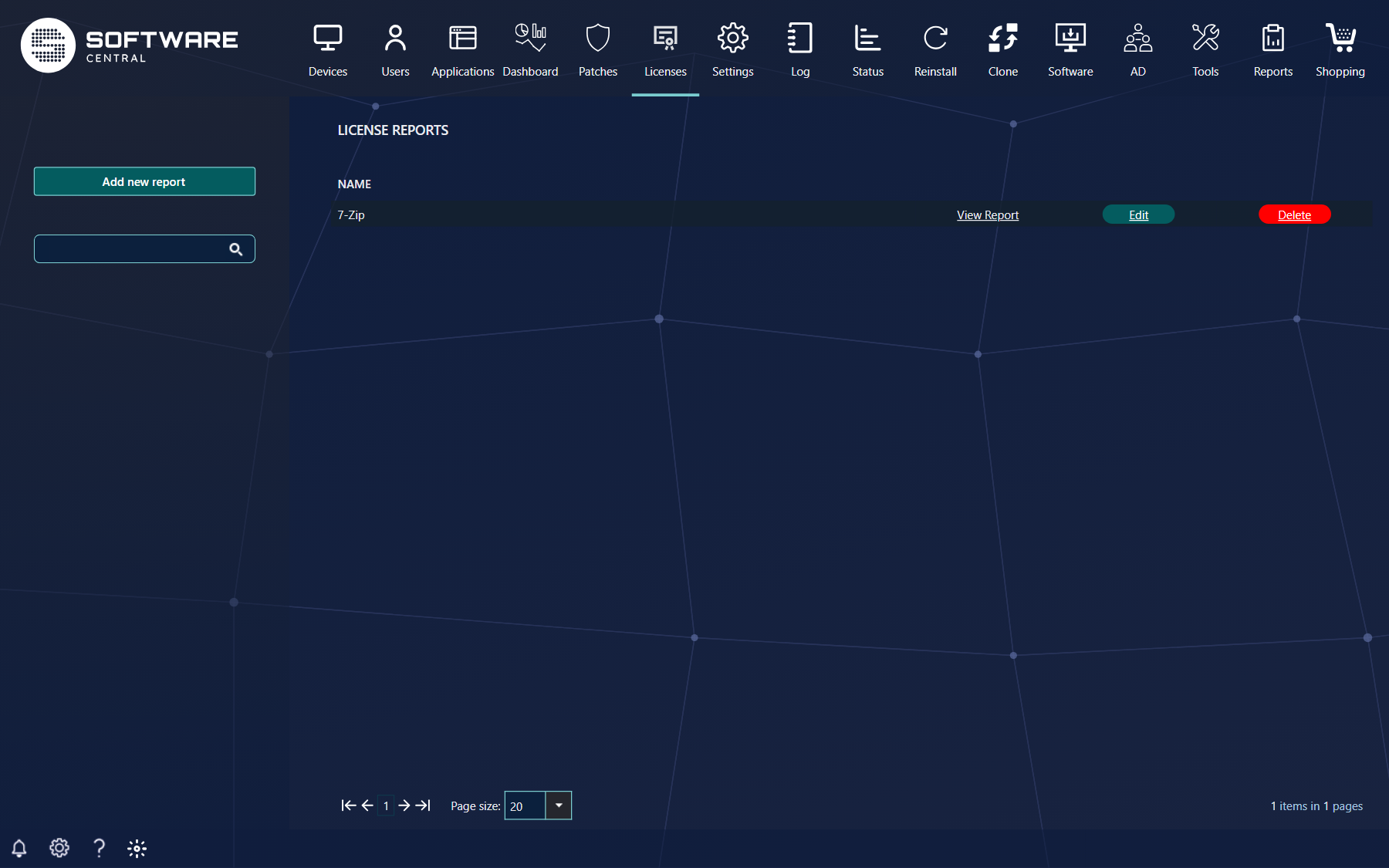
The grid in the middle display all the reports there is currently made in the system, from here it’s possible to view, edit and delete a report with the links View Report, Edit and Delete. For quick finding a report, use the search field in the left menu, under the Add new report button.
The links and the button depend on your security role. A role that may only view license reports sees View Report but not Add new report, Edit and Delete. The page is only available when the license module is enabled.
2 Add new report
To create new reports click the Add new report button.
Enter the name for the report in License report name, and optional add a description in Report description to the report for others to understand the content of the report. The name must not be used by another report.
Select one of following types of reports in Report Type:
· Show specific programs
Shows license in use for specific programs, the programs will be selected in the grid under Program Name, where you can narrow the list with the filter box above the grid and select all with the checkbox in the header. This report can be used to only show programs for specific manufactory.
· Show all programs
Shows license in use for all programs, in this report the program selection tab will not be showed.
NB: This report can be really slow, due to amount of data.
· Show compliant programs
Show license in use for all compliant programs.
· Show non-compliant programs
Show license in use for all non-compliant programs.
· License Overview
This is a SoftwareCentral standard report, showing statistics for all license and license groups created in SoftwareCentral. It show the total amount of license for a program/group, available amount, the number of installed computer in SoftwareCentral with the program, and a usage percent.
· Install Overview (SWC vs. SCCM)
This is a SoftwareCentral standard report, showing the numbers of computers there is registered in SoftwareCentral and in SCCM. The program name must be set for a license to be showed here.
If you are using a 2012 SCCM, then you can add in primary users to the views containing computers, with the checkbox Show Primary Users. It will show the users affiliated with each respective computer.
Add filter
For narrow down the report a filter can optional be added to the report, from the Filter Type dropdown. The filter is available for the program reports, and not for License Overview and Install Overview (SWC vs. SCCM).
| Filter Type | What you select |
|---|---|
| No Filter (Show All) | Nothing. The report covers all computers. |
| Filter by Query | One of the SCCM queries. The query must return a resource ID. |
| Filter by Active Directory Group | A domain and an AD group. |
| Filter by Organizational Units | An organizational unit. |
| Filter by Hostname | A computer. |
| Filter by IP address range | A From IP address and a To IP address. |
| Filter by Install Date | A From and a To date and time. |
| Assigned in SCCM but not installed | Nothing. Only available for Show specific programs. |
Show result
To show the report, click Show Results, and the result will be showed in the grid. The result of a report that covers many programs can take a while to load.
Sort grid
The grid can be sorted by clicking on the column name.
Export:
The result can be exported to PDF or Excel, by clicking on the export buttons Export To PDF and Export To Excel. The buttons are enabled when the result has been shown.
Save
The report setting can be saved with Save report, so others fast can create and export the report. Click Cancel to close the window without saving.
3 Edit a report
In the main report interface click Edit on the report that need to be edit, and the same interface as creating report will be opened with the settings preset.
Edit the setting and click Update report.
4 Delete a report
In the main report interface click Delete on the report that need to be deleted, a confirmation window will appear, click Delete to delete the report from SoftwareCentral, or Cancel to keep it.
5 View report
In the main report interface click View Report to fast view the report, depending on the amount of data and speed of system, some loading may occur.
From this interface the report can be exported to PDF or Excel with Export To PDF and Export To Excel. Click Close Report to close the window.
6 Best practice
- Give each report a clear name and a description, so others understand what it shows before they open it.
- Use Show specific programs with a filter instead of Show all programs when you can, because the report for all programs can be very slow.
- For license reports, make sure the program name is set on the license, because Install Overview (SWC vs. SCCM) only shows licenses that have one. See Validate Licenses.
- Save the reports you run often, and give the View Report permission to the roles that only need to read them.