1 Overview
SoftwareCentral can handle WQL queries in Microsoft SCCM. SoftwareCentral can create, edit, and delete queries directly in the interface.
The SCCM queries interface can be accessed from the settings menu and then “SCCM Queries”:
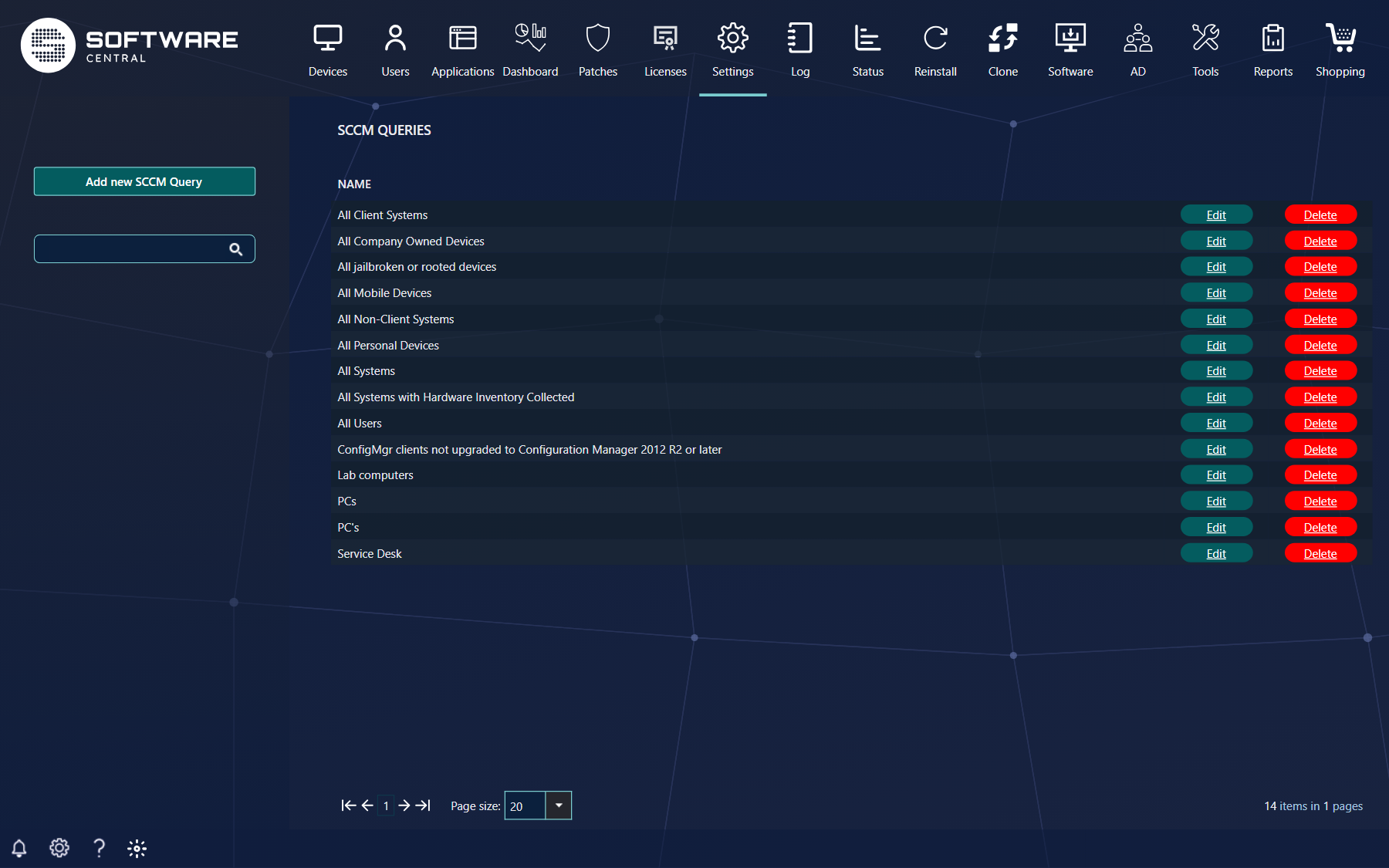
The page lists the queries that are assigned to the security role you are using, with an Edit and a Delete button for each. Use the search box in the left menu to find a query by name, and the site selector at the top if you work with more than one site.
This guide will provide information how to create, edit and delete SCCM queries inside SoftwareCentral.
2 Create query
To create a new SCCM query press the Add new SCCM Query button found in the left side of the main interface.
In this interface there are two mandatory fields, the name of the query and the statement of the query. The other fields are optional:
| Field | What it does |
|---|---|
| Name | The name of the query. Mandatory. |
| Use query as template | Select an existing query to copy all its settings, except the name, into the window. |
| Limit to collection | Limits the query to the members of the selected collection. |
| Roles that may use this query | Adds the query to one or more security roles in SoftwareCentral. Only those roles can use it. |
| Create OU query | Creates a query that displays the devices that are members of the selected organizational unit. Note that this will remove your current query statement. |
| Type | Computers or Users, which decides what the query returns. |
| Query statement | The WQL statement. Mandatory. |
Before saving the query, a test run can be done, by clicking on Test query, this will open a new window with the result of the query. If the statement cannot be run, the message under the statement shows why. Click Save query to store the query, or Cancel to leave without saving.
Note: An existing query can be used as template, all settings, except the name is then transferred from this to the interface.
Note: SoftwareCentral doesn’t support wildcard character ”*” in select statements.
3 Edit query
For editing an existing query, press Edit in the main interface on the query that’s need to be updated.
The same interface as in create query will appear, and for more detailed information on what the different settings means, please see the Create query part of this guide. The save button is called Update query when you edit a query.
Note: If there is no edit button on the query that’s need to be updated, your role doesn’t have access to edit queries.
4 Delete query
For deleting an existing query, press Delete in the main interface on the query that’s need to be deleted.
A confirmation window appears with the buttons Delete and Cancel, and the query is first deleted when you click Delete.
Note: If there is no delete button on the query that’s need to be updated, your role doesn’t have access at all to edit queries.
5 Best practice
- Click Test query before you save a query, and check that it returns the devices or users you expect. A query that does not return a resource ID is rejected where it is used, for example as a filter in License Reports.
- List the columns you need instead of using
*, and always include the resource ID and the computer name or user name. - Use Limit to collection to keep a query to the devices it should cover.
- Assign a query only to the roles that need it under Roles that may use this query.
- Use an existing query as a template, with Use query as template, instead of retyping a statement that already works.