1 Overview
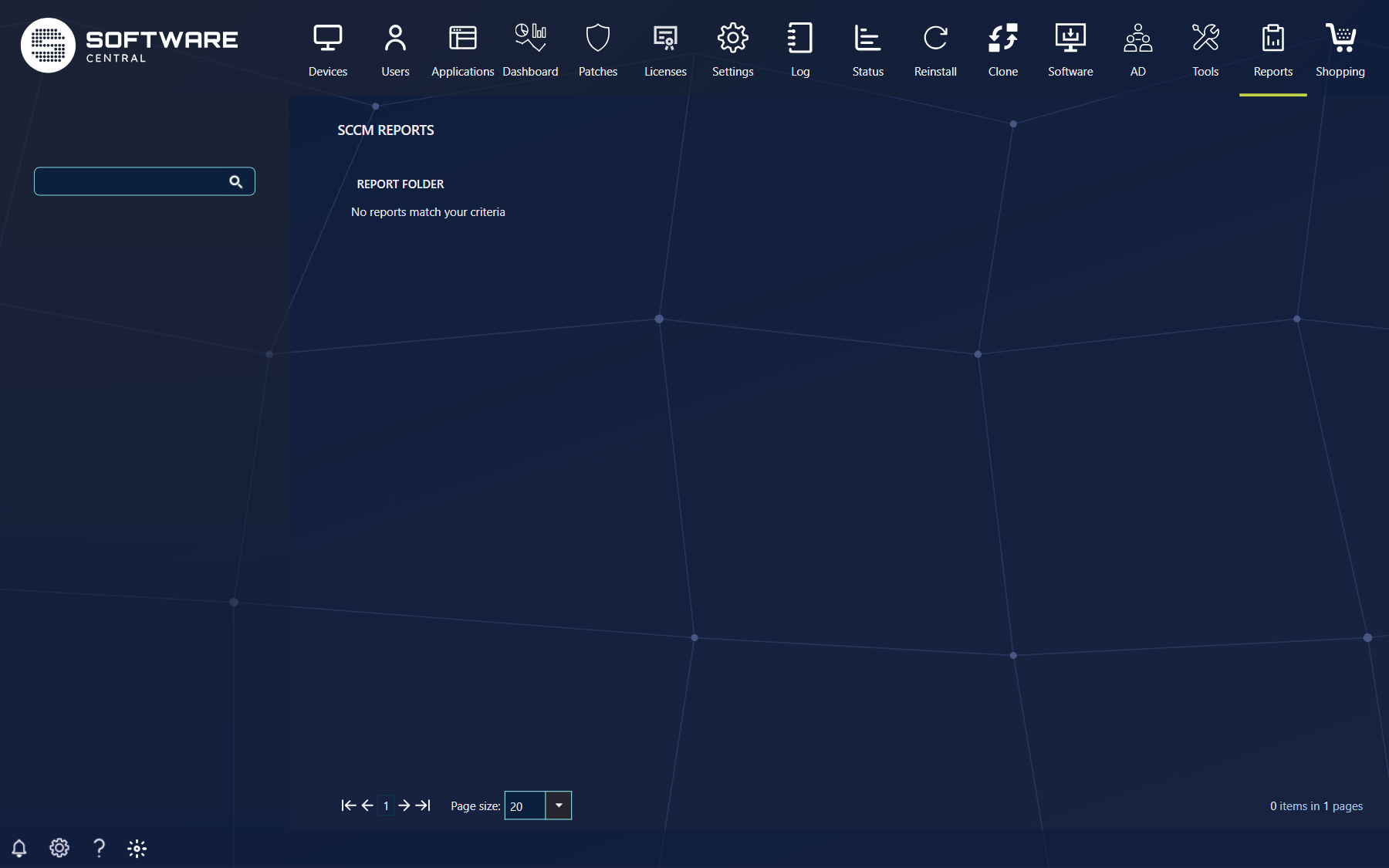
SCCM Reporting
This guide describes how view reports in SoftwareCentral.
The interface is found under the reports menu, and SCCM reports.
This guide only applies to SCCM 2012 and above.
2 Finding a report
The main interface of SCCM Reports is where all the SCCM reports are found. Only reports delegated to the login security role will be showed. The grid lists the report folders, and a site selector at the top lets you switch site if you have more than one.
A report can be found in one of two ways.
Searching:
In the left menu a search field is found, this search field can be used to find a specific report. The search field will also automatically show all reports that contain the search string; in this way a specific report can fast be found and shown.
Navigating:
A report can also manual be navigated to; this is done by first finding the folder where the report is contained. The folder is open by clicking on it, if the folder is not present, the navigator in the bottom can be used to navigate the next page of folders. Reports in sub-folders are listed as Folder -> Report.
When the report is found, it is open by clicking on Show. Next to it there can be a second link, SCCM View, which opens the report in the report viewer of the SCCM reporting service, with its own zoom and print buttons.
| Link | What it does |
|---|---|
| Show | Opens the report in SoftwareCentral, with the report variables above a grid that you can sort, group, filter and export. |
| SCCM View | Opens the report in the SCCM report viewer. Not available in the cloud edition of SoftwareCentral. |
Whether you see Show and SCCM View depends on your security role. If a link is missing, ask your administrator to add it to your role.
3 Working with Reports
When viewing a SCCM report in SoftwareCentral, it will automatically populate the report settings with all it default values, and try to load the content. Only if all settings are correct there will be a description and report content.
Set the desired values of the variable, if a variable is not yet populated, it is depended on one or more of the other variables.
When all variables are set, press Load Report and the report content is loaded into the grid. The grid shows 50 rows per page, and you can change the page size to 20 or 100.
Right click on a column in the header menu of the report and a context menu will pop up with the options below.
Sorting Report:
From the context menu it is possible to sort the report by a specific column, just right click on it and sort either by ascending or descending order
Grouping Report:
From the context menu it is possible to group the report by a specific column, just right click on it click on group, to ungroup again, the same column must be right clicked.
Hide Columns:
Some reports have a lot of columns and it not always necessary to see them all, right click on any column and go to the bottom of the context menu, from here columns can be removed or added to the report
Resizing Columns:
Each column can be resized by dragging in the header, alternative can the “Best Fit” function in the context menu be used.
Reorder Columns:
Each column can be reorder by clicking on it and the drag it to it new position.
Filtering Report:
Each Columns can also be filtered according to the format of the column, go to the filter menu and set the desired filter.
Exporting Report:
Reports can be exported in three different formats, Excel, PDF and CSV directly from the grid. The report is exported by clicking on of the three icons found in the top right corner of the grid. The export contains all rows of the report, not only the page you are looking at.
Click Close Report at the bottom of the window when you are done.
4 Best practice
- Delegate to each security role only the reports it needs. See SCCM Reporting Delegation.
- Set all report variables before you click Load Report. A variable that is still empty depends on one of the others.
- Filter on a column or narrow the variables for large reports, then export the result to Excel, PDF or CSV.