1 What delegation does
Each security role in SoftwareCentral can be set up so that only a limited number of SCCM reports is shown in the main interface.
A role can also have the dynamic setting enabled. A role with it always has access to all reports on the reporting server, including reports that are added to the server later.
See also Security roles and SCCM Reporting Setup.
2 Open the Reporting step
Open the security role you want to change in the Edit Security Role window, and click the Reporting step.
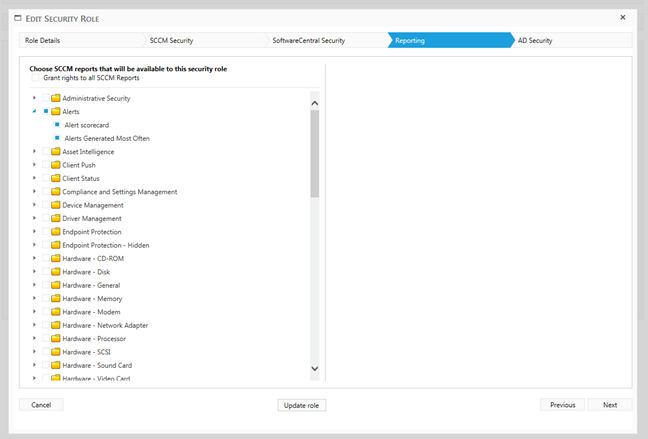
The Reporting step comes after the SoftwareCentral Security steps and before AD Security.
No Reporting step for Application Manager only
On a site set up for Application Manager only, the Reporting step is removed from the window, so there are no SCCM report rights to set for that role.
3 Choose the reports
The step has two controls. Tick the reports a role may see, or grant the role all of them.
| Control | What it does |
|---|---|
| Grant rights to all SCCM Reports | Gives the role every SCCM report, including reports added to the reporting server later. While it is ticked, the report tree is greyed out. |
| Choose SCCM reports that will be available to this security role | The tree of SCCM report folders. Click the arrow next to a folder to expand it; the reports in the folder load when you expand it. Tick the reports this role may see. |
When you have finished, save the role from the last step of the window, as for any other change to a role.
4 Best practice
- Give each role only the reports it needs. A role with Grant rights to all SCCM Reports also sees reports that are added to the reporting server later, so use it only for roles that should see everything.
- Set up SCCM reporting before you delegate. On a ConfigMgr 2012 site, the SCCM part of the Reporting step is shown only when the reporting connection is valid. See SCCM Reporting Setup.
- Check the reporting account. SoftwareCentral reads the reports with the application pool account, so that account must be able to read the reports on the reporting server.
- Review the roles after a change. The export of security roles has an SCCM Reports column that shows which reports each role can see, and shows all reports for a role with the dynamic setting.
5 Troubleshooting
| Symptom | Cause | What to do |
|---|---|---|
| The SCCM part of the Reporting step is missing, or the report tree is empty. | On a ConfigMgr 2012 site, the SCCM reports are not shown when the reporting connection is not valid. | Set up the reporting connection first (see SCCM Reporting Setup), then open the role again. |
| "Failed to populate SCCM Reports." in the SoftwareCentral log. | The list of reports could not be read from the reporting server. | Check that the reporting server can be reached, and that the application pool account can read the reports. |
| A role has no Reporting step. | The role is used with Application Manager only. | Nothing to set for that role: the Reporting step is not shown for an Application Manager only site. |