1 Overview
SoftwareCentral offers the ability to manage user device affinities directly from the web interface. You can setup, edit and remove affinities.
The User Device Affinity interface is located under the Devices menu button. If you work with more than one ConfigMgr site, select the site at the top of the page first, because the affinities are read from and saved to the selected site.
2 Select User or Device
Start by selecting the user or device you want to manage affinities on. Use the two radio buttons, Computer and User, to switch between users and computers. Use the drop-down box to select the desired user or device. When you have selected a computer, a coloured dot next to its name shows whether it is online. Click the dot to refresh the status, or to see more information about the computer when it is online.
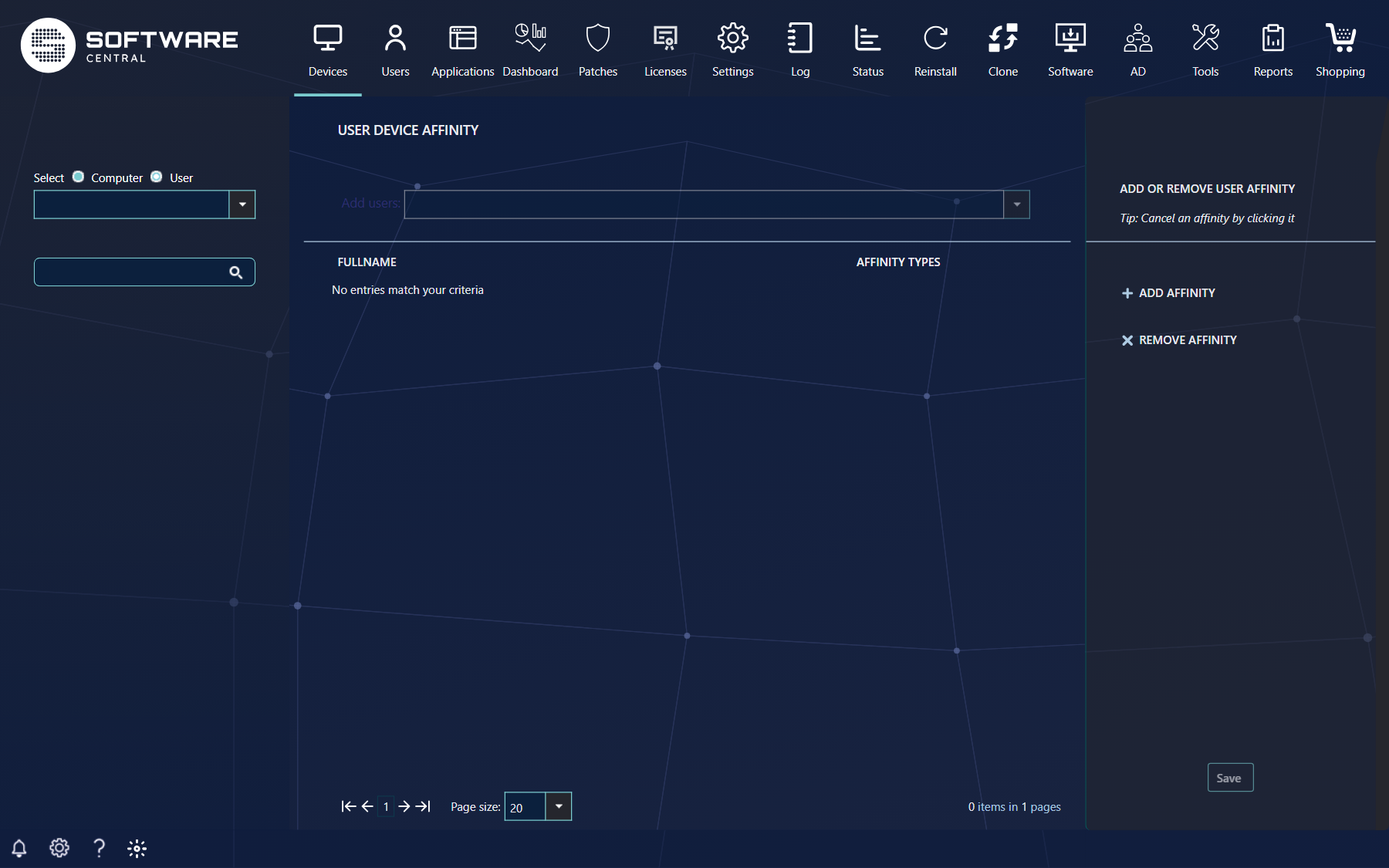
If you select a user, all the users primary devices will be listed in the center view. If you select a computer, its primary users are listed instead. The grid has these columns:
| Column | What it tells you |
|---|---|
| Primary computers for / Primary users for the selected name | The name of each related computer or user. |
| Affinity Types | How ConfigMgr came to link the user and the device, as a comma separated list. |
| Remove button | Puts the affinity in the list of affinities to remove. See Remove User Device Affinity. |
Affinities that ConfigMgr has created from usage monitoring (user agents) are hidden by default. Your administrator can show them with the Show user agents setting under Settings › SoftwareCentral › Variables.

3 Add new User Device Affinity
Use the drop-down box in the top to select a new primary device (primary user if you have selected a device to begin with). The label above it reads Add computers: when you started from a user and Add users: when you started from a computer.

Once you have selected a device, it will show up under Add affinity in the queue to the right. You can click on an item in the queue to remove it from the queue, which cancels the change.

Click on the Save button to apply the changes. The button is disabled until there is something in the queue.

4 Remove User Device Affinity
To remove a primary device or user, click on the Remove button next to the device or user in the grid.

The device or user shows up under Remove affinity in the queue to the right. You can click on an item in the queue to take it out of the queue, which cancels the removal.

Click on the Save button to apply the changes.
