1 What the overview gives you
The Local Group Overview is part of the AD module. It shows which programs were installed or removed, and which security events were recorded, during the time a user was a member of a local group.
The overview also shows selected Event Viewer events that can indicate that someone made a security change on the computer. Some of these events can be reverted from this interface.
| Information | What it is |
|---|---|
| Event viewer events | Selected security events from the computer's Event Viewer, from the start to the end of the membership. |
| Installed programs | Programs that were added to the computer's Add/Remove Programs list. |
| Uninstalled programs | Programs that were removed from the computer's Add/Remove Programs list. |
Completed jobs and jobs that are still running. For a job that is completed, the information is read from the SoftwareCentral database. For a job that is not completed, the information is read live from the computer, so the computer must be online.
Completed before 5.7.0. For a completed job, SoftwareCentral looks in the Event Viewer on the computer, if it is online, for events between the start and the end of the local group membership. These events are stored, so they can be reverted if possible.
SoftwareCentral also sees which programs were installed on the computer on the day or days the user was a member of the group. Note: there is only an installed date and no time, so the user might not have installed the program.
Jobs started but not completed before 5.7.0. Most of the same information is available as for completed jobs, but all of it is stored when the user is removed from the group. Information from these jobs also appears in the statistics, without opening the overview of the job.
2 The main interface
Open it from the AD menu, Local Group Overview. It lists all local group jobs in a time frame.
The time frame is set with the From and To boxes. The list uses the start time of the job for this search. By default From is three months back and To is one month ahead. Change the boxes to widen or narrow the list.
To find a specific job, use the search box. It searches the computer name, the username and the group name. Type part of a name and pick the suggestion that is shown. Picking a suggestion filters the list to that exact computer, user or group.
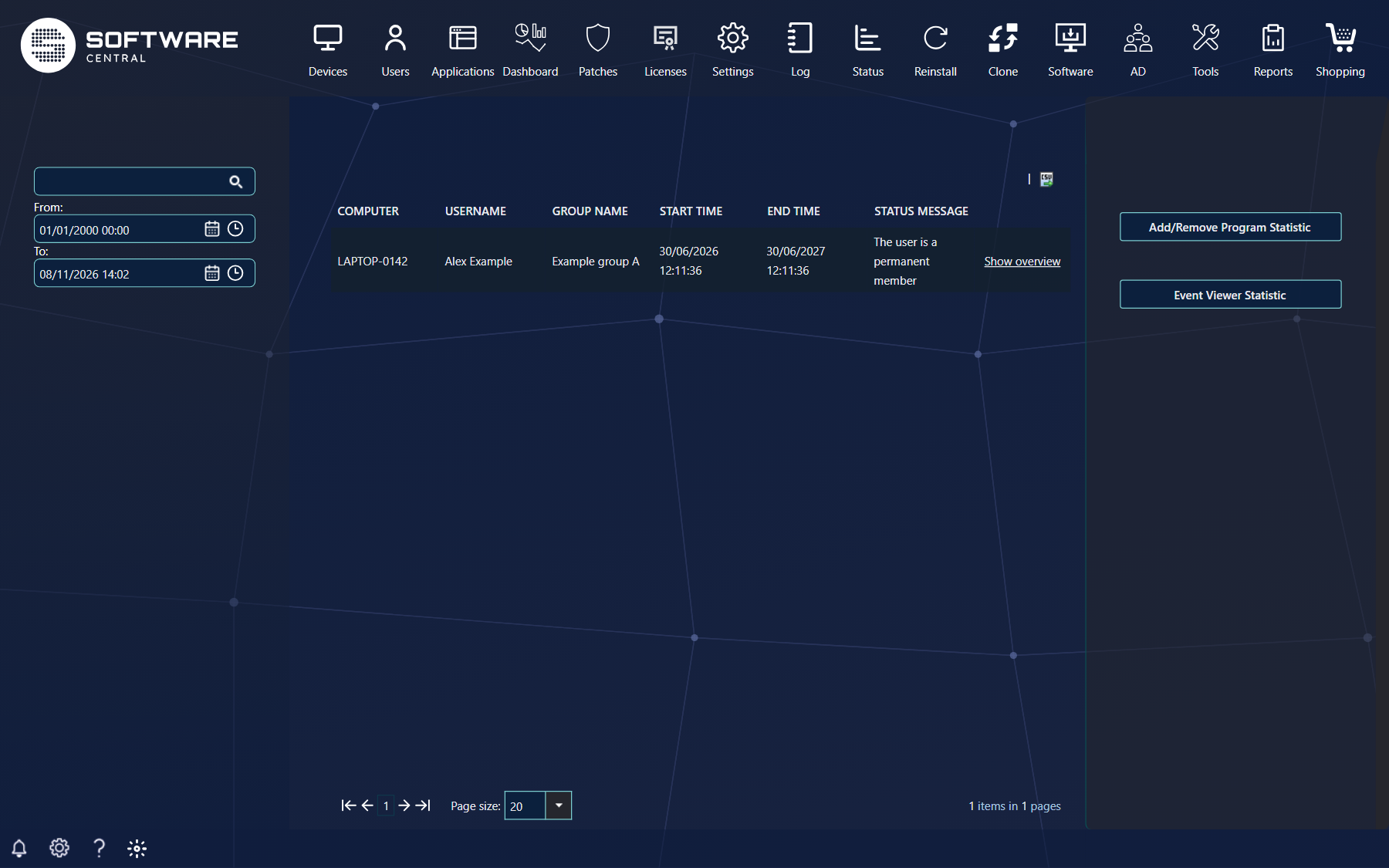
More columns are available: right-click a column header in the grid and select the column you want to add.
The Status Message column shows where the job is in its life cycle. The messages are:
| Status message | When it is shown |
|---|---|
| Pending to add user | The add job has not run yet. |
| Adding user is in progress | The add job is running. |
| Successfully added user | The user was added. The message changes once the remove job's start time has passed. |
| The user is a permanent member | The user was added and no remove job exists for the job. |
| Pending to remove user | The remove job has not run yet. |
| Removal of user is in progress | The remove job is running. |
| Successfully removed user | The user was removed from the group. |
| Failed to add user / Failed to removed user | The add or remove job failed. |
| The add user job was cancelled / The remove user job was cancelled | The job was cancelled. |
| The add user job is expired / The remove user job is expired | The job expired before it ran. |
| Unknown | The status could not be read. |
Above the grid, the export button saves the list as a CSV file.
3 The overview window
Click Show overview to open the window for one job.
The window opens with the general information about the job at the top: the computer, the online status, the username, the group name, the start time and the end time. Below it are three tabs: Event Viewer (the list of event viewer events), Add/Remove Programs (the program changes) and Changelog (the change log of the job).
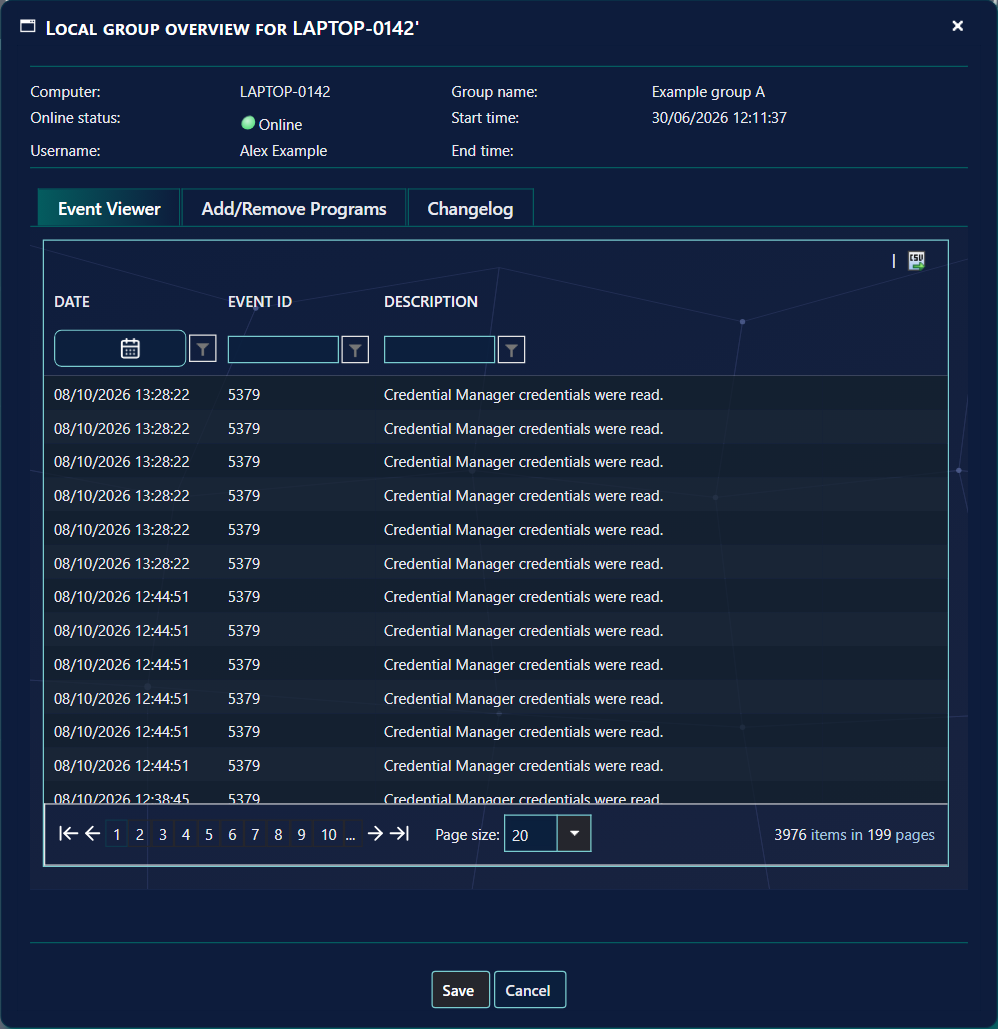
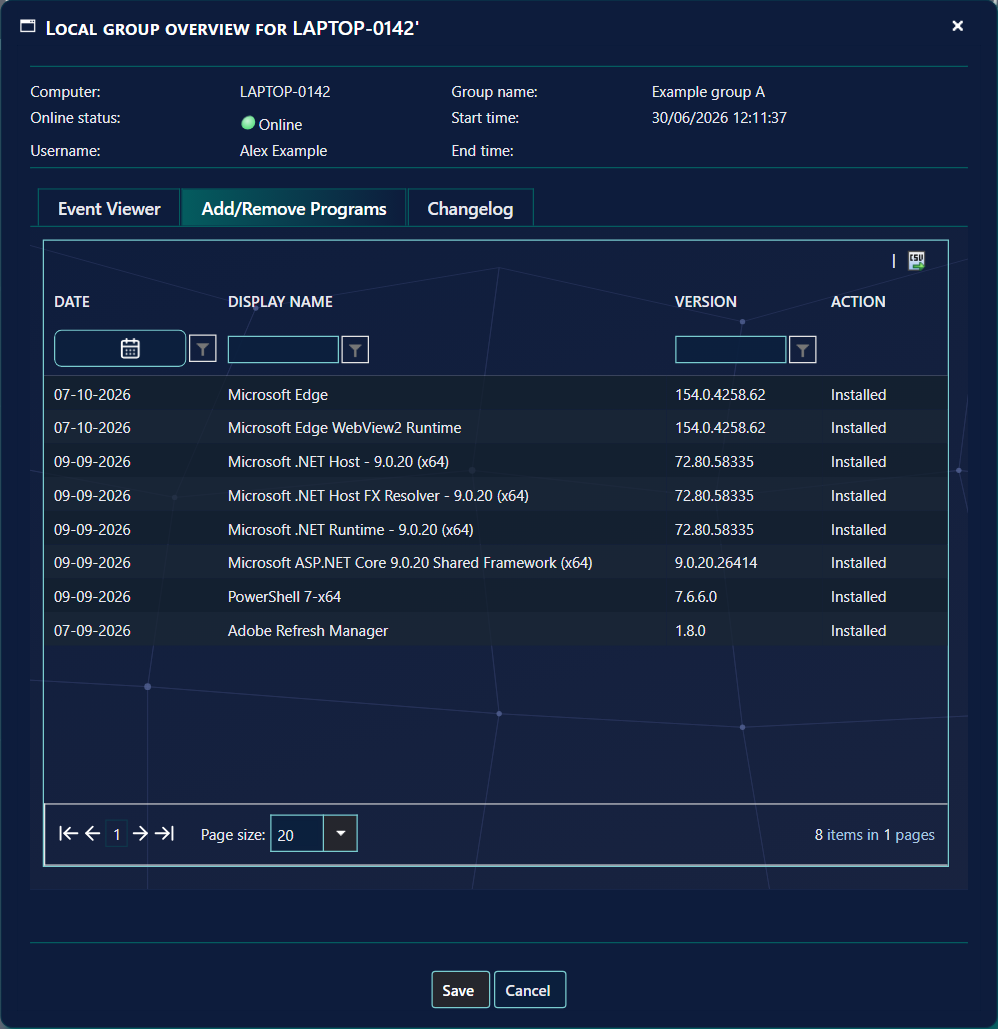
If the job is completed, the information comes from the database. If the job is not completed, the information is live data from the computer, and the computer needs to be online for it.
The grids can be filtered by column, sorted, and exported to CSV with the export button above each grid.
4 Wake on LAN and overdue jobs
The overview shows whether the computer is online. A red dot means it is offline.
Turn on the computer
If the computer is offline, click the red dot. SoftwareCentral sends a Wake on LAN request to the computer. After 30 seconds it tests the computer again.

Overdue jobs and jobs that are not completed
If the job is overdue, the End Time is shown in red, and its tooltip says how much longer than planned the user has been a member of the group.

A job that is not completed shows the link User isn't removed yet in the End time field. Clicking it runs the remove user job now, so the user is removed from the group at once. The link can only be clicked when the computer is online and your role may execute jobs; for an offline computer it is greyed out.
5 Event viewer events
These are the security events that the Event Viewer tab can show, grouped by the kind of change.
Each row shows a short description and the time stamp. Hover over the short description to see the full description from the Event Viewer.
| Event ID | Description |
|---|---|
| Registry | |
| 4657 | A registry value was modified |
| 4660 | An object was deleted |
| User Account Management | |
| 4720 | A user account was created |
| 4722 | A user account was enabled |
| 4723 | An attempt was made to change an account's password |
| 4724 | An attempt was made to reset an accounts password |
| 4725 | A user account was disabled |
| 4726 | A user account was deleted |
| 4738 | A user account was changed |
| 4740 | A user account was locked out |
| 4767 | A user account was unlocked |
| 4781 | The name of an account was changed |
| Computer Account Management | |
| 4741 | A computer account was created |
| 4742 | A computer account was changed |
| 4743 | A computer account was deleted |
| Security Group Management | |
| 4727 | A security-enabled global group was created |
| 4728 | A member was added to a security-enabled global group |
| 4729 | A member was removed from a security-enabled global group |
| 4730 | A security-enabled global group was deleted |
| 4731 | A security-enabled local group was created |
| 4732 | A member was added to a security-enabled local group |
| 4733 | A member was removed from a security-enabled local group |
| 4734 | A security-enabled local group was deleted |
| 4735 | A security-enabled local group was changed |
| 4737 | A security-enabled global group was changed |
| 4754 | A security-enabled universal group was created |
| 4755 | A security-enabled universal group was changed |
| 4756 | A member was added to a security-enabled universal group |
| 4757 | A member was removed from a security-enabled universal group |
| 4758 | A security-enabled universal group was deleted |
| 4764 | A groups type was changed |
| Distribution Group Management | |
| 4744 | A security-disabled local group was created |
| 4745 | A security-disabled local group was changed |
| 4746 | A member was added to a security-disabled local group |
| 4747 | A member was removed from a security-disabled local group |
| 4748 | A security-disabled local group was deleted |
| 4749 | A security-disabled global group was created |
| 4750 | A security-disabled global group was changed |
| 4751 | A member was added to a security-disabled global group |
| 4752 | A member was removed from a security-disabled global group |
| 4753 | A security-disabled global group was deleted |
| 4759 | A security-disabled universal group was created |
| 4760 | A security-disabled universal group was changed |
| 4761 | A member was added to a security-disabled universal group |
| 4762 | A member was removed from a security-disabled universal group |
| 4763 | A security-disabled universal group was deleted |
The list is built from the Registry, User Account Management, Computer Account Management, Security Group Management and Distribution Group Management categories. Some event IDs in those categories are never shown, for example 4656, 4658, 4659, 4663, 4670, 4765, 4766, 4780, 4794, 4797, 4798, 4799, 5376 and 5377.
The first add event (4732) and the last remove event (4733) of a job are not listed when they fall within two minutes of the start or the end of the membership, because the job itself produces them.
6 Reverting an event
SoftwareCentral can revert these events, if the computer is online. The Revert event link appears only for them, and only if your role may revert events.
| Event ID | Description |
|---|---|
| 4722 | A user account was enabled |
| 4725 | A user account was disabled |
| 4727 | A security-enabled global group was created |
| 4728 | A member was added to a security-enabled global group |
| 4729 | A member was removed from a security-enabled global group |
| 4732 | A member was added to a security-enabled local group |
| 4733 | A member was removed from a security-enabled local group |
| 4746 | A member was added to a security-disabled local group |
| 4747 | A member was removed from a security-disabled local group |
| 4749 | A security-disabled global group was created |
| 4751 | A member was added to a security-disabled global group |
| 4752 | A member was removed from a security-disabled global group |
| 4754 | A security-enabled universal group was created |
| 4756 | A member was added to a security-enabled universal group |
| 4757 | A member was removed from a security-enabled universal group |
| 4759 | A security-disabled universal group was created |
| 4761 | A member was added to a security-disabled universal group |
| 4762 | A member was removed from a security-disabled universal group |
| 4781 | The name of an account was changed |
Click Revert event. A new window opens and shows what the revert will change, for example that a member will be removed from the local security group. Read it, then decide.

You can add a reason in the box. The reason is shown in the change log. The change log always gets an entry when someone tries to revert an event, whether it works or not.
A reverted event no longer shows the Revert event link.
If the computer is offline, the link is greyed out, and its tooltip says that the computer must be online to revert the event.
7 Add/Remove Programs
The Add/Remove Programs tab lists every change to the computer's Add/Remove Programs list during the membership.
For a completed job, the list is read from the SoftwareCentral database. Otherwise it is read from the computer's WMI when the computer is online, and from the ConfigMgr site database when it is offline.
The list does not say who installed or removed a program. A program installed by ConfigMgr during the membership is also listed.
8 Statistics
SoftwareCentral keeps statistics over the event viewer events and the Add/Remove Programs changes. Both statistic windows are opened from the main interface.
| Button | What it shows |
|---|---|
| Add/Remove Program Statistic | All program changes, with the action type and how many times each program was installed or removed. |
| Event Viewer Statistic | All event viewer events, and how many times each occurred during a local group membership. |
From a statistic window you can also find the users who performed a specific action. For example, you can find all users who added a new local user.
9 Best practice
- Give the revert and execute rights only where they are needed. The Revert event link and the User isn't removed yet link are shown only to roles with the revert event and execute job functions.
- Write a reason when you revert an event. The reason goes into the change log with the result, so the next person can see why the change was undone.
- Bring the computer online first. Reverting an event and removing the user now both need the computer to be online. Use the red dot to send a Wake on LAN request.
- Do not read a program entry as proof of who installed it. The Add/Remove Programs list only has a date, not a time, and does not say who installed the program.
- Widen the From and To boxes before you conclude that a job is missing. The default covers the last three months and one month ahead.
10 Troubleshooting
| Symptom | Cause | What to do |
|---|---|---|
| "No jobs match your criteria" | No local group job starts within the From and To dates, or the search box filters them all out. | Change the From and To dates, and clear the search box. |
| "No log event was found" | No matching Event Viewer events were found for the membership. For a computer that is offline, events are only listed once they have been stored. | Bring the computer online and click Show overview again. Check the Changelog tab for earlier attempts. |
| "No programs was found" | No changes to the Add/Remove Programs list were found for the membership. | Check the job's dates. An offline computer uses the ConfigMgr database, which may not have the change yet. |
| "No log entries was found" | No change log entries exist for the job yet. The change log only gets entries when a revert is tried. | Nothing to do unless you expected a revert entry. |
| "This computer appears to be offline, click to refresh" | The computer did not answer the online test. | Click the red dot to send Wake on LAN, then wait for the 30 seconds. If it stays offline, check the computer and its network. |
| "The computer must be online to revert this event" | The computer is offline, so the revert cannot run on it. | Bring the computer online, then reload the window. |
| "The session containing the search data is unavailable." | The job list for the search box is not in the session any more. | Reload the page. |
| "Failed to get Local Group Overview Items" (Log, Critical) | The list of jobs could not be read. | Open the Log and read the entry's details; they name the error that stopped the list. |