1 Overview
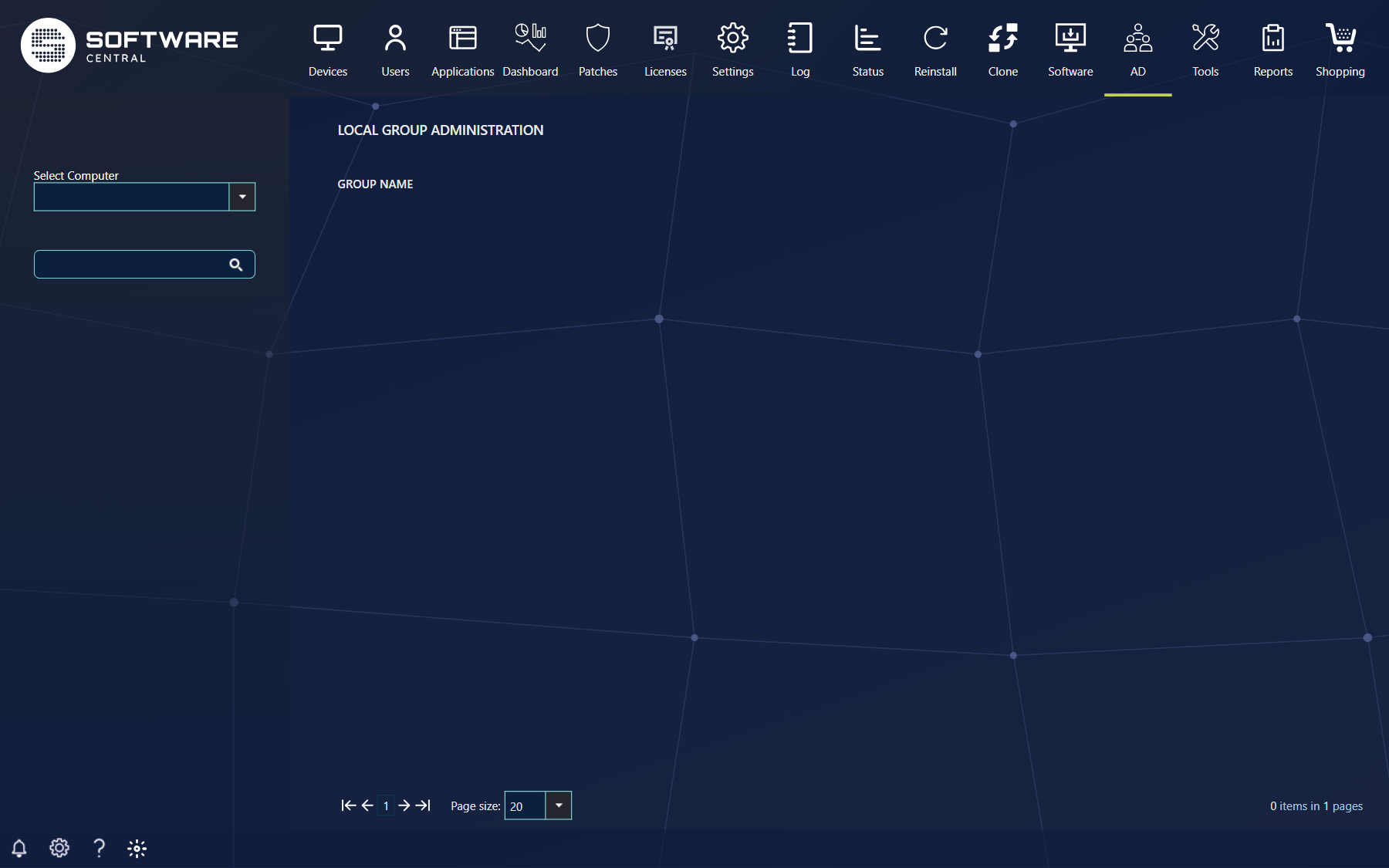
To grand a user membership of a local group on a specific computer, go to “Local group” interface, found under the AD menu, and select the computer name, in the left side of the menu. If the computer is online the indicator to the right of the computer name will turn green, and all local groups on the computer will be shown in the interface, with the column Group Name and an Edit Membership link for each group, if the computer is offline, the indicator will be red and only the administrator group will be shown in the interface. Click the red indicator to check the status again. Intune devices can also be selected, and for them the page shows the user, the user principal name and the last sync time, and the device counts as online if it has synced within the last six hours.
To edit a group, press Edit Membership and a new window will open, with the part Group Members at the top and the part Add membership below it.
If the computer is online, the top of this interface will show the current members of this group, with the columns Name, Type and Temp Member. The members can be as following.
If the computer is offline, nothing will be shown in this part of the interface.
Group or user
Only user can be added and administrated by SoftwareCentral in this interface, for adding user to a group, go to AD-group interface.
Temp Member
If there is a job in the SoftwareCentral service to remove the membership again, the temp member value will be true.
Pending membership
If there is pending job to ad a user to this group, the user will be shown with “(Pending membership)” after the name
Delete
Only users specified to the security role, can be deleted as members.
2 Add new user
In the bottom of the interface, in Add membership, select the domain and then the user that’s need to be member of the group, and select the following setting.
· Start time:
This time determines when the user needs to get this permission. If the user needs it now, check of Start now, this will disable the start time selection. A start time in the past is not accepted.
· End time:
This time determine when the user is removed as local admin from the computer again, this can be set as a specific time, or as a time span from the start time with Use timespan, where you enter days and hours. The end time must be after the start time. If your administrator has set a maximum time a user can be a member, the time span is limited to it.
· Permanent:
In settings step, permanent membership can be selected with Make permanent, this will eliminate the start and end time, and add the user to group when Grant rights is pressed. The option is only shown if your security role has the permission to make memberships permanent.
An optional setting for the local admin is to force log off the current user on the selected computer, with Force log off at start of period and Force log off at end of period.
Note: This will without warning close all programs down and force log off the user. This is needed before the user have the admin rights.
Click Grant rights to create the job. Click Cancel to close the window without changes. The change is carried out by the SoftwareCentral service, so a membership that starts later, or a computer that is offline at the time, is handled when the time comes.
3 Remove a user and limits
Click Delete next to a member to remove the user from the group again.
The link is only shown if your security role has the permission to remove users from a local group, and it asks you to confirm first. The removal is carried out by the SoftwareCentral service. If the computer cannot be reached, the service keeps trying for the number of days that your administrator has set.
For an overview of what a user has done during a membership, see Local Group Overview. All the memberships that have been granted through SoftwareCentral can be listed in Local Group Reports. If your domain uses pre-Windows 2000 domain names, see Pre-Windows 2000 domain names.
4 Best practice
- Give a user the access for as short a time as the job takes, with a start and an end time or a time span, and use Make permanent only when it is really needed.
- Ask your administrator to set a maximum time a user can be a member, so nobody can grant a long membership by mistake.
- Warn the user before you use Force log off, because all programs are closed without a warning.
- Give the permissions to make a membership permanent and to remove users to fewer roles than the permission to add users.
- Use Local Group Overview to review what happened during a membership.