1 Overview
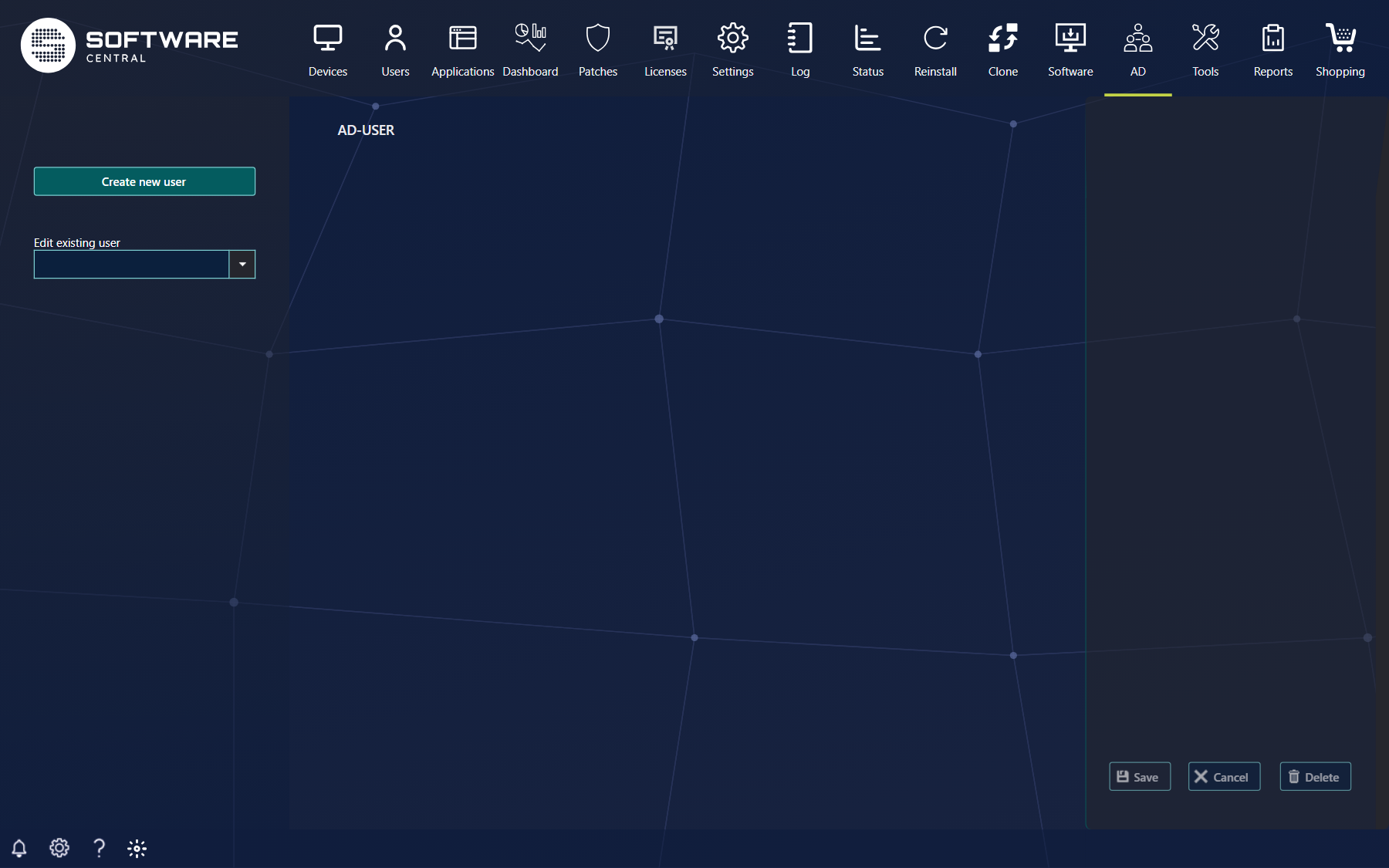
For administration of AD-users, go to the AD menu button and then AD-users.
When this page is loaded the middle of interface is empty, for easy finding a specific users, use the user drop down in the left side of the interface. If you have access to more than one domain, select the domain first in the drop-down above it, under Edit existing user.
What you can do depends on your security role. The Create new user button, the Save and Delete buttons and the button that disables an account are only shown if your role has the permission. A role that may only view users sees every field, but cannot change anything. The page is part of the Active Directory Module.
2 Create new AD user
For creating a new AD user click the Create new user button in the left side of the interface, this will populate the middle interface. The creation can at any time during the creating be canceled by clicking Cancel in the right corner.
In this part of the process all the field are mandatory to be filed out, the organizational unit is selected, this will also determent what kind of security that will be on the password.
| Field | What to do |
|---|---|
| Copy settings from another user | Optional. Select an existing user to use as a template. Its settings and group memberships are copied to the new user. If your administrator has defined a template organizational unit, only users from it can be selected. |
| Select OU | The organizational unit the user is created in. |
| Select username | The logon name of the new user. It must not contain any of the characters / \ [ ] : ; | = , + * ? < > @ and it must not exist already. |
| Select password and Confirm password | The start password. It must follow the password rules of the domain: the minimum length, and the complexity requirements if the domain has them, which also means it cannot contain more than two consecutive characters from the user name. |
SoftwareCentral will user the password settings from the selected domain.
Password fields will not show the password in clear text.
Wen all fields are filled out, press the Set User Properties button to go to next part of the process. A message under the fields tells you if something must be corrected first, for example that no organizational unit is selected, the user name already exists, or the password does not meet the rules. In this part there is three tabs with settings, and a fourth, Custom Attributes, if your administrator has enabled it.
· Account:
In this tab all settings regarding the user account can be changed. In this tab a user can also be disabled/enabled and unblocked.
| Section | What it contains |
|---|---|
| User name | First Name, Middle initials, Last Name, Full name and the Organizational Unit. |
| User login names | UPN login, with the domain suffix, and Sam Account Name. You can only change them if your role has the permission to edit login names. |
| Profile | Profile Path, Log On Script and Home Folder, either as a Local Path or as a drive letter you Connect to a path. |
| Account Settings | Account expires (Never or End of a date), Password options (User must change password at next login, Smart Card is required for interactive log on, Never expires), Enable/Disable Account, Unlock Account and the Thumbnail picture, which you change by clicking the picture. |
| Account Information | Read-only: Created, Changed, Last logon with the logon count, Last wrong password, Password last set, Password expire, Object Category and Object Class. |
The button for disabling the account reads Disable account, or Enable account when the account is disabled. Unlock user is only enabled when the account is locked.
· Organization
In this tab all contact information, title information and manger is set.
| Section | Fields |
|---|---|
| Contact information | Display name, Office, Main, E-mail, Home, Webpage, Mobile, Pager, Fax, IP Phone |
| Title information | Job title, Department, Company, Manager |
| Address | Address, City, State/Province, Zip/Postal code |
| Description and Notes | Free text. |
· AD-group Membership
Note: A user will automatically be added to the “Domain User” group, this group is not showed in the interface at this point.
All other groups the user needs to be member of is selected, and added to user by pressing Add membership
The grid lists the groups the user is a member of, with the columns Name and Domain. Edit opens the group, and Remove takes the user out of it. These two links are only shown if your role may edit the groups of a user. Added and removed memberships are first applied when you press Save.
· Custom Attributes
Only shown if your administrator has enabled it. The tab lists the extra attributes of the directory that can be filled in for the user. A red exclamation mark next to an attribute means that it takes a list, and the values must be separated with a semicolon.
When all settings is set, press Save in right corner
3 Edit AD user
To edit an existing AD user, go to the AD user main interface, and select the wanted AD user in the left side of the interface.
This will populate the middle interface with all the settings from the user. These can now be changed as wanted.
Press Save to save changes, or Cancel to discard them.
4 Delete AD user
To delete an existing AD user, go to the AD user main interface, and select the wanted AD user in the left side of the interface and press, Delete in the bottom right corner of the interface. SoftwareCentral asks you to confirm before the user is deleted.
5 Best practice
- Create new users from a template user in the template organizational unit, so group memberships and settings are the same for everyone with the same job.
- Give the role that creates users only the permissions it needs, and let a separate role disable and delete accounts.
- Look at the user first, for example Last logon and the group memberships, before you delete or disable an account. Disabling is easier to undo than deleting.
- Use Reset Password for forgotten passwords, instead of editing the user.