1 Open Machine Variables
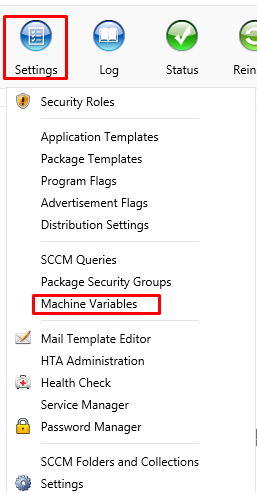
The interface for machine variables is under the Settings menu: open Settings and then Machine Variables.
2 The variable list
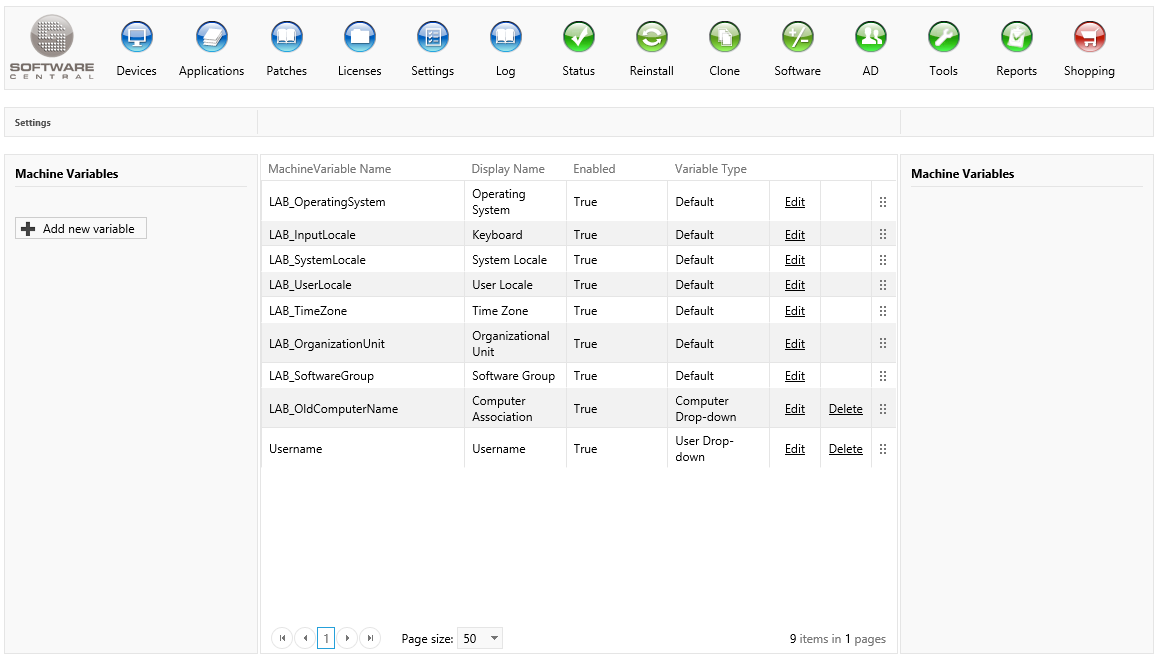
All custom and default variables are listed in the selected sequence, with the basic information.
| Column | What it shows |
|---|---|
| MachineVariable Name | The name of the variable. |
| Display Name | The name shown to the people who use the variable. |
| Enabled | True or False. A variable that is not enabled is hidden in Import Computer. |
| Variable Type | Default, Drop-down, User Drop-down, Computer Drop-down or Textbox. |
3 Create a variable
To create a new machine variable, click Add new variable. The Add new variable window opens.
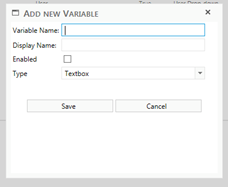
Enter a Variable Name and a Display Name. Tick Enabled if the variable should be used. Choose the Type. If the variable should be a textbox, click Save. The window closes, and the variable is created.
The variable name and the display name must each be unique. Both fields are required.
The variables can also be either a list of computers or users. Choose Computer Drop-down for a list of computers, or User Drop-down for a list of users. These two types of variables are limited to the user that is logged in.
If the variable needs fixed values, select Drop-down as the type. The window then changes and shows the drop-down section.
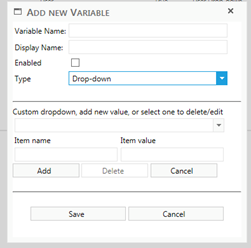
From here the fixed values can be added to the drop-down. Each value needs a name (display name) and the actual value. To delete or edit a value, select it in the drop-down (see Drop-down values).
When all values are added, click Save. The window closes, and the variable is ready to use.
4 Drop-down values
Use the drop-down section to manage the values of a Drop-down variable.
| Control | What it does |
|---|---|
| Item name | The name (display name) of the value, as the user sees it. |
| Item value | The actual value that is stored for the variable. |
| Add | Adds the item to the list. When you select an existing value, the button changes to Update, and it saves your change to that value in the list. |
| Delete | Removes the selected value from the list. It is available when a value is selected. |
| Cancel | Clears the item name and item value boxes. |
5 Translations
The Variable Translation tab gives the variable a display name in another language.
Choose a language in Language: Danish, Swedish, Norwegian, German or French. Then type the Display Name for that language. If you clear the translated display name for a language, its translation is removed.
6 Edit a variable
To edit a machine variable, click Edit on the variable in the main interface. The same window as for creating a variable appears. Change the variable, and click Update at the bottom of the window.
A default variable keeps its type Default; the Type box is locked. The Operating System variable keeps Enabled ticked, and the box cannot be unticked.
7 Delete a variable
To delete a machine variable, click Delete on the variable in the main interface. SoftwareCentral asks Do you want to delete Machine Variable 'name'? Click Delete to confirm. The variable is then deleted from SoftwareCentral.
8 Change the order
To change the sequence of the machine variables, as they will appear in Edit Computer and Import Computer, drag the variables to their new position. Drag a row by the handle at the right of the row.
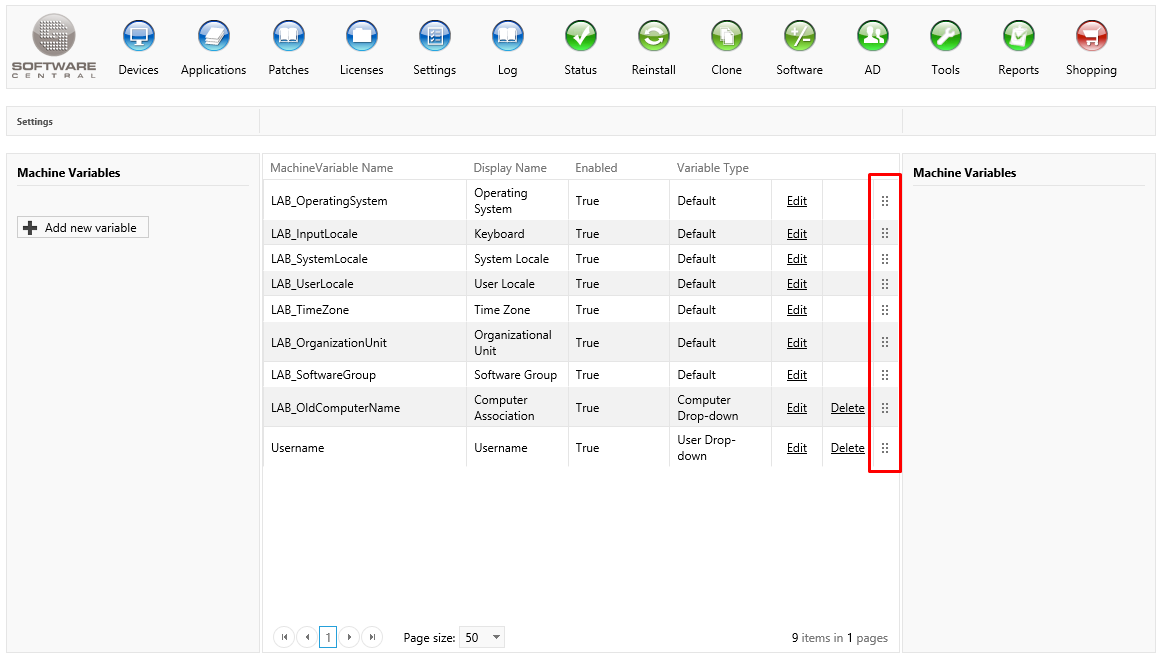
The new order is saved as soon as you drop the row.
9 Best practice
- Check the computer templates before you delete. Deleting a variable removes it from every computer template, so a template may need changing afterwards.
- Hide instead of delete when you are not sure. Untick Enabled to hide a variable in Import Computer. You can tick it again later. Default variables cannot be deleted in any case.
- Save your drop-down values. Nothing you add, change or delete in the drop-down section is kept until you click Save or Update.
- Decide the type before you add values. If you change a variable to Textbox and click Update, all of its drop-down values are deleted.
- Use User Drop-down or Computer Drop-down for lists of users and computers. Their lists load as you type, so you do not need to maintain the values by hand.
10 Troubleshooting
| Symptom | Cause | What to do |
|---|---|---|
| "Please enter name and display name" | The Variable Name or the Display Name is empty when you click Save. | Enter both names. |
| "Name or display name already exists" | Another variable already uses the name or the display name. The check is made when you create a new variable. | Use a different name or display name. |
| "Name or value is empty" | The Item name or the Item value is empty when you click Add or Update in the drop-down section. | Fill in both boxes. |
| "Displayname already exist in dropdown" | You are adding a value whose display name is already in the drop-down list. | Use a different item name. |
| "Displayname allreadey exist in dropdown" | You are changing an existing value to a display name that another value in the list already uses. The message is spelled this way in SoftwareCentral. | Use a different item name. |
| There is no Delete link on a variable | The variable is a default variable, and default variables cannot be deleted. | Untick Enabled to hide it in Import Computer. |
| The variable does not appear in Import Computer | The variable is not enabled. | Open the variable with Edit and tick Enabled. |