1 Open Import Computer
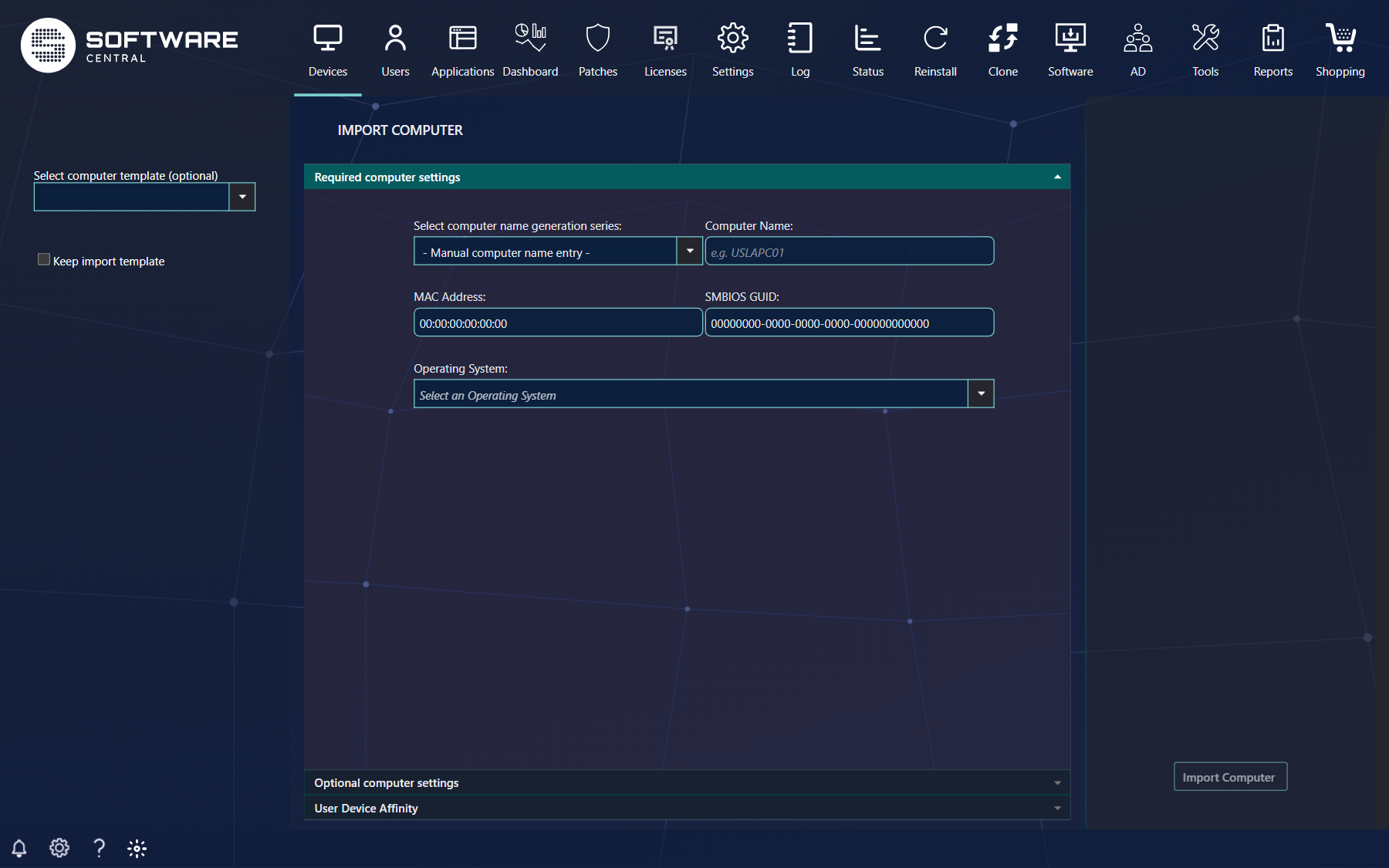
Open Devices › Import Computer. The page has a template selector on the left, three panels in the middle and the Import Computer button on the right. The button stays disabled until the required settings are filled in.
2 Required settings
These settings are always mandatory. All three must be filled in before Import Computer is enabled.
| Setting | What to enter |
|---|---|
| Computer Name | Type the NetBIOS name, or choose a series in Select computer name generation series (the first entry, - Manual computer name entry -, means you type the name yourself). When a series is used, the name box is disabled and the next free name is picked and reserved, so nobody else is given it. A template can select the series for you. |
| MAC Address and/or SMBIOS GUID | One or both must be entered by hand. If you do not need one of them, leave it as all zeros. Your IT department can hide the MAC address box, in which case you enter only the SMBIOS GUID. |
| Operating System | Select the collection the computer is added to when it is imported. |
3 Use a template
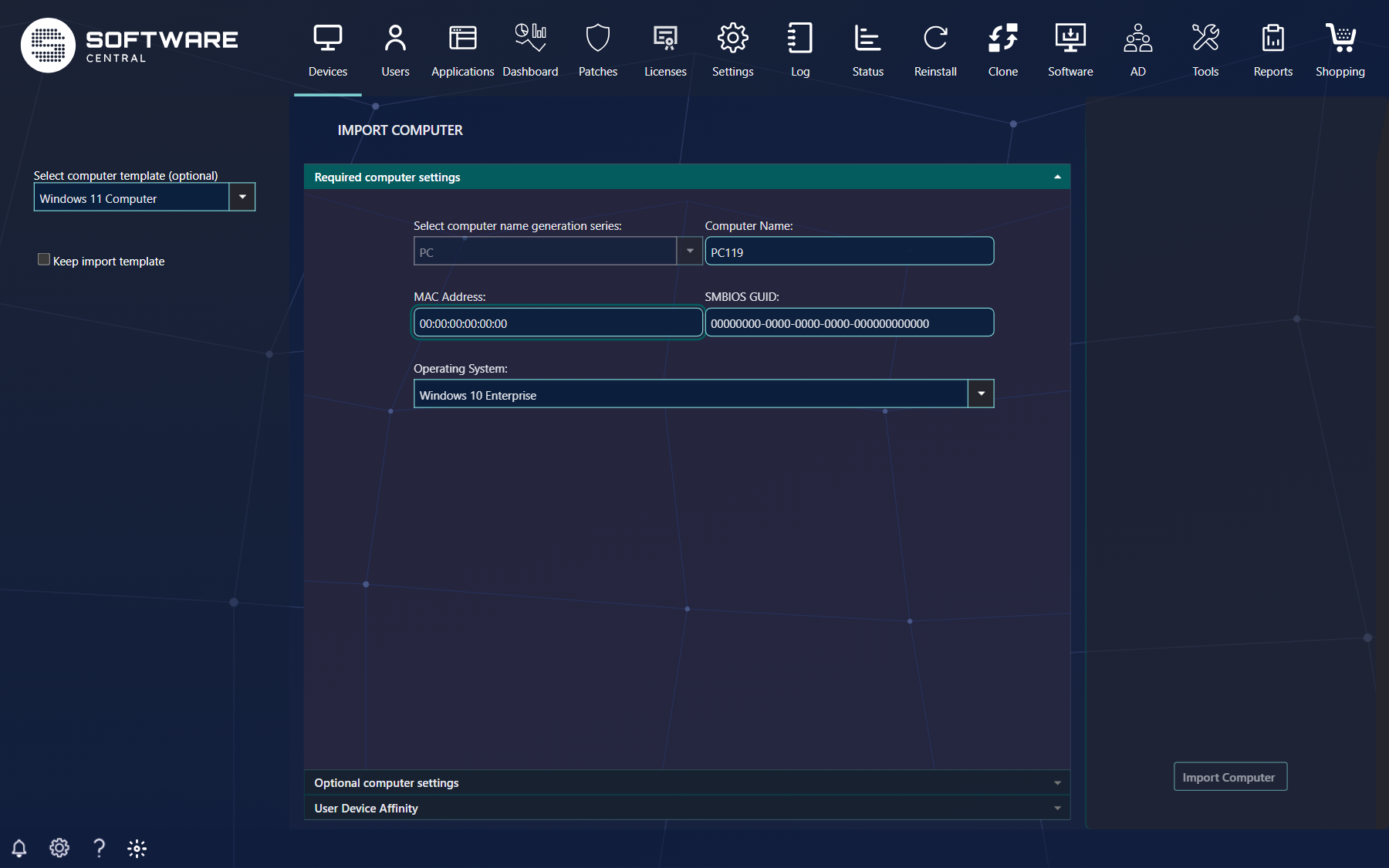
Pick a template under Select computer template (optional) on the left. The template fills in the naming series, operating system and the optional settings and variables.
| Control | What it does |
|---|---|
| Keep import template | Keeps the selected template after an import, so you can import the next computer with the same template. The page is not reloaded: the fields are cleared and, when a naming series is used, the next free name is filled in. |
| Use another computer as template | Search for an existing computer and copy its machine variables, operating system and software groups into the page. A naming series you had selected is cleared, so enter a new name. Shown only when your IT department has enabled it. |
4 Optional settings and variables
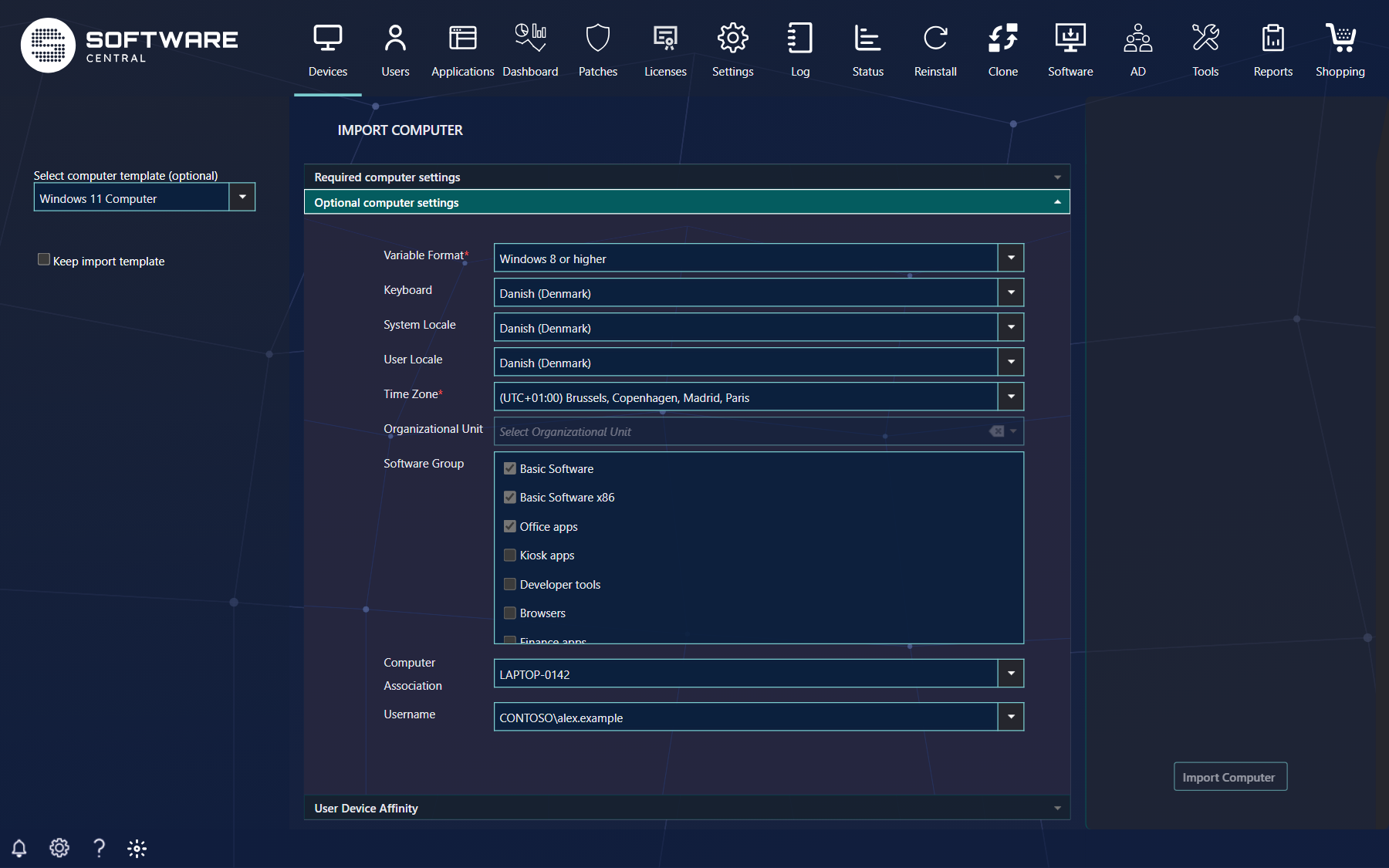
Open Optional computer settings to see the machine variables of the template, the Software Group list and the computer association.
| Variable state | What you see |
|---|---|
| Mandatory variable | A small red star next to the name. If you click Import Computer without a value, the variable name turns red. |
| Locked variable | The field is grayed out. It cannot be changed and the computer gets the template value when imported. SoftwareCentral can be configured to hide locked variables: Settings › SoftwareCentral › Interface Settings. |
| Organizational Unit | Choose the OU from the tree, or use the clear button to remove the selection. Only the domains your security role may use are listed. |
| Software Group | Tick the software groups the computer is to get and drag them to set the installation order. A group that the template selects but your role cannot see is shown with a lock icon, ticked and disabled; it cannot be removed. When the template locks software groups, the list cannot be changed. Groups that contain a blocked or expired licensed package are left out of the import. |
| Variable order | The order of the variables is set in the Machine Variables interface under the Settings menu. See the Machine Variable guide. Variables disabled there are not shown at all. |
5 User Device Affinity
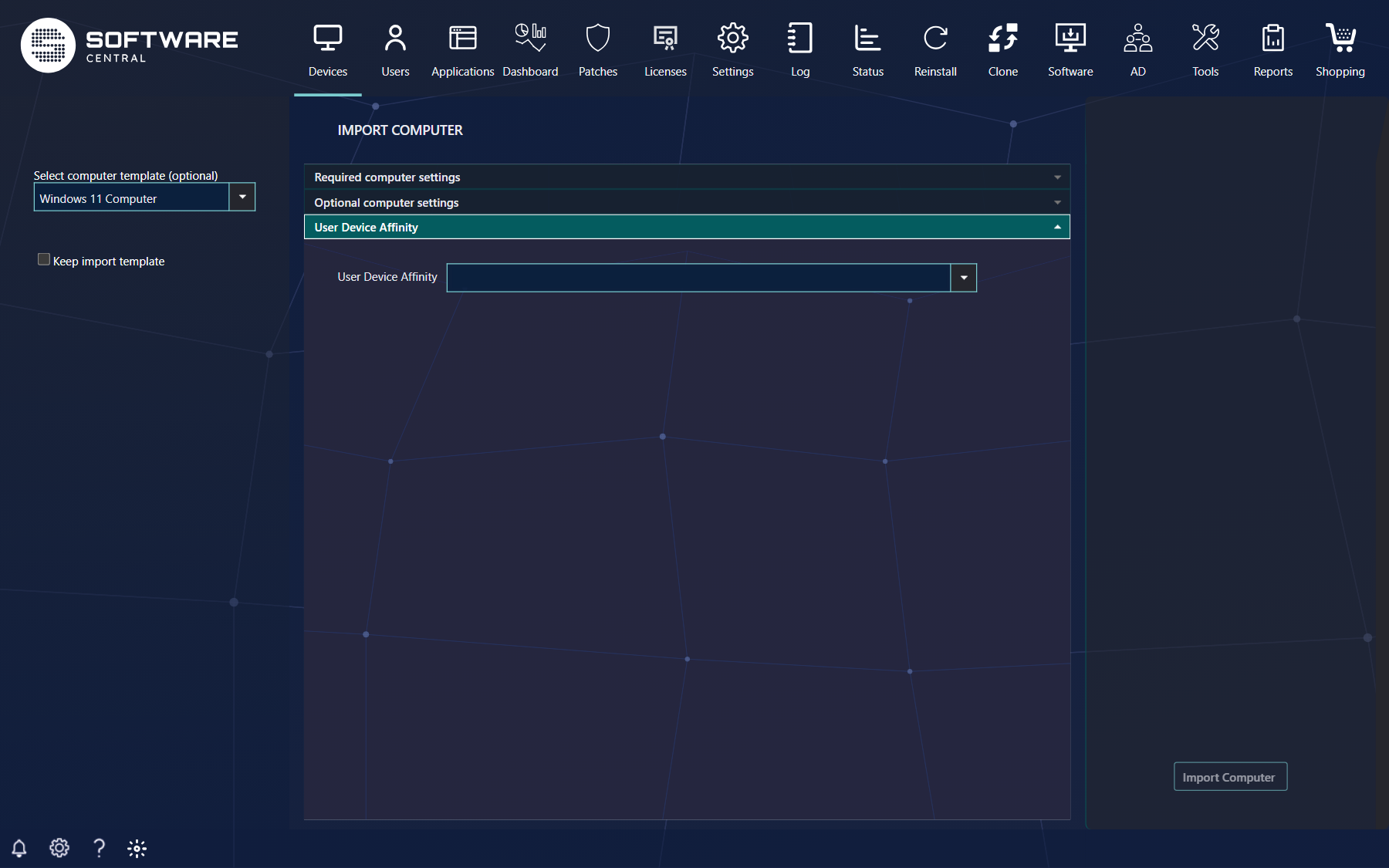
Open the User Device Affinity panel to assign a primary user to the computer when it is imported. Search for the user by typing in the box; the list is loaded as you type.
6 Import and follow the progress
Click Import Computer. The progress is shown in the notification menu (the bell, lower left).
If the computer already exists
If a computer with the same MAC address, SMBIOS GUID or name already exists in ConfigMgr, SoftwareCentral asks what to do. Delete and Import Computer deletes the old computer and imports the new one with the new name, MAC address or SMBIOS GUID. Cancel leaves everything as it was. The question names the existing computer. Delete and Import Computer is greyed out (tooltip This computer isn't allowed to be deleted) when your IT department has not allowed computers to be deleted during import, or when the existing computer is not one your security role can manage.
7 Messages you may see
| Message | What to do |
|---|---|
| Computer name cannot be empty | Type a name or select a naming series. |
| MAC address or SMBIOS Guid is undefined. | Enter at least one of the two. Addresses made only of zeros count as undefined. |
| The MAC address is a Hardware Identifier in SCCM and can't be used, enter a SMBIOS GUID or another MAC-address. | The MAC address is registered as a duplicate hardware identifier in ConfigMgr. Enter an SMBIOS GUID, or a different MAC address. |
| 1 mandatory variable missing (or 2 mandatory variables missing and so on) | Fill in the variables whose names are shown in red. The page jumps to the first one. The Optional computer settings panel is then called Computer settings. |
| Computer name ... already exists, MAC address ... is already registered to computer ... or SMBIOS GUID ... is already registered to computer ... | See If the computer already exists above. |
8 Best practice
- Select the template first and fill in the rest afterwards. The template sets the naming series, operating system, variables and software groups, and choosing a template resets the variables you had already entered.
- Use a naming series instead of typing names. The next free name is picked and reserved for you.
- When you import several computers of the same kind one by one, tick Keep import template. For a longer list, use Import Multiple Computers.
- Check the computer name, MAC address and SMBIOS GUID before you choose Delete and Import Computer: the existing computer is deleted from ConfigMgr.
- The import runs in the background. Follow the deployment afterwards in the Deployment Manager.