1 Start the application
The Prestage Computer application can be used to import new, unknown computers. This page describes what you can do with it and how to use it.
The application is started from the boot image, before Windows is installed. It is set up by your administrator. The configuration guide is on its own page: Configuration. The steps below are the ones you take in the application.
2 Start-up checks
When Prestage Computer loads, it runs a series of preflight checks to see if everything is okay before it proceeds.
| Check | What happens |
|---|---|
| The SoftwareCentral address | The address is passed with the -url argument. It must be a complete address. If it is missing or invalid, the start-up stops with a message. |
| A secure connection | If the address starts with http, the start-up shows Communication with SoftwareCentral is not secure. and Usernames and passwords will be sent in clear text. It also suggests HTTPS. The start-up continues. |
| Communication with SoftwareCentral | The application asks SoftwareCentral for its data. It must be able to reach SoftwareCentral, otherwise the start-up stops with Unable to communicate with SoftwareCentral. |
| The computer | The application reads the computer name, the MAC address, the UUID and the memory of this computer, and shows them in the start-up messages. |
| A known computer | If SoftwareCentral already knows the computer, the start-up shows This is a known computer. with its name and resource ID. |
| Power | The application checks that power is connected. If it is not, the start-up shows Power is not connected. The application does not stop; the window is not hidden automatically. |
If the start-up fails, the window shows a Close button and a Show Log button. Show Log opens the application's log file in Notepad.
3 Sign on
If all checks are passed, the user is presented with the sign-on screen.
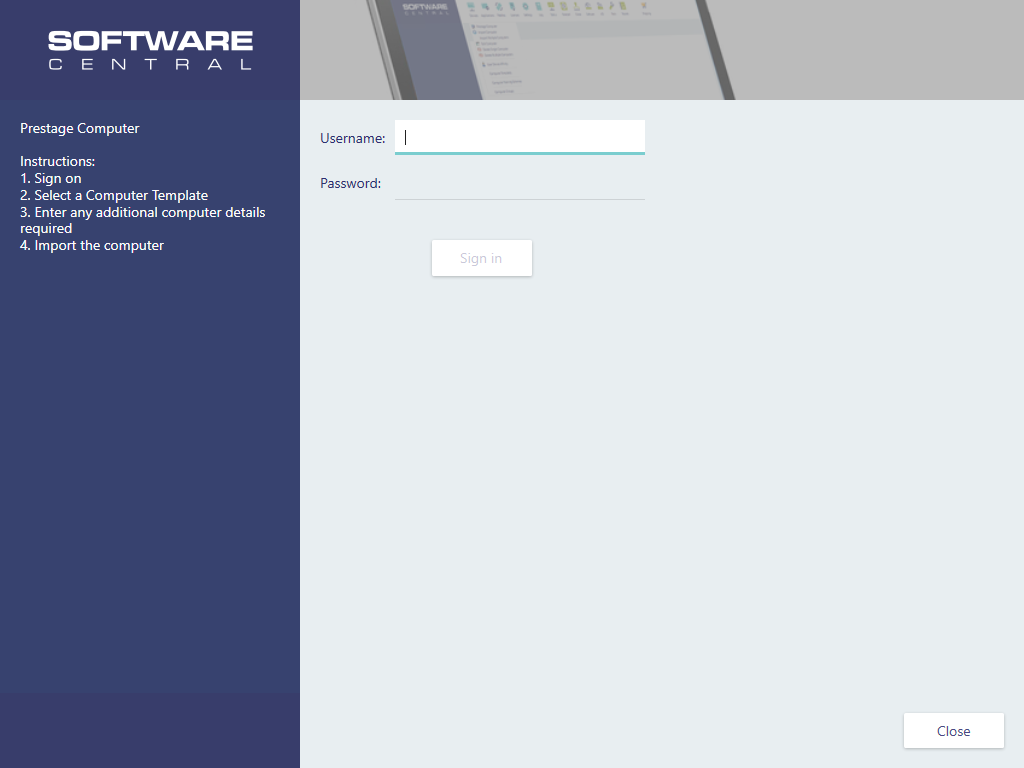
Sign on with your Windows account credentials, in the format domain\username. A forward slash, domain/username, is also accepted.
If your administrator has set an account for Automatically sign on as, you do not see the sign-on screen. The application goes straight to the template screen.
4 Select a computer template
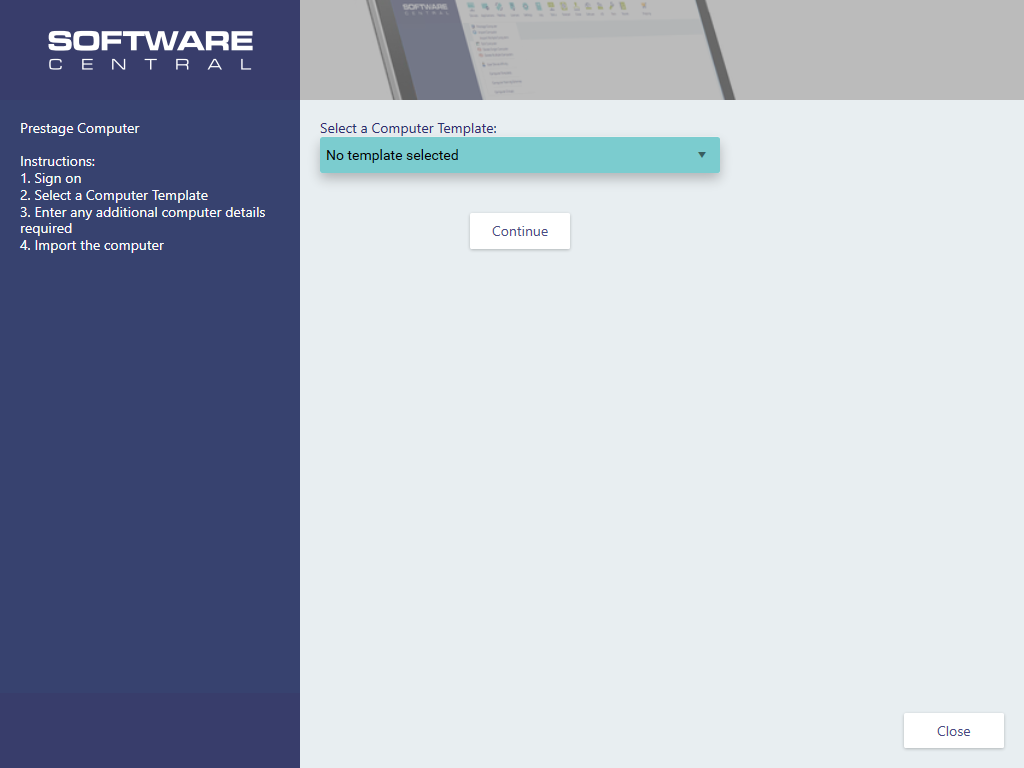
After a successful sign-on, the user can select a computer template. Whether you must choose one depends on the security role you sign on with.
5 Enter the computer details
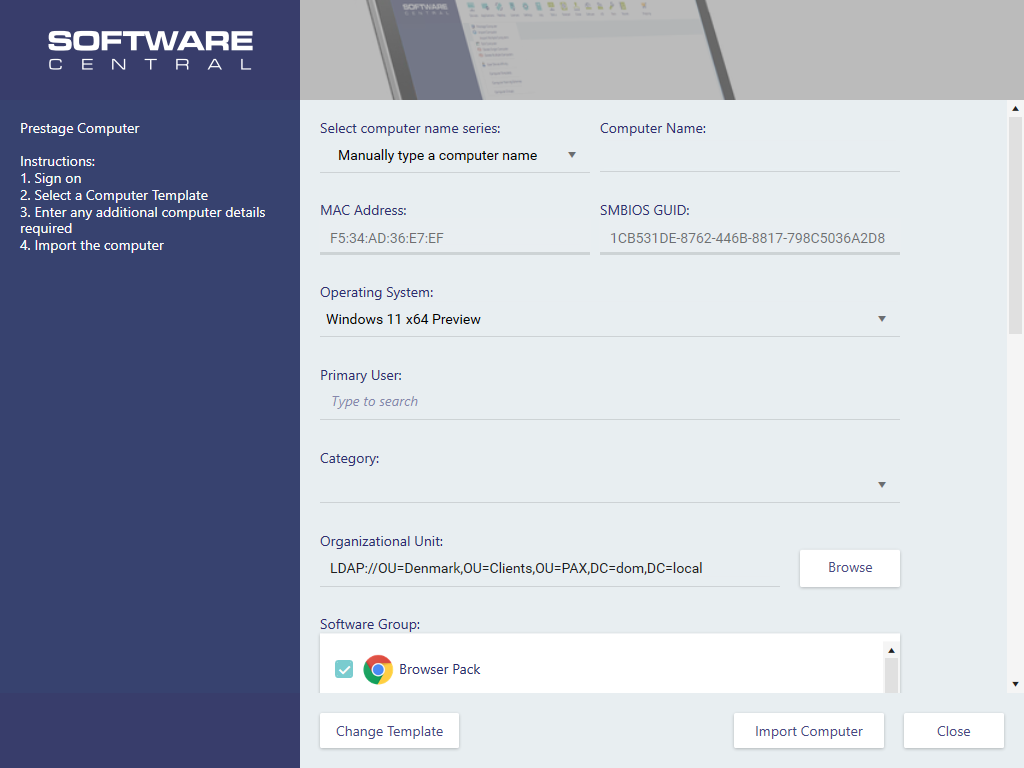
After a template has been selected, you see the computer details screen. Some variables may be required depending on the configuration for the selected template.
| Field | What to do |
|---|---|
| Select computer name series | Choose a naming series from the list. The picture shows Manually type a computer name as the first entry. |
| Computer Name | Type the name. A name must be 1 to 15 characters long, use only letters, digits and hyphens, contain at least one letter, and not start with a hyphen. |
| MAC Address and SMBIOS GUID | Filled in from the computer. You do not type them. |
| Operating System | Required. Choose the operating system to install. |
| Primary User | Type to search for a user. |
| Variables from the template, for example Category | Fill in every field that the template marks as required. |
| Software Group | Tick the software groups to install on the computer. |
Change Template goes back to the template screen. Close asks you to confirm before the application closes.
6 Import the computer
When all required variables are filled in, click Import Computer.
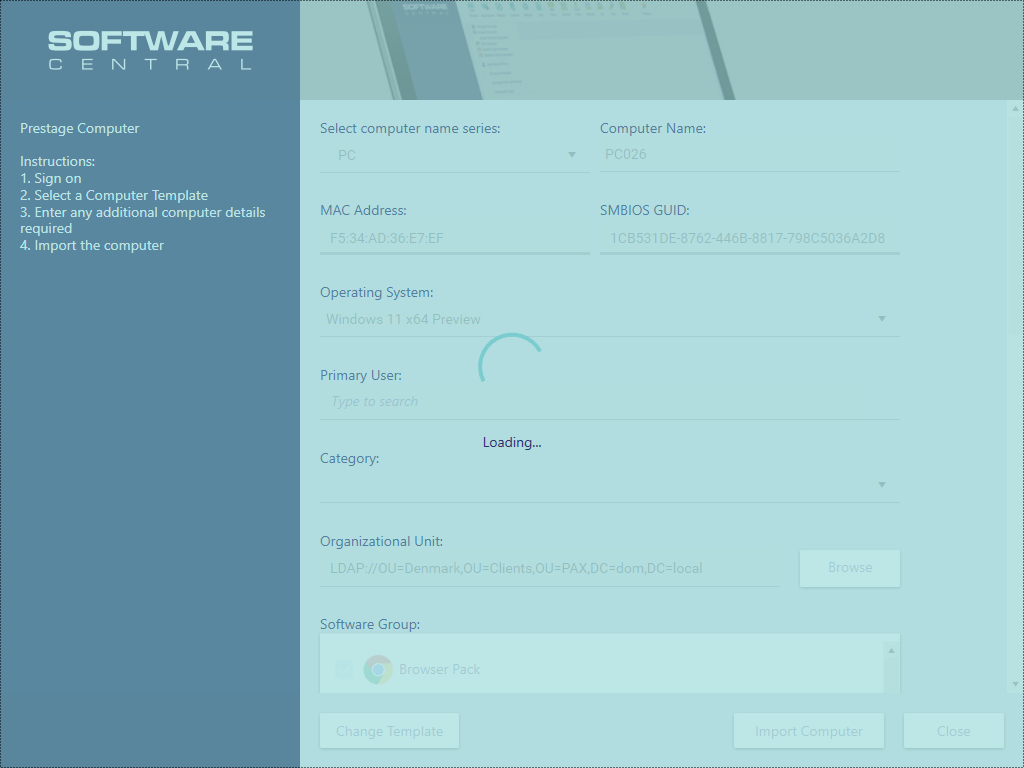
The user is presented with a loading screen. Once the import is complete, and the policies are detected from the ConfigMgr, the installation will automatically proceed.
Depending on the ConfigMgr environment, it may take a long time before the policies are received. The application waits for them, checking every 10 seconds, and then closes so that the installation can start.
The installation will proceed automatically.
7 Best practice
- Connect the computer to power before you import. The power check only reports a missing connection. The application does not stop, so the import can start on battery.
- Use an HTTPS address. On plain http the application warns that user names and passwords are sent in clear text.
- Sign on with your own account. If your administrator has set Automatically sign on as, every import is recorded under that one account.
- Check the computer name before you import. A name that another computer already uses stops the import, unless your administrator allows deleting existing computers.
- Finish within the timeout. When the session times out, you must sign on again before you can import.
8 Troubleshooting
| Symptom | Cause | What to do |
|---|---|---|
| "The SoftwareCentral URL must be passed as the command line argument -url "SOFTWARECENTRAL_SITE_URL"." | The -url argument is missing from the command line of the boot image. | Ask your administrator to add it, see Configuration. |
| "The SoftwareCentral URL is invalid: ..." | The address after -url is not a complete address. | Ask your administrator to use the full address, for example https://softwarecentral. |
| "Communication with SoftwareCentral is not secure." and "Usernames and passwords will be sent in clear text." | The address starts with http. | Ask your administrator to change it to https. |
| "Unable to communicate with SoftwareCentral." | The application could not get its data from SoftwareCentral. | Check the network connection and the address. Click Show Log to see the reason. |
| "Power is not connected." | The computer is not connected to power. | Connect the power cable before you import. |
| "Invalid username or password." | The Windows account or the password is not correct. | Type domain\username and the password again. |
| "The username must contain the domain in the format 'domain\username'." | The user name has no domain in front of it. | Add the domain, for example CONTOSO\jdoe. |
| "Please enter your password." | The password box is empty. | Type your password. |
| "One or more errors occurred. See the log for details." | The sign-on failed for another reason. | Ask your administrator to read the SoftwareCentral log. |
| "Your session has expired. Please sign on again to continue." | The time set in Timeout (minutes) has passed since you signed on. | Sign on again. If this happens often, ask your administrator to raise the timeout. |
| "Computer name exists": "The computer name '...' is assigned to another computer." | Another computer already has this name. | Type a different name, unless your administrator allows deleting existing computers. |
| "Invalid computer name": "The computer name '...' is not valid." | The name is too long or has characters that are not allowed. | Use 1 to 15 letters, digits and hyphens, with at least one letter and no hyphen at the start. |
| "Name is missing": "Please enter a computer name." | The Computer Name box is empty. | Type a computer name. |
| "No operating system selected": "Please select an operating system." | No operating system is chosen. | Choose an operating system. |
| "Required field missing": "Please fill in '...'." | A variable that the template marks as required is empty. | Fill in the field named in the message. |
| "Error!": "Failed to import computer." | The import failed. The message after it gives the reason. | Read the reason, then ask your administrator to check the SoftwareCentral log. |