1 Open Import Computers
Open Devices › Import Computers to import several computers in one operation. You can apply templates, use automatic computer names, set primary users and more.
The page has three areas: the Select button under Add devices from a CSV file on the left, the entry fields in the middle (Computer Template, Operating System, Computer name series, Computer Name, MAC Address, SMBIOS GUID, Primary User), and the Status Report box on the right. The grid lists the computers about to be imported.
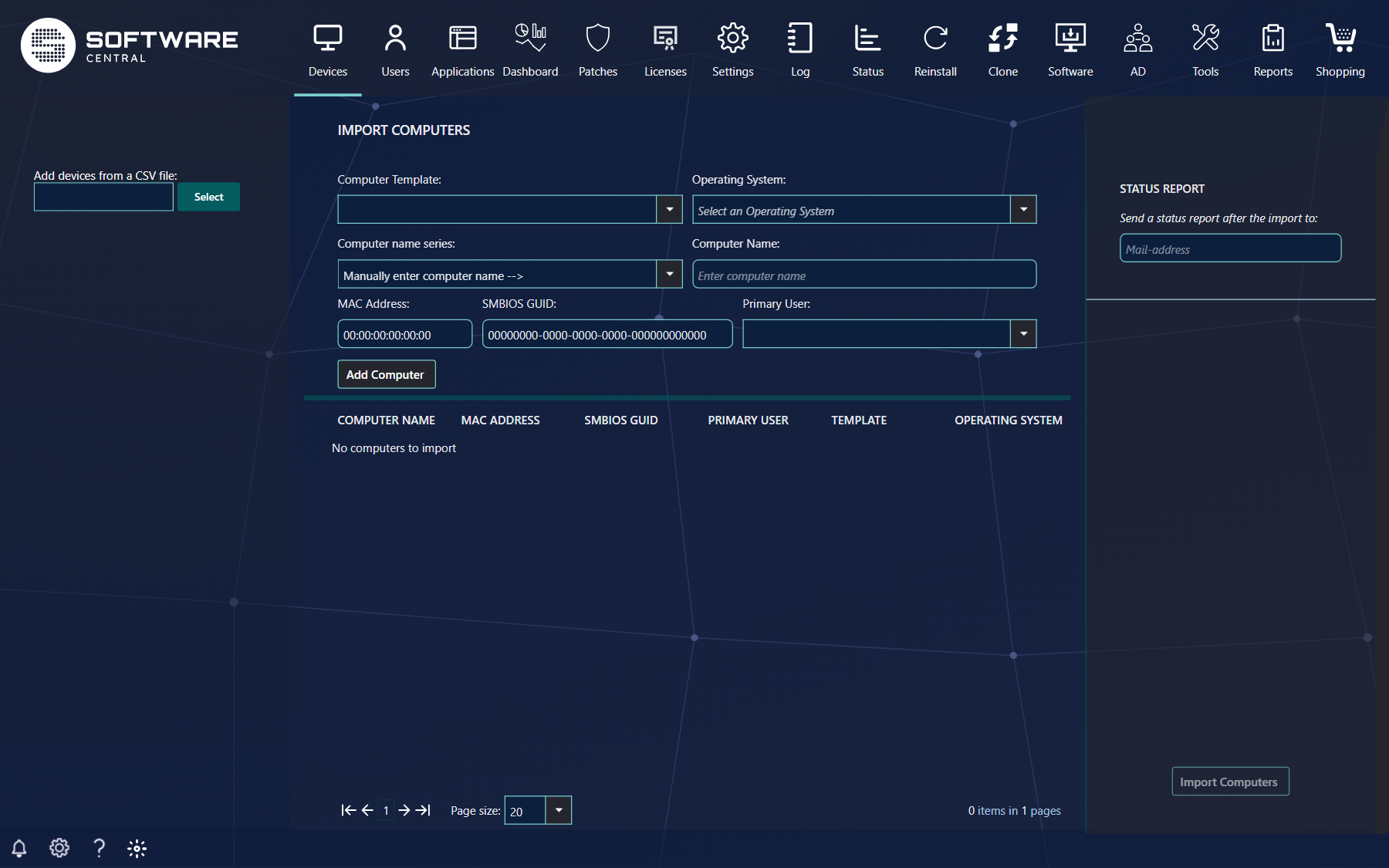
2 Import from a CSV file
Click Select next to Add devices from a CSV file and browse to the file, or drag and drop the file onto it. The computers are listed in the grid and any errors are highlighted.
Each line is one computer, in this order:
ComputerName,MacAddress,SMBIOSGUID,PrimaryUser,ComputerTemplate,OperatingSystem
| Field | Meaning |
|---|---|
| ComputerName | The name of the computer. A name ending in * is a naming prefix for automatic naming. |
| MacAddress | The physical address of the primary network adapter. Can be left empty, but the device must have a MAC address and/or an SMBIOS GUID. |
| SMBIOSGUID | The UUID of the computer. Can be left empty. |
| PrimaryUser | The primary user, as domain\username. Not mandatory. |
| ComputerTemplate | The computer template used for all settings on the device. Not mandatory. |
| OperatingSystem | The name of the collection that has the OSD task sequence deployed. May be left out if the computer template contains an operating system. |
The fields can be separated by commas or semicolons. Every line needs at least the first five fields; the sixth (operating system) is optional. Do not add a header line: it would be read as a computer and flagged as an error. A line with fewer than five fields is skipped without a message, so check that the number of computers in the grid matches your file.
Examples:
A naming series, a MAC address, no SMBIOS GUID, a primary user, a template and an operating system:
PC*,65:DC:46:54:64:65,,dom\mmp,Windows 10 Computer - da_DK,Windows 10 Enterprise
A typed name, no MAC address, an SMBIOS GUID, a primary user, a template and no operating system:
PC0127,,46565745-6654-65E5-6464-566E46464601,dom\jgp,Windows 10 Computer - da_DK
A typed name, a MAC address, an SMBIOS GUID, no primary user, no template and an operating system:
PC0128,46:43:64:64:B6:BD,F4465F46-54CD-64B6-CBC6-46ADF98DC65D,,,Windows 10 Enterprise
3 Add computers by hand
Fill in the fields in the middle and click Add Computer. You can mix typed computers with one or more CSV files.
Choose a Computer Template to fill in the operating system and naming series, or pick a Computer name series to have names generated. Otherwise type the Computer Name (at most 15 characters; letters, digits and hyphens only). The computer is added to the top of the grid below. A computer that fails the checks is not added, and the first error is shown in red under the fields.
- When you choose a naming series, the name box shows the series followed by a star, for example
PC*. The real name is picked when the import runs, so the grid does not show it yet. - Use Primary User to search for the primary user of the computer; the list is loaded as you type.
- If your role requires a template, a computer without one is rejected with Computer Template required. The template can be one you pick here or the ComputerTemplate field of a CSV line.
4 Errors in the list
Computers with errors are listed first and the fields with errors turn light red. Hold the mouse over a field to read the error.
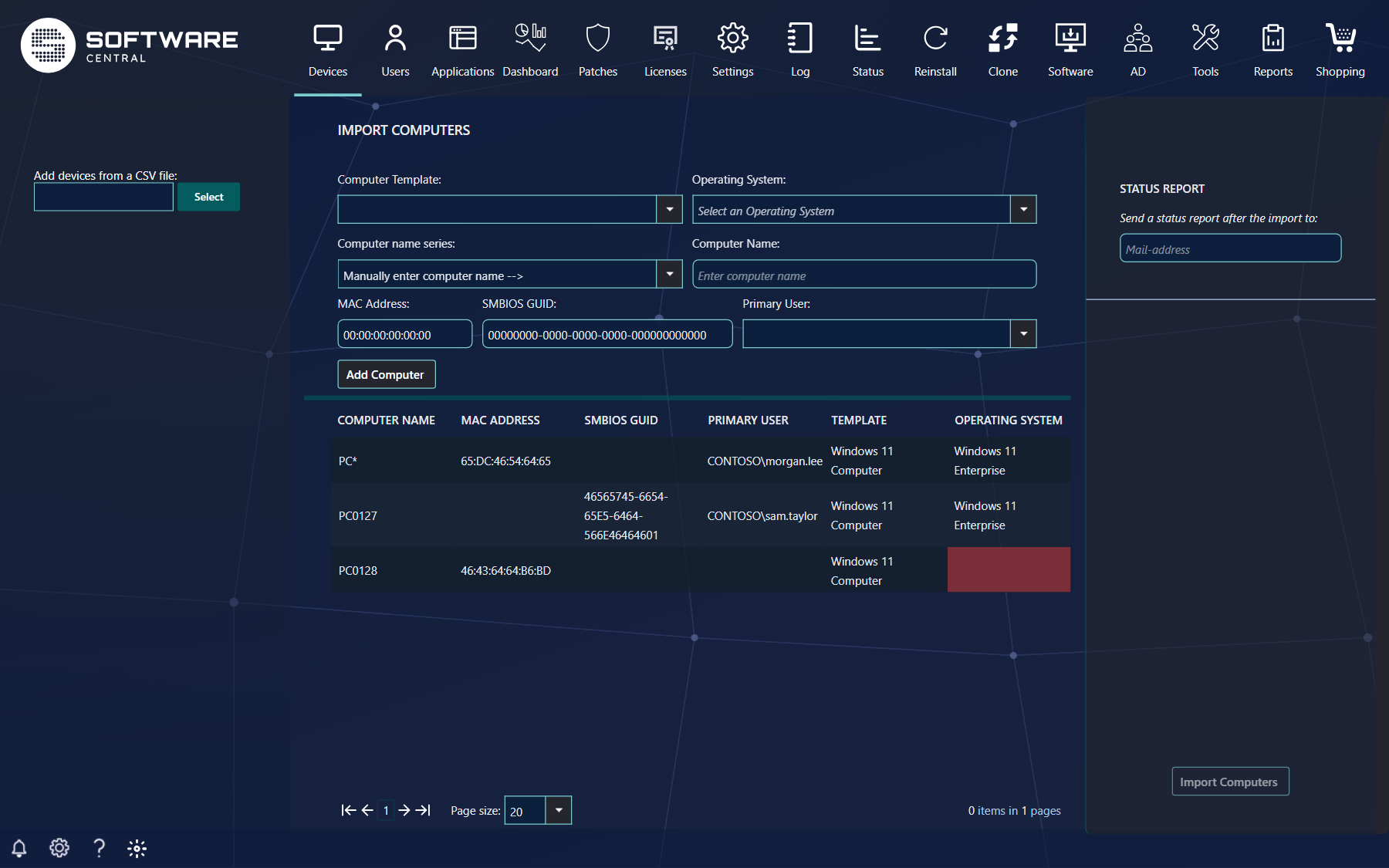
| Error text | What to do |
|---|---|
| Computer name is undefined / Invalid computer name | Type a valid NetBIOS name. |
| Computer name exists in SCCM already | Choose another name, or delete the existing computer first. |
| Computer naming prefix doesn't exist | The name ending in * does not match a naming series. Check the series name. |
| MAC address / SMBIOS GUID is undefined, invalid or exists already | Give at least one valid address that is not already in ConfigMgr. |
| ... already exists in the entered list | The same name, MAC address or SMBIOS GUID is in the list twice. |
| Operating System is undefined / doesn't exist in SCCM | Enter the exact name of the OSD collection. |
| Computer template doesn't exist / Computer Template required | Enter an existing template name; some roles must always use a template. |
| This security role does not have sufficient privileges ... | The template or operating system is not allowed for your security role. |
| SMBIOS GUID is undefined / Invalid SMBIOS GUID / SMBIOS GUID already exists in SCCM | Check the GUID. It must be a valid GUID that is not already in ConfigMgr; colons are converted to hyphens. |
| User does not exist in the SCCM | Check the primary user, written as domain\username. |
| Software Group / Package doesn't exist | The software group or package named for the computer was not found. |
To correct an error, click the computer. The fields at the top are filled with its data so you can change them. Click Apply to save the change, Remove to take the computer out of the list (you are asked to confirm), or Cancel to leave it as it was.
Import Computers stays disabled until the list is not empty and every computer in it is error-free.
5 Status report and import
Enter your address in Mail-address under Status Report to get a report when the import has finished. The address is remembered for next time.
The report lists the imported computers, so you can match the assigned computer names and resource IDs to MAC addresses. Copy and paste it into Excel if you need it there. Click Import Computers to start the import.
6 What happens during the import
When you click Import Computers, the page reloads at once and the import carries on in the background.
- Each computer is created in ConfigMgr with its MAC address and/or SMBIOS GUID and added to the operating system collection. Names from a naming series are generated one by one and reserved.
- The computer template, if any, is applied. A primary user becomes the user device affinity of the computer.
- The computers are grouped by operating system. For each operating system one deployment job is created, named Import of N computers with ..., and the collection membership is refreshed. You can follow the jobs in the Deployment Manager.
- If your IT department has set up an action to run after an import, it runs for every computer.
- The status report is mailed only when a valid address is entered and the status report mail is enabled by your IT department.
7 Best practice
- Use one template for the whole list. It supplies the operating system and naming series, so the CSV file needs only names (or series), addresses and users.
- Test with a small file of two or three computers first, and check the grid and the status report before you import hundreds.
- Resolve every red cell before you import. Computers with errors are listed first, so the top of the grid shows what is left to do.
- Use naming series (
PC*) instead of typed names to avoid duplicates; the same name, MAC address or SMBIOS GUID twice in the list is rejected. - Enter your mail address so you get the list of generated names and resource IDs. Importing does not install anything: follow the installation in the Deployment Manager.