1 Where to find it
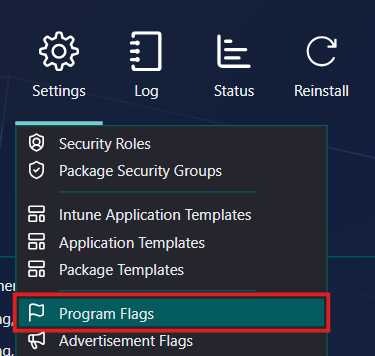
Open Settings in the top menu and click Program Flags.
2 The Install and Uninstall tabs
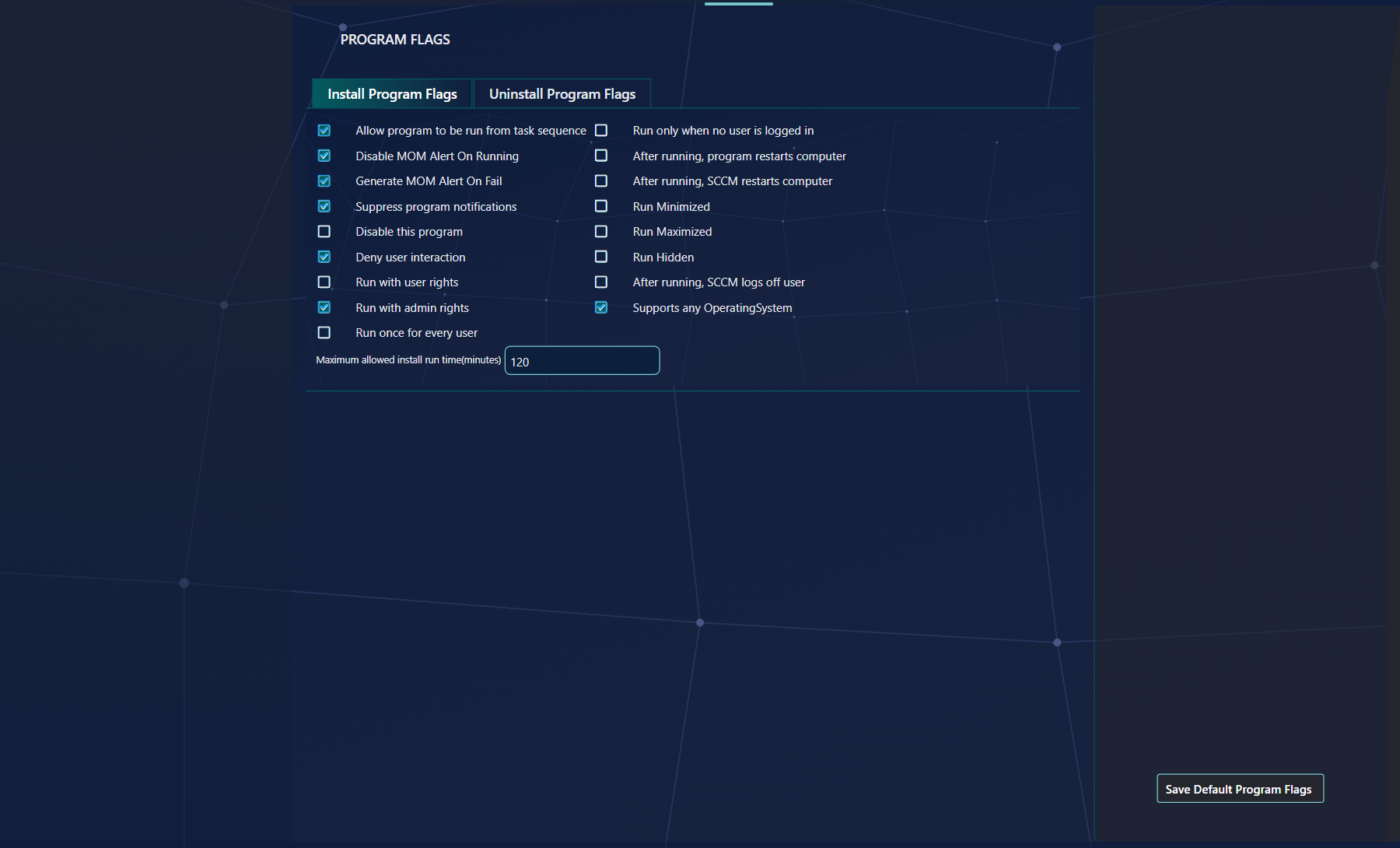
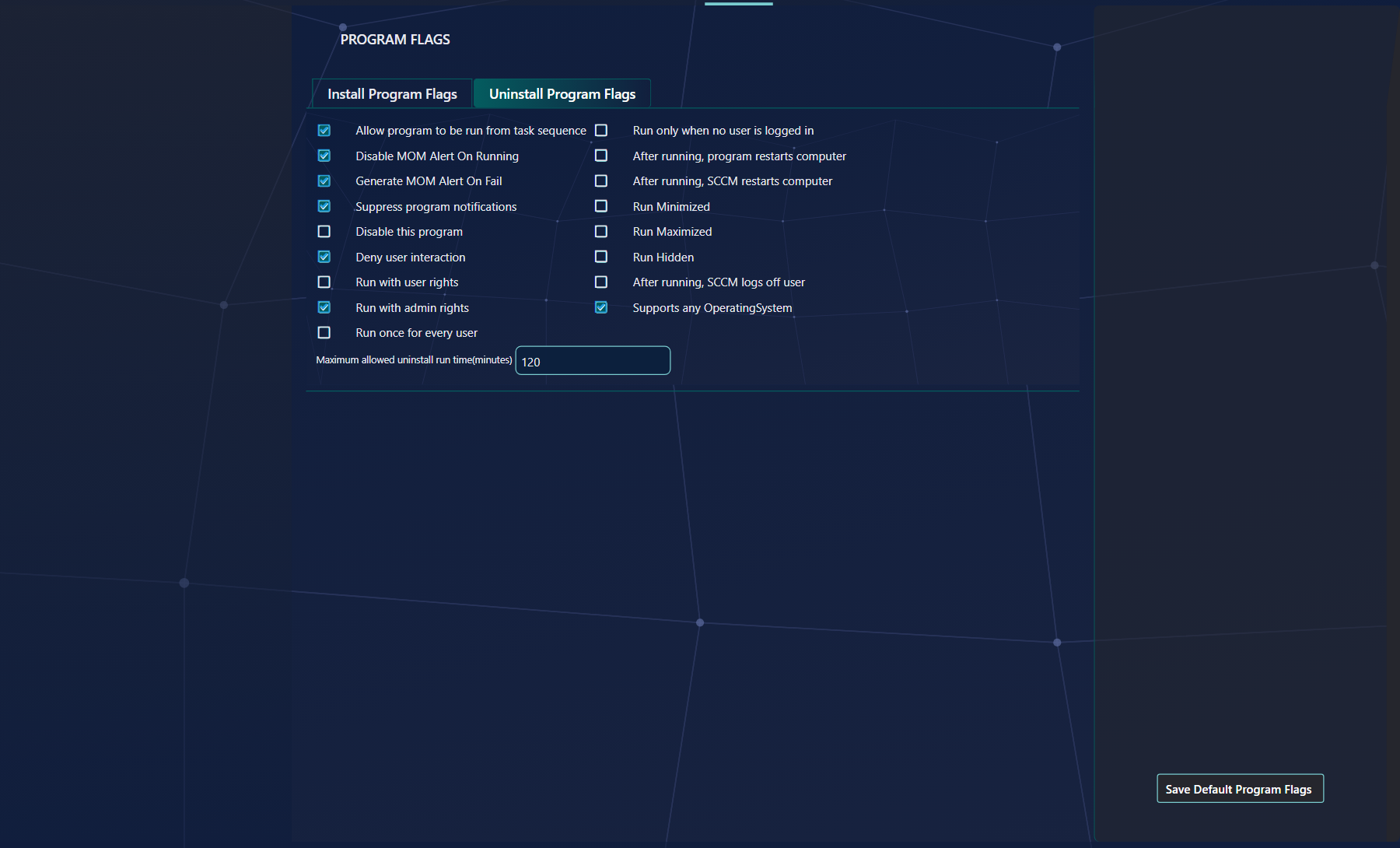
The page has two tabs, Install Program Flags and Uninstall Program Flags. Each tab has its own check boxes and its own maximum run time, and each is saved as a separate default. The two tabs show the same list of flags.
3 The flags
Tick a flag to make it a default. The value is the bit number that Configuration Manager stores for the flag; SoftwareCentral sets the bit for you.
| Flag | Value | What it does |
|---|---|---|
| Allow program to be run from task sequence | 0 | The program can be run from a task sequence (dynamic install). |
| Disable MOM Alert On Running | 5 | Disables MOM alerts while the program runs. |
| Generate MOM Alert On Fail | 6 | Generates a MOM alert if the program fails. |
| Suppress program notifications | 10 | Suppresses the notification about the installation. |
| Disable this program | 12 | The program is disabled. |
| Deny user interaction | 13 | The program requires no user interaction. |
| Run with user rights | 14 | The program can run only when a user is logged on. |
| Run with admin rights | 15 | The program must run as the local Administrator account. |
| Run once for every user | 16 | The program must be run by every user for whom it is valid. Valid only for mandatory jobs. |
| Run only when no user is logged in | 17 | The program runs only when no user is logged on. |
| After running, program restarts computer | 18 | The program restarts the computer. |
| After running, SCCM restarts computer | 19 | Configuration Manager restarts the computer when the program has finished successfully. |
| Run Minimized | 22 | Runs the program in a minimised window. |
| Run Maximized | 23 | Runs the program in a maximised window. |
| Run Hidden | 24 | Hides the program window. |
| After running, SCCM logs off user | 25 | Logs off the user when the program completes successfully. |
| Supports any OperatingSystem | 27 | Skips the check for platform support. The operating system panel is hidden while this is ticked (see section 5). |
4 Maximum run time
Each tab has a maximum run time in minutes, which Configuration Manager uses as the program's duration.
| Box | Allowed values and default |
|---|---|
| Maximum allowed install run time(minutes) | From 15 to 720 minutes. The default is 120. |
| Maximum allowed uninstall run time(minutes) | From 15 to 720 minutes. Until you save this tab, it takes the install value. |
5 Supported operating systems
Tick Supports any OperatingSystem when the program runs on every operating system. Leave it unticked to choose the operating systems yourself.
- While Supports any OperatingSystem is ticked, the operating system panel is hidden.
- When it is unticked, the panel appears with Select all 32 Bit, Select all 64 Bit and a list of the operating systems. Select all 32 Bit ticks every operating system whose name contains 32 or 86, and Select all 64 Bit ticks every one whose name contains 64.
- Ticking Supports any OperatingSystem on one tab ticks it on the other tab as well.
- If neither tab supports any operating system and no operating system is ticked, the default is saved as all operating systems.
6 Saving the defaults
Click Save Default Program Flags on the right. The page then shows the Log entry Successfully saved default program flags.
Saving changes only the defaults. It does not change programs that already exist in Configuration Manager. The defaults fill in the program settings of a new package when no package template is chosen. Templates that already exist keep their own values; see Package Templates.
7 Best practice
- Set the defaults before you create packages and templates. A new package with no template chosen takes its flags, run times and operating systems from these defaults.
- Tick one way of running. Choose Run with user rights or Run with admin rights, not both.
- Use Run once for every user only for mandatory jobs. The flag is valid only for mandatory jobs.
- Tick Supports any OperatingSystem only when the program really runs on every system. Otherwise list the operating systems, so the program is not offered where it will not work.
- Set the run time to what the program needs. The value must be between 15 and 720 minutes.
8 Troubleshooting
| Symptom | Cause | What to do |
|---|---|---|
| A new package has different flags from the defaults you saved. | The defaults are used only when no package template is chosen. A template keeps the flags it was saved with. | Open Settings › Package Templates, edit the template and check its Program Flags panel. |
| The operating system panel is not shown. | Supports any OperatingSystem is ticked on the tab, so the panel is hidden. | Untick Supports any OperatingSystem if the program must be limited to some operating systems. |