1 Overview
Open it from Settings › Package Templates.
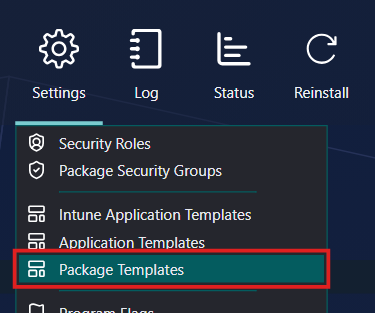
The Package Template in SoftwareCentral is used to ease the creation of packages in SCCM. A template is a saved set of the program flags, run times, operating systems, distribution settings and deployment settings that a package gets when it is imported. The Package Wizard uses them in its Template step.
A Package Security Group can also be assigned to one or more templates, on the Package Templates tab of the Package Security Group window. A new package imported with one of those templates is then assigned to that group automatically. See Package Security Groups.
Creating a template is quick and easy. This guide shows how and what can be configured. Application templates are a separate list, used by the Application Wizard; see Manage Application Templates.
2 The template list
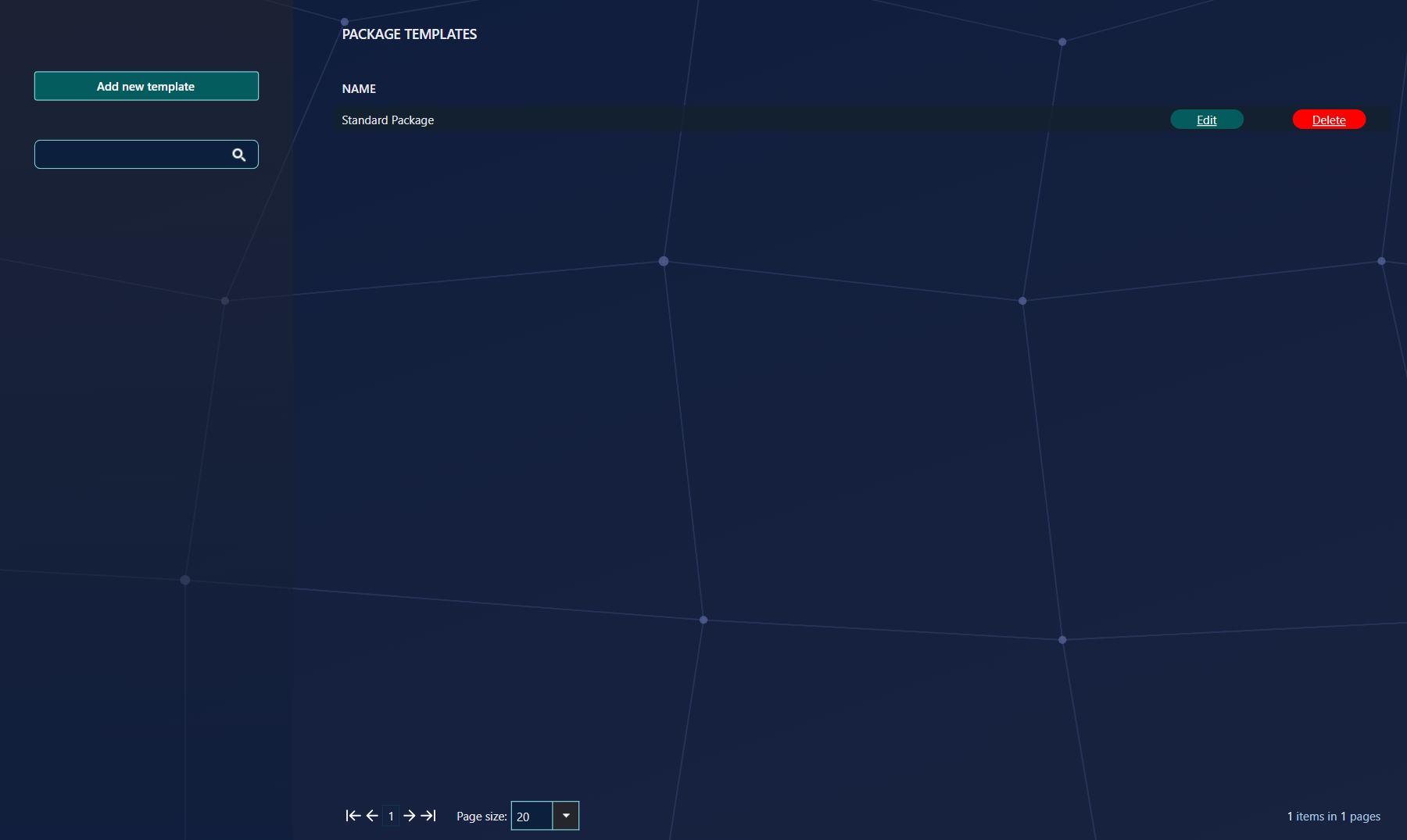
In this view you see all existing package templates, sorted by name. The view also allows you to open a template for editing, to create a new one, and to delete a template.
| Part of the view | What it does |
|---|---|
| Add new template | Opens a new window in which you set up a new template. See New Package Template below. |
| Search box | Type part of a name and the box suggests matching templates. Press Enter to add the text as a search term. The list then shows only the templates whose names contain every term you added, and the search does not match case. |
| Edit | Opens the template in a window with its saved values. |
| Delete | Asks you to confirm the deletion. See Delete Package Template below. |
| Page size | The list shows 20 templates per page; you can choose 50 or 100. |

3 New Package Template
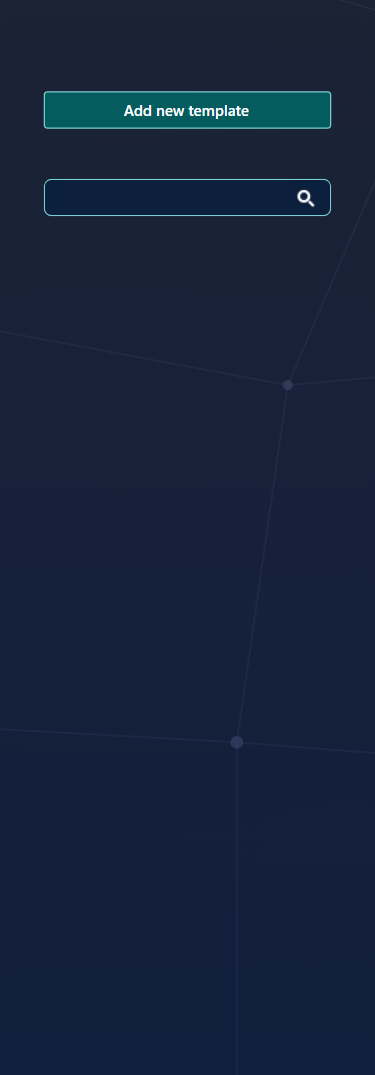
Click Add new template. A new window opens with the default settings filled in. There are several settings to set on a template. Most of them do not require setting.
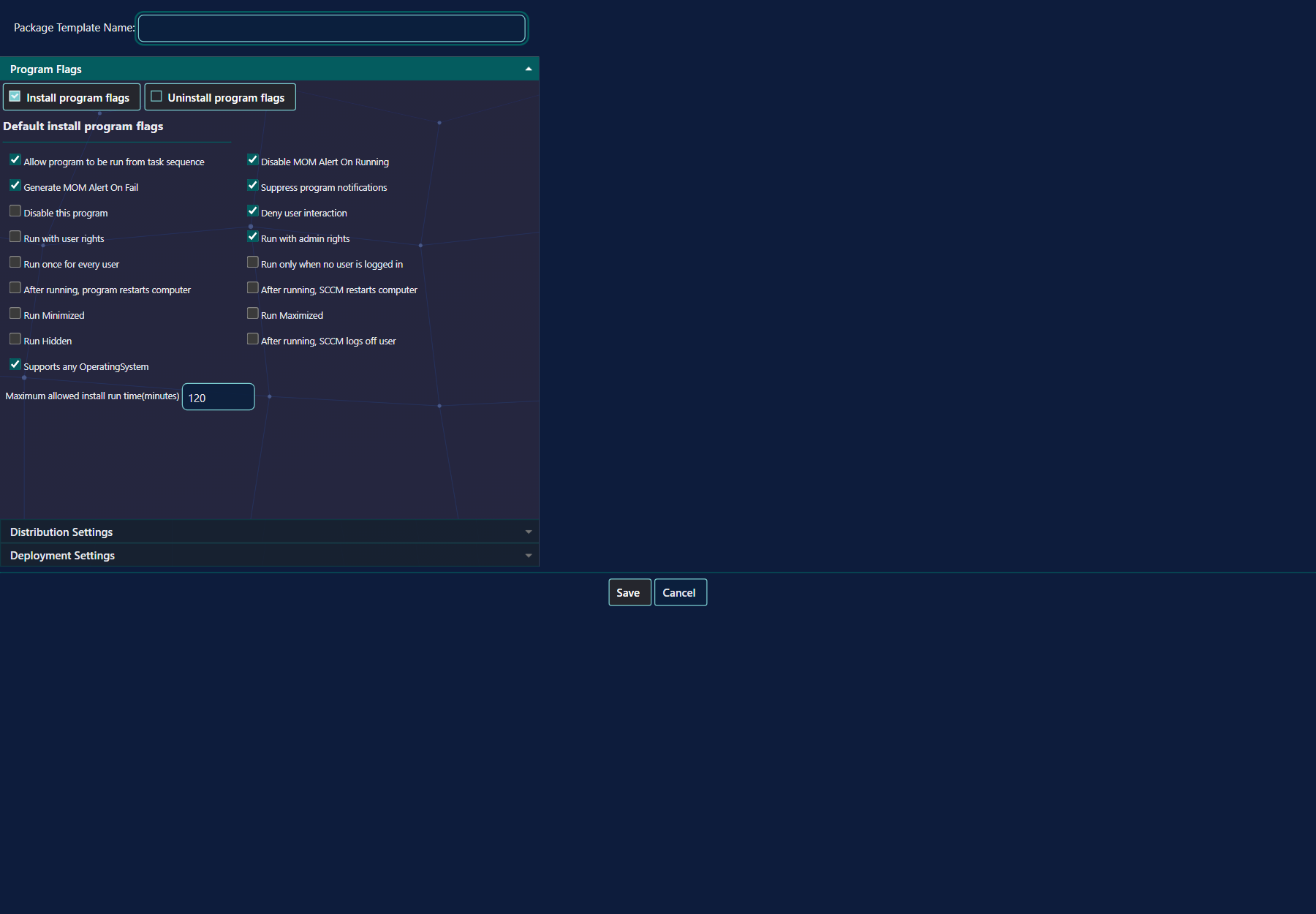
You must set the Package Template Name at the top of the window. Save stays disabled until you have typed a name.
If a template with the same name already exists, SoftwareCentral adds a number to the new name, for example Standard Package (2).
Click Save to save your work. The new template then appears in the list. Click Cancel to return to the list without saving the entered data.
Each setting is added to the packages that are created with the template, where it applies. The settings are in three panels.
Program Flags
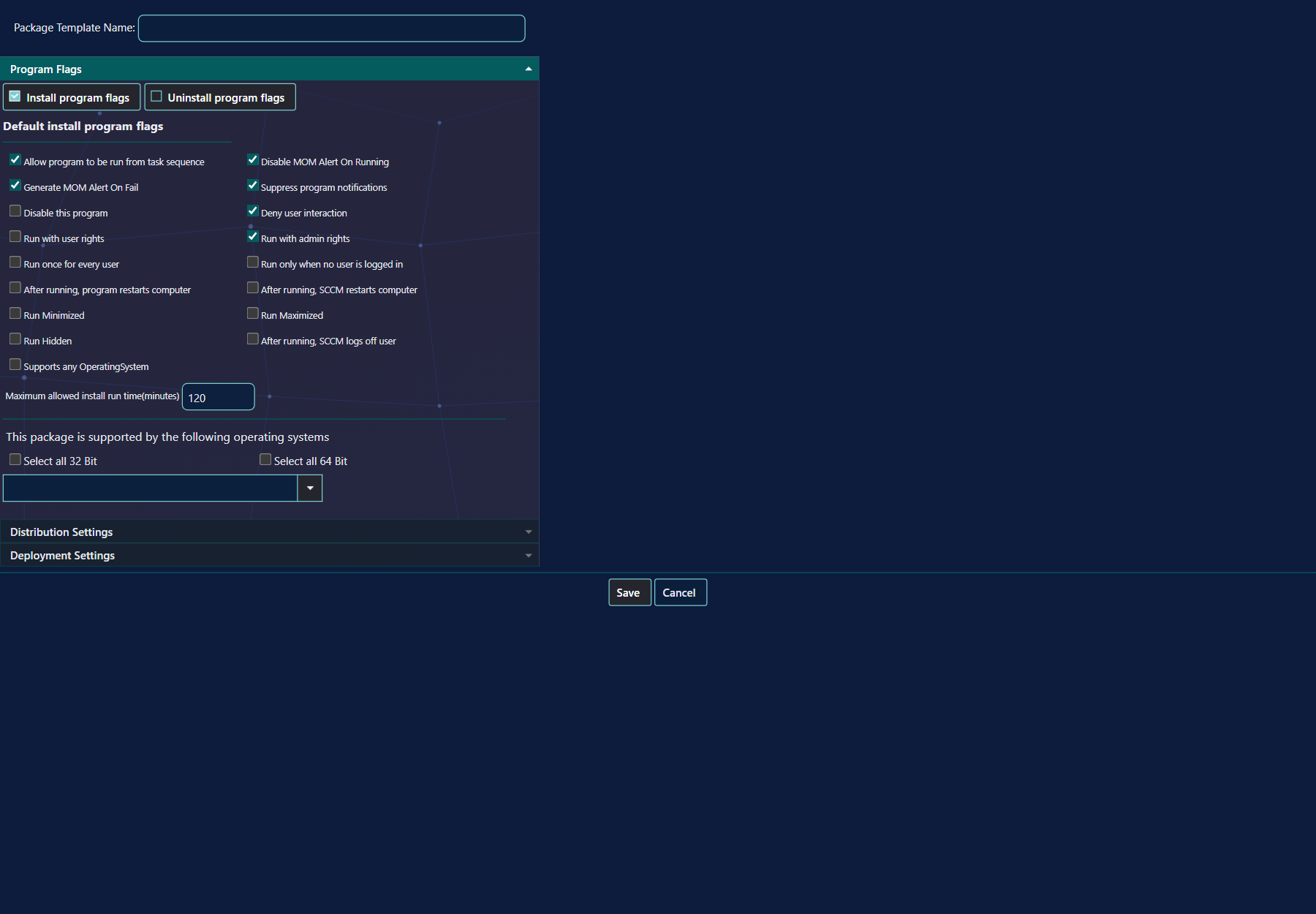
The first panel is for the settings of the program being created with the template. It controls how the installation of the package runs. It also sets the operating system requirements of the package.
| Setting | What it does |
|---|---|
| Install program flags and Uninstall program flags | Choose which list of flags is shown: the default install program flags, or the default uninstall program flags. |
| Default install program flags (check boxes) | Tick the flags the program gets, for example Run with admin rights or Run Hidden. Each flag has a tooltip in the window. |
| Supports any OperatingSystem | Tick it when the package works on any operating system. While it is ticked, the operating system list is hidden. |
| Maximum allowed install run time(minutes) | The longest time, in minutes, the install may run. Enter at least 15. An empty box or a value below 15 is saved as Unknown. |
| Maximum allowed uninstall run time(minutes) | The same as the install run time, for the uninstall program. |
When Supports any OperatingSystem is not ticked, the window shows This package is supported by the following operating systems. Use Select all 32 Bit to tick the 32-bit operating systems, and Select all 64 Bit to tick the 64-bit operating systems. The drop-down under them lists the operating systems: tick the ones the package supports, or use Select All at the top of the list.
Distribution Settings
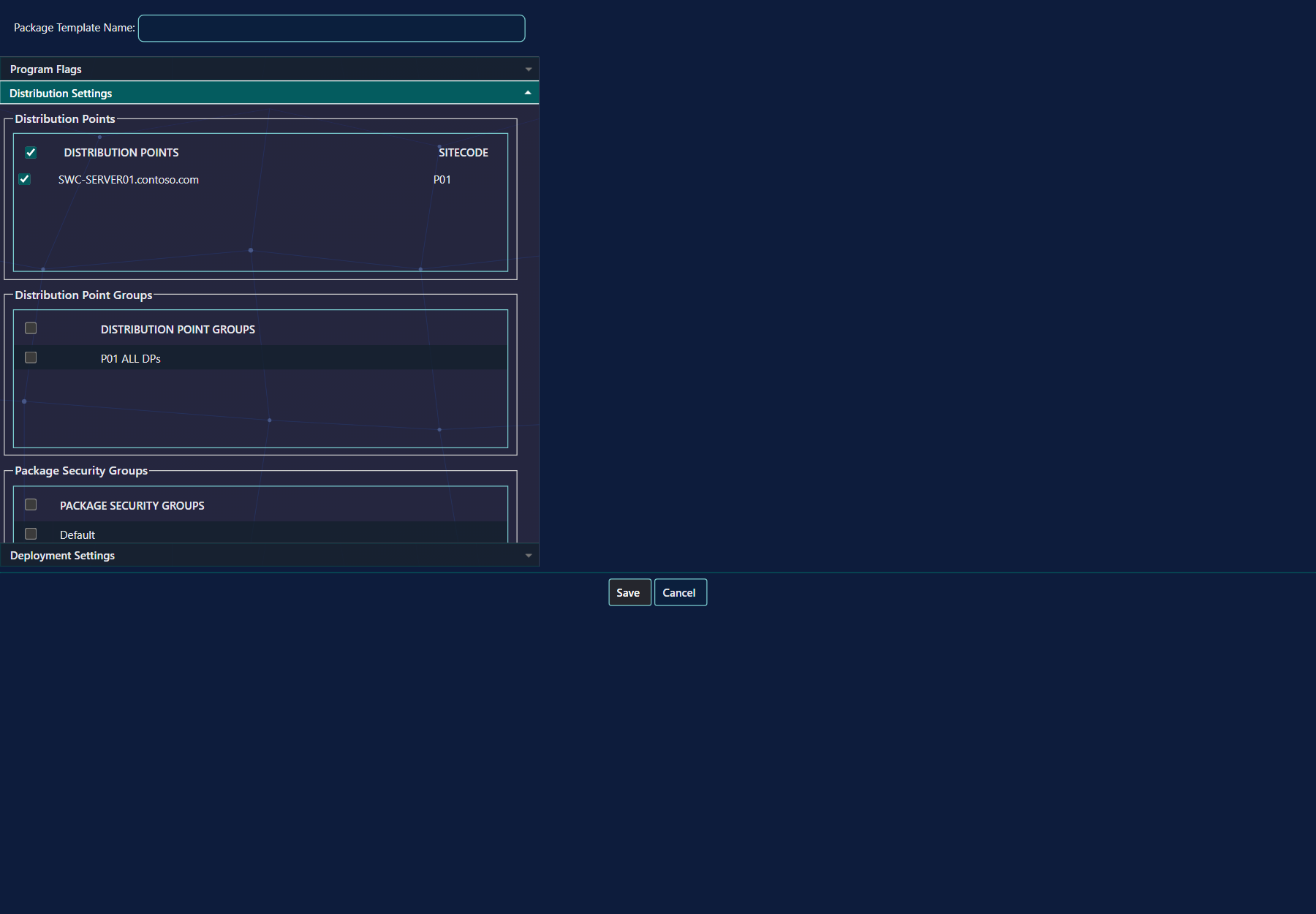
The second panel sets up the distribution: the distribution points, the distribution point groups, the Package Security Groups, the SCCM package folder and the download rules of the content.
| Setting | What it does |
|---|---|
| Distribution Points | Tick the distribution points the content is copied to. |
| Distribution Point Groups | Tick the groups the package is added to. Groups are only used on a ConfigMgr 2012 site. |
| Package Security Groups | Tick the groups the package is assigned to. |
| SCCM Package Folder | Choose the folder in SCCM where the package is placed. Optional. |
| Distribution drop-down | How the content is handled: Automatically download content when packages are assigned to distribution points (the default), Download only content changes to the distribution point, or Manually copy the content in this package to the distribution point. On a ConfigMgr 2007 site the first two texts say branch distribution points, and the delta option is not offered. |
| Distribute the content for this package to preferred distribution points | Tick it to send the content to the preferred distribution points. |
| Copy the content in this package to a package share on distribution points | Under Data Access. Tick it to copy the content to a package share on the distribution points. |
| Enable Binary Differential Replication | Under Data Source. Tick it to turn binary differential replication on for the package. |
The lower part of the panel holds the SCCM package folder and the download options. Scroll inside the window to see them.
Deployment Settings
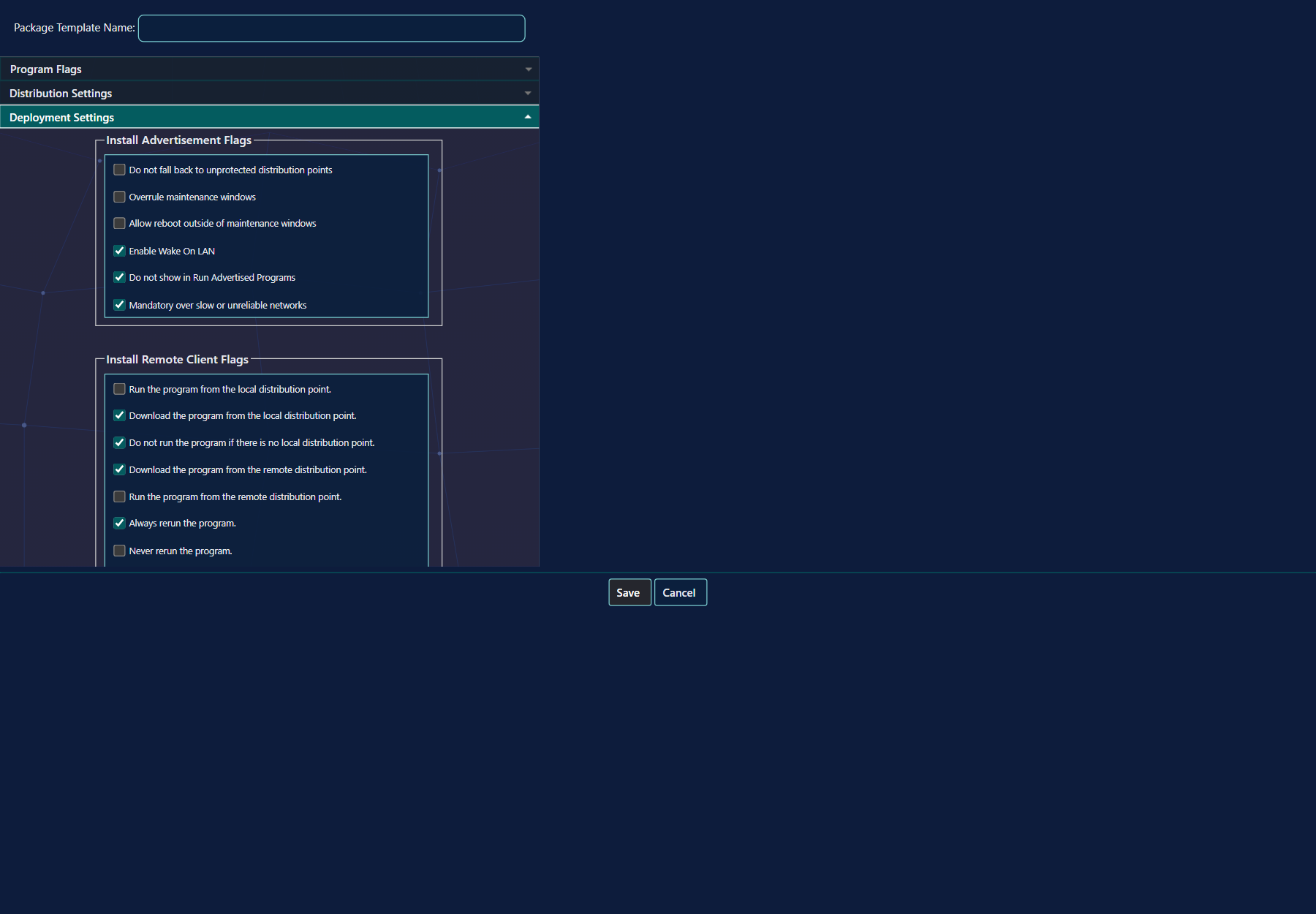
The last panel holds the deployment settings: the advertisement flags of the install and the uninstall program, and the install and uninstall remote client flags. It also sets whether the application is mandatory, the priority of the package, and whether the source files are compressed.
| Setting | What it does |
|---|---|
| Install Advertisements / Uninstall Advertisements | Choose the advertisement flags to edit: those of the install program, or those of the uninstall program. |
| Install Advertisement Flags / Uninstall Advertisement Flags | Flags such as Overrule maintenance windows, Enable Wake On LAN and Mandatory over slow or unreliable networks. |
| Install Remote Client Flags / Uninstall Remote Client Flags | Flags for the remote client, such as Always rerun the program. and Never rerun the program. |
| Compress source files | Tick it to compress the source files. Not ticked by default. |
| Mandatory | Tick it to make the application mandatory. Ticked by default. |
| Priority | High, Normal or Low. Normal by default. |
4 Edit Package Template
Click an Edit button in the list to open a window with all the values saved for that template.
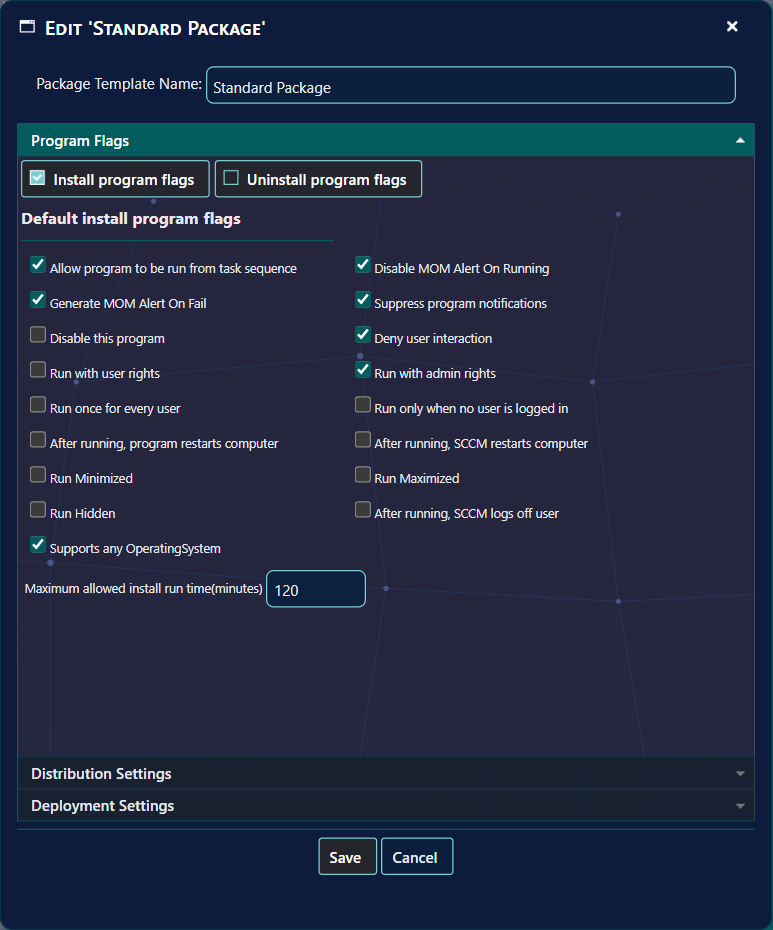
The settings you can change are the same as the ones described under New Package Template, and the name can be changed too.
5 Delete Package Template
Click a Delete button to delete the selected template.
A window asks you to confirm: Do you want to delete Package Template followed by the name of the template. Click Delete to delete it, or Cancel to keep it. Deleting a template removes only the template; packages that were already created are not changed.
6 Best practice
- Set the distribution points and Package Security Groups in the template, not on each package. The wizard copies them into every package it creates from the template.
- Assign the Package Security Groups that should get the new packages to the template, on the Package Templates tab of the group. New packages imported with that template are then assigned to those groups automatically.
- Set a maximum run time only when you know it. A value below 15 minutes, or an empty box, is saved as Unknown.
- Leave Supports any OperatingSystem ticked unless the package really needs an operating system list, so that the package is not blocked on a computer it would run on.
7 Troubleshooting
| Symptom | Cause | What to do |
|---|---|---|
| Save stays disabled | The Package Template Name box is empty. | Type a name. |
| The new template has a number in its name, for example Standard Package (2) | A template with the name you typed already exists. The number is added automatically; this is not an error. | Rename the template if you want a different name. |
| The operating system list is not shown | Supports any OperatingSystem is ticked. | Untick it to choose operating systems. |
| The run time shows Unknown | No run time was saved, or the value was below 15. | Enter at least 15 minutes. |
| The window closes but the template has not changed; the Log shows “Failed to save pacakge template.” | Saving failed. The window closes after every save, and the error is only written to the Log. | Open the entry in the Log, and open the template again to check its values. |