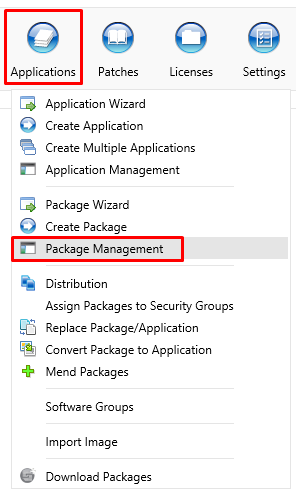
1 Open Package Management
Open it from Applications › Package Management. To create a package, see Create Package.
2 Search
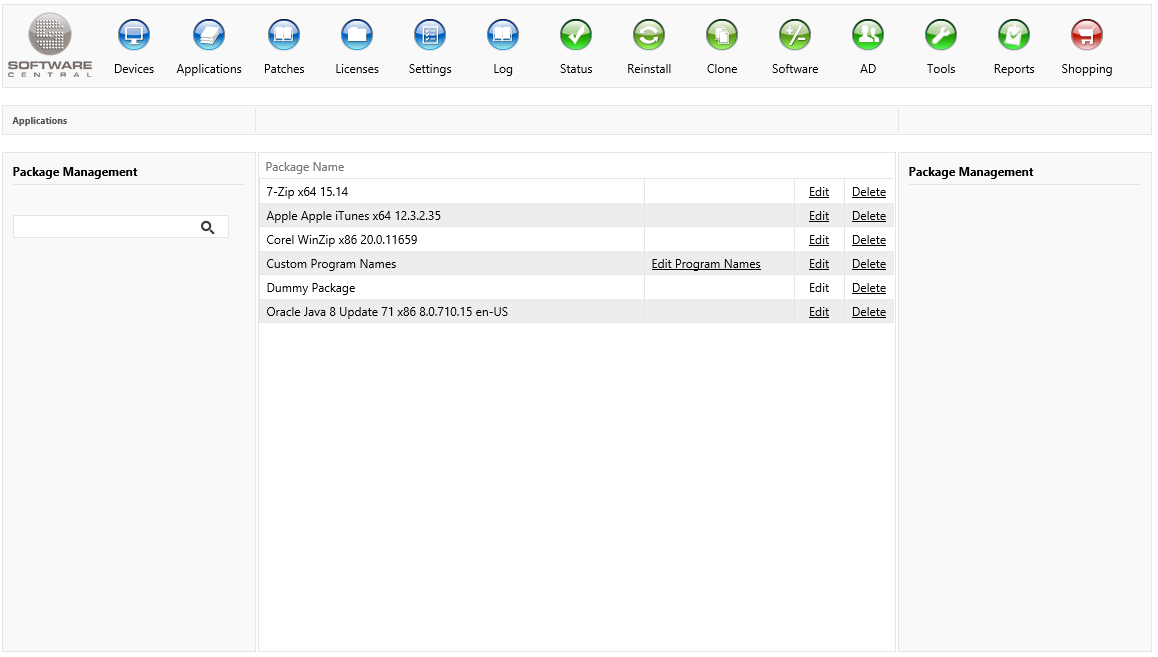
In the left menu you can find the search field. Use this to type part of or the full name for the package you are looking for. Press Enter to search for all items containing the search text.
3 Program names
A package whose names still need to be set has a warning icon, with the tooltip Install and uninstall programs must be set. Click Edit Program Names to open the window, set the install and uninstall program names, and save them. Until the names are set, the Edit button of that package is greyed out.
4 Edit a package
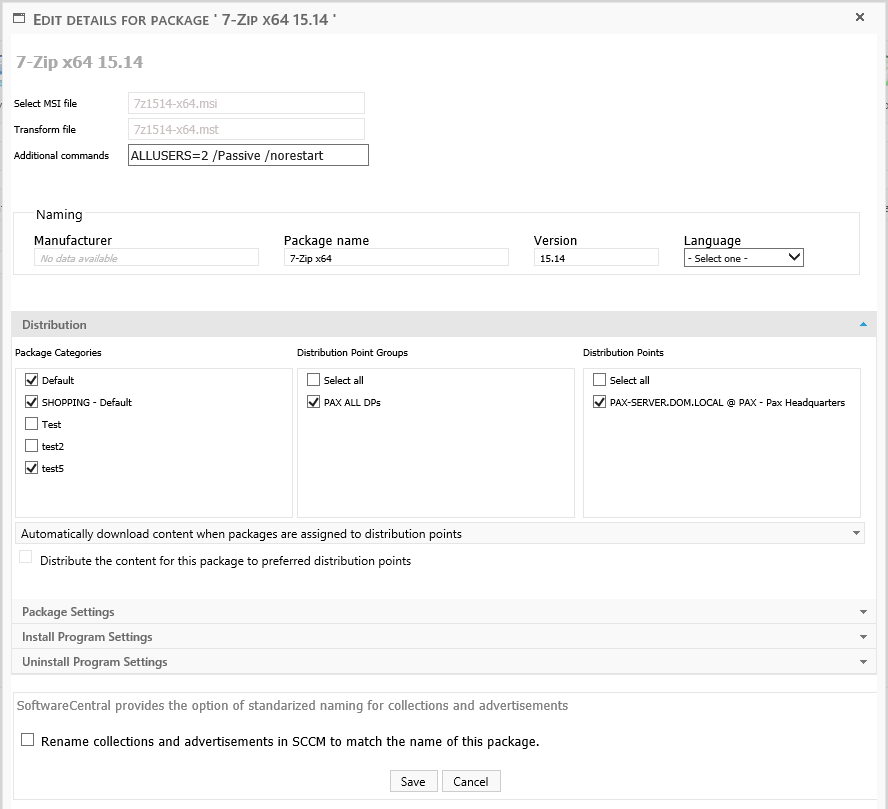
Click on the Edit button to edit a package. A new window will open:
5 Delete a package
Click on the Delete button to delete a package.
A confirm dialog will show before the package is deleted, asking whether you want to delete the package:
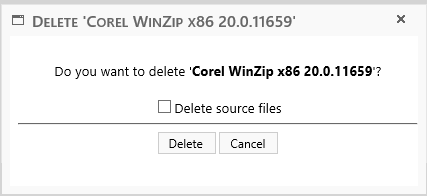
The “Delete source files” checkbox will, if checked, remove the source files from the package share.
The deletion runs in the background, and the package is hidden from the list straight after you confirm it. If the package has install or uninstall advertisements, their collections and the folder that holds them are deleted with it.
6 Best practice
- Set the install and uninstall program names of every package that does not use the default names before you edit it. The Edit button stays greyed out until you do.
- Tick Delete source files only when no other package uses the same source folder. The files are removed from the package share.
- Give the Edit and Delete rights only to the roles that need them. Without the right, the column is not shown for that role.
7 Troubleshooting
| Symptom | Cause | What to do |
|---|---|---|
| The Edit button is greyed out, with the tooltip “Please set custom program names before editing”. | The install or uninstall program name of the package is not set. | Click Edit Program Names, set both names and save. Then click Edit. |
| The warning icon stays on a package after you set its names. | The names were not saved, or the window was closed without saving. | Open Edit Program Names again, check both names and click Save. |
| No Edit or Delete link is shown in the list. | The role you are signed in with does not have the right to edit or delete packages. | Ask an administrator to check the rights of your security role. |
| “No packages match your criteria” | The search text does not match any package name. | Type a shorter part of the name, or clear the search field. |