1 Upload or select the script
You can upload a new script or select one that is already uploaded. Only .vbs (VBScript) and .ps1 (PowerShell) files can be uploaded.
| To do this | What to do |
|---|---|
| Upload a new script | Click Select next to Upload script, browse to your script and select it. |
| Use a script that is already uploaded | Choose the script in the Existing script drop-down. |
Scripts are stored in the <SoftwareCentral-install-dir>\Uploads\CustomScripts\ folder.
2 Example: Refresh Machine Policy
In this example we want a script that refreshes the machine policy on a client. The CustomScripts folder contains an example script named RefreshMachinePolicyExample.ps1.
This script needs to be modified. Follow the steps below:
- Copy the script to a new location, for example your desktop.
- Rename the script. (The example scripts will be overwritten by SoftwareCentral.)
- Open the renamed script with an editor, for example Notepad.
- Change the variables $SccmServerName and $SccmSiteCode to match your own SCCM server and site code. If you have multiple sites, use the CAS site.
- Save the script.
Now go back to SoftwareCentral and click the Select button next to Upload script. Browse to your script and select it.
3 Security and the Run as user
Scripts do not run automatically in the context of the application pool user. For each script, select the user that runs it in Run as.
The + button next to Run as opens the Password Manager, where you add a user with its password. Only users that are added there appear in the drop-down.
Make sure that the account has the proper permissions to execute the script. If the script interacts with databases or other resources, the account also needs the proper permissions to access those resources.
Accounts other than the application pool user must also have the Log on as a batch job permission, either from the Local Security Policy on the IIS server or via a group policy.
The application pool user must always have the Replace a process level token, Adjust memory quotas for a process and Act as part of the operating system permissions.
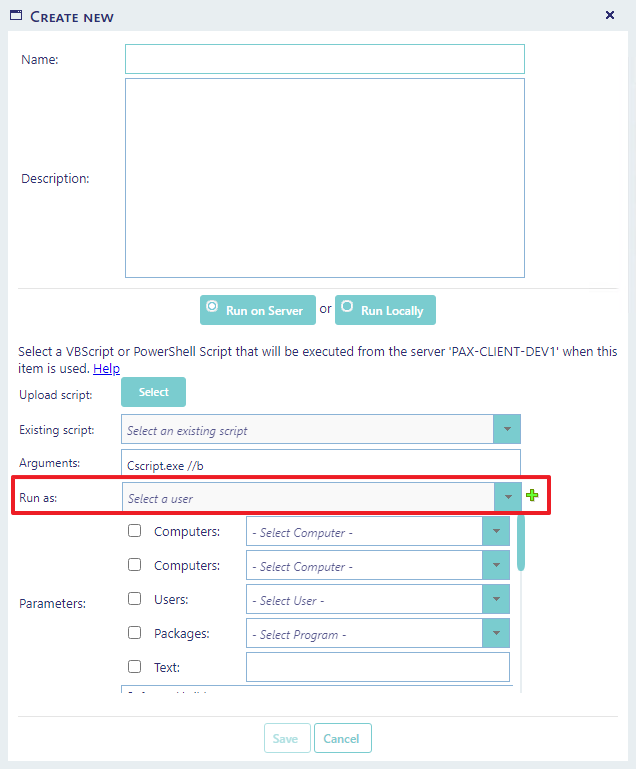
Our Refresh Machine Policy script requires local administrator permissions on the client computers and access to the SCCM. Therefore we use the SoftwareCentral service account, which already has these permissions.
4 Arguments
The Arguments box holds the program that starts the script. The default is PowerShell.exe. For a VBScript, use Cscript.exe //b.
Because this is a PowerShell script, the arguments stay PowerShell.exe. If you leave out PowerShell.exe or -file for a PowerShell script, SoftwareCentral adds them.
5 Parameters
The Refresh Machine Policy script needs one parameter, a device. Tick the Devices check box and select a device in its drop-down.
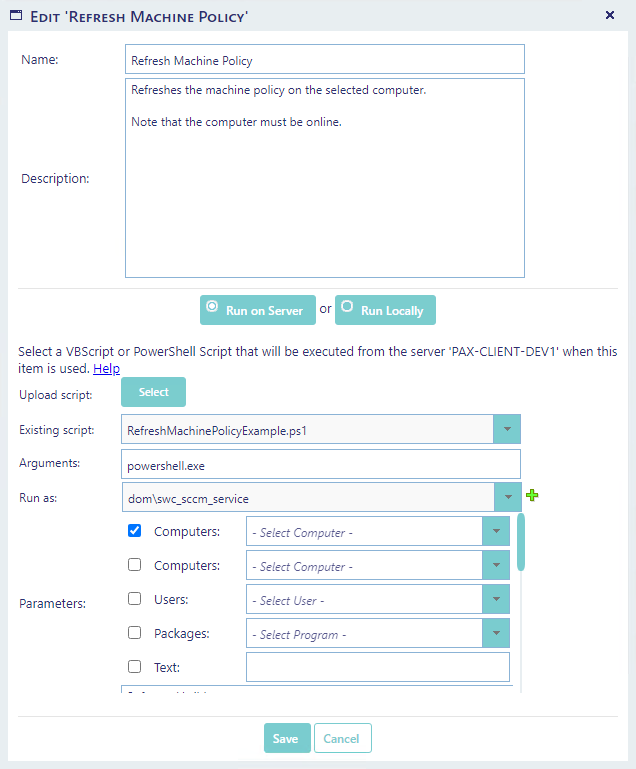
The drop-downs in this window are just an example of what the user will see.
You can choose five types of predefined parameters. Tick the check box to show the parameter to the user:
| Check box and label | What the user gets | VBScript | PowerShell |
|---|---|---|---|
| Devices (first) | A drop-down to select a device. For SCCM devices the value is an integer. For Intune devices the value is a string, and the ID is the Managed device ID. | /ResourceID:value | -ResourceID value |
| Devices (second) | A second device drop-down. The same value rules apply as for the first. | /SecondResourceID:value | -SecondResourceID value |
| Users | A drop-down to select a user. The list comes from SCCM and Intune users, not from the Active Directory. The value is the name shown in the drop-down. | /Username:value | -Username value |
| Applications | A drop-down to select a program or application. The value is a string with the SCCM or Intune package ID. | /PackageID:value | -PackageID value |
| Text | A text box for any parameter. What the user writes is added directly to the parameter line, so the user can add a parameter of their own, for example -ComputerName MyComputer. | As typed | As typed |
You can additionally add any Software Variable to your tool. The name and the value of the variable are passed on to the script. The order in which the Software Variables appear to the user can be changed by dragging the variables in the list.
The parameters are added to the script in this order:
[arguments] "scriptPath\scriptName" [parameters]
VBScript example:
Cscript.exe //b "C:\inetpub\SoftwareCentral\Uploads\CustomScripts\YourScript.vbs" /ResourceID:123456 /Username:domain\username
PowerShell Script example:
PowerShell.exe -file "C:\inetpub\SoftwareCentral\Uploads\CustomScripts\YourScript.ps1" -ResourceID 123456 -Username domain\username
See the guide Custom Actions for more information on how to execute scripts from SoftwareCentral.
6 Save the tool
Click Save to save the tool.
You now see the Refresh Machine Policy function in the Manage Tools interface. The new tool also shows in the Tools menu. See Use Tools in this guide.
7 Best practice
- Give each Run as account only the rights its script needs. The script runs with the rights of that account, not with the rights of the SoftwareCentral user who clicks the tool.
- Do not pass passwords or other secrets as parameters. SoftwareCentral writes the arguments of every run to the debug log, so a secret in a Text parameter is stored there.
- Keep the script in the CustomScripts folder. Only .vbs and .ps1 files can be uploaded, and the Existing script list shows only the files in that folder.
- Update the password in the Password Manager when the password of a Run as account changes. SoftwareCentral uses the stored password, so the script does not start until it is correct.
8 Troubleshooting
| Symptom | Cause | What to do |
|---|---|---|
| "Please enter a name." | The Name box is empty when you click Save. | Type a name for the tool. |
| "Name already exists" | Another tool already has this name. | Choose a different name. |
| "You must select a user" | No user is selected in Run as, or the selected user has no stored password. | Select the user in Run as. If it is missing, add it with the + button, which opens the Password Manager. |
| "A file must be selected." | No script is uploaded and none is selected in Existing script. | Upload a script or select one. |
| "Invalid settings detected." | The tool did not pass the checks when you clicked Save. | Check the name, the script, the arguments and the Run as user, then save again. |
| "Please select a computer", "Please select a user" or "Please select a program" when a user runs the tool | A parameter check box is ticked, but no value is selected in its drop-down. | Select a value, or untick the parameter. |
| Log entry: "Failed to execute '<script>' from '<server>' with user '<user>'." | The script did not run. The log entry also gives the reason. If it says "Make sure that the script exists and the user has permission to execute it.", the script is missing or the user cannot run it. | Read the reason in the log entry, then correct it as described in the rows below. |
| Log reason: "Invalid credentials - wrong username or password." | The stored password of the Run as user is wrong, for example after a password change. | Update the password of that user in the Password Manager. |
| Log reason: "Failed to launch script '<script>'." | The script did not start for the Run as user (not the application pool user). | Check that the account has the Log on as a batch job permission (see section 3). |
| Log reason: "Script '<script>' exited with code: '<code>'." | The script ended with an error code. | Read the lines the script wrote to the log before this entry, and correct the script. |